DataWorks Copilot is a built-in AI assistant that helps you move beyond tedious manual data work. It frees you from repetitive and inefficient tasks, giving you more time for innovation and critical thinking. Deeply integrated into DataWorks, Copilot simplifies and accelerates data development. Using natural language instructions, you can use Copilot to:
Intelligent coding: Instantly convert ideas into high-quality, standardized code.
Automate task creation: Intelligently complete data development and governance tasks to automate workflows.
Consolidate team knowledge: Incorporate best practices and business knowledge as context for every task.
I. Function overview
What is DataWorks Copilot
DataWorks Copilot is the intelligent assistant for DataWorks, the one-stop intelligent data development and governance platform. It uses AI inference and natural language processing (NLP) to help developers quickly perform various code-related operations using conversational commands. These operations include generating, completing, refactoring, optimizing, and explaining SQL or Python code, along with debugging code and generating test cases. As an intelligent engine for data development, Copilot quickly understands business requirements based on context. With support from enterprise-specific knowledge bases, DataWorks Copilot allows developers to complete extract, transform, and load (ETL) and data analysis tasks with ease and efficiency.
DataWorks Copilot includes three core capabilities: a coding assistant, an Agent, and quick AI operations. These capabilities are deeply integrated into various DataWorks product modules to provide a new, intelligent data work experience.
Core value
Increase efficiency: Significantly shortens data development and analysis cycles through automatic code generation, intelligent code completion, and natural language interaction.
Lower the barrier to entry: Allows users who are unfamiliar with complex SQL or product operations to quickly get started and complete data development and governance tasks using natural language.
Improve quality: Uses AI for code debugging, optimization, and test case generation to improve code quality and maintainability.
Preserve knowledge: Integrates enterprise standards, business definitions, and technical standards into the AI through custom enterprise knowledge bases to preserve and apply knowledge.
Availability and policies
Available to: Customers who use DataWorks Basic Edition or higher. Some features are available only in the new version of Data Studio.
Available regions: China (Zhangjiakou), China (Beijing), China (Ulanqab), China (Hangzhou), China (Shanghai), China (Shenzhen), China (Chengdu), China (Hong Kong), Singapore, Malaysia (Kuala Lumpur), Indonesia (Jakarta), and Japan (Tokyo).
Current phase: Full public preview. To participate, an Alibaba Cloud account owner, tenant administrator, or a user with equivalent permissions must click Copilot, carefully read the DataWorks Copilot Terms of Service, and then click Confirm Participation. After you confirm, all users under the Alibaba Cloud account can start using Copilot.
Pricing: DataWorks Copilot is completely free during the public preview. After the public preview ends, it will become a paid service. The specific pricing model will be announced separately.
II. Quick start
How to open Copilot
You can interact with Copilot in the following ways:
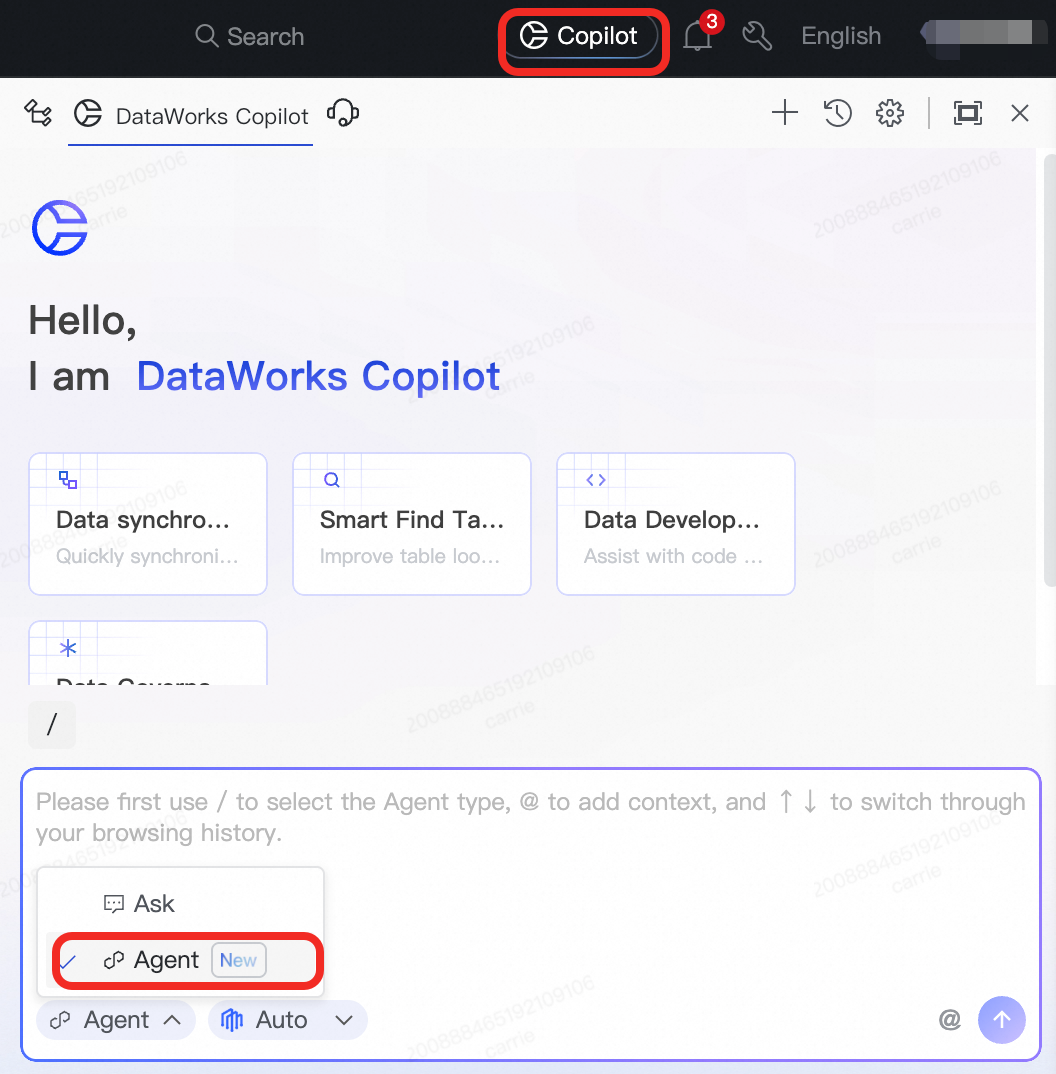
Global entry point: Click the Copilot icon in the upper-right corner of the DataWorks interface to open the Copilot Chat dialog box.
In the editor: In the intelligent code editor for code-based data development nodes, you can open Copilot from the right-click menu or using a keyboard shortcut.
Embedded in modules: You can use the quick operation buttons marked with the Copilot icon in the functional areas of specific product modules.
Overview of the main interface

III. Core features in detail
Coding assistant: Improve coding efficiency and quality
Function overview
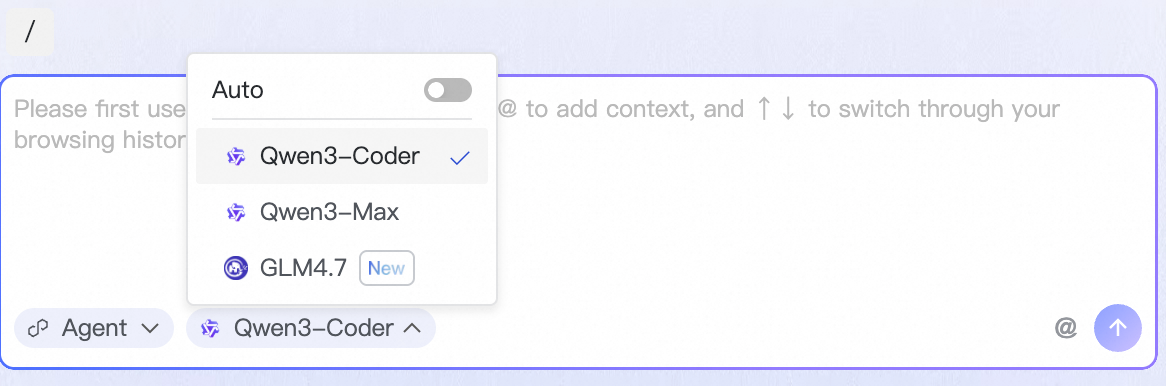
The DataWorks Copilot intelligent programming assistant is based on advanced large language models (LLMs). It uses natural language interaction to efficiently perform tasks such as generating, optimizing, explaining, and testing SQL or Python code. To ensure the best results, you can freely switch between various models, such as the DataWorks default model, Qwen, and DeepSeek. This capability significantly improves the efficiency of ETL development and data analysis.
Core feature highlights
Switch between multiple models: Supports the default model, Qwen3-235B-A22B, and more.
Full-lifecycle ETL support: Supports code generation, Q&A, refactoring, optimization, debugging, commenting, test case generation, and explanation for SQL and Python.
Context awareness: Understands conversation content, code, table schemas, data lineage, custom knowledge bases, and more.
Feature entry points
Intelligent code editor
Scenario 1: Intelligent code completion
How to use: While you are developing a code-based node, Copilot intelligently predicts and recommends subsequent code snippets based on the context, such as entered code and referenced table schemas. The completion suggestions appear automatically. You can press the Tab key to accept a suggestion.
Scenario 2: Right-click menu shortcuts
How to use: In the intelligent code editor, you can select the code as needed, right-click, and choose Copilot from the menu that appears.

Copilot Chat (Ask mode)
Ask mode is the default mode for Copilot Chat and is suitable for solving specific coding problems in a question-and-answer format. It helps users with code generation, code refactoring, code debugging, comment generation, code explanation, code optimization, code testing, code Q&A, intelligent Notebook cell generation, and quick table discovery. When you use Copilot Chat in Ask mode, you can select code in the editor to provide context for targeted operations.
Best practice scenarios
Scenario 1 - Quickly generate ETL scripts
Description: You can describe your business requirements in natural language, and DataWorks Copilot automatically converts your instructions into SQL or Python statements.
Example: "Based on the dwd_ec_trd_create_ord_di table, calculate the sales, sales volume, number of SKUs, number of buyers, and number of sellers for each SPU from September 1, 2024, to September 18, 2024."
Scenario 2 - Continue generating code based on existing code snippets
Description: The DataWorks Copilot code completion feature intelligently completes the SQL that you are writing.
Example: No instruction is needed. The code is generated automatically. Accept the suggestion by pressing the key shown on the interface.

Scenario 3 - Refactor existing code
Description: You can modify existing code using natural language. Simply state your requirements, and DataWorks Copilot refactors the specified code.
Example: "Modify the SQL to transpose its results from columns to rows using unpivot."
Scenario 4 - Quickly identify and fix errors in code
Description: In DataWorks, you can proactively check existing code for errors before execution. If an error occurs during code execution, you can also use one-click debugging to fix it. DataWorks Copilot identifies the cause of the error and provides the corrected code.
Example: Select the code, right-click, and choose the quick instruction.
Scenario 5 - Explain the business meaning of a code snippet
Description: DataWorks Copilot can explain the content of your specified code. This improves code readability and helps you quickly learn and understand the code.
Example: "Explain this SQL."
Scenario 6 - Generate field comments for existing code
Description: DataWorks Copilot can generate comments for specified code, which improves its completeness and readability.
Example: "Add comments for each field."
Scenario 7 - Answer questions about SQL syntax or function usage
Description: You can ask questions about SQL syntax or MaxCompute functions in natural language. DataWorks Copilot provides explanations and usage examples to help you better understand SQL syntax and functions.
Example: "How do I write a mapjoin in MaxCompute?"
Scenario 8 - Optimize the performance of existing code
Description: In the DataWorks Copilot Chat window, you can initiate SQL optimization for specified code. This process can simplify code logic, for example, by introducing JOINs for multiple tables. This improves code execution efficiency and can reduce the database payload.
Example: Select the code and use the quick instruction in the dialog box.
Scenario 9 - Generate test cases for existing code
Description: In the DataWorks Copilot Chat window, you can generate test cases for specified code. DataWorks Copilot generates a complete code testing report that covers multiple aspects, such as unit testing, code performance, and boundary condition validation. It also generates test code that you can use to verify that each part of the task code works as expected.
Example: "Generate SQL test cases and explain the testing steps."
Agent: Automate complex tasks
Function overview
The DataWorks Agent service brings data development and governance into a new era of automation. It is more than a Q&A tool. It is an agent that can autonomously complete complex tasks.
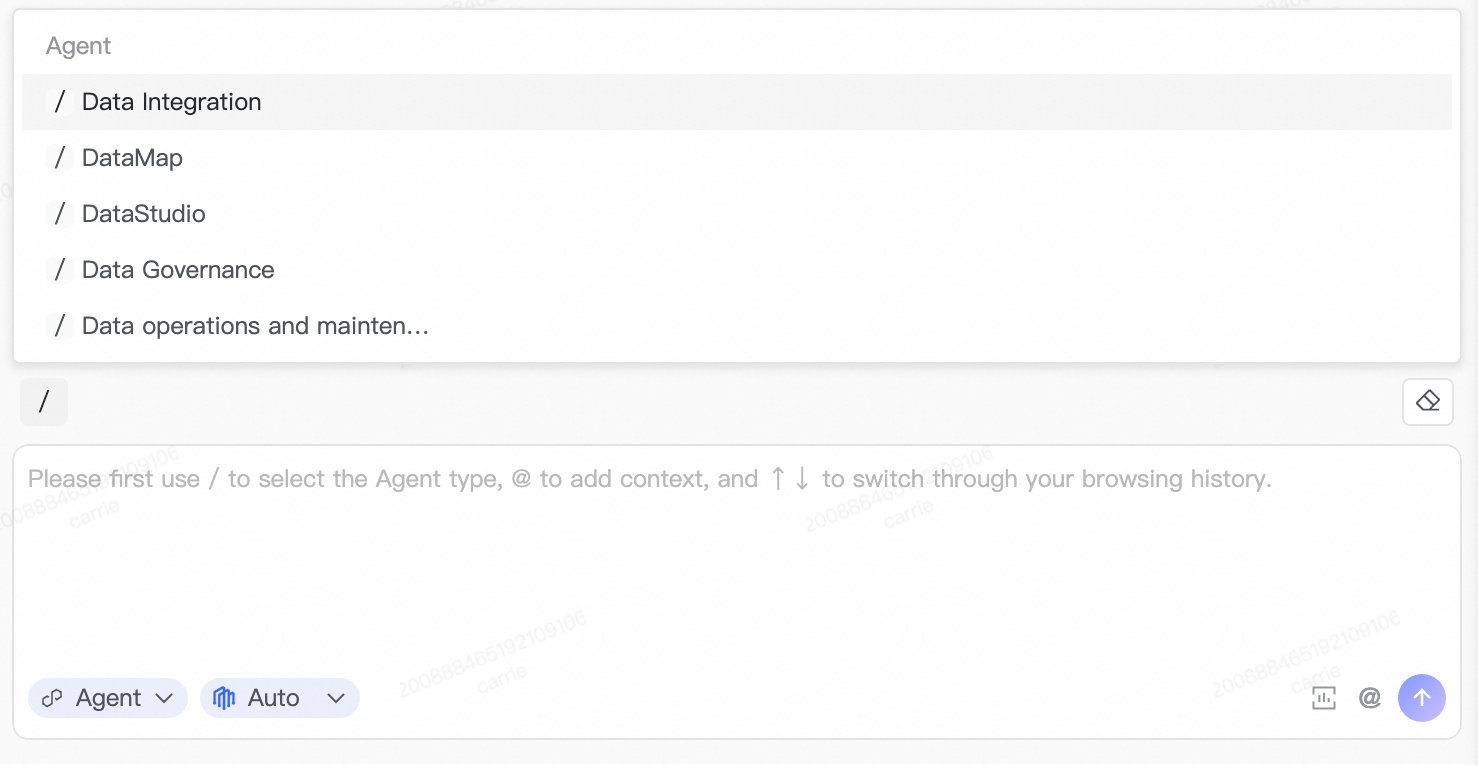
Using the DataWorks Agent, you can use natural language to automate parts of data development and data governance tasks on DataWorks, such as data integration, data development, Data Map, and data governance. Through the deep thinking and planning capabilities of the large language model, the agent can fully understand user tasks, break them down into steps, create an execution plan, and call relevant tools in the MCP Server to automate task execution. DataWorks will continue to enrich and iterate the toolset in the DataWorks MCP Server to provide users with a more intelligent and efficient data development and governance experience.
Core feature highlights
Deep understanding and autonomous planning: Accurately identifies complex intent based on context awareness and multi-turn conversations, and autonomously breaks down tasks into multi-step, executable plans.
Automated data development and governance processes: Deeply integrates with core DataWorks product capabilities and processes, fully connects contextual data, and includes a built-in DataWorks toolset.
Feature entry point
In the Copilot Chat dialog box, you can switch from Ask mode to Agent mode.
Based on your task type, you can enter
/and select the appropriate Agent type.You can give instructions to the Agent by asking questions.

Best practice scenarios
Scenario 1 - Data Studio Agent
Description: Provides a natural language-based ETL development experience that covers the entire process from requirements analysis and code generation to workflow generation and publishing.
Scenario 2 - Data Map Agent
Description: Focuses on improving the efficiency of data discovery and understanding. Through AI-driven natural language interaction, you can quickly explore metadata across massive amounts of data in various scenarios.
Core capabilities:
Natural language search: Supports natural language Q&A. You can quickly locate target data based on business intent without needing precise keywords. For example, "Find aggregate tables related to user popularity."
Automatic scope adjustment: Supports specifying a scope in the conversation. The Agent automatically understands the semantics and quickly locates data within that scope. For example, "In the adm_bi project, find tables related to business operations."
Deep data understanding: Supports follow-up questions about target data to quickly retrieve detailed information, such as data lineage, owners, and field definitions. For example, "What are the direct downstream dependencies of the @dws_bi_metric_di table? Which owners will be affected if it changes?"
Scenario 3 - Data Governance Agent
Description: The DataWorks Data Governance Agent drives enterprise data governance from a proactive to an autonomous model. Data governance is no longer about complex data analysis and extensive form configuration changes. Now, you can simply provide natural language instructions that are converted into precise governance actions. Expert-level governance capabilities are used to set up governance operations that can be executed automatically.
Core capabilities:
Quality rule configuration: You can use natural language to automatically configure quality monitoring rules for specified key tables. The Data Governance Agent can intelligently analyze the field types, business semantics, and importance of a specified table. It then automatically recommends and configures appropriate monitoring rules, such as primary key uniqueness, NOT NULL constraints, and enumeration value range checks. This process efficiently completes work that previously required multiple data explorations and rule configurations.
Example: Help me automatically generate quality rules for the core user dimension table
dim_user_info.Example: For tables starting with
ods_, automatically configure quality rules related to the number of table rows.
Quality issue administration: For quality issues in the data asset governance module that are automatically discovered by the system, such as "quality rules not configured for frequently accessed tables" or "quality rules not configured for tables produced by high-baseline tasks", you can directly provide governance requirements in natural language. The system automatically analyzes the issue and performs the corresponding governance.
Example: Find frequently accessed tables that do not have quality rules configured, and then recommend and configure quality rules.
Example: Help me resolve issues related to the quality dimension.
Quick AI operations: Simplify operations within product modules
Modules in DataWorks, such as Data Studio, Operation Center, and Data Quality, use the capabilities of large language models to provide convenient and intelligent product operations. This feature aims to offer developers and enterprise users an intelligent product experience to efficiently complete operations in DataWorks.
Intelligent visualization of query results
Description: In DataWorks Data Studio or DataAnalysis, you can use the DataWorks Copilot intelligent chart assistant to generate visual charts and data insights from query results with a single click.
Entry point: At the node running or SQL query results, switch to the visualization tab.

AI-powered intelligent table creation
Description: In the Data Studio data catalog, you can use the DataWorks Copilot table creation assistant to create a table by entering table name keywords. You can also trigger it with one click to intelligently recommend and complete field names and field descriptions.
Entry point:

Generation of task publishing descriptions
Description: In Data Studio, during the publishing phase, you can use the DataWorks Copilot publishing assistant to generate a publishing description with one click to improve publishing efficiency.
Entry point:

Intelligent diagnosis of task exceptions
Description: The intelligent diagnosis feature in the DataWorks Operation Center is integrated with the Qwen and DeepSeek-R1 (671B) models. When a task runs abnormally, you can click Run Diagnosis. The large language model can extract key information from logs in seconds, provide error analysis and solution suggestions, and recommend quick actions to fix the error, allowing AI to handle your O&M.
Entry point: On the Operation Center page, in the navigation pane on the left, click . Click a failed instance, select the failed node, and then click Perform Diagnostics in the lower-right corner to perform an intelligent diagnosis of the task.
Intelligent recommendation of data quality rules
Description: Users can open Copilot with a single click to quickly generate data quality rules that are suitable for specific data tables or business scenarios based on the complete metadata in DataWorks. This feature supports multiple data source types and multi-dimensional quality checks.
How to access: On the Data Quality page, click in the navigation pane on the left. On the page, select the target table and click Create Monitor on the right to configure quality rules for the table.

DataService API
Description: DataService Studio in DataWorks can use the Copilot intelligent assistant for quick API encapsulation. It can generate an SQL script with one click based on business requirements and automatically parse the script into API request and response parameters.
Entry point: In the DataService Studio module, create a new API and select code editor.

IV. Advanced features and best practices
Improve answer accuracy: Provide Copilot with a precise "memory"
To make Copilot's answers more relevant to your enterprise standards and business scenarios, we recommend that you provide it with precise knowledge.
Custom knowledge (Rules)
Description: Rules are a series of standards and background knowledge that you define for Copilot. They guide Copilot's thinking and answers.
Entry point: In the upper-right corner of the Copilot Chat dialog box, click the
icon to go to the Rules configuration page.Enterprise-level Rules and personal-level Rules:
Enterprise-level Rules: Configured by an administrator. Supports setting an effective scope. Suitable for defining company-level business terms, coding standards, and more.
Personal-level Rules: Configured by individual users and effective only for them. Suitable for defining personal preferences, frequently used code snippets, and more.

Specify context in conversations
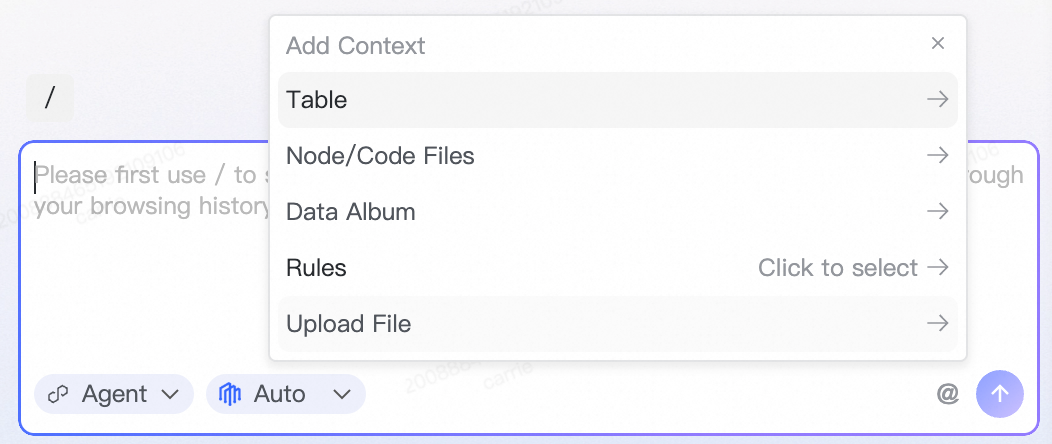
Description: In each conversation, you can manually specify the context related to the current task. This allows Copilot to focus on that information when answering, which results in more accurate answers.
Supported context types:
Table: Reference the metadata of one or more tables.
Node/Code file: Reference the code in a specific node.
Data collections: Reference a data collection in Data Map.
Rules: Temporarily specify one or more Rules to be effective for the current conversation.
Local file: Upload a local document as background information.
How to reference context: In the Copilot Chat input box, you can enter
@or click+to open the context selector and add context.
Manage your conversations
View conversation history
Copilot automatically records your recent conversations.
Record scope: Supports viewing up to 100 conversation records from the last 7 days.
Entry point: In the upper-right corner of the Copilot Chat window, click "History".
Best practice: Start a new conversation for each task
We recommend that you start a new conversation (New Chat) for each independent task.
Reason: This practice prevents the contexts of different tasks from interfering with each other. It allows Copilot to focus on the current task, which ensures the accuracy and relevance of its answers.
FAQ
Q: Why are Copilot's answers inaccurate or not what I expect?
A: This may be because the context is insufficient. Try providing more precise background information to Copilot using the method described in Specify context in conversations.
Q: What is the difference between Ask mode and Agent mode? How should I choose?
A: Ask mode is suitable for simple, question-and-answer style tasks, such as generating a code snippet or explaining a function.
Agent mode is suitable for complex tasks that require multiple steps and involve various tools.