DataWorks Notebook provides an interactive environment where you can combine Python, SQL, and Markdown cells to connect to compute engines such as MaxCompute, EMR, and AnalyticDB for data processing, exploratory analysis, visualization, and model development.
Quick start: Run your first notebook in 5 minutes
Create a notebook, pass a parameter from Python to SQL, and query a MaxCompute table.
Prerequisites
Data Studio is enabled for your workspace.
You have a serverless resource group.
You have a personal development environment instance (required for notebooks with Python cells).
If you have not created one: Create a personal development environment instance.
Procedure:
Create a notebook node
Go to Data Studio. In the DataStudio section of Project Directory, create a new notebook node.
Enter a name for the notebook, such as
hello_notebook, and submit it.
Select a personal development environment
In the top navigation bar, click Personal development environment and select your personal development environment instance from the drop-down list.
Write a Python cell to define a parameter
Define a city variable for the SQL query.
# Define a variable for the subsequent SQL query
city = 'Beijing'
print(f"Defined city variable city = {city}")
Write an SQL cell to query data
Below the first cell, add a new SQL cell.
In the lower-right corner of the cell, switch the SQL type to
MaxCompute SQL.Enter the following SQL. It references the
cityvariable from the Python cell using the${city}syntax.-- Query data using the variable defined in Python SELECT '${city}' AS city;
Run the cells and view the results
Click the Run All button on the notebook toolbar.
Observe the execution of each cell:
The Python cell outputs
Defined city variable city = Beijing.A table with the query result is displayed below the SQL cell.
You have created and run a notebook with Python-SQL interaction.
Core concepts
Understand these concepts to ensure consistent notebook behavior across development and production environments.
Notebook modes
DataWorks Notebook operates in two modes:
SQL and Markdown Mode (default): Supports only SQL and Markdown cells for data querying and documentation. Requires only a serverless resource group — no personal development environment instance is needed. SQL Kernel appears in the upper-right corner.
Full Mode (Python + SQL + Markdown): Supports Python, SQL, and Markdown cells for data processing, analysis, and visualization. Running Python code requires a personal development environment instance. After you select one, the kernel version appears in the upper-right corner, such as
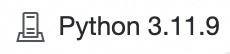 (version is for reference only).
Development environment vs. production environment
Item | Development environment | Production environment |
Runtime environment | Personal development environment instance | The Resource Group and Image specified in the scheduling configuration |
Key differences | Notebooks with Python cells use a dedicated development instance where you can freely install Python libraries for debugging. For notebooks with only SQL and Markdown cells, only a serverless resource group is required. | Tasks run on the resource group in the scheduling configuration, regardless of whether they are triggered periodically from Operation Center or manually from Data Studio. The environment (libraries, network access, etc.) is determined by your image and resource group. |
Ensuring consistency | If you installed Python packages using Important Network connectivity: A personal development environment not bound to a VPC has limited public network access by default. A deployed notebook's network access depends on its resource group. Bind your personal development environment to the same resource group used for scheduling to ensure consistency. | |
Compute resources and kernels
Two concepts determine how code is executed: compute resource and kernel.
Compute resource: The backend compute engine that executes and processes data tasks, defining the runtime environment and computational power.
Definition: An independent, schedulable compute service instance, such as a MaxCompute project or an EMR Serverless Spark cluster.
Function: Provides the actual computing power for SQL queries, Spark jobs, and other tasks.
Selection: Bind each task to a specific compute resource.
Kernel: Parses and executes code in a cell, determining which programming language is used.
Python kernel:
Function: Executes Python code, supporting complex logic for data processing, algorithm implementation, and task orchestration.
Interaction model: Within the Python kernel, you can use
Magic Commands(like%sql) or SDKs to submit a computational task (such as an SQL query) to a specified compute resource. You can then retrieve the results for further analysis.
SQL kernel:
Function: Directly interprets and submits queries written in SQL.
Interaction model: The SQL kernel forwards SQL statements directly to the designated backend compute resource (e.g., an EMR Spark SQL or MaxCompute SQL session) for execution.
Markdown kernel:
Function: Renders rich text formatted in Markdown. It does not execute any computational logic.
Relationship summary:
The kernel is the frontend language interpreter that determines "what you write" (Python or SQL).
The compute resource is the backend execution engine that determines "where the code runs" (on MaxCompute or Spark).
Directory types and use cases
Where you create a notebook determines its collaboration scope, permissions, and deployment options.
Directory type | Use case | Collaboration and deployment |
Workspace Directories | Team collaboration and scheduled production tasks. Nodes are shared within the workspace and follow a develop, commit, and deploy workflow. | Multi-user collaboration. Nodes must be deployed to production to run on a schedule. |
Personal Directory | Individual development and debugging. Private to you, for personal scripts and temporary tasks. | Visible only to you. To schedule a node, you must first commit it to Workspace Directories and then deploy it. |
Develop and debug a notebook
Data Studio does not auto-save by default. Save manually to avoid losing code, or enable auto-save at Setup > Files: Auto Save.
If the notebook lags or becomes unresponsive, click the Restart button on the top toolbar to restart the kernel.
Cell management
Add a cell: Hover over the top or bottom edge of a cell and click a button such as + SQL, or use the toolbar buttons.
Switch cell type: Click the type identifier (e.g.,
Python) in the lower-right corner and select a new type, such asSQLorMarkdown. Code is preserved but may need modification.Move a cell: Hover over the blue vertical line to the left of a cell, then click and drag to change its order.
Run cells:
Run a single cell: Click the Run icon to the left of the cell.
Run all cells: Click the Run All button in the notebook's top toolbar.
Parameter passing
Pass Python variables to SQL
Reference Python variables in SQL cells using the ${variable_name} format.
Example:
Python cell
table_name = "dwd_user_info_d"
limit_num = 10
SQL cell
SELECT * FROM ${table_name} LIMIT ${limit_num};
Pass SQL results to Python
When an SQL cell runs a SELECT query, the result is automatically converted to a DataFrame variable that you can use in subsequent Python cells.
If a cell contains multiple SQL statements, only the result of the last statement is saved to the DataFrame variable.
Variable naming: The default variable name starts with
df_. You can click the variable name in the lower-left corner of the SQL cell to rename it.Variable type:
If multiple variable types are supported, you can switch the type by clicking the DataFrame name in the lower-left corner.
For MaxCompute SQL, both
Pandas DataFrameandMaxCompute MaxFrameobjects are supported.For ADB Spark SQL, both
Pandas DataFrameandPySpark DataFrameobjects are supported.For other SQL types, a
Pandas DataFrameobject is generated.
View data lineage (Beta)
Supported regions: China (Hangzhou), China (Shanghai), China (Beijing), China (Zhangjiakou), China (Ulanqab), China (Shenzhen), China (Chengdu), and China (Hong Kong).
The data lineage feature clarifies data flow by statically analyzing Python code (with MaxFrame framework support) in the notebook.
Procedure
On the notebook's top toolbar, click the Lineage button. The system automatically analyzes the code in all cells of the current notebook and displays the data lineage graph in the editor.
Data lineage is a Beta feature that supports only Python/MaxFrame code. The lineage panel displays data flow between source and target tables as a directed graph.
Data lineage analysis examines the static code in your notebook. It reflects the data logic defined in the code, not the actual data flow from a task execution. You can view data lineage without running the code.
Currently, this feature is designed for development and debugging. The system does not automatically report the analyzed lineage relationships to Data Map.
If you modify the code, you must click Lineage or Refresh again to generate an updated lineage graph.
Supported scenarios
Data lineage analysis currently supports only the following scenarios:
Lineage between MaxCompute tables: When you read data from one or more MaxCompute tables, process it with MaxFrame, and write the result to another MaxCompute table, the lineage graph displays the processing relationships between the tables.
For example, joining an order table (ods_order) with a shop dimension table (dim_shop) and writing the result to a wide order table (dwd_order).
Lineage between MaxCompute tables and external data: When your code interacts with both external data sources (such as bound datasets or OSS files) and MaxCompute tables, the data lineage feature visualizes these relationships.
Via a bound dataset: If you access a bound dataset through the mount path of your personal development environment (e.g.,
/mnt/data/) and exchange data with a MaxCompute table (reading from the dataset to a table or vice versa), the lineage graph shows the complete data flow.Via an OSS path: Even without a bound dataset, if you directly read from or write to files by using an OSS path in your code, the data lineage analysis identifies the bidirectional data flow between the OSS path and the MaxCompute table.
NoteIf this OSS path is also registered as a dataset in Data Map, the lineage graph automatically displays it as a dataset node, aiding in better asset management.
Copilot-assisted programming
DataWorks Copilot is a built-in AI programming assistant that helps you generate and explain code.
How to invoke:
Click the Copilot
 icon in the upper-left corner of the selected cell.
Right-click inside an SQL cell and select Copilot.
Use the keyboard shortcut
Cmd+I(macOS) orCtrl+I(Windows).
Schedule and deploy a notebook
To run a notebook on a schedule, configure its scheduling properties and deploy it to the production environment.
1. Configure scheduling parameters (parameterized scheduling)
Configure parameterized scheduling so that notebook parameters change dynamically per run. For example, you can process a different partition each day.
Mark the parameter cell: In the Python cell with parameter definitions, click
...in the upper-right corner and select Mark Cell as Parameters. Aparameterstag marks the cell as the parameter entry point.Configure scheduling parameters:
In the right-side panel of the notebook, click Scheduling Settings.
In the Scheduling Parameters area, assign a value to the variables defined in your code, such as
var.For example, you can set the parameter value to
$[yyyymmdd]. At scheduling runtime, it is dynamically replaced with the actual date.
When a task is automatically executed by the scheduling system, the actual value of the var parameter in the code is dynamically replaced by the value configured in the scheduling parameters.
2. Configure runtime environment and resources
Configure an image: In Scheduling configuration, select an image with all dependencies required by the notebook. This ensures successful execution in production.
ImportantIf you installed Python packages using
pip install, you must create a DataWorks image from the personal development environment to ensure production has the same dependencies. Select this image in scheduling configuration.Resource Group: Select the resource group for the task. For serverless resource groups, configure no more than
16CUto avoid startup failures. Maximum per task:64CU.Configure an associated role: Associate a RAM role with the node for fine-grained permission control. Associate a role: Securely access other cloud resources.
3. Deploy the node
Only nodes in Workspace Directories can be deployed and scheduled.
For notebooks in Workspace Directories: After completing the configuration, click the Publish button on the top toolbar.
For notebooks in your Personal Directory: You must first click the Save button and then submit to the project before deploying it.
After deployment, monitor your notebook task on the Auto Triggered Nodes page in Operation Center.
Frequently asked questions
Q: Why can my code access the public network during development but fails during a scheduled run?
A: The development and production environments use different network policies.
Development environment (personal development environment): A personal development environment that is not bound to a Virtual Private Cloud (VPC) has limited public network access by default, but allows you to temporarily install packages or call APIs.
Production environment (scheduled task): For security and stability, scheduled tasks run in a VPC by default and cannot directly access the public network. The task's network configuration is determined by the resource group you select in the Scheduling Settings. If the VPC of that resource group is not configured with a NAT gateway, the task cannot access the public network.
Solution: Configure your personal development environment and serverless resource group to use the same VPC.
Q: Why does my code run successfully in the development environment but fails to find a third-party package during a scheduled run?
A: Package all dependencies into a custom image and select it in the Scheduling Settings configuration. Create a DataWorks image from a personal development environment.
Q: How can I change the Python kernel version?
A: Install a different Python version in the terminal
 of your personal development environment. Then, click the
  button on the right side of the notebook toolbar to switch kernel versions. Installing additional Python kernels is not recommended because new kernel versions may lack the dependencies required by SQL cells.