The DataAnalysis module in DataWorks includes a built-in visualization tool that turns SQL query results into charts. This tutorial walks you through querying user persona data from MaxCompute and configuring four charts: a stacked bar chart and three pie charts.
Prerequisites
Before you begin, ensure that you have:
-
Processed the source data using DataWorks DataStudio. For details, see Process data
-
A MaxCompute data source configured in your workspace
-
Permission to query the data source. If not, go to Security Center > Security policy > Data query and analysis control > Queryable data source, find your data source, and click Authorization in the Operation column. For details, see Security Center
Chart types covered
This tutorial demonstrates the following chart types:
| Chart type | Use case |
|---|---|
| Stacked horizontal bar chart | Numbers of registered members by province |
| Pie chart | Distribution of member page views by age |
| Pie chart | Distribution of page views by gender |
| Pie chart | Page views by gender and zodiac sign |
Open SQL query
-
Log on to the DataWorks console.
-
In the top navigation bar, select your region.
-
In the left-side navigation pane, choose Data Analysis and Service > DataAnalysis, then click Go to DataAnalysis.
-
In the left-side navigation pane of DataAnalysis, click SQL Query.
Set up a data source and run a query
-
Create a temporary file.
-
If this is your first time on the SQL Query page, or no SQL file is open, click Create SQL Query.
-
If an SQL file is already open, click the
 icon to create a new temporary file.
For more about SQL Query, see SQL Query (Legacy).
-
-
On the temporary file's edit page, select your workspace, engine type, and data source. This tutorial uses a MaxCompute data source.
-
Enter the following SQL statement and click the
 icon to run the query. This queries all columns from the
 ads_user_info_1dtable for a specific partition.-- If the target partition is not found, run: show partitions ads_user_info_1d select * from ads_user_info_1d where dt='data timestamp';
Configure charts
After the query completes, click the  icon in the left panel to switch to chart view. To open the full chart editor, click the
  icon in the upper-right corner.
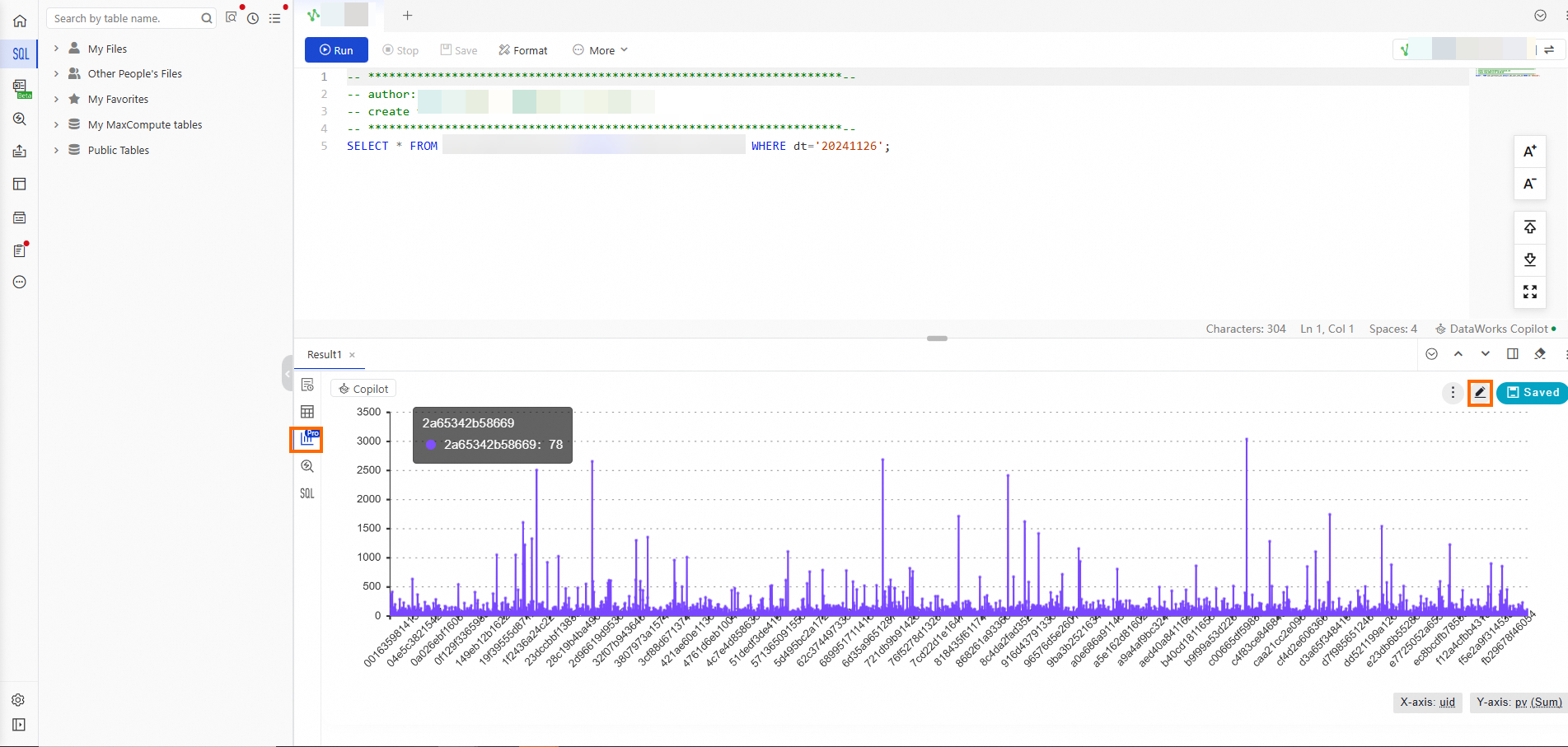
Each chart follows the same workflow: set a title, choose a chart type, assign data fields, and save.
Registered members by province
This chart shows the number of distinct registered members per province as a stacked horizontal bar chart.
Configuration summary:
| Setting | Value |
|---|---|
| Chart type | Stacked Hori Bar Chart |
| X-axis field | uid — Aggregation: Distinct |
| Y-axis field | region |
| X-axis title | Number of Registered Members |
| Y-axis title | Province |
Steps:
-
Double-click the default chart title and enter a new title.
-
In the right-side panel, choose Style > Chart morph > Stacked Hori Bar Chart.
-
In the left-side panel, click Data and assign the fields:
-
Drag uid to X-axis. From the X-axis drop-down, choose Aggregation > Distinct.
-
Drag region to Y-axis.
-
-
Rename the axis titles:
-
In the right-side panel, click Style > Global Settings > Detailed > Detailed > Chart Styles.
-
Click Axis Title for the X-axis and change the title from uid to Number of Registered Members.
-
Click Axis Title for the Y-axis and change the title from region to Province.
-
-
Click Save in the upper-right corner.


Member page views by age
This chart shows the distribution of total page views across age groups as a pie chart.
Configuration summary:
| Setting | Value |
|---|---|
| Chart type | Pie Chart |
| Type field | age_range |
| Value field | pv — Aggregation: Sum |
Steps:
-
Double-click the default chart title and enter a new title.
-
In the right-side panel, choose Style > Chart morph > Pie Chart.
-
In the left-side panel, click Data and assign the fields:
-
Drag age_range to Type.
-
Drag pv to Value. From the Value drop-down, choose Aggregation > Sum.
-
-
Click Save in the upper-right corner.


Member page views by gender
This chart shows the distribution of total page views by gender as a pie chart.
Configuration summary:
| Setting | Value |
|---|---|
| Chart type | Pie Chart |
| Type field | gender |
| Value field | pv — Aggregation: Sum |
Steps:
-
Double-click the default chart title and enter a new title.
-
In the right-side panel, choose Style > Chart morph > Pie Chart.
-
In the left-side panel, click Data and assign the fields:
-
Drag gender to Type.
-
Drag pv to Value. From the Value drop-down, choose Aggregation > Sum.
-
-
Click Save in the upper-right corner.


Page views by gender and zodiac sign
This chart breaks down page views by gender and zodiac sign, using gender on the X-axis and zodiac sign as the trace dimension.
Configuration summary:
| Setting | Value |
|---|---|
| Chart type | Pie Chart |
| X-axis field | gender |
| Y-axis field | pv — Aggregation: Sum |
| Trace field | zodiac |
| X-axis title | Gender |
| Y-axis title | Page Views |
Steps:
-
Double-click the default chart title and enter a new title.
-
In the right-side panel, choose Style > Chart morph > Pie Chart.
-
In the left-side panel, click Data and assign the fields:

-
Drag gender to X-axis.
-
Drag pv to Y-axis. From the Y-axis drop-down, choose Aggregation > Sum.
-
Drag zodiac to Trace.
-
-
Rename the axis titles:
-
In the right-side panel, click Style > Global Settings > Chart Information > Detailed > Chart Styles.
-
Click Axis Title for the X-axis and change the title from gender to Gender.
-
Click Axis Title for the Y-axis and change the title from pv to Page Views.
-
-
Click Save in the upper-right corner.


What's next
After saving your charts, share or revisit them from the DataAnalysis home page.
-
Click Save in the upper-right corner of any chart to save and share it.

-
To view saved charts, go to the DataAnalysis page and click the
 icon in the sidebar.