This topic outlines how to add an RDS for SQL Server data source via both internal and external networks in DataV-Board.
Prerequisites
Ensure the RDS for SQL Server data source is prepared for addition.
You must first add the whitelist IP address of the corresponding area to your data source whitelist to ensure that DataV-Board can access your database normally. For more information, see configure database whitelist.
Limits
Supports only Enterprise Edition or higher.
Add data source through internal network
Access the DataV console.
On the Workbench page, click Data Preparation > Data Source to access the Data Source page, and then click Create Data Source.
From the Type list, select RDS For SQL Server.
Select Internal Network and choose the region where the RDS instance is located.
Choose the network type for the internal database, which includes Virtual Private Cloud (VPC) and Classic Network.
Virtual Private Cloud (VPC)
Activate the VPC toggle to switch to VPC mode.
Enter the database details.
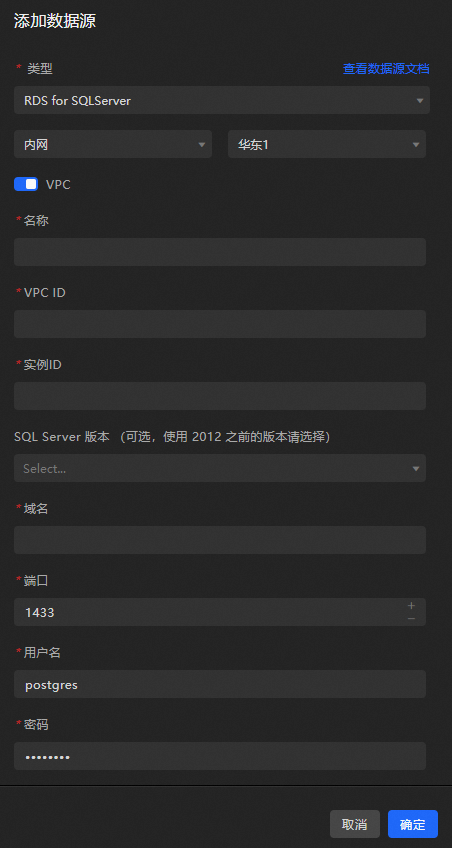
Parameter
Description
Name
The name of the data source. You can specify a custom name.
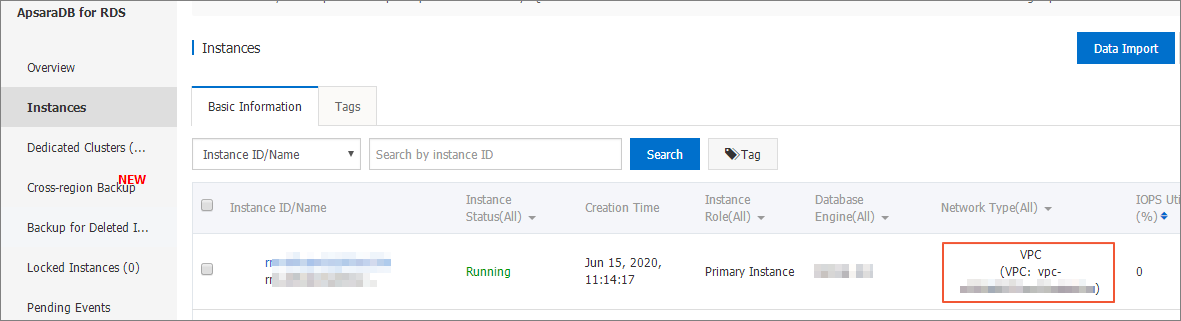
VPC ID
The ID of the VPC-connected instance. This VPC is where your RDS for SQL Server instance is located. You can obtain it from the RDS Management Console under Instance List Basic Information Network Type.
Instance ID
The ID of the database instance under the VPC. You can obtain it from the basic information page of the instance in the RDS Management Console.
NoteUsually, you can directly view the VPC-connected instance ID of the database instance in the console of the database product. However, due to the implementation mechanism of the VPC network, sometimes the instance ID displayed in the console is not the instance ID required by the DataV datasource config VPC network. Therefore, you need to obtain the VPC-connected instance ID required by DataV through the OPEN API of the database product, which is usually the VpcCloudInstanceId or VpcInstanceId in the database instance details. For the specific interface to obtain the VPC-connected instance ID of the database product, see Query instance details.
SQL Server Version
Optional. If you are using a version earlier than SQL Server 2012, you need to select this option.
Domain Name
The URL address to connect to the database.
ImportantThis URL address is not the URL of the official website page or the native IP. It is the URL address that the DataV server can access your database through the public network or the internal network of some Alibaba Cloud regions.
For example, when using Alibaba Cloud RDS for SQL Server in an internal network environment, the domain name example is: rm-bpxxxxxxxxx33150.sqlserver.rds.aliyuncs.com. You can obtain it from the basic information page of the instance in the RDS Management Console.
Port
The port set by the database.
Username
The username that is used to log on to the database.
Password
The password that is used to log on to the database.
Database
The name of the currently selected database.
Encrypt
After enabling, it can be compatible with Microsoft's Azure SQL Server database.
The system will automatically test the connection to ensure the database is accessible.
Classic Network
Disable the VPC switch to switch to Classic Network mode.
Enter the database details.
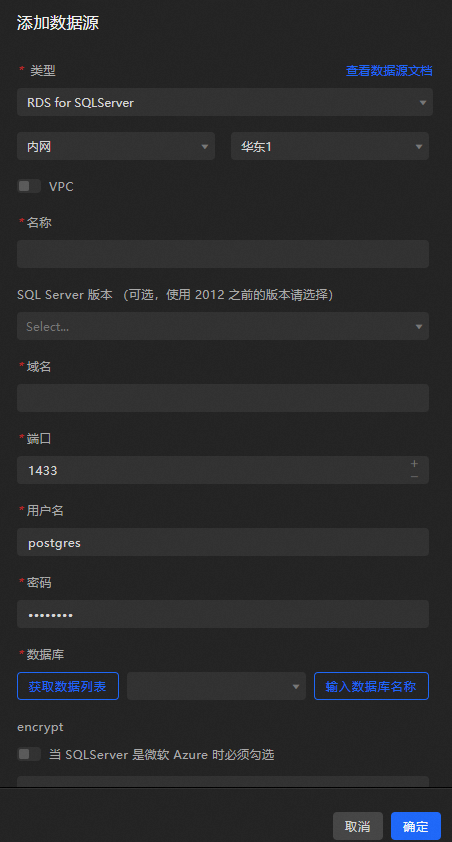
Parameter
Description
Name
The name of the data source. You can specify a custom name.
SQL Server Version
Optional. If you are using a version earlier than SQL Server 2012, you need to select this option.
Domain Name
The URL address to connect to the database.
ImportantThis URL address is not the URL of the official website page or the native IP. It is the URL address that the DataV server can access your database through the public network or the internal network of some Alibaba Cloud regions.
For example, when using Alibaba Cloud RDS for SQL Server in an internal network environment, the domain name example is: rm-bpxxxxxxxxx33150.sqlserver.rds.aliyuncs.com. You can obtain it from the basic information page of the instance in the RDS Management Console.
Port
The port set by the database.
Username
The username that is used to log on to the database.
Password
The password that is used to log on to the database.
Database
The name of the currently selected database.
Encrypt
After enabling, it can be compatible with Microsoft's Azure SQL Server database.
The system will automatically test the connection to ensure the database is accessible.
Once the connection test is successful, click OK to finalize the data source addition.
The new data source will then be listed automatically in the data source list.
Add data source through external network
Access the DataV console.
On the Workbench page, click Data Preparation > Data Source to access the Data Source page, and then click Create Data Source.
From the Type list, select RDS For SQL Server.
Select External Network from the list.
For setting an external network address, see Set connection address.
Enter the database information.
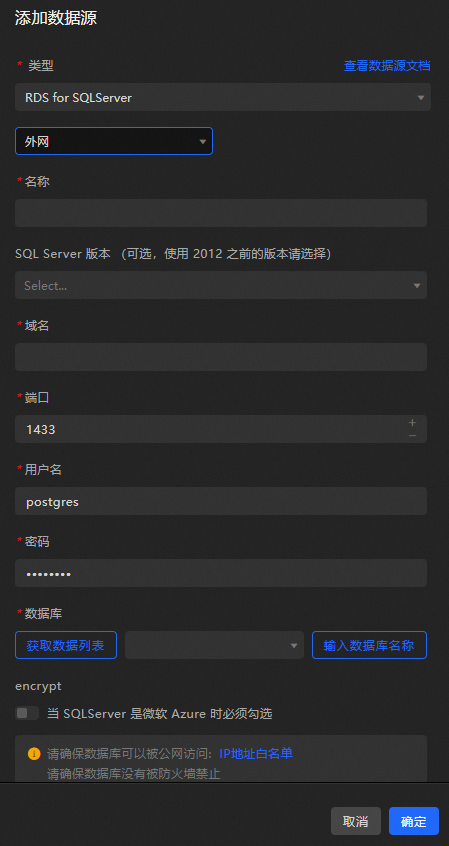
Parameter
Description
Name
The name of the data source. You can specify a custom name.
SQL Server Version
Optional. If you are using a version earlier than SQL Server 2012, you need to select this option.
Domain Name
The URL address to connect to the database.
ImportantThis URL address is not the URL of the official website page or the native IP. It is the URL address that the DataV server can access your database through the public network or the internal network of some Alibaba Cloud regions.
For example, when using Alibaba Cloud RDS for SQL Server in an external environment, the domain name example is: rm-bpxxxxxxxxxxxxdo.sqlserver.rds.aliyuncs.com. You can obtain it from the basic information page of the instance in the RDS Management Console.
Port
The port set by the database.
Username
The username that is used to log on to the database.
Password
The password that is used to log on to the database.
Database
The name of the currently selected database.
Encrypt
After enabling, it can be compatible with Microsoft's Azure SQL Server database.
Upon entering the database information, the system will automatically test the connection to ensure the database is accessible.
Once the connection test succeeds, click OK to finalize the data source addition.
The new data source will appear in the data source list automatically.
What to do next
Once you have the raw data, you can consult datasource config for widget data adaptation.
FAQ
For additional questions, consult the FAQ about datasource config.