This example demonstrates how to integrate user data from ApsaraDB RDS MySQL into DataV-Board 7.0 to create a PC data dashboard. Utilizing a blank canvas, it incorporates components such as line charts, list carousels, and general titles for data adaptation and visualization analysis, ultimately constructing an enterprise operation screen.
Overview
The example data is for demonstration purposes only and is not intended for actual business use. Please use your actual data for business applications.
Architecture description
Following the configuration steps in this topic, you will establish a runtime environment resembling the architecture depicted below. You may adjust the configuration based on specific resource planning during actual deployment.

Effect demonstration
Upon completing the deployment using the provided configuration, you will generate a data dashboard with the effect shown below. 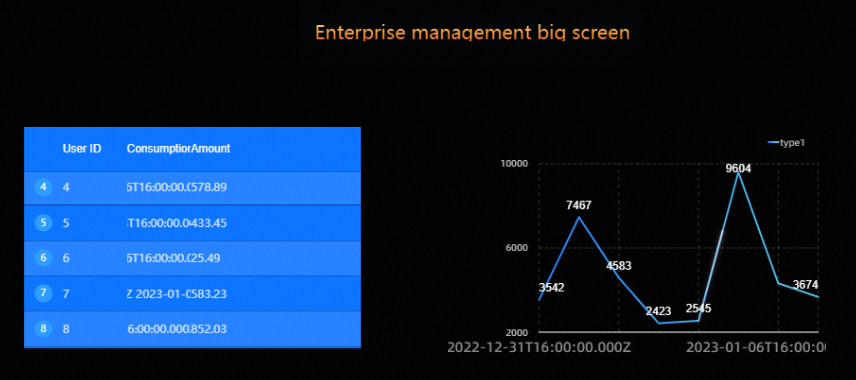
The data dashboard involves numerous configurations, and the final dashboard will vary based on these configurations. This topic serves to familiarize you with related features and operation processes. The actual effect depends on your execution.
Preparations
On the ApsaraDB RDS MySQL side
For this example, an instance is created in the China (Hangzhou) region, utilizing the VPC and switch automatically generated by the platform.
Create the necessary database account and database, and prepare example data within the instance.
The example establishes the following:
Database account:
user_test.Database name:
mysqltest.Example data: In the mysqltest database, create a bill table named
Billand populate it with 100 simulated entries dated betweenJanuary 1, 2023andJanuary 10, 2023.
Configure a whitelist.
To ensure normal access to the RDS MySQL instance when creating a data source in DataV-Board 7.0, add the whitelist IP address of the region where the RDS MySQL database is located to the instance whitelist.
The sample database is deployed in the China (Hangzhou) region and utilizes the internal virtual private cloud (VPC) network. Therefore, the whitelist that needs to be added is
100.104.70.0/24.
You may also configure instance and database information according to your business requirements.
On the DataV-Board 7.0 side
Create an RDS MySQL data source.
The core parameter configuration of the data source is as follows.
Parameter
Description
Type
Select RDS MySQL. For the network type, select Internal of China (hangzhou) (that is, the Hangzhou region).
Name
Specify a custom data source name. The example in this topic is
mysql_data.VPC ID and Vpc-connected Instance ID
VPC ID: The ID of the virtual private cloud (VPC) to which the RDS MySQL instance is bound.
VPC-connected instance ID: The ID of the RDS MySQL instance.
You can view it in the RDS instance list.

Domain Name and Port
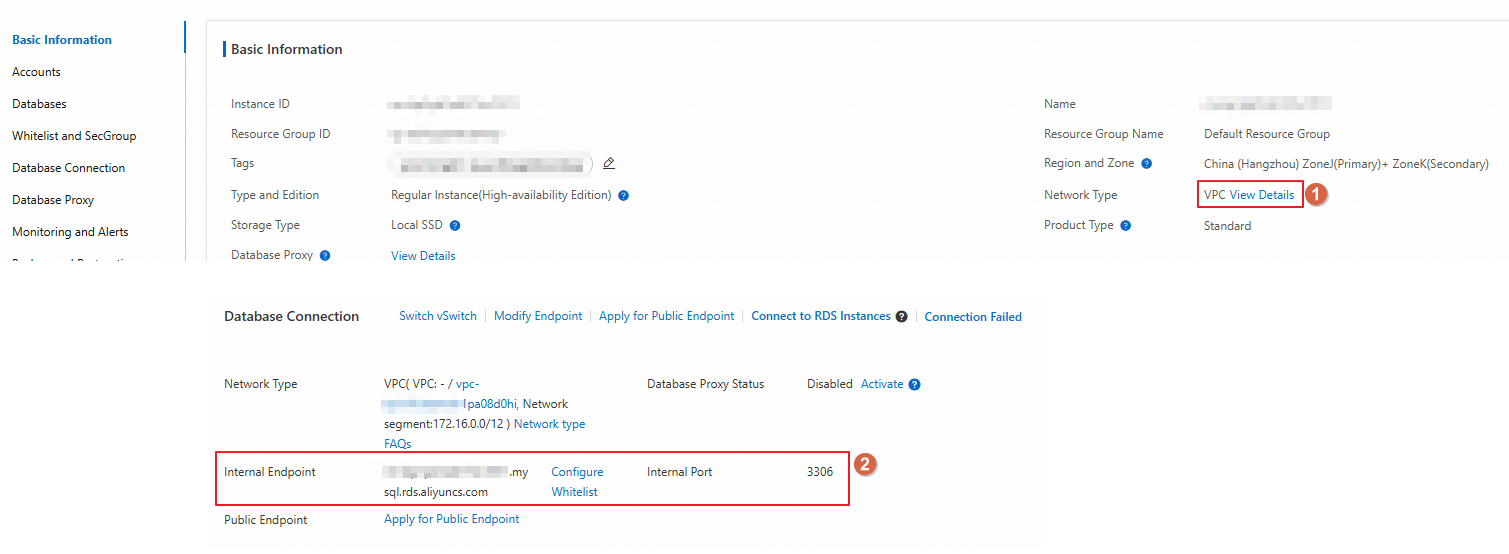
Domain name: The internal network address of the virtual private cloud (VPC) to which the RDS MySQL instance is bound.
Port: The internal network port of the virtual private cloud (VPC) to which the RDS MySQL instance is bound.
You can view it in the RDS instance list. Click the name of the destination instance to go to the product page and view it according to the steps shown in the following figure.
Username and Password
The database logon account and password. The database account in this example is
user_test, and the password is the database password you specify.Database
Click Obtain Data List and select the created database from the drop-down list. The example in this topic is
mysqltest.
Step 1: Create a data dashboard
Log on to the DataV-Board 7.0 console.
Create a data dashboard.
Click .
Click Create Dashboard on the blank dashboard.
Enter the dashboard name, use the default project group, and click Create Dashboard.
The example dashboard name is
mysql_display.
After the dashboard is created, you will be redirected to the canvas editor page, where you can connect to data sources and configure canvas information as needed.
The default canvas size is 1920×1080. You can adjust it as needed in the Page Configuration area on the right side of the canvas editor.
Step 2: Add and configure widgets
First, determine the widget for accessing data. Then, adapt the data through this widget and configure the display style. This topic uses line charts, list carousels, and general title widgets as examples to demonstrate data access. The specific operations are as follows.
Use a line chart to access data
A line chart is useful for observing data growth trends under specific conditions when required. For instance, it can display the trend of the total bill amount in the Bill table on January 3, 2023, in comparison with January 2, 2023.
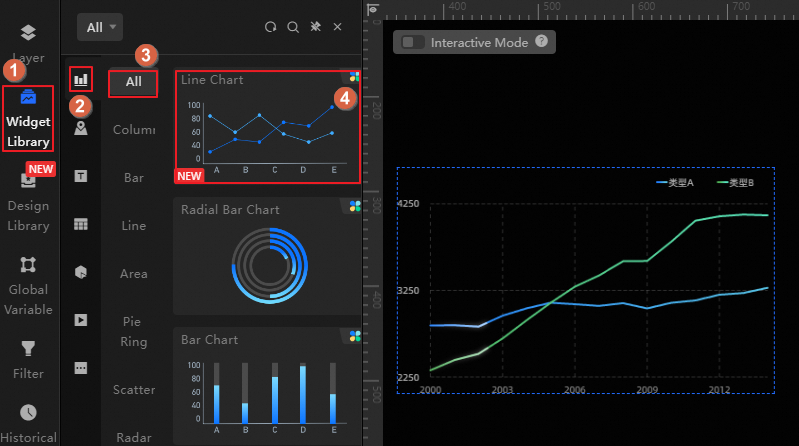
Add a line chart to the canvas.
On the dashboard editing page, follow the steps shown in the figure below to add a line chart.
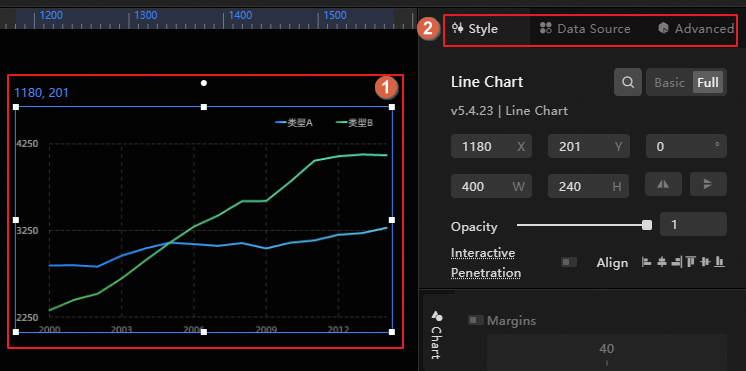
Click the line chart to adjust the style, data source, and other widget information as needed in the widget editing area on the right.
Access data source data.
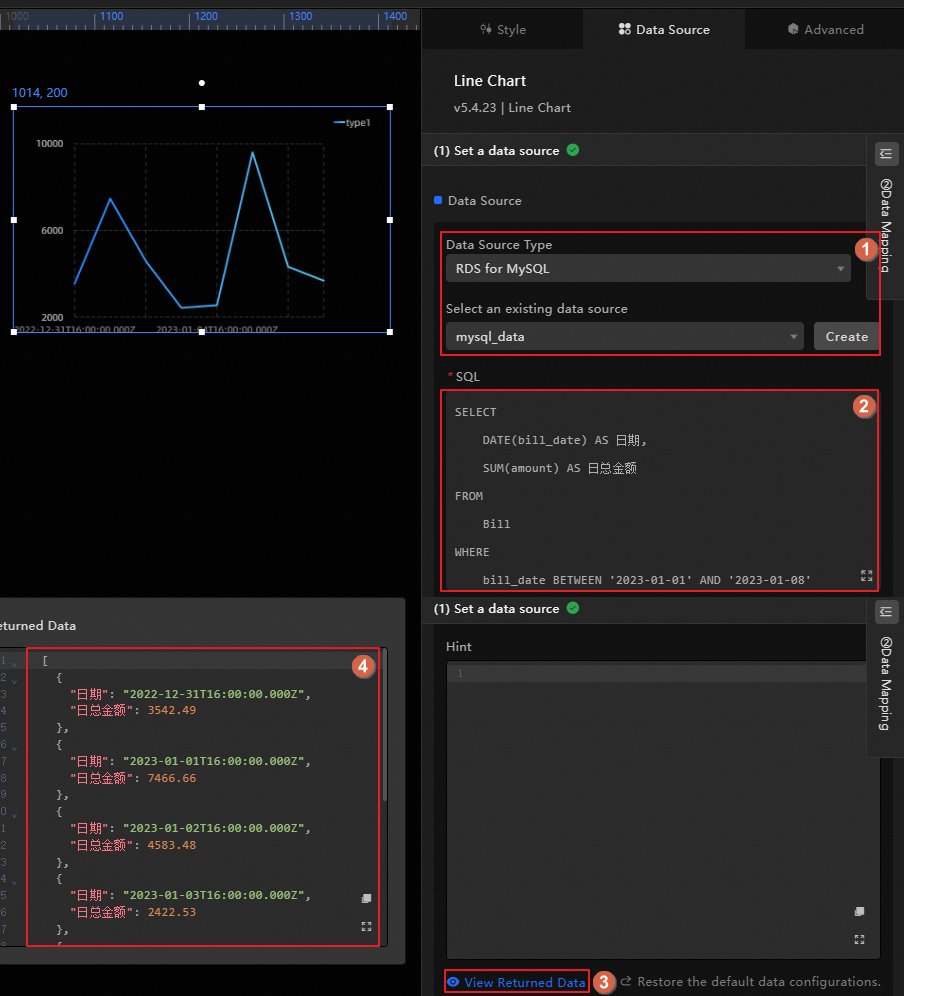
Access the data source and view the data.
In the Data Source area, select the created data source and view the field conditions of the data table through the query statement. The example configuration is as follows:
Data source type:
RDS for MySQLData source name:
mysql_dataQuery statement: Retrieve the daily total billing amounts from the
Billtable for the period ofJanuary 1, 2023throughJanuary 8, 2023.NotePlease note that the billing amount for a given day is tallied on the following day. Consequently, when you review bills spanning from
January 1, 2023toJanuary 8, 2023, you are actually viewing the charges incurred fromDecember 31, 2022toJanuary 7, 2023.
Use a filter to adapt data source data.
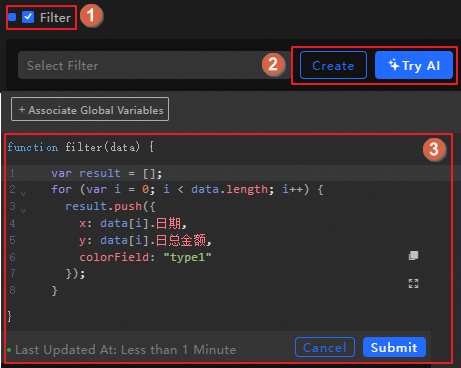
If your data table fields do not match the widget fields, use a filter to customize the filter code and adapt the data source data to the widget.
Select Filter and customize the filter code by either manually Creating or using Artificial Intelligence Recommendation. After configuration, click Save.
Modify the widget style.
Set the font size for the X and Y axes of the widget to
15pxand enable the display of Y-axis values on the line chart.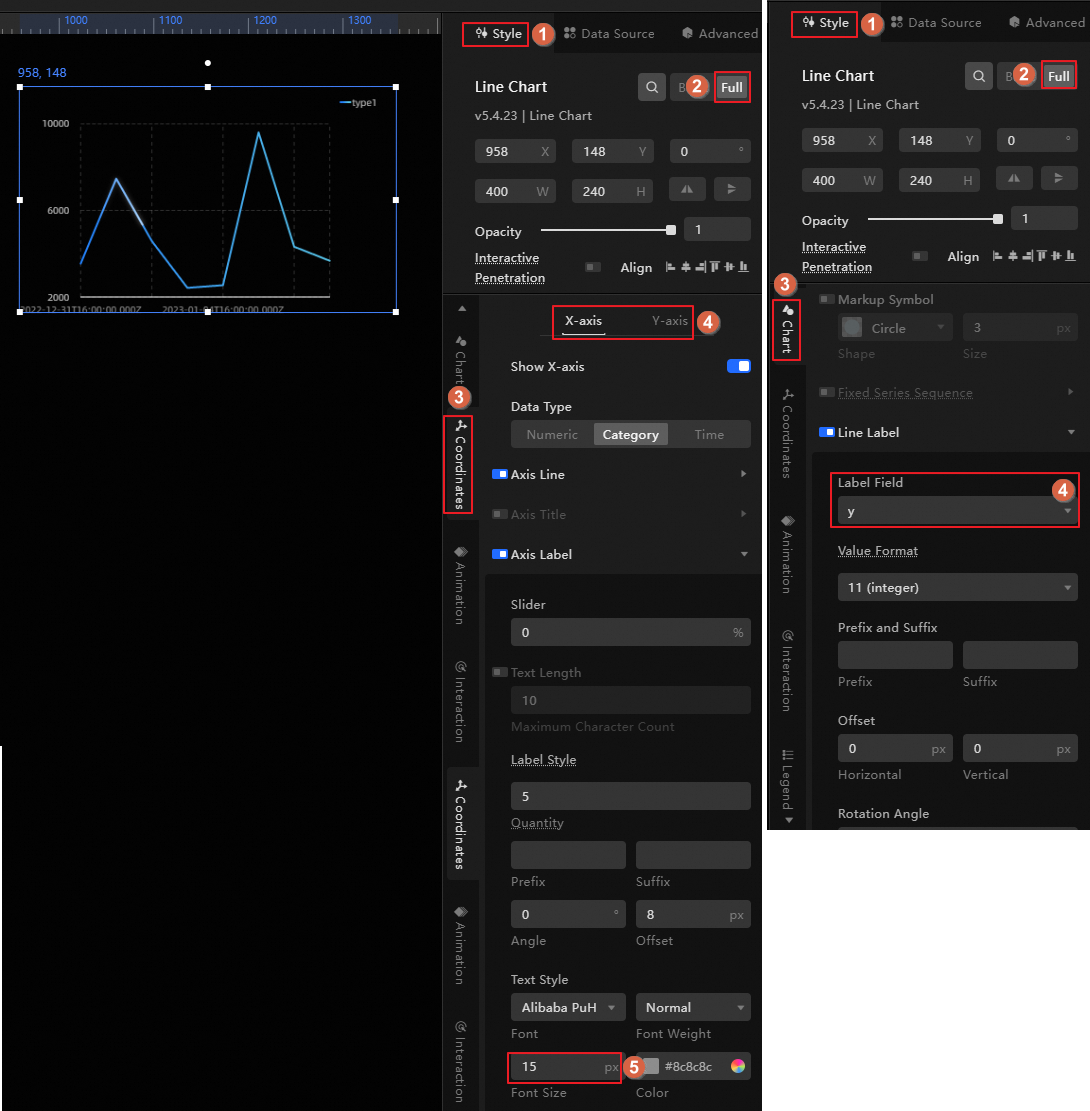
Use a list carousel to access data
A list carousel dynamically displays all records from a data table. For instance, it can cycle through all bill entries in the Bill table.
Add a list carousel to the canvas.
On the dashboard editing page, follow the steps shown in the figure below to add a list carousel.
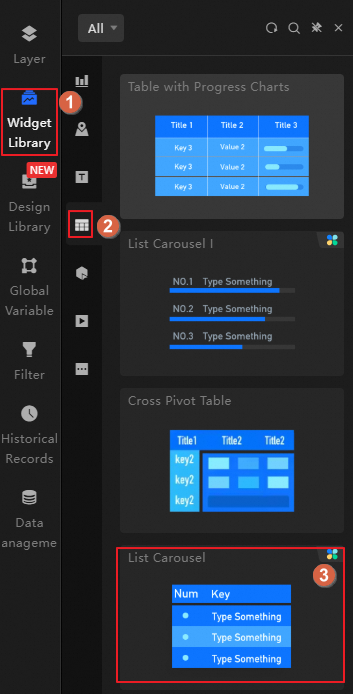
Click the list carousel to adjust the widget's style, data source, or other information as needed in the widget editing area on the right.
Click the list carousel to adjust the style, data source, and other information of the widget as needed in the widget editing area on the right.
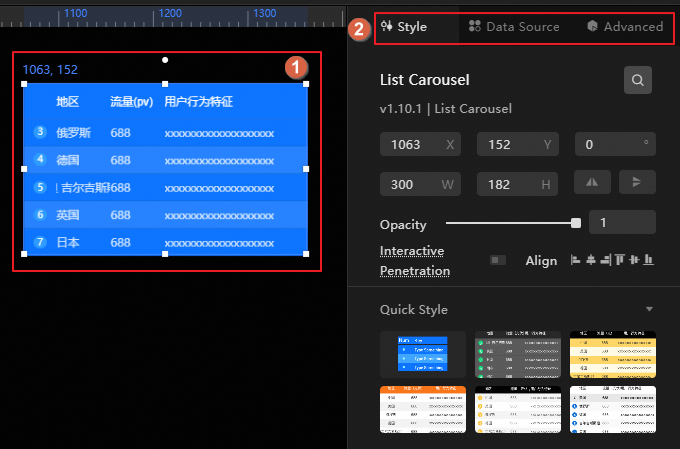
Access data source data.
In the Data Source area, select the created data source and view the field conditions of the data table through the query statement. The example configuration is as follows:
Data source type:
RDS for MySQLData source name:
mysql_dataQuery statement: View all bill records in the
Billtable. The statement is as follows.select * from Bill;
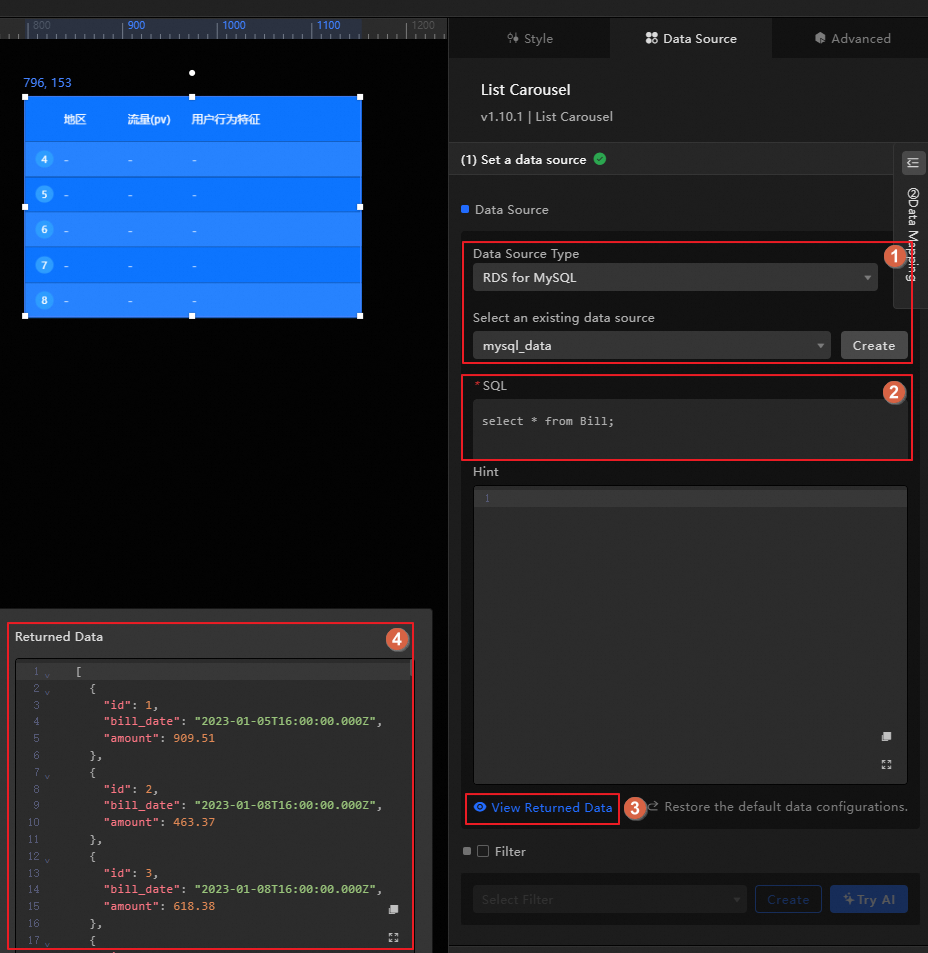
Modify the widget style.
As the RDS MySQL table displays data for three fields (id, bill_date, amount), adjust the column headings in the widget style accordingly. The operation is as follows.
Column field name: Match the RDS MySQL data table field names to the corresponding columns. Change the three tags to "id, bill_date, amount" respectively.
Column display name: Change the column names displayed in the list carousel to "User ID, Consumption Date, Amount" respectively.
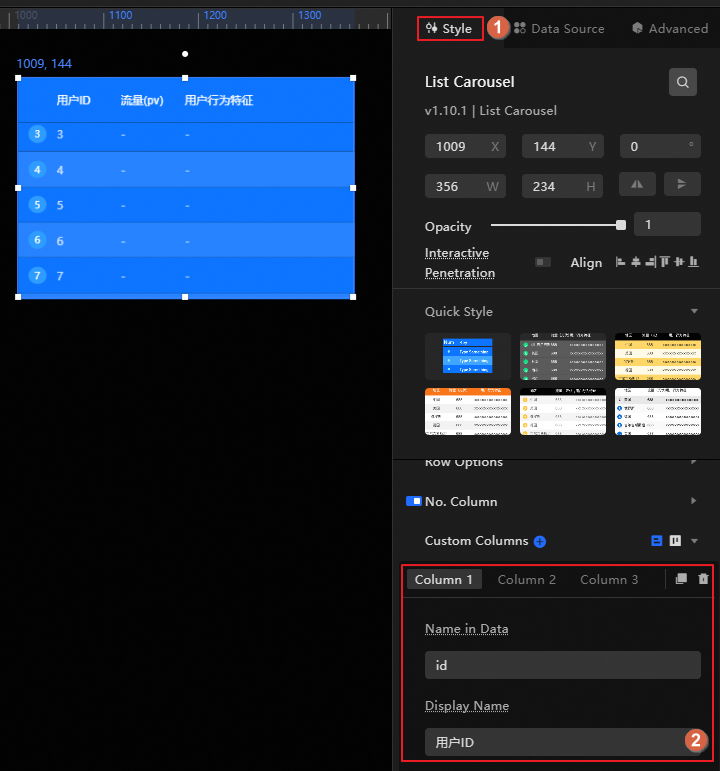
Use a general title
In this example, a general title serves as the title bar for the data dashboard.
On the dashboard editing page, add a general title to the canvas following the steps shown in the figure below.
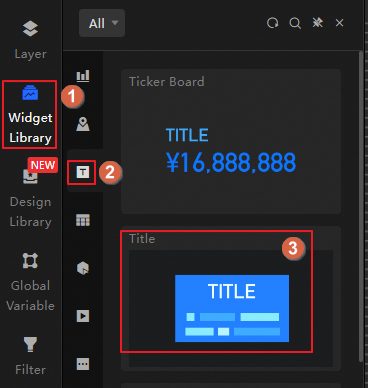
Click the general title to adjust the style, data source, and other widget information as needed in the widget editing area on the right.
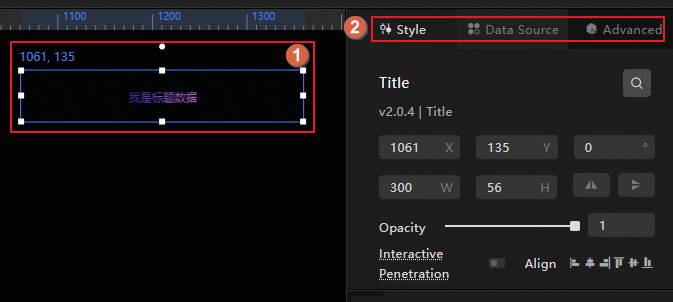
The example configuration style is as follows.
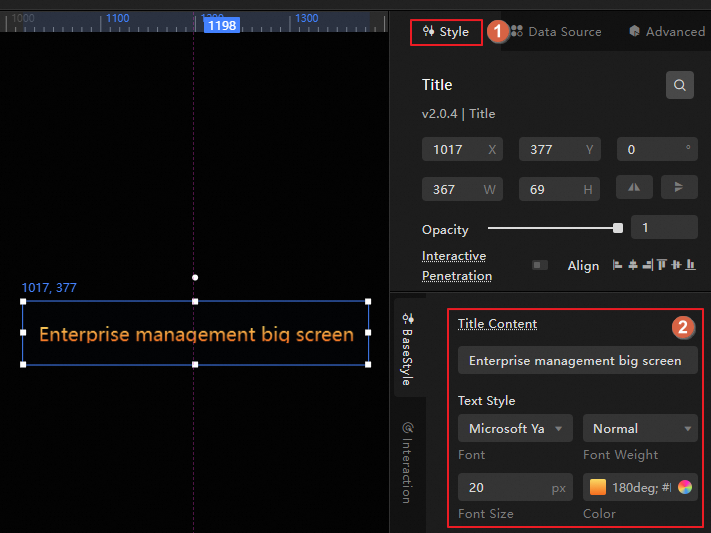
Step 3: Preview the data dashboard
After configuring the widgets, click Preview in the upper right corner of the dashboard editing page to preview the data dashboard's appearance. You can also drag and drop widgets on the dashboard editing page to adjust their position, size, and other layout details.
The dashboard created in this example is shown below.
Step Four: Publish and deploy the data dashboard
Once the data dashboard is ready, you need to publish it online and deploy it to relevant devices for use.
Click Publish in the upper right corner of the dashboard editing page and select Publish Big Screen.
Obtain the dashboard access information and set access restrictions.
After publishing, click Published in the upper right corner of the dashboard editing page to get access details and configure access privileges.
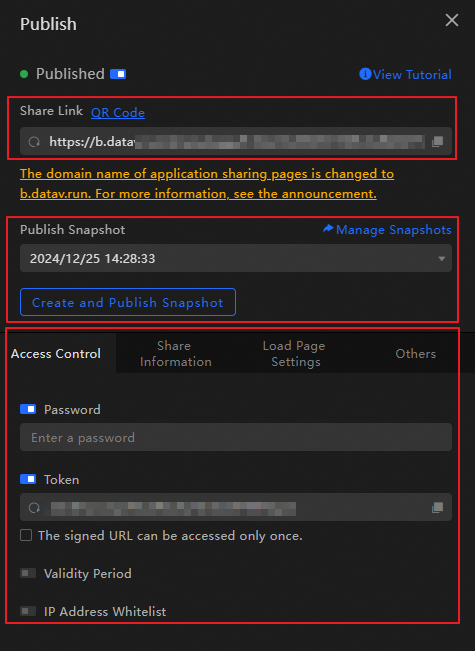
Access is supported through QR code, link address, and other methods.
Configure access privileges as needed, such as password authentication or token-based authentication. If integration with other systems and control over access privileges are required, consider enabling token authentication.
You can review the published dashboard versions in the publish snapshot area and manage them by adding new versions or reverting to previous ones.
After obtaining the dashboard access details, such as the access address, project it onto rendering hosts, PCs, mobile phones, and other devices for viewing.
Step 5: Project the data dashboard
After publishing the data dashboard, proceed to the visual application center to project the dashboard.
Navigate to the visual application center.
Log on to the DataV-Board 7.0 console.
In the top navigation bar, click Visual Application Center on the right.
Create a demo plan and project it following the steps shown in the figure below.
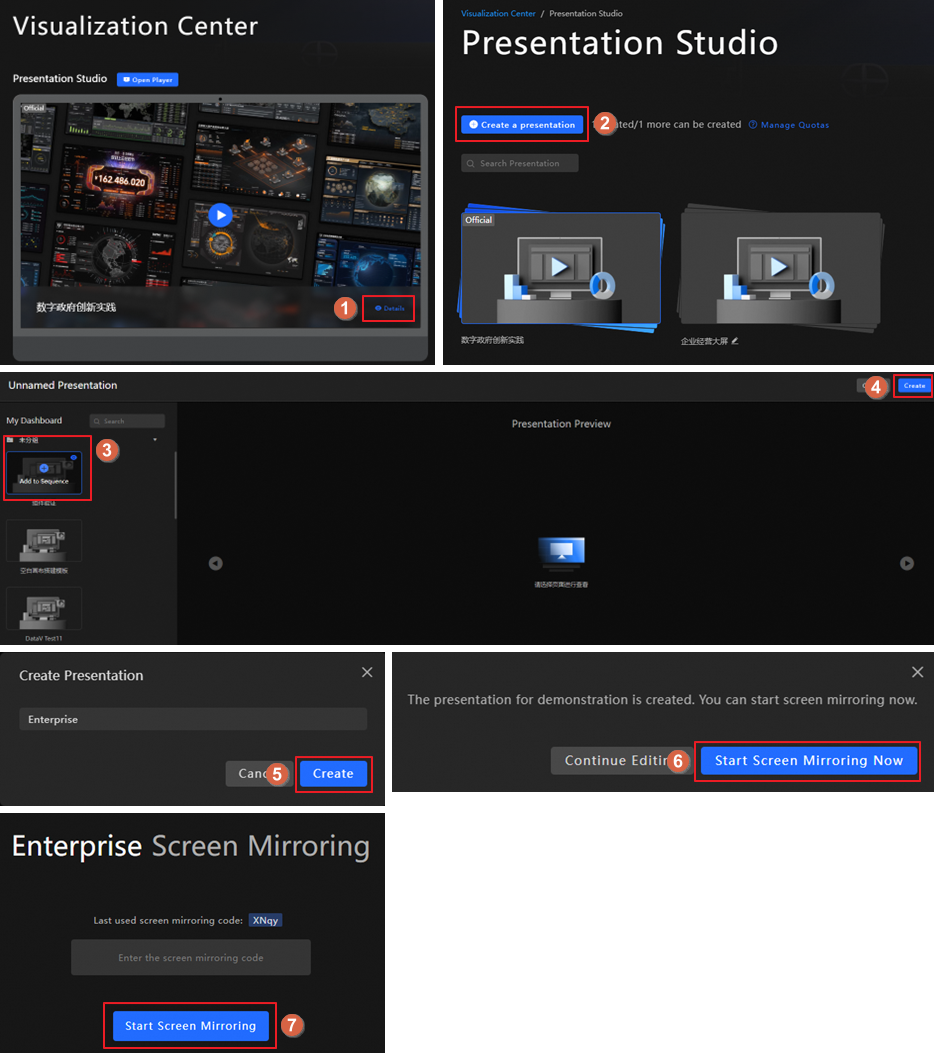
References
For additional methods of dashboard creation, see how to create a PC dashboard using a template.
For additional dashboard configuration tasks, such as widget setup, blueprint implementation, and management of global variables, refer to the visual workbench.