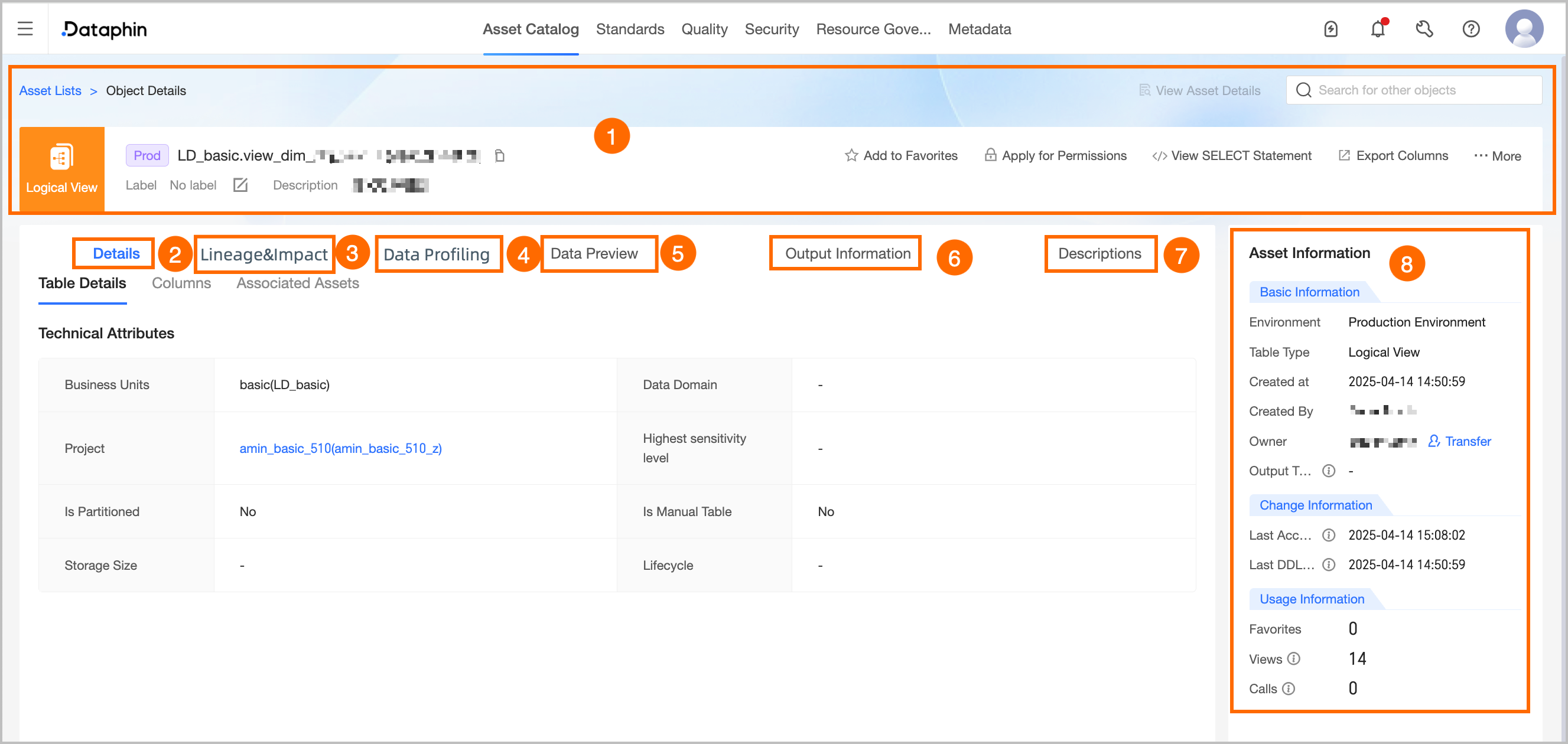
Area | Description |
①Overview | Displays information such as the type, environment, name, tags, and description of the table. You can also perform the following operations: Search for other asset objects: You can quickly search and switch to view details of other assets. View Asset Details: If the current object is listed in the Asset directory, you can quickly jump to the directory details page to view the listed information. View Production/development Objects: Supports quick switching to view the object details in the corresponding production/development environment. Tag: Displays the configured tag values of the current asset. To modify tags, you can click Edit: The length of each tag value does not exceed 128 characters. Each asset object can be configured with up to 20 tag values. Super administrators can modify asset tags for all table types. The current table owner can modify asset tags for tables they own. Section architects can modify asset tags for logical views under their responsible sections.
Favorite: Click to add to or remove from favorites. After adding to favorites, you can view the last 30 favorited assets in Asset checklist - My Footprint for easy subsequent queries. You can also view all favorited assets in the Personal Data Center. For more information, see the referenced document. Request Permission: Click to quickly jump to the permission request page for the current table. For more information, see the referenced document. Generate Select Statement: Click to generate the current table query statement. You can choose whether to add escape characters. You can copy the query statement to the ad hoc query or analysis page to query data. Export Fields: Export field information in the table in CSV format for quick analysis and use by other developers or business personnel. View Change Owner Records: Click More in the upper right corner and select View Change Owner Records to display the last 100 change owner records for the current data table. View Permission List: Click More in the upper right corner and select View Permission List to view data table permission information.
Note For analysis platform tables, requesting permission, viewing change owner records, and viewing permission list operations are not supported. |
②Detail information | Displays detailed information about the table and fields. Detail: Displays the technical property information of the table, including data section, subject area, project, highest sensitivity level, whether it is a partitioned table, whether it is a manually created table in the analysis platform, storage size, lifecycle, and location. Project: The project information to which the current table belongs. Click the project name to jump to the asset details page of the project. Highest sensitivity level: The highest sensitivity level of the current table fields, which helps quickly understand the data confidentiality of the current table. Data classification levels range from low to high as L1, L2, L3, L4 (public to top secret), and custom data classification. Storage size: The actual storage size of the current table, updated T+1. Lifecycle: The retention time of the current table, in days. When the compute engine is Databricks, the lifecycle is not displayed.
Field Information: Includes field details, description, data type, associated standard (requires the Data Standard module), data classification (requires the Data Security module), sample data (displayed only if data sampling is enabled), sensitivity level (requires the Data Security module), and popularity information. You can also search for, filter, and view the lineage of fields. View Lineage Relationship: Click the lineage icon in the Actions  column to view the field lineage centered on the specified field. column to view the field lineage centered on the specified field. Search and Filter: You can search for fields by name or description, and filter specific fields by data classification and data classification (requires data security activation).
Note When the compute engine is Databricks, popularity information is not displayed.
Associated Assets: The associated dimension information of the current table. Click the table name to go to the details page of that table.
|
③Lineage & impact | |
④Data exploration | If you have activated the Data Quality feature, you can configure data exploration tasks for data tables to quickly understand data overview, assess data availability and potential risks in advance. To enable automatic exploration, you can enable the corresponding configuration in Administration > Metadata Center > Exploration and Analysis. For more information, see Create a data exploration task.
Note When the compute engine is Amazon EMR, Doris, or SelectDB, data exploration is supported. |
⑤Data preview | If sample data exists for the data table, the sample data is displayed by default. You can also manually trigger a query for the latest data. If no sample data exists, a data preview query is automatically triggered. Sample data: Displayed when data sampling is enabled and the data preview switch in the configuration is turned on. You can query only the sample data for fields for which you have column-level permissions and that do not require data masking. The system stores and displays the sample data for each field independently. However, the existence and correctness of row records are not guaranteed. Data preview: If you have the permissions to query data in the current table, you can use the data preview feature. You can query only the results for fields for which you have permissions for SELECT statements, including field-level and row-level permissions. You can preview the first 50 data entries. For more information about how to request permissions, see Request, renew, and return table permissions.
You can search or filter the filtered data by field, search, view single row data details, perform automatic column width adjustment and row-column transformation operations. You can also click the sort icon after the field to perform No Sort, Ascending, or Descending operations. Double-click the field value to copy the field value with one click.
Note If the field type is HLL (HyperLogLog), the field information preview cannot be displayed temporarily. |
⑥Output information | Output tasks include data write tasks for the object, lineage automatic parsing or custom configuration tasks with the current table as the output table, and tasks where the node output name equals the project name.table name. The output task list is updated in near real-time, and the output details are updated T+1. 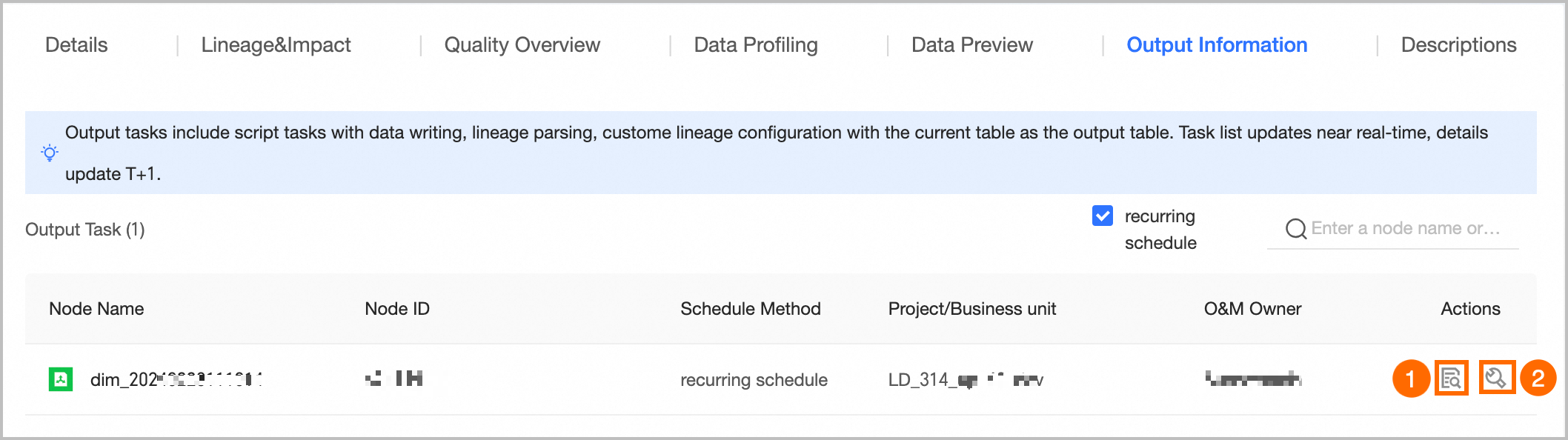
① View Output Details: Only supports viewing the output details of periodic tasks. For more information, see the referenced document. ② Go To Operation: Click the Go To Operation button to jump to the task list page of the operation center and filter out the current task for more information.
|
⑦Usage instructions | You can add usage instructions to the data table to provide information references for data viewers and consumers. You can click Add Usage Instructions to fill in the usage instruction title and content to complete the addition. 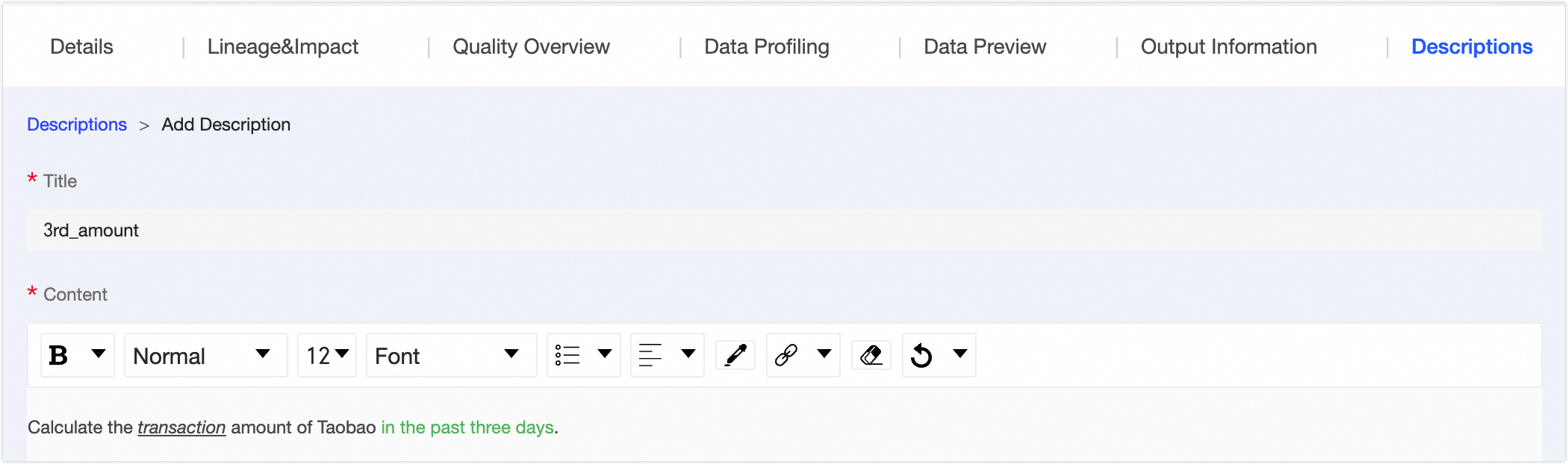 |
⑧Asset information | Displays detailed information such as the Basic Information, Change Information, and Usage Information of the physical table. Basic information: Includes environment, table type, creation time, creator, owner, and output tasks. Owner: The owner of the current table. Supports transferring the owner of the current table to other users. In the Change Owner dialog box, you can choose whether to synchronize the transfer of the development/production environment table. After selecting the Recipient, click OK to transfer immediately. It is recommended to synchronize the recipient promptly after the transfer. You can view transfer information on the transfer records page. For more information, see the referenced document.
Note Super administrators can transfer the owner of all table types. The current table owner can transfer tables they own. Section architects support transferring the owner of logical views under their responsible sections.
Output Task: You can view single-pipe table output tasks, including data write tasks for the object, lineage parsing or configuration tasks with the current table as the output table, and tasks where the node output name equals the project name.table name. Click the name of the output task to jump to the operation details page of the data table.
Note Only supports viewing the output details of periodic tasks.
Change information: Includes last accessed, DDL changes. Last Accessed At: The last select time (corresponding to DQL operation) parsed by Dataphin based on SQL. Access triggered by external systems is not counted and is updated in real-time. Last Ddl Time: The last table structure change time (corresponding to DDL operation) parsed by Dataphin based on SQL. Changes triggered by external systems are not counted and are updated in real-time.
Usage information: Includes number of favorites, page views, and visits. Number Of Favorites: Displays the number of users who favorited the current table, updated in real-time. Page Views: Displays the page views (PV) of the current data table. Each refresh increases by one, updated in real-time. Visits: Calculated as one time when the table is selected (corresponding to DQL operation) in Dataphin tasks based on SQL parsing. Updated T+1, displaying the total number of visits in the last 30 days.
Note When the compute engine is Databricks or Amazon EMR, visit information is not displayed.
|
 icon to open the object details page.