Create and manage AccessKey credentials for authenticating Dataphin OpenAPI calls.
Prerequisites
The OpenAPI value-added feature is activated.
Limits
You can create up to two AccessKeys.
OpenAPI call instructions
-
On the Dataphin page, click your profile picture in the upper-right corner, then click User Account.
-
In the left-side navigation pane, choose API Access > Accesskey Management.
-
The Accesskey Management page displays OpenAPI call addresses.
-
OpenAPI Call Address: Displays the server endpoint (domain name). Click the copy icon to copy it. Click Download OpenAPI SDK to download the SDK file.
-
Changes to OpenAPI calls take up to 30 minutes to take effect.
-
Create AccessKey
-
On the Accesskey Management page, click Create Accesskey in the AccessKey list area.
-
The Create Accesskey dialog box displays a confirmation.
ImportantDownload the AccessKey file immediately. After the dialog box closes, the AccessKey ID and AccessKey Secret cannot be retrieved.
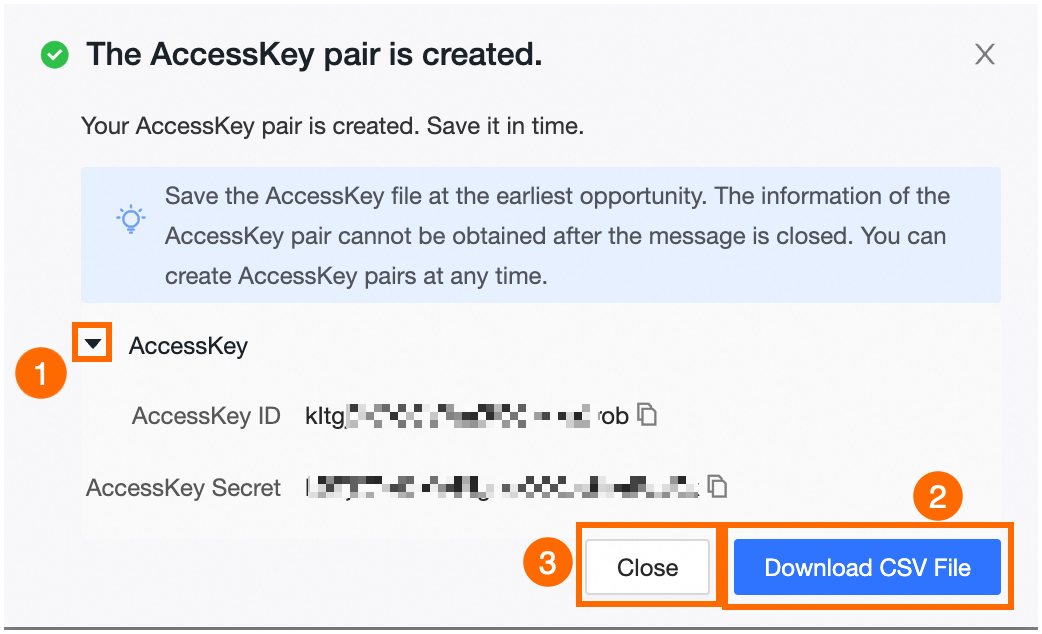
Block
Description
①
Show or hide the AccessKey ID and AccessKey Secret.
②
Download AccessKey information in CSV format.
③
Close the current window.
Manage AccessKey
-
You can enable or delete AccessKeys from this list.
Feature
Description
Modify enable status
Toggle the switch in the enable status column. The AccessKey becomes invalid 30 minutes after you disable it.
Delete
Click the delete icon in the Actions column. The AccessKey becomes invalid 30 minutes after deletion. After that, OpenAPI calls using this AccessKey return the error: Illegal Accesskey, Please Check Whether The Accesskey Exists Or Is In An Enabled State.
ImportantDeletion is irreversible.