Create the order purchase logical fact table (Fct_order_buy_di) in this tutorial.
Step 1: Create a logical fact table
-
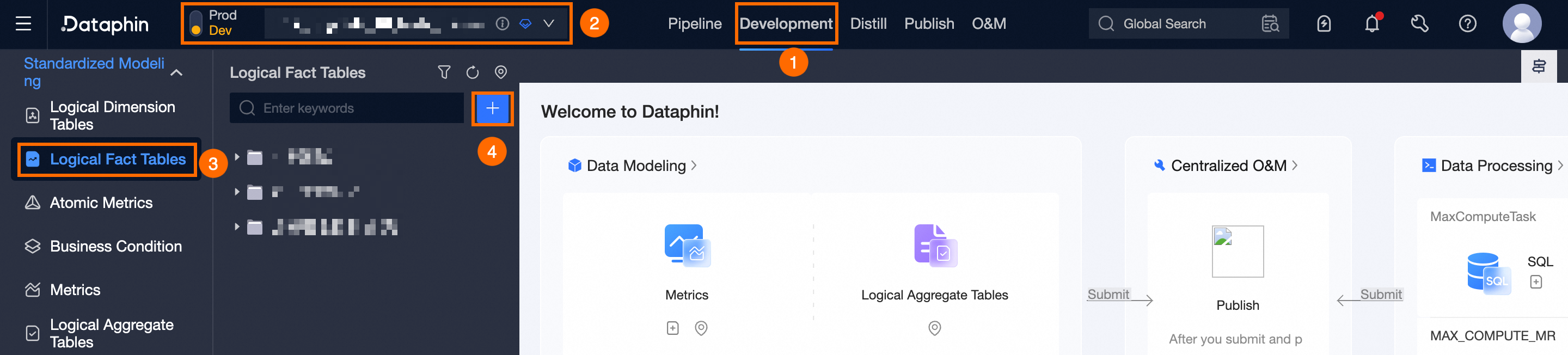
On the Dataphin home page, click Develop in the top menu bar.
-
Follow the figure below to open the Create Logical Fact Table dialog box.
-
On the Create Logical Fact Table page, configure the following parameters.
Parameter
Description
Business Activity
Select the Order Purchase business object.
Data Timeliness
Defaults to Offline T+1.
Chinese Name
Enter Order Purchase Logical Fact Table.
Description
Enter a brief description, such as Order Purchase Logical Fact Table.
-
Click OK.
Step 2: Configure logical table fields
-
On the Table Structure page, click Import From Table.
-
In the Add Field From Table dialog box, select the dataphin_tutorial.orders table, and add the order_time and payment_amount fields.
NotePrimary keys and associated dimension fields are included automatically.
-
Click Add.
-
On the Table Structure page, click Save And Next.
Step 3: Configure logical table computation logic
-
On the computation logic page, click Source Configuration to open the Source Configuration dialog box.
-
In the Source Configuration dialog box, click Add Source Object and configure the following parameters.
Parameter
Description
Source Table Name
Select the dataphin_tutorial.orders source table.
Associated Primary Key Field
Select the order_id field.
-
Click OK.
-
Drag the configured data source column to a logical computed column.
-
Click Save And Next.
Step 5: Configure logical fact table schedule
-
On the Schedule & Parameter Configuration page, keep the default settings.
-
Click Save And Submit.
Step 5: Save and submit logical table
-
Click Save And Submit. The system validates Table Structure, Computation Logic, Schedule Dependency, and Runtime Parameter configurations. Review the Check Results and verify your settings.
-
After all checks pass, click OK And Submit.