The Content Safety Video Moderation 2.0 service includes default moderation policies based on extensive experience and industry standards. If these defaults do not meet your business needs, you can customize them.
Use cases
If your business has the following requirements, you can use the Video Moderation 2.0 console to customize detection rules and scope, query detection results, and monitor usage statistics.
When using the service for the first time, log on to the Content Moderation console to review the initial threat detection policy configuration.
Use case | Description |
You can adjust video detection policies based on industry practices or your business needs. You can adjust the following policies:
For example, to detect only high-risk violations and capture one snapshot every two seconds, you can adjust the detection rules in the console. | |
Set different threat detection policies for multiple business lines | If your business lines use the same service but require different threat detection policies, you can copy the service to create separate configurations. For example, if business lines A, B, and C all use the videoDetection_global (video file moderation) service but have different standards, you can copy the videoDetection_global service to create videoDetection_global_01 and videoDetection_global_02. By setting different threat detection policies for these three services, you can meet the needs of each business line. |
To review the details of recently moderated videos, use the Detection Results page to view or search for the results. | |
If you need to monitor and view recent video moderation usage, you can do so on the Dashboards page. |
Activate the service
Go to the Video Moderation 2.0 page to activate the Video Moderation 2.0 service.
Before you activate the Video Moderation V2.0 service, review the billing rules for Video Moderation V2.0. For more information, see Introduction and billing of Video Moderation Enhanced Edition V2.0.
Adjust video moderation threat detection policies
Adjust the detection scope and result return method based on industry practices or your business needs.
Log on to the Content Moderation console.
In the left-side navigation pane, choose .
On the Rule Configuration page, find the video file moderation (videoDetection_global) service and click Settings in the Operation column.
On the rule configuration page for the video file moderation (videoDetection_global) service, adjust the configurations as needed.
Example: To take 1,000 snapshots per video, detect high-risk frame violations and audio violations, and return all detection results, configure the settings as follows:
For the snapshot method, select Fixed Total Frames, enter 1000 in the total snapshots box, and select BaselineCheck for the image moderation rule.
For more information about image moderation rules, see Introduction and billing of Image Moderation 2.0.

Turn on the audio moderation switch and select audio media detection.

Select Return Results.

Click Save to save the new detection rules.
The new rules take effect in about 2 to 5 minutes.
Set different policies for business lines
Copy a service and configure different threat detection policies for each copy to meet the different moderation requirements of your business lines.
Log on to the Content Moderation console.
In the left-side navigation pane, choose .
On the Rules page, copy the service for which you want to set different detection scopes.
In the service list, find the video file moderation service (videoDetection_global) and click Copy in the Operation column.
In the Copy Service dialog box, enter a Service Name and Service Description.
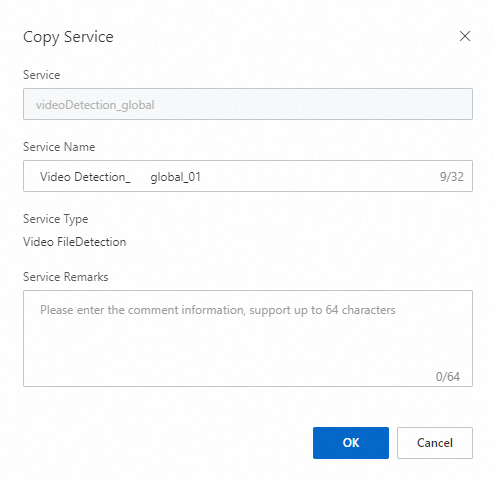
Click OK. After the service is created, find the new service (videoDetection_global_01), click Settings in the Operation column, and adjust the rules as needed.
The new service (videoDetection_global_01) is ready to be called 1 to 2 minutes after creation. You can copy multiple services and adjust the rules for each to meet your different threat detection requirements.
Query detailed video moderation results
You can query moderation results for specific videos by using filters such as taskId, dataId, service, image label, voice label, or threat level.
Log on to the Content Moderation console.
In the left-side navigation pane, choose .
On the Detection Results page, enter query conditions to search for detection results.
To search for all records with a matching image label, set the query condition to Image Label is not equal to nonLabel. You can specify multiple labels separated by commas (,).
NoteBy default, results are displayed in reverse chronological order, with a maximum of 50,000 records shown. The Content Moderation console retains query results for the last 30 days. For long-term analysis, we recommend storing the data or logs from each API call.
Click Details in the Operation column of a result to view its moderation information.
Click Sound Picture Results in the Operation column to view the detailed moderation results for video frames and audio.
The Screen review results tab displays each snapshot and its matched labels.
The Voice Audit Results tab displays the speech-to-text transcript and matched labels.
 Note
NoteVoice moderation results are displayed only if you enabled voice moderation in the video moderation settings.
Monitor usage statistics
Monitoring recent video moderation usage helps you develop further review or governance strategies for specific video content.
Log on to the Content Moderation console.
In the left-side navigation pane, choose .
On the Dashboards page, select a time range to query or export usage data.
Query usage: You can view usage statistics by day or month. Data is stored for one year, and you can query a period of up to two months at a time. You can filter the data by Alibaba Cloud account, RAM user, or service.
The line chart shows the number of video moderation tasks (number of videos).
The bar chart shows the number of calls for image and voice services, which includes the number of moderated video snapshots and the total audio moderation duration in minutes.
Export: Click the
 icon to export usage data by day or month. The exported report is in Excel format and includes data only for periods with call volume. The report fields are described below:
Parameter
Description
Unit
Account UID
The UID of the account for which data is exported.
N/A
service
Video moderation service
Video image moderation service
Video voice moderation service
N/A
Number of calls
The total number of calls.
N/A
Date
The date of the statistics.
Day/Month
View video moderation threat statistics: This section displays statistics on threat levels (high, medium, low, and none), as well as threat trends and distribution for the selected time range.
Threat Level Distribution: Shows the count and percentage of high-threat, medium-threat, low-threat, and no-threat results for the selected time range.
Threat Trend Statistics: Shows the trend of threats by day or month for the selected time range.
Threat Distribution Statistics: Shows threat statistics for video frames and audio. You can view the top 5 threats and the proportion of all threats.