You can restore files from the on-premises Cloud Backup client to the source server or virtual machine (VM). You can also restore files from another Cloud Backup client to the source server or VM.
Restore files from the on-premises Cloud Backup client
To restore files from the on-premises Cloud Backup client, perform the following steps:
Log on to the Cloud Backup client.
In the navigation pane on the left, click Restore to open the Restore Backup / Backups page.
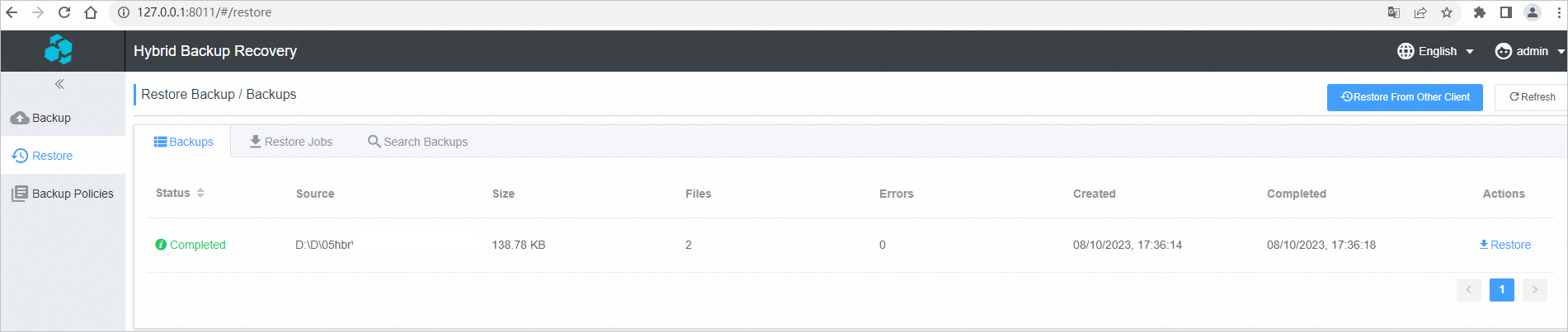
On the Backups tab, find the backup and click Restore in the Actions column.
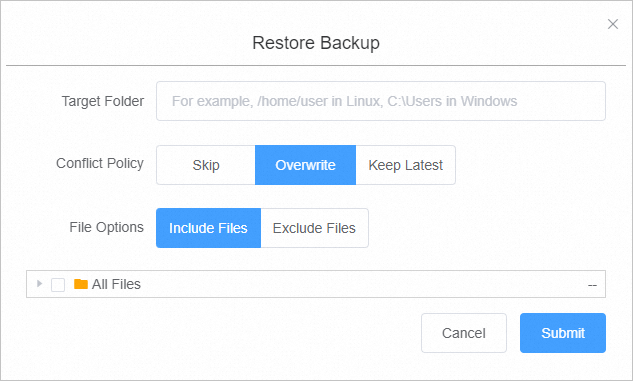
In the Restore Backup dialog box, configure the parameters, select the files that you want to restore, and then click Submit. The following table describes the parameters.
Parameter
Description
Target Folder
Restore the backup file to this folder.
File Name Conflict
Skip
Overwrite
Retain Newer Versions
Restore Rule
Include Files: Restores only the selected folders and files.
Exclude Files: Restores all folders and files except for the selected ones.
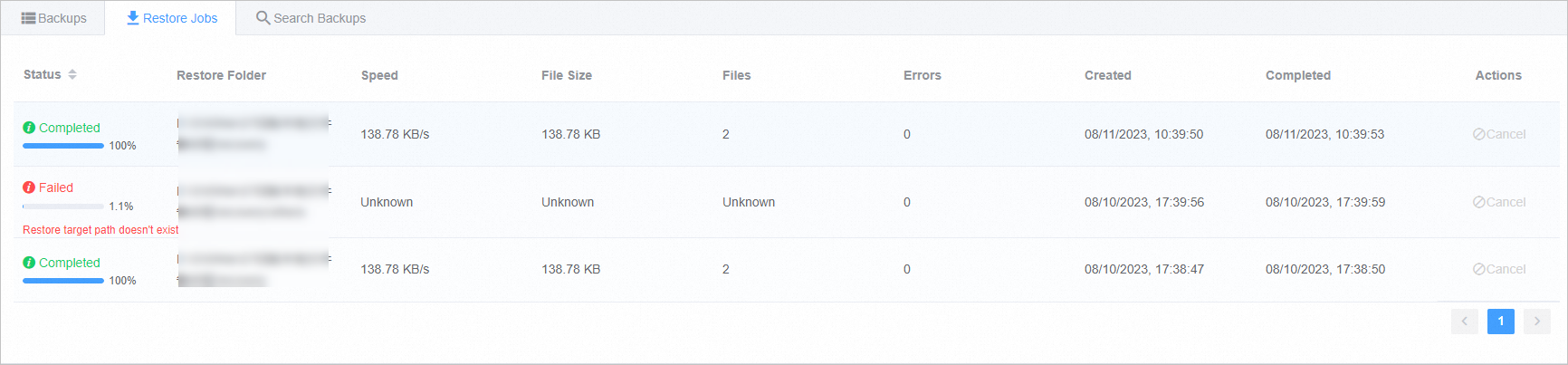
After the restore job is created, you can view the progress of the restore job on the Restore Jobs tab.
Restore files from another Cloud Backup client
To restore files from another Cloud Backup client, perform the following steps:
Log on to a Cloud Backup client.
In the navigation pane on the left, click Restore to open the Restore Backup / Backups page.
In the upper-right corner of the page, click Recover From Other Clients.
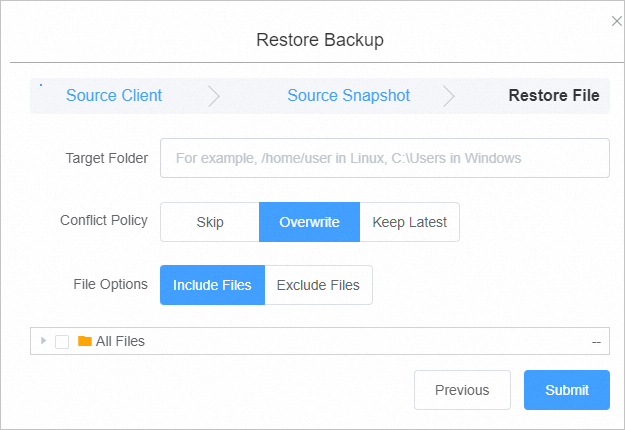
In the Restore Backup dialog box, select the source client and click Next.
Select the backup that you want to restore, and click Next.
In the dialog box that appears, configure the parameters, select the files to be restored, and click Submit. The following table describes the parameters.
Parameter
Description
Target Folder
You can restore the backup file to the folder.
When a File with the Same Name Already Exists
Skip
Overwrite
Keep Latest
Restore Rule
Include Files: Restores only the checked folders and files.
Exclude Files: Restores all folders and files except for the checked ones.
After the restore job is created, you can view the progress of the restore job on the Restore Jobs tab.