To back up an on-premises MySQL database with Cloud Backup, you must first register the database instance in the console.
Prerequisites
-
The preparations are complete. For more information, see Preparations.
-
An Express Connect circuit or a VPN gateway connects the on-premises network to an Alibaba Cloud VPC. The on-premises network's CIDR block must not overlap with the
100.64.0.0/10address range, which is reserved for internal communication by the Cloud Backup service.
Procedure
Log on to the Cloud Backup console.
-
In the left navigation pane, select . Select a region and then click MySQL. On the Local Database Instance tab, click Register Database Instance.
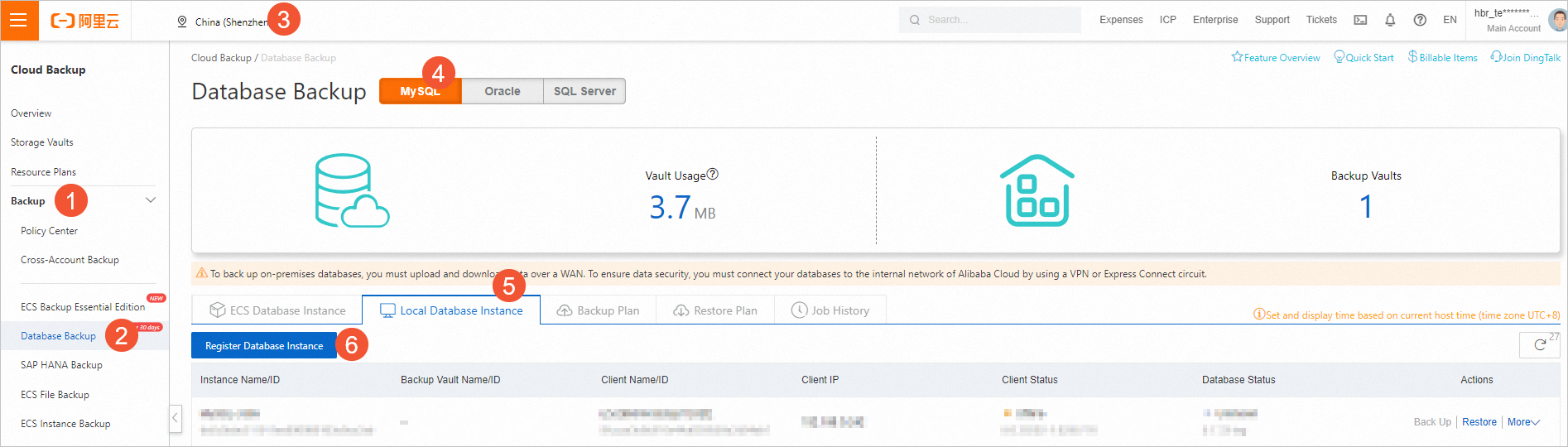
-
In the Add Client pane, follow the instructions in the wizard to install the client.
-
Download and decompress the backup client for Linux.
Copy the download link from the console. On your on-premises server, use a tool such as
wgetto download the backup client.wget https://a-hbr-resource-shanghai.oss-cn-shanghai.aliyuncs.com/unibackup/hbr-uni-install-linux.tar.gzRun the tar command to decompress the backup client.
tar -zxvf hbr-uni-install-linux.tar.gz -
On your on-premises server, navigate to the directory where you extracted the client files. Copy the activation command from the Cloud Backup console and run it.
The following sample command is from the Cloud Backup console.
sudo ./client init local-uni --uniUserInfoToken "eyJ1cmwiOiJodHRwczovL2EtaGJyLXJlc291cmNlLWhhbmd6aG91Lm9zcy1jbi1oYW5nemhvdS1pbnRlcm5hbC5hbGl5dW5jcy5jb20vY2xpZW50L2luc3RhbGwvZGJhY2t1cF9hZ2VudC9saW51eDY0LzguMC4yOTI5Mi0xLjAyODU3NzYuZGJnLyIsImhvc3QiOiIxMDAuMTAzLjguMTE2IiwicG9ydCI6NjAzMDUsIm15c3FsQWdlbnQiOiJZZXMiLCJtc3NxbEFnZW50IjoiTm8iLCJvcmFjbGVBZ2VudCI6Ik5vIiwidmVyc2lvbiI6IjguMC4yOTI5Mi0xLjAyODU3NzYuZGJnIiwiYWNjZXNzS2V5IjoiMzI1OGE3NDJmNzU4ZmFjNmVhMGRhMjEwZDRiZjA5NjAiLCJ1c2VTc2wiOiJZZXMiLCJhZ2VudCI6Im15c3FsIiwidXNlclRva2VuIjoiMDVUR0IwNUUiLCJyZWdpb25JZCI6ImNuLWhhbmd6aG91Iiwic291cmNlVHlwZSI6Ik1ZU1FMIn0="
After the client is activated, the instance is registered with Cloud Backup and the client status is updated in the console. On the Local Database Instance tab, view the installation status of the client on each node and upgrade the client as needed.
-
-
Grant permissions and reactivate the instance.
-
Return to the console. In the Actions column of the target database instance, choose .
-
In the Activate Instance dialog box, enter the required information and click OK.
Parameter
Description
Database Account
The username of the database instance.
The user must have the following least privileges: RELOAD, LOCK TABLES, REPLICATION, and PROCESS. For more information, see Preparations.
Password
The password of the user.
-
More operations
How can I delete a registered database instance?
-
Log on to the on-premises server and run the appropriate command to uninstall the backup client.
-
CentOS
sudo rpm --erase "dbackup3-agent-mysql" sudo rpm --erase "dbackup3-agent" sudo rpm --erase "dbackup3-common" -
Ubuntu
sudo dpkg -r "dbackup3-agent-mysql" "dbackup3-agent" "dbackup3-common"
-
-
On the Local Database Instance tab, find the target instance. In the Actions column, choose .
-
In the dialog box, click OK.