Storage vaults are cloud repositories where Cloud Backup stores your backup and archive data. Use the Storage Vaults page in the Cloud Backup console to view vault details, set tags, configure cross-region backup, and manage vault settings and permissions.
Access the Storage Vaults page
Follow these steps to access the Storage Vaults page in the Cloud Backup console, which is the starting point for all vault management tasks.
Log on to the Cloud Backup console.
In the top navigation bar, select a region.
-
In the navigation pane on the left, click Storage Vaults.
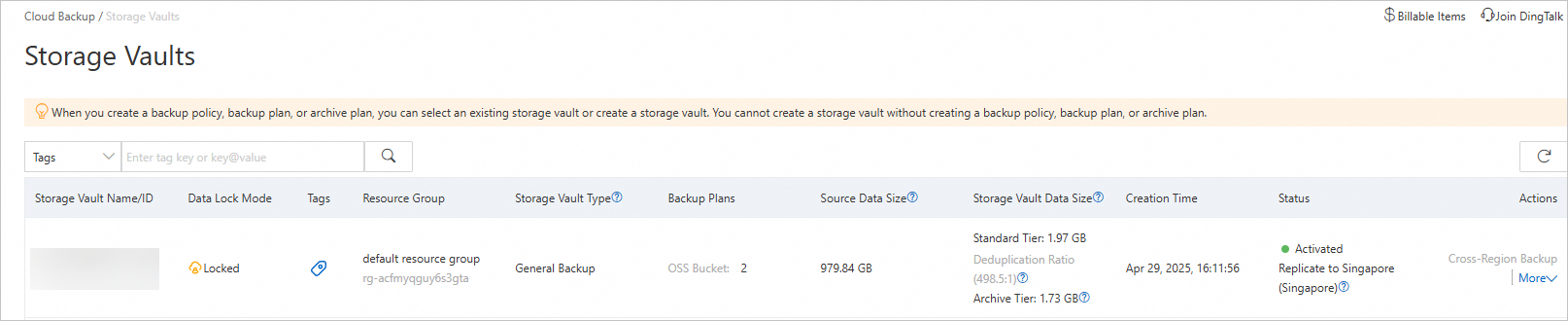
The Storage Vaults page lists all backup vaults and archive vaults in Cloud Backup. The page displays details such as the vault name, ID, type, number of backup plans, source data size, stored data size, and status. For more information about storage vault types, see Storage vault types.
Manage tags
Tags are key-value pairs that help you organize and manage storage vaults. By grouping vaults by purpose, owner, or other criteria, you can easily search for them and perform batch operations. This section covers how to set tags and use them to find specific vaults.
Set tags for a storage vault
Usage notes
Each tag consists of a key-value pair.
A tag key must be unique on a single resource.
For example, the
company:atag has been added to a backup vault. If you add thecompany:btag to the backup vault, thecompany:atag is replaced by thecompany:btag.Tags are not shared across regions. For example, tags that are created in the China (Hangzhou) region are invisible to the China (Shanghai) region.
Limits
Item | Limit |
The maximum length of a key | 128 characters |
The maximum length of a value | 128 characters |
The maximum number of custom tags that can be added to a resource | 20 |
The key of a tag |
|
The value of a tag | A tag value cannot contain |
-
In the Tag column of the target storage vault, click the
 icon.
icon. In the dialog box that appears, click Edit.
In the Key and Value fields, enter the key-value pair of a tag and click Save.
If you want to create more than one tag, click Add a Row to specify the key-value pair of a new tag.
Search for storage vaults by tag
On the Storage Vaults page, select Tags from the search filter, enter the tag value, and click the  icon to search.
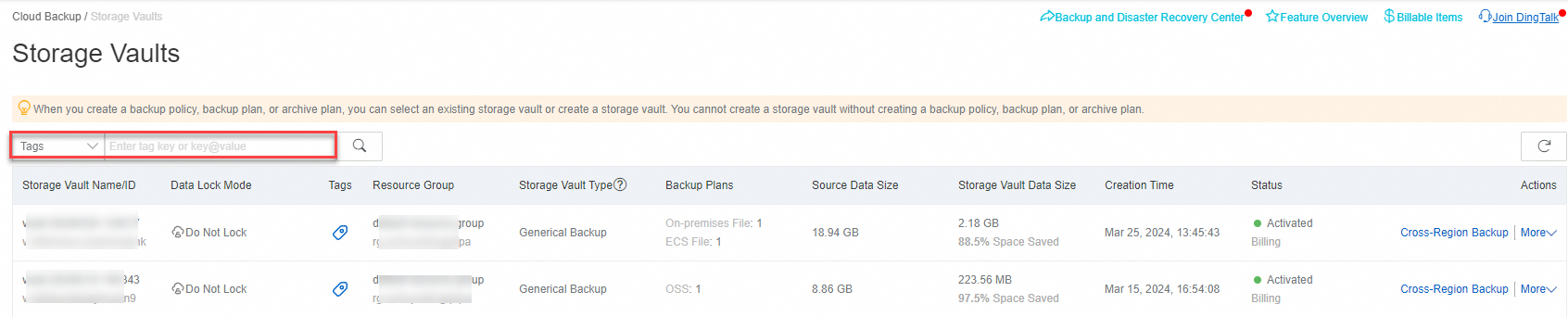
Search for a resource by using a key. Example:
aaaSearch for a resource by using a key-value pair. Example:
aaa@bbbSearch for a resource by using multiple key-value pairs. Example:
aaa@bbb,ccc@ddd
Configure vault features
Enhance the data protection and compliance capabilities of your vaults by enabling advanced features. This section guides you through configuring cross-region backup for disaster recovery and enabling immutability features like immutable backup and immutable archive to prevent data deletion.
Configure cross-region backup
To protect against regional disasters, create a remote mirror backup vault for your backup vault. Cloud Backup automatically replicates data from the source vault to the mirror vault. For more information, see Cross-region backup.
Cross-region backup is not supported for archive vaults.
Enable immutable backup
Immutable backup prevents the backup vault and the backups it contains from being modified or deleted during their retention period. For more information, see Immutable backup.
-
Immutable backup is available only for backup vaults whose Storage Vault Type is General Backup. Once enabled, this feature cannot be disabled.
-
After immutable backup is enabled, normal backup and restore operations are not affected.
In the Actions column of the backup vault, click . In the dialog box, update the vault name and enable immutable backup.
Enable immutable archive
Immutable archive prevents the archive vault and the data it contains from being modified or deleted during their retention period. For more information, see immutable archive.
-
Immutable archive is available only for archive vaults whose Storage Vault Type is Archive. Once enabled, this feature cannot be disabled.
-
After immutable archive is enabled, normal data archiving operations are not affected.
In the Actions column of the archive vault, click ⋮ > Configure Archive Vault. In the dialog box, update the vault name and enable immutable archive.
Manage vault settings
Fine-tune the operational behavior of your vaults by adjusting their core settings. This section explains how to configure alert notifications to stay informed about vault activities and how to set the data retention period to manage storage costs and meet lifecycle requirements.
Configure alert settings
In the Actions column of the storage vault, click to configure alerts. By default, Cloud Backup sends email notifications to your Alibaba Cloud account when a backup fails or a client disconnects. Configure alerts using the following methods:
-
Disabled: No alert notifications are sent.
-
Notify Alibaba Cloud Account: Send email notifications to your Alibaba Cloud account (default).
-
Custom: Select specific contacts or contact groups to receive alert notifications.
Set the retention period
-
This operation is available only when the Storage Vault Type is Database Backup. After the specified retention period expires, the backup data is automatically deleted.
-
Set the retention period for an archive vault only when creating an archive plan. The retention period cannot be modified later.
In the Actions column of the database backup vault, click to configure the retention period. Choose to retain backup data for a specific duration or permanently.
-
Setting the retention period to 0 permanently retains backup data.
-
Changes to the retention period apply to all existing backups. It may take up to 24 hours for the change to take effect.
-
Incremental, cumulative incremental, and log backups require a complete backup chain. The entire chain (full, incremental, cumulative incremental, and log backups) is retained until the last backup in the chain expires.
Manage vault permissions
Securely delegate access to your storage vaults by configuring permissions for RAM users. This allows specific users or applications to perform backup, restore, or archive operations without granting them full access to your account.
Configure permissions for a backup vault
-
In the Actions column of the backup vault, click .
-
Grant permissions to a RAM user to allow backup and restore operations using this vault.
-
Click the
 icon in the Cloud Backup console to copy the access policy template. Then, create a custom policy in the RAM console and attach it to the target RAM user. For more information, see Create custom policies.
Configure permissions for an archive vault
-
In the Actions column of the archive vault, click .
-
Grant permissions to a RAM user to allow data archiving and retrieval operations using this vault.
-
Click the
icon in the Cloud Backup console to copy the access policy template. Then, create a custom policy in the RAM console and attach it to the target RAM user. For more information, see Create custom policies.
Delete a storage vault
Deleting a storage vault permanently removes all backup and archive data in the vault. This action cannot be undone. Proceed with caution.
In the Actions column of the storage vault, click and confirm the deletion in the dialog box.