Assist Partners to manage End Users.
1. Management of End Users (for Agency Partners)
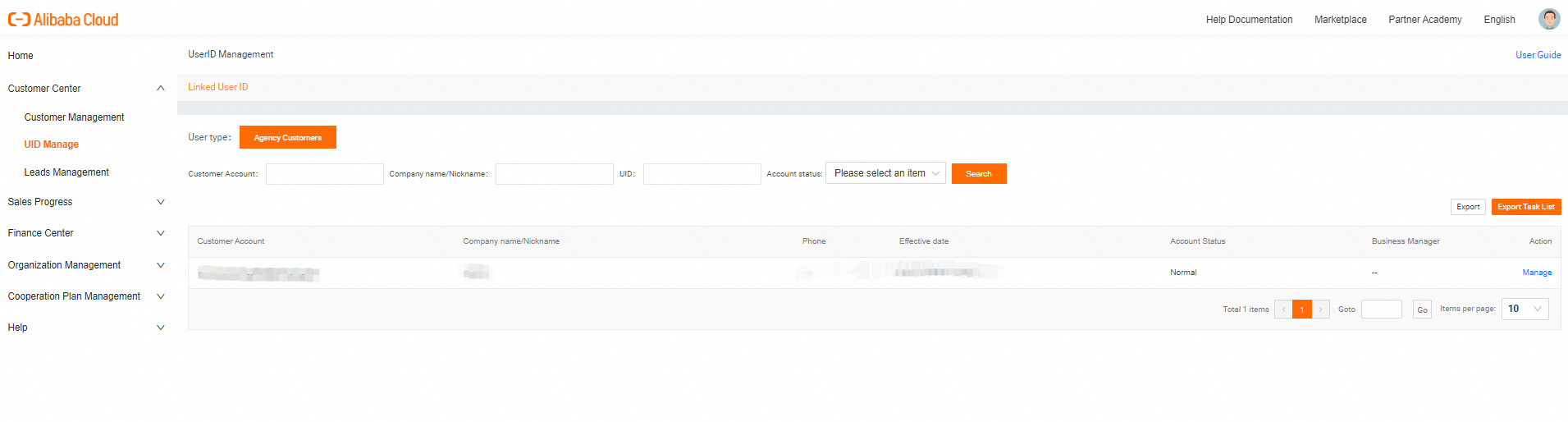
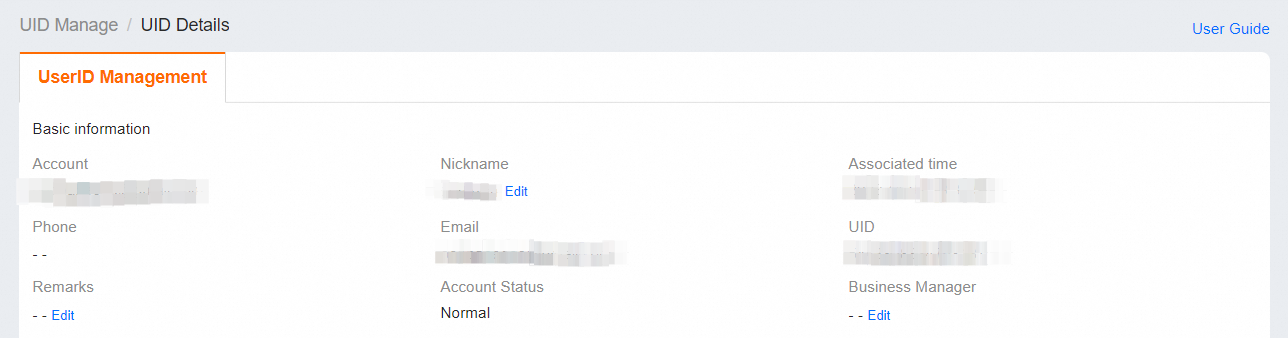
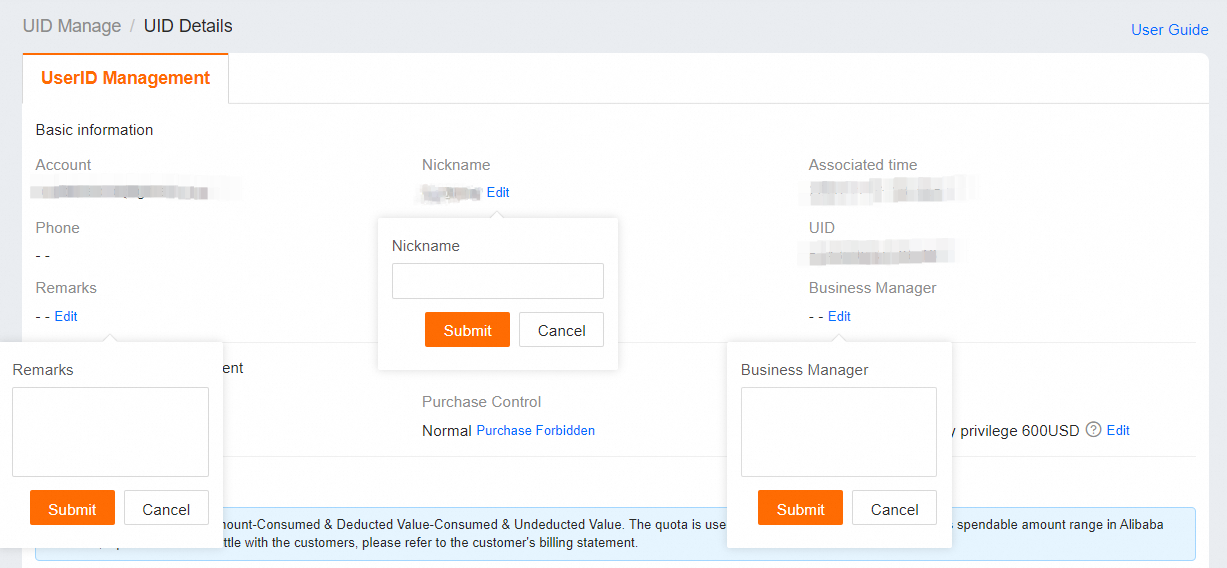
Click [Manage] on the [Linked User ID] page to access the [UID Details] page. Here, you can manage end-users and modify their [Nickname] and [Remarks].
2. Management of Endusers (for Reseller and Distributor Partners)
This feature enable you to manage reseller and endusers
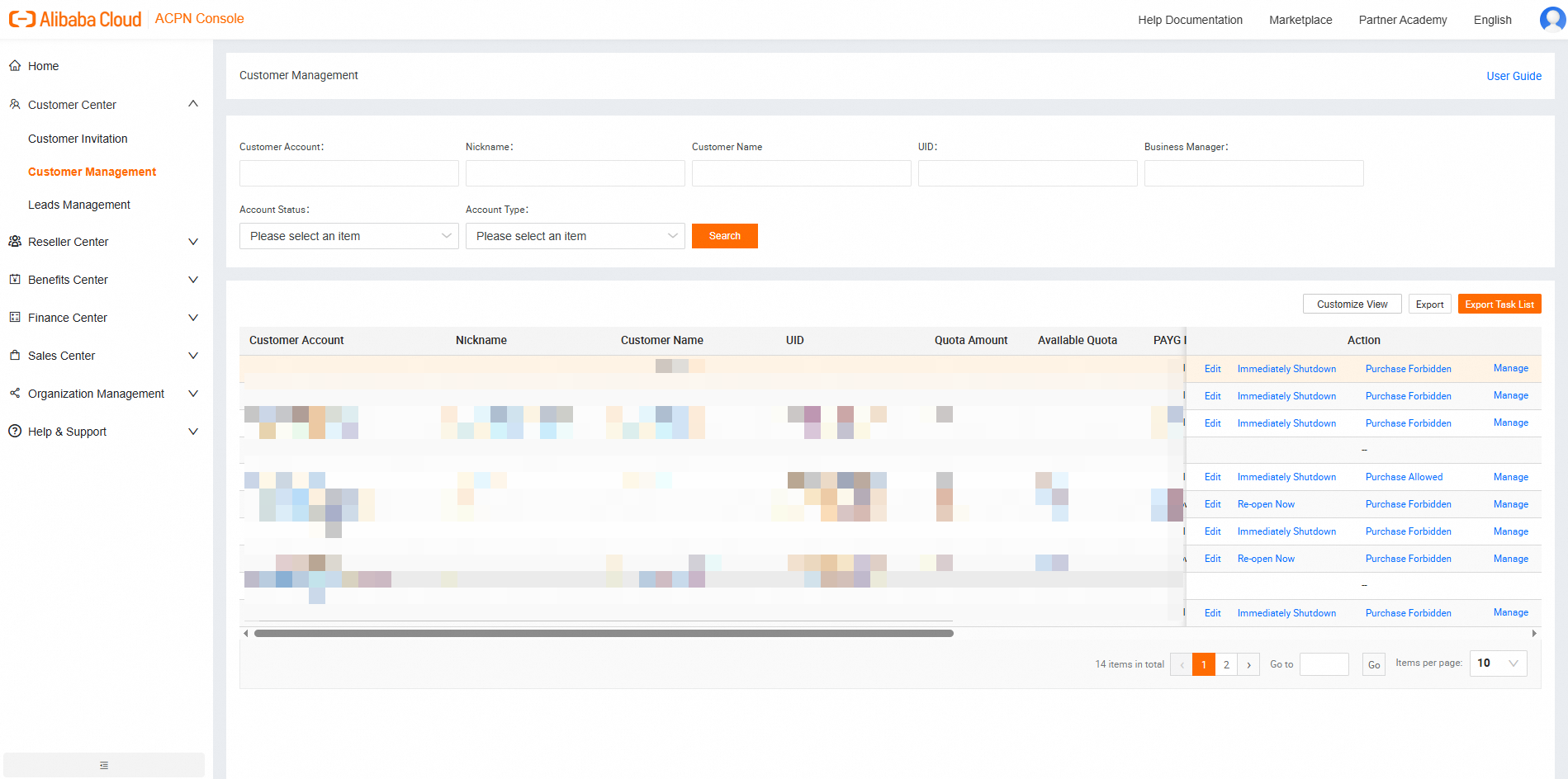
Click on the [Manage] button;
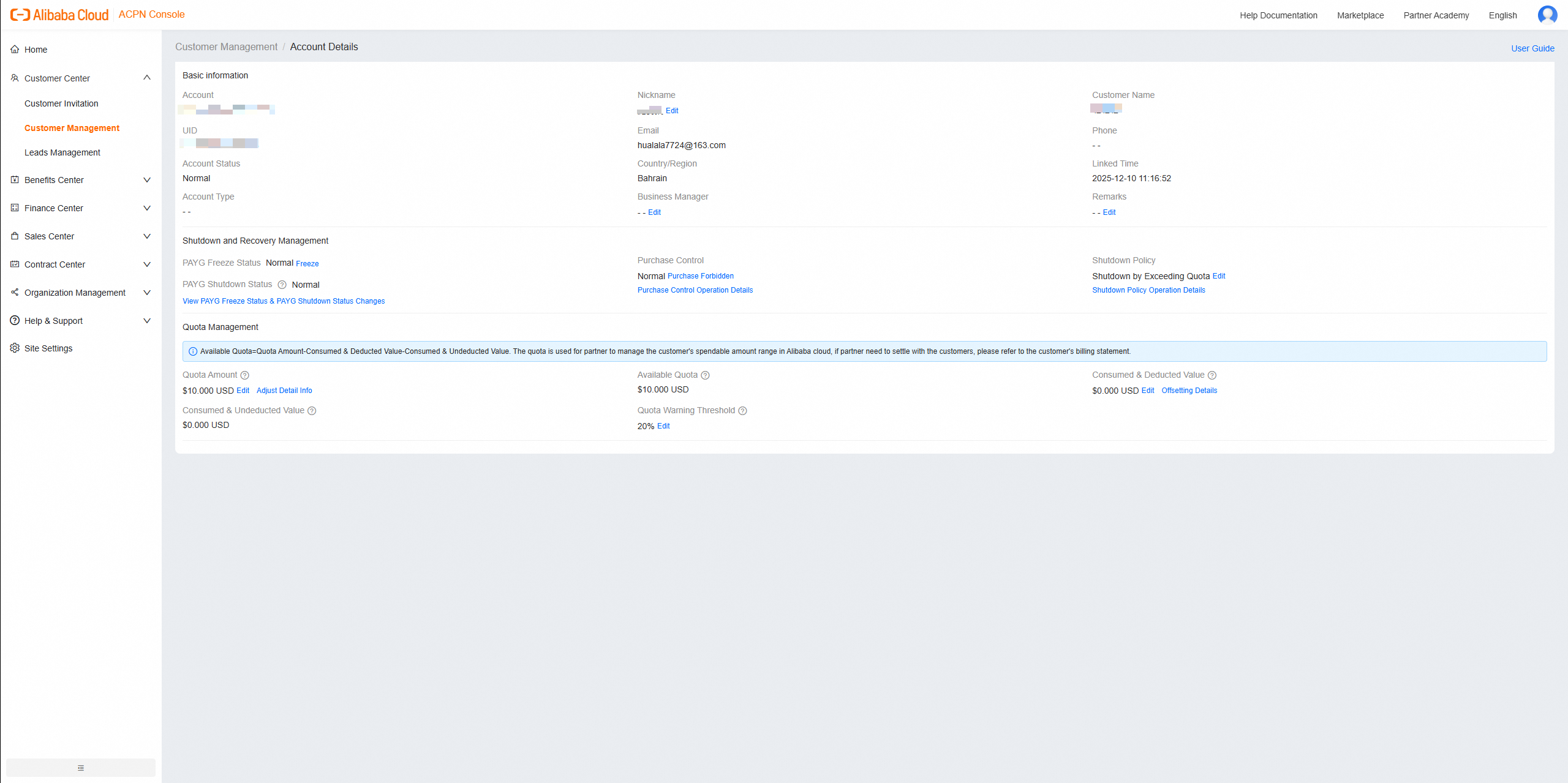
Will redirect you to the Account Management interface, where you can view [Basic Information], [Shutdown Policy Management], and [Quota Management].
2.1. Basic information
Click the [Edit] button to modify your [Nickname], [Business Manager], and [Remarks].
Under [Account Status], you will find the following options: [Normal], [To Be Confirmed], [In Process], [Terminated] and [Deleted]. For the details, please refer to the Distribution Relationship Termination Process.

2.2. Shutdown Policy Management
Shutdown Policies involves the [PAYG instance status], [purchase control] and [shutdown policy].
For detailed information, please refer to the [Shutdown-delay Privilege] section.
The [shutdown] & [re-open] buttons on the [Linked User ID] list page are identical to those on the [UID Details] page.

Setting an EU to PAYG Freeze means instantly suspends its PAYG instances and blocks new PAYG purchases for both the current account and its financial trusteeship sub-accounts; setting Purchase Control to disabled prevents all new orders for both the current account and its financial trusteeship sub-accounts; updating the shutdown policy affects the current account and its financial trusteeship sub-accounts. Please proceed with caution.
Operation | EU | Financial trusteeship sub-accounts |
PAYG Freeze | EU's PAYG instances shutdown; EU's subscription instances are in normal status; Can't create any new PAYG instances; Can purchase new subscription instances with remaining available quota. | Financial trusteeship sub-accounts's PAYG instances shutdown; Subscription instances are in normal status; Can't create any new PAYG instance; Can purchase new subscription instances with the master account's remaining available quota. |
Purchase Control | Unable to initiate any new purchase orders, both PAYG and subscription. | Unable to initiate any new purchase orders, both PAYG and subscription. |
Change the Shutdown Policy | Change the Shutdown Policy | Adapt to the master account's Shutdown Policy. |
[PAYG Freeze Status]
[Normal]: The account is available for resource/instance purchasing.
[Shutdown]: This means the account's functionality is limited. EU and its financial trusteeship sub-accounts'PAYG resources will be immediately suspended. Can't create any new PAYG instances. However, they could purchase new subscrption resources with remaining Available Quota.
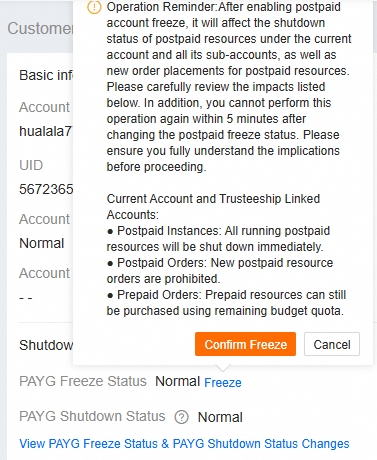
Click [Freeze] and [Confim Freeze] in the pop-up window to freeze the account.
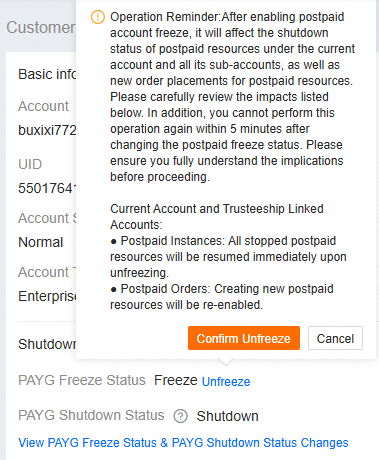
Click [Unfreeze] and [Confim Freeze] in the pop-up window to return to normal status.
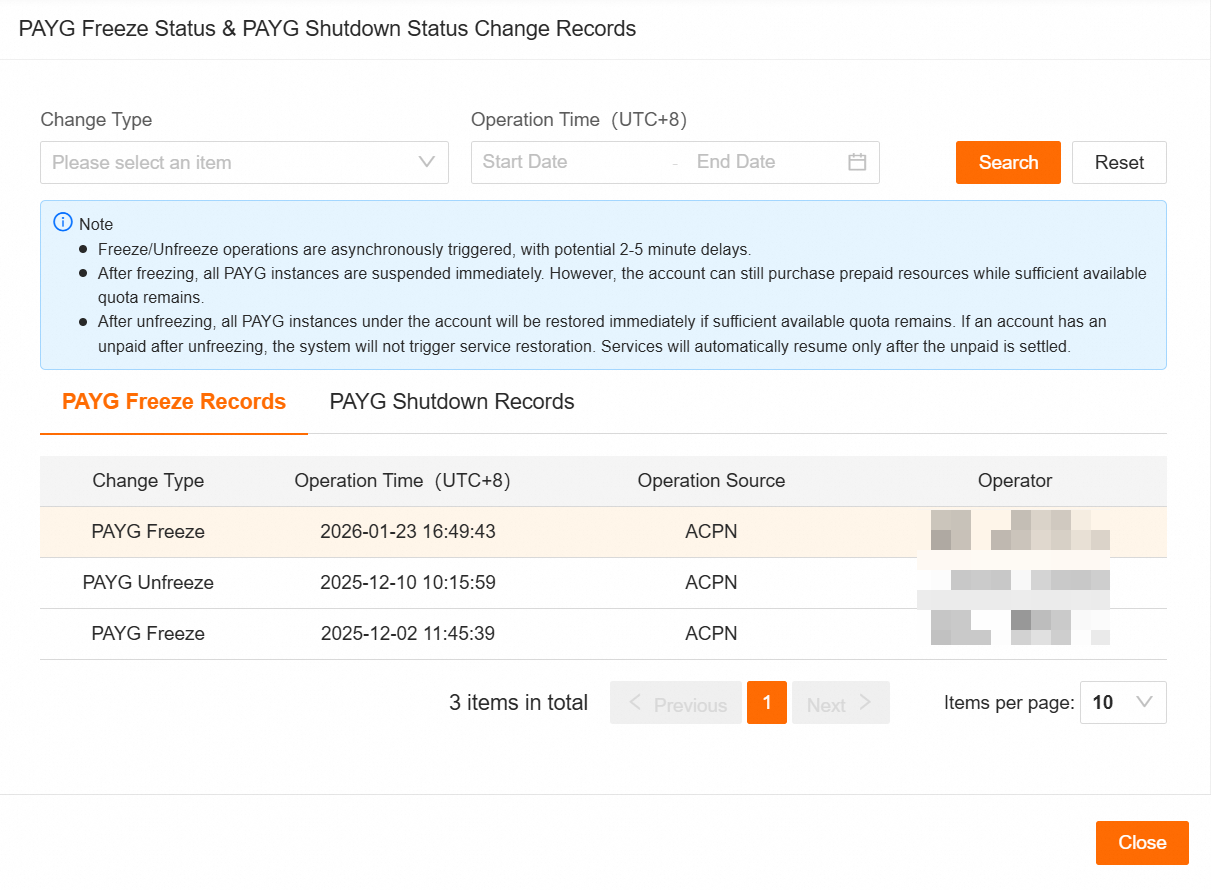
Click [View PAYG Freeze Status & PAYG Shutdown Status Changes] to view records of PAYG freeze status and PAYG shutdown status updates. This data only includes records since the feature was launched—historical records are not displayed.
2.3. Quota Management

Available Quota=Quota Amount - Consumed & Deducted Value - Consumed & Undeducted Value
The quota defines the spending limit for partners' clients on Alibaba Cloud. For billing details, refer to the Finance Center section of the ACPN platform.
Monitor client quota changes closely and adjust their limits promptly to prevent any impact on their business due to insufficient quota.
[Quota Amount]
Current maximum credit limit for the customer.
[Edit] - Allows adjustment of the total budget amount.
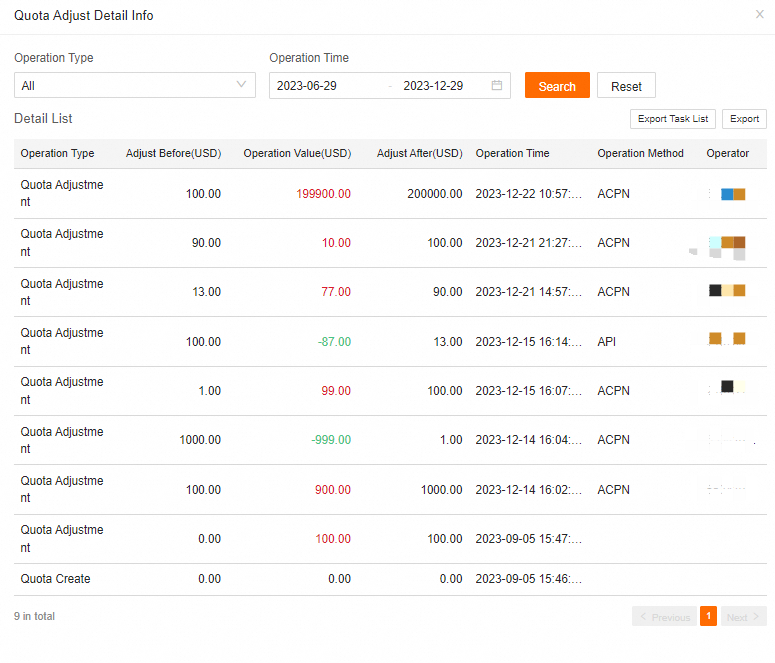
[Adjust Detail info] - Provides a record of budget adjustments, with data covering the past 6 months.
Introduction for [Adjust Detail info]
Operation Type -[Quota Create] refers to the initial quota established at the beginning of the distribution relationship; [Quota Adjustment] refers to the adjustments made during ongoing management.
Operation Time - Recorded in UTC+8 timezone, covering the past 6 months.
Adjust Before(USD) - The quota before the adjustment.
Operation Value(USD) - The difference between the adjusted quota and the original amount. Increases are shown in red, and decreases in green with a "-" (minus sign).
Adjust After(USD) - The quota after adjustment.
Operation Method - Operated on ACPN platform or API interface.
Operator - Operated by Alibaba Cloud account UID or RAM account. It provides the corresponding master UID information or RAM account UID information.
Export - Allows exporting the current page data as an Excel file, with language options including Chinese, English, and Japanese.
[Available Quota]
The current remaining balance. If the available quota is less than 0, it indicates that the customer account has an outstanding payment.
[Consumed & Deducted Value]
The amount that has been consumed and deducted from the quota at the current time.
[Consumed & Undeducted Value]
The amount that has been consumed but not yet deducted from the quota.
[Quota Warning Threshold]
Email alerts are sent to Partners when the available quota falls below the total quota amount multiplied by the quota warning threshold.
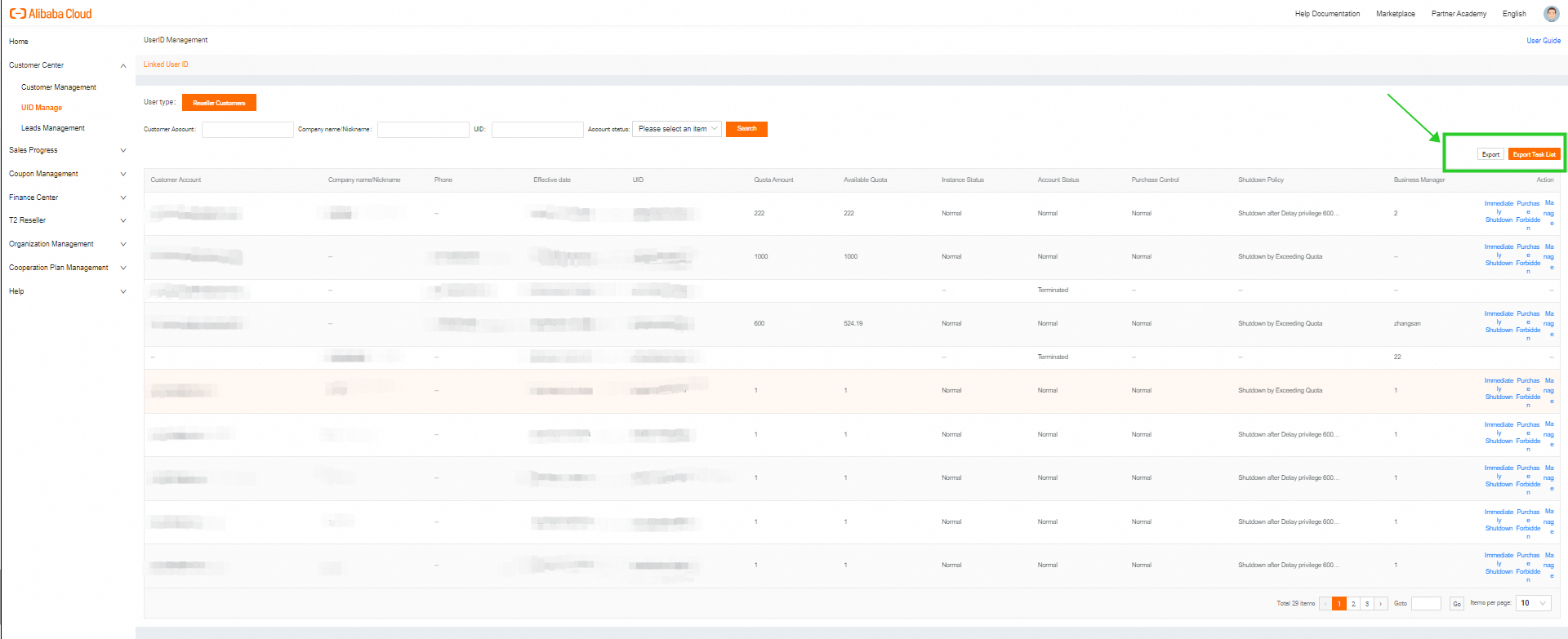
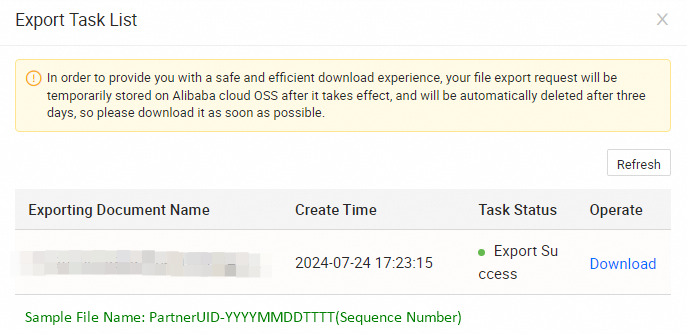
3. Export Customer UID List
Partners can export the End Users List from the [UID Management] page for internal use and filter the list based on specific criteria.
FAQ
Q: Partners can set up the Quota Warning Threshold for their End Users on ACPN, so where should End Users set up the Available Credit Alert notifications for themselves?
A: End Users can set Available Credit Alert notifications on the "Expenses and Costs" page of the Alibaba Cloud Console. The operation process is as follows,
Visit "Expenses and Costs", find the "Available Credit" section on the "Account Overview" page, and click "Settings" on the right side of "Available Credit Alert" to open the detail page;
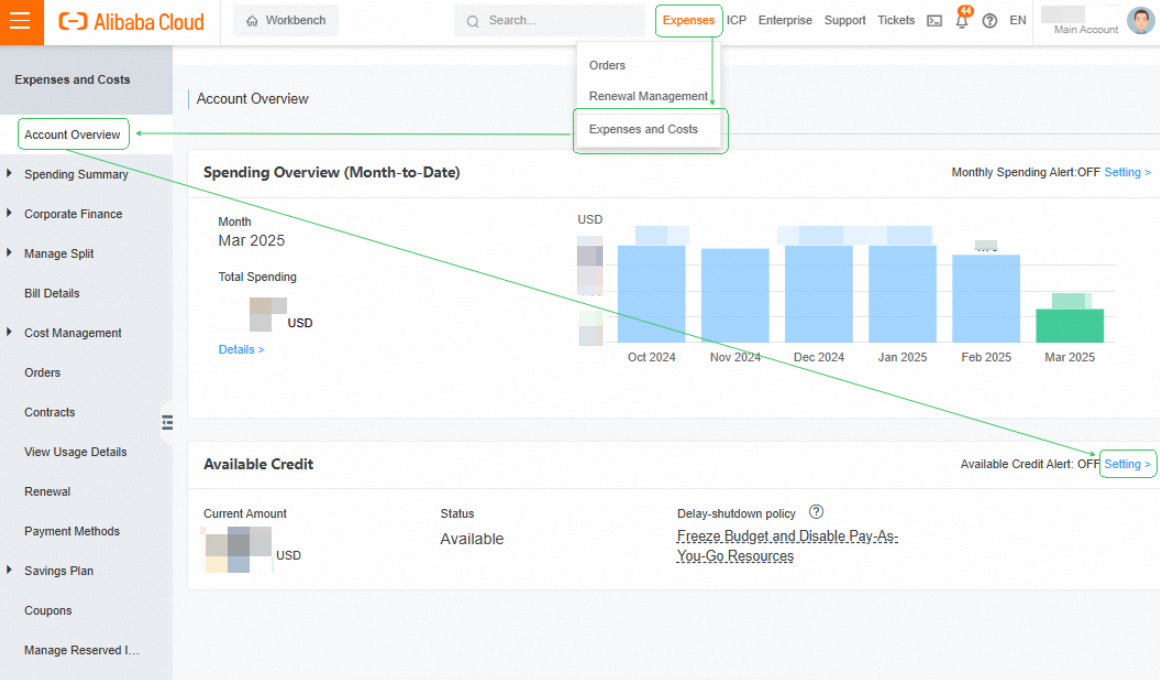
Click "ON" to turn on the Available Credit Alert function, fill in your expected Alert Threshold value, confirm the email address for receiving alert notification emails, and click "Save".
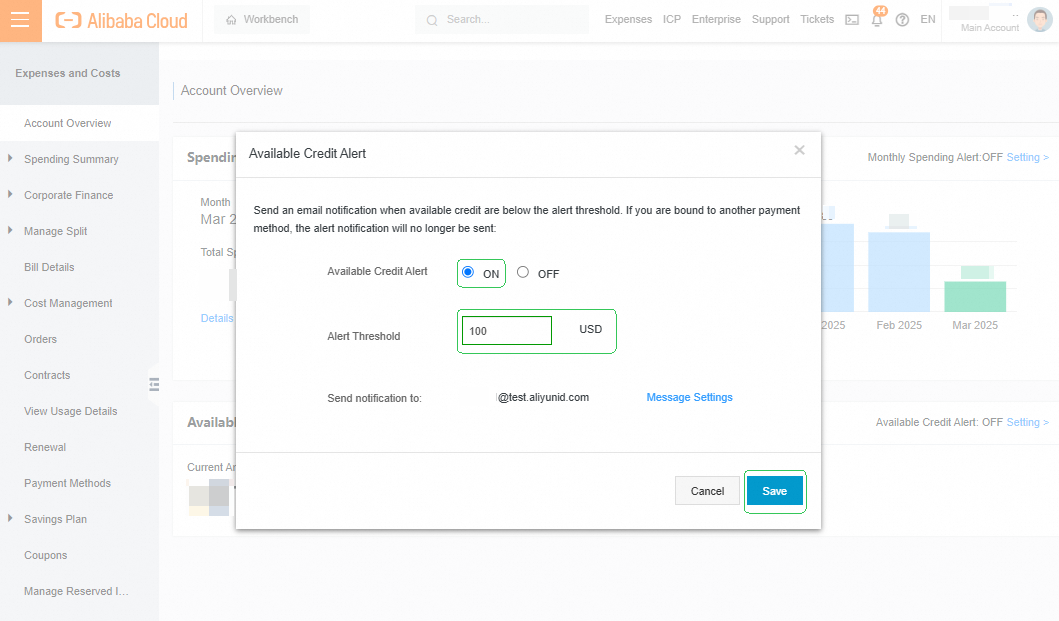
After the setting takes effect, the system will send the alert notification email to the given email address, please check your mailbox in time.