Connect a third-party SD-WAN appliance to a Cloud Enterprise Network (CEN) transit router to enable communication between on-premises data centers (IDCs) and Alibaba Cloud VPCs.
Example scenario
This topic contains information about third-party products. This information is for reference only. Alibaba Cloud makes no representations or warranties, express or implied, about the performance or reliability of third-party products. Alibaba Cloud is not liable for any issues that may arise from using these products.
This topic uses the scenario shown in the following figure. A company has two data centers, IDC1 and IDC2, in Shanghai. On Alibaba Cloud, the company uses service VPC1 in the China (Shanghai) region and service VPC2 in the China (Hangzhou) region. The company wants to connect IDC1, IDC2, service VPC1, and service VPC2 through a third-party SD-WAN appliance, which allows configuring access control policies to secure data center access to Alibaba Cloud. The company also wants to automate route advertisement and learning between Alibaba Cloud and the data centers to reduce route maintenance.
To implement this solution, connect the third-party SD-WAN appliance to a transit router through a VPN connection. This connects the data centers and the VPCs. Then, configure BGP on the transit router, the third-party SD-WAN appliance, IDC1, and IDC2 to automate route advertisement and learning.
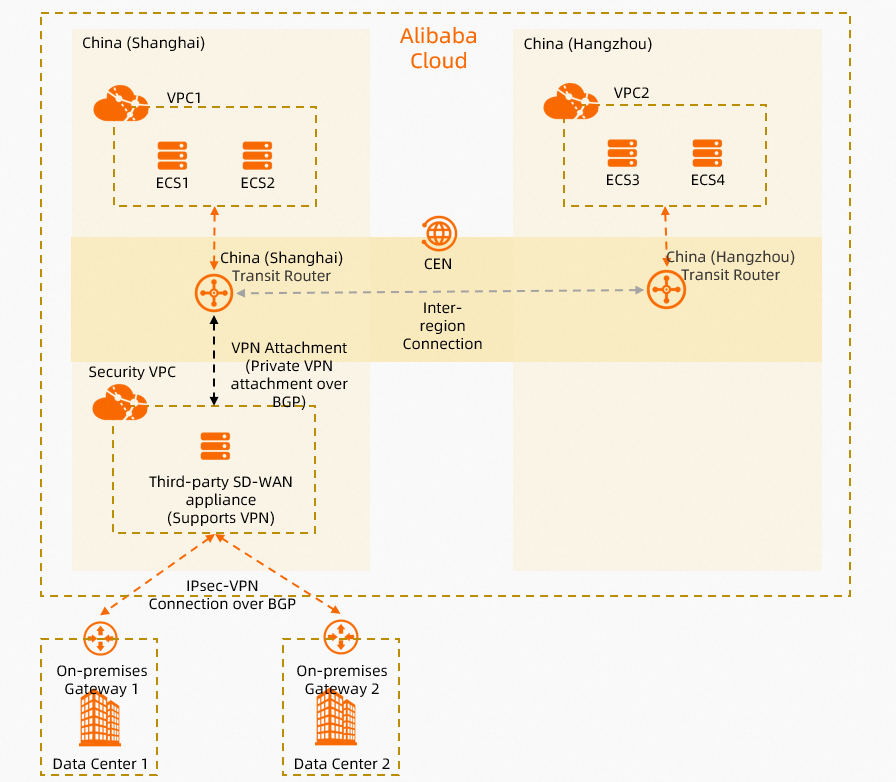
Network planning
Network function planning
Create an Elastic Compute Service (ECS) instance in a dedicated VPC, referred to as the security VPC in this topic. Deploy a third-party SD-WAN appliance by installing a third-party image on the ECS instance.
For this example, the third-party SD-WAN appliance is an ECS instance in the security VPC running a FortiGate V6.2.4 image.
The third-party SD-WAN appliance can connect directly to the transit router through a VPN connection. The VPN connection must be the Private gateway type.
Use Border Gateway Protocol (BGP) between the third-party SD-WAN appliance and the transit router to automatically propagate and learn routes.
The third-party SD-WAN appliance establishes IPsec-VPN connections with on-premises IDC1 and on-premises IDC2 to connect them to Alibaba Cloud.
The third-party SD-WAN appliance establishes a full-mesh IPsec-VPN connection with on-premises IDC1 and on-premises IDC2 using Auto Discovery VPN (ADVPN). For more information about ADVPN, see the Fortinet documentation.
The third-party SD-WAN appliance uses BGP with on-premises gateway device 1 and on-premises gateway device 2 to establish iBGP peer relationships to automatically advertise and learn routes.
In this topic, both on-premises gateway device 1 and on-premises gateway device 2 are Fortinet devices with the FortiGate V6.2.4 image installed.
CIDR block planning
When planning your CIDR blocks, ensure that the CIDR blocks of communicating networks do not overlap.
Table 1. Basic CIDR block plan
Resource | CIDR and IP |
Service VPC1 |
|
Service VPC2 |
|
Security VPC |
|
on-premises IDC1 |
|
on-premises IDC2 |
|
Table 2. BGP address plan
Resource | AS number | Local BGP IP | Peer BGP IP |
BGP configuration between the third-party SD-WAN appliance and the transit router | |||
IPsec-VPN connection | 65531 | 169.254.20.1 | 169.254.20.2 |
Third-party SD-WAN appliance | 65534 | 169.254.20.2 | 169.254.20.1 |
BGP configuration between the third-party SD-WAN appliance and on-premises IDC1 | |||
on-premises IDC1 | 65534 | 169.254.10.10 | 169.254.10.1 |
Third-party SD-WAN appliance | 65534 | 169.254.10.1 | 169.254.10.10 |
BGP configuration between the third-party SD-WAN appliance and on-premises IDC2 | |||
on-premises IDC2 | 65534 | 169.254.10.11 | 169.254.10.1 |
Third-party SD-WAN appliance | 65534 | 169.254.10.1 | 169.254.10.11 |
Prerequisites
Before you begin, complete the following:
Create Service VPC1 and a security VPC in the China (Shanghai) region, and Service VPC2 in the China (Hangzhou) region. Then, deploy the required services on the ECS instances. For more information, see Create VPCs and vSwitches.
Deploy your business applications on the ECS instances in Service VPC1 and Service VPC2.
Install a third-party image from the Alibaba Cloud Marketplace on the ECS instance in the security VPC and deploy it as a third-party SD-WAN appliance. This topic uses a FortiGate V6.2.4 image as an example. Ensure that the SD-WAN appliance has a public IP address. For more information, see Alibaba Cloud Marketplace images.
Create a Cloud Enterprise Network (CEN) instance. For more information, see Create a CEN instance.
Configuration flow

Step 1: Create transit router instances
To connect your on-premises IDCs and VPCs through CEN, create transit router instances in the China (Shanghai) and China (Hangzhou) regions. Assign a transit router CIDR block to the China (Shanghai) instance for creating VPC and VPN connections.
Log on to the CEN console.
On the CEN Instance page, select the CEN instance that you created in the Prerequisites section and click the CEN instance ID.
On the tab, click Create Transit Router.
In the Create Transit Router dialog box, configure the transit router instance and click OK.
The following table describes only the parameters relevant to this topic. For all other parameters, use the default values. For more information, see Transit router CIDR blocks.
Parameter
Description
China (Shanghai)
China (Hangzhou)
Region
The region where the transit router instance is deployed.
Select China (Shanghai).
Select China (Hangzhou).
Edition
The edition of the transit router instance.
The system automatically detects and displays the edition available in the selected region.
Enable Multicast
Specifies whether to enable multicast for the transit router instance.
Retain the default value, which is to disable multicast.
Name
The name of the transit router instance.
Enter TR-shanghai.
Enter TR-hangzhou.
Transit Router CIDR
A custom CIDR block for the transit router.
A transit router CIDR block is similar to the IP address range for a router's loopback interface. The transit router assigns IP addresses from this CIDR block for IPsec connections. For more information, see Transit router CIDR blocks.
Enter 10.10.10.0/24.
Leave the transit router CIDR block empty.
Step 2: Create VPC connections
Connect Service VPC1, the security VPC, and Service VPC2 to their respective transit router instances to enable communication between the on-premises IDCs and the VPCs.
On the CEN Instance page, select the CEN instance that you created in the Prerequisites section and click the CEN instance ID.
On the tab, find the transit router instance that you created in Step 1. In the Actions column, click Create Connection > Create Intra-Region Connection.
On the Create Intra-Region Connection page, set the following parameters and click OK.
The following table describes only the parameters relevant to this tutorial. For all other parameters, retain the default values. For more information, see Create a VPC connection.
Parameter
Description
Service VPC1
Security VPC
Service VPC2
Instance Type
The type of the network instance.
In this example, select VPC.
In this example, select VPC.
In this example, select VPC.
Region
The region where the network instance is located.
In this example, select China (Shanghai).
In this example, select China (Shanghai).
In this example, select China (Hangzhou).
Transit Router
The system automatically displays the ID of the transit router instance created in the current region.
Account
Indicates if the network instance belongs to your Alibaba Cloud account.
In this example, select Your Account.
In this example, select Your Account.
In this example, select Your Account.
Billing Method
The billing method of the VPC connection. The default value is Pay-As-You-Go. For more information about the billing of transit routers, see Billing.
Connection Name
Enter a name for the VPC connection.
In this example, enter Service-VPC1-Connection.
In this example, enter Security-VPC-Connection.
In this example, enter Service-VPC2-Connection.
Networks
Select a network instance.
In this example, select Service VPC1.
In this example, select the security VPC.
In this example, select Service VPC2.
vSwitch
Select vSwitches in zones supported by the transit router. For single-zone regions, select one vSwitch. For multi-zone regions, select at least two vSwitches in different zones. To reduce latency, select one vSwitch per zone.
Make sure that each selected vSwitch has an idle IP address. If the VPC does not have a vSwitch in the zones supported by the transit router, or if the vSwitches do not have idle IP addresses, you must create a vSwitch. For more information, see Create and manage vSwitches.
In this example, select vSwitch 1 in Shanghai Zone F and vSwitch 2 in Shanghai Zone G.
In this example, select vSwitch 1 in Shanghai Zone F and vSwitch 2 in Shanghai Zone G.
In this example, select vSwitch 1 in Hangzhou Zone I and vSwitch 2 in Hangzhou Zone H.
Advanced Settings
Select the advanced features to enable.
In this example, retain the default settings, which enable all advanced features.
In this example, retain the default settings, which enable all advanced features.
In this example, retain the default settings, which enable all advanced features.
Step 3: Create an inter-region connection
After Service VPC1 and the security VPC are connected to a transit router in the same region, they can communicate. However, they cannot communicate with Service VPC2 because its transit router is in a different region. To enable cross-region communication, create an inter-region connection between the transit routers in the China (Hangzhou) and China (Shanghai) regions.
On the CEN Instance page, find your Cloud Enterprise Network (CEN) instance and click its instance ID.
On the tab, click Set Inter-region Bandwidth.
On the Create Inter-Region Connection page, set the following parameters to configure the inter-region connection, and then click OK.
Leave the other parameters at their default settings. For more information, see Create an inter-region connection.
Parameter
Description
Local Region
Select the local region for the connection.
This tutorial uses China (Hangzhou).
Local Transit Router
The system automatically displays the ID of the transit router in the current region.
Name
Enter a name for the inter-region connection.
This tutorial uses Inter-region Connection.
Peer Region
Select the peer region for the connection.
This tutorial uses China (Shanghai).
Peer Transit Router
The system automatically displays the ID of the transit router in the peer region.
Bandwidth Allocation Mode
An inter-region connection supports the following bandwidth allocation methods:
Allocate from Bandwidth Plan: Allocates bandwidth from a purchased bandwidth plan.
Pay-By-Data-Transfer: Bills you for the actual traffic transferred over the connection.
This tutorial uses Pay-By-Data-Transfer.
Bandwidth
Enter the peak bandwidth for the inter-region connection. Unit: Mbps.
Default Line Type
Use the default link type.
Advanced Settings
Keep the default settings. All advanced options are enabled by default.
Step 4: Create a VPN connection
After you complete the preceding configurations, Service VPC1, Service VPC2, and the security VPC can communicate with each other. However, the transit router and the security VPC cannot learn routes from the on-premises data center. You must establish a VPN connection between the third-party SD-WAN appliance and the transit router. This allows the third-party SD-WAN appliance to learn routes from the on-premises data center and advertise them to the transit router over the VPN connection.
Log on to the VPN Gateway console.
Create a customer gateway.
Before establishing a VPN connection to the transit router, create a customer gateway to register the third-party SD-WAN appliance information with Alibaba Cloud.
In the navigation pane on the left, choose .
In the top navigation bar, select the region of the customer gateway.
Select the region of the VPC that contains the third-party SD-WAN appliance. In this example, China (Shanghai) is selected.
On the Customer Gateway page, click Create Customer Gateway.
In the Create Customer Gateway panel, set the following parameters and click OK.
This section describes only the required parameters. For all other parameters, use the default values. For more information, see customer gateway.
Parameter
Description
Example value
Name
Enter a name for the customer gateway.
Enter Customer-Gateway.
IP Address
Enter the IP address of the third-party SD-WAN appliance used for the VPN connection.
Enter the private IP address of the third-party SD-WAN appliance: 172.16.0.15.
ASN
Enter the BGP ASN of the third-party SD-WAN appliance.
Enter 65534.
Create an IPsec connection.
After creating the customer gateway, create an IPsec connection in Alibaba Cloud. The transit router uses this connection to establish a VPN connection with the third-party SD-WAN appliance.
In the navigation pane on the left, go to .
In the top navigation bar, select the region for the IPsec connection.
The region of the IPsec connection must be the same as the region of the customer gateway. In this example, China (Shanghai) is selected.
On the IPsec Connections page, click Bind CEN.
On the Create IPsec Connection (CEN) page, set the parameters as described in the following table, and then click OK.
Creating an IPsec connection incurs fees. For more information about , see the billing documentation.
Parameter
Description
Example value
Name
Enter a name for the IPsec connection.
Enter IPsec-Connection.
Region
Select the region that contains the transit router you want to bind.
After the IPsec connection is created, it is in the same region as the transit router.
Select China (Shanghai).
Gateway Type
Select the network type for the IPsec connection.
Select Private.
The security VPC is already attached to the transit router. The third-party SD-WAN appliance can establish a VPN connection with the transit router over a private network.
Bind CEN Instance
Select the account that owns the transit router to which you want to bind the IPsec connection.
Select Same Account.
CEN ID
Select a CEN instance.
Select the CEN instance that you created in the Prerequisites section.
Routing Mode
Select a routing mode.
Select Destination Routing.
Apply Immediately
Specifies whether the configuration takes effect immediately. Valid values:
Yes: Negotiation starts immediately after the configuration is complete.
No: Negotiation starts when traffic is detected.
Select Yes.
Customer Gateway
Select the customer gateway to associate with the IPsec connection.
Select Customer-Gateway.
Pre-shared Key
Enter a key for authentication between the on-premises gateway device and the IPsec connection.
The key can be 1 to 100 characters in length and can contain digits, letters, and the following special characters:
~`!@#$%^&*()_-+={}[]\|;:',.<>/?. The key cannot contain spaces.If you do not specify a pre-shared key, the system generates a random 16-character string. After you create the IPsec connection, you can click Edit on the tunnel to view the key. For more information, see Modify tunnel configurations.
ImportantThe pre-shared key of the IPsec-VPN connection must be the same as the pre-shared key of the peer gateway device. Otherwise, the IPsec-VPN connection cannot be established.
Enter fddsFF123****.
Enable BGP
Specifies whether to enable BGP. By default, BGP is disabled.
Enabled
Local ASN
The ASN of the IPsec connection. The default value is 45104. The valid values are 1 to 4294967295.
Enter 65531.
Encryption Settings
Add encryption settings, such as the IKE configuration and IPsec configuration.
Use the default values for all parameters except for the following:
For the IKE Settings, set Encryption Algorithm to DES.
For the IPsec Settings, set Encryption Algorithm to DES.
NoteSelect encryption parameters that are supported by your on-premises gateway device. Make sure that the IPsec connection and the on-premises gateway device use the same encryption settings.
BGP Settings
Tunnel CIDR Block
The CIDR block used to establish the encrypted tunnel.
The CIDR block must be a /30 subnet within the 169.254.0.0/16 range.
The tunnel CIDR block must be a /30 subnet within 169.254.0.0/16. It cannot be 169.254.0.0/30, 169.254.1.0/30, 169.254.2.0/30, 169.254.3.0/30, 169.254.4.0/30, 169.254.5.0/30, 169.254.6.0/30, or 169.254.169.252/30.
Enter 169.254.20.0/30.
Local BGP IP address
The BGP IP address of the IPsec connection.
This address must be an IP address within the tunnel CIDR block.
Enter 169.254.20.1.
Advanced Settings
Specifies whether to enable advanced features for the IPsec connection.
Use the default setting, which enables all advanced features.
After the IPsec connection is created, the system automatically assigns a gateway IP address to it. This IP address is used to establish the VPN connection with the third-party SD-WAN appliance. You can view the gateway IP address on the details page of the IPsec connection.
NoteThe system assigns a gateway IP address to an IPsec connection only after the connection is bound to a transit router instance. If you set Associate Resource to Do Not Associate or VPN Gateway when you create the ipsec connection, no gateway IP address is assigned.
After a private IPsec connection is bound to a transit router instance, the system automatically advertises the gateway IP address of the IPsec connection to the route table of the transit router.
Download the peer configuration for the IPsec connection.
Return to the IPsec-VPN Connection page. Find the IPsec connection that you just created and click Generate Peer Configuration in the Actions column.
Add VPN and BGP configurations on the third-party SD-WAN appliance.
After creating the IPsec connection, use the downloaded peer configuration to add VPN and BGP configurations on the third-party SD-WAN appliance. This establishes a VPN connection to the transit router.
NoteThis topic uses a FortiGate firewall (software version V6.2.4) as an example. Configuration commands may vary based on the software version. For specific commands, refer to the documentation for your device or contact the vendor. For more configuration examples for on-premises gateway devices, see On-premises gateway device configuration examples.
The following content contains information about third-party products and is for reference only. Alibaba Cloud makes no representations or warranties, express or implied, about the performance or reliability of third-party products. Alibaba Cloud is not liable for any issues that may arise from using these products.
Log on to the command-line interface (CLI) of the third-party SD-WAN appliance.
Add the phase 1 configuration (IKE configuration) for the IPsec VPN.
# Add the phase 1 IPsec VPN configuration for tunnel 1.
config vpn ipsec phase1-interface
 edit "to_aliyun_test1"
 set interface "port1"             # Use "port1" to establish a vpn connection with the transit router.
 set ike-version 2
 set peertype any
 set net-device disable
 set proposal des-sha1             # Configure the phase 1 encryption and authentication algorithms to match the IKE configuration of the ipsec connection.
 set localid-type address          # Specify the localid format as an IP address to match the RemoteId format of the Alibaba Cloud ipsec connection.
 set dhgrp 2                       # Configure the phase 1 DH group to match the IKE configuration of the ipsec connection.
 set remote-gw 192.168.168.1       # Specify the peer IP address. This is the gateway IP address of the ipsec connection.
 set psksecret fddsFF123****       # Specify the pre-shared key for the tunnel. This must match the key configured for the Alibaba Cloud ipsec connection.
 next
end
Add the phase 2 configuration (IPsec configuration) for the IPsec VPN.
# Add the phase 2 IPsec VPN configuration for the tunnel.
config vpn ipsec phase2-interface
    edit "to_aliyun_test1"
        set phase1name "to_aliyun_test1"    # Associate this with the phase1-interface of the tunnel.
        set proposal des-sha1               # Configure the phase 2 encryption and authentication algorithms to match the IPsec configuration of the ipsec connection.
        set dhgrp 2                         # Configure the phase 2 DH group to match the IPsec configuration of the ipsec connection.
        set auto-negotiate enable
        set keylifeseconds 86400            # Configure the Security Association (SA) lifetime.
    next
end
Configure the BGP IP address for the tunnel interface.
config system interface
    edit "to_aliyun_test1"
        set ip 169.254.20.2 255.255.255.255          # Configure the BGP IP address for the tunnel interface.
        set type tunnel                              # Specify the interface type as tunnel.
        set remote-ip 169.254.20.1 255.255.255.255   # Specify the BGP IP address of the tunnel peer.
        set interface "port1"                        # Associate the tunnel with the physical interface "port1".
    next
end
Configure firewall policies.
config firewall policy
    edit 1
        set name "forti_to_aliyun1"       # Configure a security policy for traffic from the third-party SD-WAN appliance to Alibaba Cloud.
        set srcintf "port1"               # The source interface is "port1".
        set dstintf "to_aliyun_test1"     # The destination interface is the vpn connection tunnel interface.
        set srcaddr "all"                 # Match traffic from all source CIDR blocks.
        set dstaddr "all"                 # Match traffic to all destination CIDR blocks.
        set action accept                 # Allow traffic to pass.
        set schedule "always"
        set service "ALL"
    next
    edit 2
        set name "aliyun_to_forti1"       # Configure a security policy for traffic from Alibaba Cloud to the third-party SD-WAN appliance.
        set srcintf "to_aliyun_test1"     # The source interface is the vpn connection tunnel interface.
        set dstintf "port1"               # The destination interface is "port1".
        set srcaddr "all"                 # Match traffic from all source CIDR blocks.
        set dstaddr "all"                 # Match traffic to all destination CIDR blocks.
        set action accept                 # Allow traffic to pass.
        set schedule "always"
        set service "ALL"
    next
end
Configure BGP dynamic routing.
config router bgp
    set as 65534
    set router-id 172.16.0.15
    config neighbor
        edit "169.254.20.1"                       # Specify the BGP neighbor at the other end of the tunnel.
            set remote-as 65531
        next
    end
    config network
        edit 1
            set prefix 172.16.0.0 255.255.0.0    # Advertise the CIDR block of the security VPC that needs to communicate with other networks.
        next
    end
end
Step 5: Configure the on-premises gateway devices
Configure VPN and BGP on on-premises gateway device 1, on-premises gateway device 2, and the third-party SD-WAN device. This establishes IPsec-VPN connections among the devices and enables communication between the on-premises IDCs and the Alibaba Cloud VPCs.
The third-party SD-WAN appliance establishes a full-mesh IPsec-VPN connection with on-premises IDC1 and on-premises IDC2 using Auto Discovery VPN (ADVPN). For more information about ADVPN, see the Fortinet documentation.
This topic uses a FortiGate firewall (software version V6.2.4) as an example. Configuration commands may vary based on the software version. For specific commands, refer to the documentation for your device or contact the vendor. For more configuration examples for on-premises gateway devices, see On-premises gateway device configuration examples.
Third-party SD-WAN device (hub)
Ensure that UDP ports 500 and 5000 on the third-party SD-WAN device allow access from the public IP addresses of on-premises gateway device 1 and on-premises gateway device 2. For more information, see Add a security group rule.
Log on to the command-line interface (CLI) of the third-party SD-WAN device.
Add the phase 1 configuration for the IPsec-VPN connection:
config vpn ipsec phase1-interface
    edit "HUB"                                              # The third-party SD-WAN device acts as the hub node.
        set type dynamic
        set interface "port1"                               # Use port1 to establish an IPsec-VPN connection with the on-premises IDCs.
        set ike-version 2                                   # Use IKE v2.
        set peertype any
        set net-device disable                              # Disable this feature.
        set proposal des-sha1                               # Configure the phase 1 encryption and authentication algorithms.
        set add-route disable                               # Disable automatic route injection.
        set dpd on-idle
        set wizard-type hub-fortigate-auto-discovery
        set auto-discovery-sender enable                    # Enable on the hub to send and receive spoke-to-spoke direct tunnel information.
        set network-overlay enable
        set network-id 1
        set psksecret fddsFF456****                         # Configure the pre-shared key.
        set dpd-retryinterval 60
    next
end
Add the phase 2 configuration for the IPsec-VPN connection:
config vpn ipsec phase2-interface
    edit "HUB"
        set phase1name "HUB"
        set proposal des-sha1                          # Configure the phase 2 encryption and authentication algorithms.
    next
end
Configure the IPsec-VPN tunnel IP address:
config system interface edit "HUB" set vdom "root" set ip 169.254.10.1 255.255.255.255 # Configure the tunnel IP address. set allowaccess ping set type tunnel # Specify the interface type as a tunnel. set remote-ip 169.254.10.254 255.255.255.0 # Configure the peer tunnel IP address. set interface "port1" # Associate the tunnel with the physical interface port1. next endImportantThe IP address 169.254.10.254 is a reserved IP address that is not used by any spoke node. An IPsec-VPN connection is a point-to-point tunnel, but in an ADVPN setup, this tunnel must serve multiple spoke nodes simultaneously. Therefore, you cannot set
remote-ipto the IP address of an existing spoke node.Configure a security policy on the third-party SD-WAN device to allow communication between the on-premises IDCs, and between the on-premises IDCs and Alibaba Cloud:
config firewall policy
    edit 7
        set name "HUB_to_SPOKE"
        set srcintf "port1" "HUB" "to_aliyun_test1"     # Source interfaces: port1, HUB, and to_aliyun_test1.
        set dstintf "HUB" "port1" "to_aliyun_test1"     # Destination interfaces: HUB, port1, and to_aliyun_test1.
        set action accept                               # Allow traffic.
        set srcaddr "all"                               # Match traffic from all source CIDR blocks.
        set dstaddr "all"                               # Match traffic to all destination CIDR blocks.
        set schedule "always"
        set service "ALL"
    next
end
Add the BGP configuration:
config router bgp
    set as 65534                                           # Specify 65534 as the BGP AS number of the third-party SD-WAN device.
    config neighbor-group                                  # Enable the neighbor-group attribute.
        edit "HUB_group"
            set next-hop-self enable
            set remote-as 65534                            # Specify the BGP AS number of the peer.
            set additional-path send
            set route-reflector-client enable              # Enable route reflection and specify the third-party SD-WAN device as the route reflector.
        next
    end
    config neighbor-range
        edit 1
            set prefix 169.254.10.0 255.255.255.0          # Any BGP neighbor that matches the 169.254.10.0/24 prefix can establish an iBGP neighbor relationship with the hub node.
            set neighbor-group "HUB_group"
        next
    end
end
On-premises gateway device 1 (spoke)
Log on to the command-line interface (CLI) of on-premises gateway device 1.
Add a default route to ensure that on-premises gateway device 1 can access the public IP address of the third-party SD-WAN device.
# In this scenario, the port1 interface is mapped to the public IP address 121.XX.XX.211. Therefore, configure the default route to point to the port1 gateway.
config router static
    edit 1
        set device "port1"
        set distance 5
        set gateway 192.168.100.253
    next
end

# You can run the following command to view routing information.
FortiGate-VM64-KVM # get router info routing-table all
S*      0.0.0.0/0 [5/0] via 192.168.100.253, port1
Add the phase 1 configuration for the IPsec-VPN connection:
config vpn ipsec phase1-interface
    edit "hz_sp"
        set interface "port1"                           # Use the port1 interface to establish an IPsec-VPN connection with the third-party SD-WAN device.
        set ike-version 2                               # Use IKE v2.
        set peertype any
        set net-device disable                          # Disable this feature.
        set proposal des-sha1                           # Configure the phase 1 encryption and authentication algorithms.
        set localid "hzoffice1"
        set dpd on-idle
        set wizard-type spoke-fortigate-auto-discovery
        set auto-discovery-receiver enable               # Enable on the spoke node to receive direct tunnel information from the hub node.
        set network-overlay enable
        set network-id 1
        set remote-gw 42.XX.XX.129                       # Specify the public IP address of the hub node.
        set psksecret fddsFF456****                      # Configure the pre-shared key. The key must be the same as the one on the hub node.
        set add-route disable                            # Disable automatic route injection.
    next
end
Add the phase 2 configuration for the IPsec-VPN connection:
config vpn ipsec phase2-interface
    edit "hz_sp"
        set phase1name "hz_sp"
        set proposal des-sha1                         # Configure the phase 2 encryption and authentication algorithms.
        set auto-negotiate enable                     # Enable auto-negotiation.
    next
end
Configure the IPsec-VPN tunnel IP address:
config system interface
    edit "hz_sp"
        set vdom "root"
        set ip 169.254.10.10 255.255.255.255           # Configure the tunnel IP address.
        set allowaccess ping
        set type tunnel                                # Specify the interface type as a tunnel.
        set remote-ip 169.254.10.254 255.255.255.0     # Configure the peer tunnel IP address.
        set interface "port1"                          # Associate the tunnel with the physical interface port1.
    next
end

config system interface                                # Create a loopback interface to simulate a client in on-premises IDC 1.
    edit "loopback"
       set vdom "root"
       set ip 192.168.254.100 255.255.255.0
       set allowaccess ping
       set type loopback
  next
end
Configure a security policy on on-premises gateway device 1 to allow communication between the on-premises IDCs, and between the on-premises IDCs and Alibaba Cloud:
config firewall policy
    edit 3
        set name "hz_sp_remote"                    # Configure a security policy for traffic destined for on-premises IDC 1.
        set srcintf "hz_sp"  "loopback" "port1"    # Source interfaces: port1, hz_sp, and loopback.
        set dstintf "loopback" "hz_sp" "port1"     # Destination interfaces: loopback, hz_sp, and port1.
        set action accept                # Allow traffic.
        set srcaddr "all"                # Match traffic from all source CIDR blocks.
        set dstaddr "all"                # Match traffic to all destination CIDR blocks.
        set schedule "always"
        set service "ALL"
    next
end
Add the BGP configuration:
config router bgp
    set as 65534                                         # Specify the BGP AS number for on-premises gateway device 1.
    set network-import-check disable                     # Disable the check for advertised routes.
    config neighbor
        edit "169.254.10.1"                              # Establish an iBGP neighbor relationship with the third-party SD-WAN device.
            set remote-as 65534                          # Specify the BGP AS number of the third-party SD-WAN device.
            set additional-path receive
        next
    end
    config network
        edit 1
            set prefix 192.168.254.100 255.255.255.255   # Advertise the address of the client in on-premises IDC 1 for communication with the VPC and on-premises IDC 2.
        next
    end
end
On-premises gateway device 2 (spoke)
Log on to the command-line interface (CLI) of on-premises gateway device 2.
Add a default route to ensure that on-premises gateway device 2 can access the public IP address of the third-party SD-WAN device.
# In this scenario, the port1 interface is mapped to the public IP address 121.XX.XX.78. Therefore, configure the default route to point to the port1 gateway.
config router static
    edit 1
        set device "port1"
        set distance 5
        set gateway 192.168.99.253
    next
end

# You can run the following command to view routing information.
FortiGate-VM64-KVM # get router info routing-table all
S*      0.0.0.0/0 [5/0] via 192.168.99.253, port1
Add the phase 1 configuration for the IPsec-VPN connection:
config vpn ipsec phase1-interface
    edit "hz_sp1"
        set interface "port1"                           # Use the port1 interface to establish an IPsec-VPN connection with the third-party SD-WAN device.
        set ike-version 2                               # Use IKE v2.
        set peertype any
        set net-device disable                          # Disable this feature.
        set proposal des-sha1                           # Configure the phase 1 encryption and authentication algorithms.
        set localid "hzoffice2"
        set dpd on-idle
        set wizard-type spoke-fortigate-auto-discovery
        set auto-discovery-receiver enable               # Enable on the spoke node to receive direct tunnel information from the hub node.
        set network-overlay enable
        set network-id 1
        set remote-gw 42.XX.XX.129                       # Specify the public IP address of the hub node.
        set psksecret fddsFF456****                      # Configure the pre-shared key. The key must be the same as the one on the hub node.
        set add-route disable                            # Disable automatic route injection.
    next
end
Add the phase 2 configuration for the IPsec-VPN connection:
config vpn ipsec phase2-interface
    edit "hz_sp1"
        set phase1name "hz_sp1"
        set proposal des-sha1                         # Configure the phase 2 encryption and authentication algorithms.
        set auto-negotiate enable                     # Enable auto-negotiation.
    next
end
Configure the IPsec-VPN tunnel IP address:
config system interface
    edit "hz_sp1"
        set vdom "root"
        set ip 169.254.10.11 255.255.255.255           # Configure the tunnel IP address.
        set allowaccess ping
        set type tunnel                                # Specify the interface type as a tunnel.
        set remote-ip 169.254.10.254 255.255.255.0     # Configure the peer tunnel IP address.
        set interface "port1"                          # Associate the tunnel with the physical interface port1.
    next
end

config system interface                                # Create a loopback interface to simulate a client in on-premises IDC 2.
    edit "loopback"
         set vdom "root"
         set ip 192.168.100.104 255.255.255.0
         set allowaccess ping
         set type loopback
end
Configure a security policy on on-premises gateway device 2 to allow communication between the on-premises IDCs, and between the on-premises IDCs and Alibaba Cloud:
config firewall policy
    edit 3
        set name "hz_sp1_remote"                  # Configure a security policy for traffic destined for on-premises IDC 2.
        set srcintf "hz_sp1" "loopback" "port1"   # Source interfaces: port1, hz_sp1, and loopback.
        set dstintf "loopback" "hz_sp1" "port1"   # Destination interfaces: loopback, hz_sp1, and port1.
        set action accept                         # Allow traffic.
        set srcaddr "all"                         # Match traffic from all source CIDR blocks.
        set dstaddr "all"                         # Match traffic to all destination CIDR blocks.
        set schedule "always"
        set service "ALL"
    next
end
Add the BGP configuration:
config router bgp
    set as 65534                                          # Specify the BGP AS number for on-premises gateway device 2.
    set network-import-check disable                      # Disable the check for advertised routes.
    config neighbor
        edit "169.254.10.1"                               # Establish an iBGP neighbor relationship with the third-party SD-WAN device.
            set remote-as 65534                           # Specify the BGP AS number of the third-party SD-WAN device.
            set additional-path receive
        next
    end
    config network
        edit 1
            set prefix 192.168.254.104 255.255.255.255    # Advertise the address of the client in on-premises IDC 2 for communication with the VPC and on-premises IDC 1.
        next
    end
end
Step 6: Test connectivity
The preceding configurations enable communication between the on-premises IDCs and VPCs. Test the network connectivity between sites as follows.
Before you run the tests, review the security group rules for the ECS instances in all VPCs and the access control policies for your on-premises IDCs. Ensure that these rules and policies allow communication between on-premises IDCs, between on-premises IDCs and ECS instances, and between ECS instances. For more information about security group rules, see Security groups.
Test connectivity from on-premises IDC1 to service VPC1, service VPC2, and on-premises IDC2.
Log on to the CLI of a client in on-premises IDC1.
Run the ping command on the client to ping ECS1 in service VPC1, ECS1 in service VPC2, and the client in on-premises IDC2.
Datacenter1_VPN_GW # execute ping-options source 192.168.254.100

Datacenter1_VPN_GW # execute ping 10.1.1.10
PING 10.1.1.10 (10.1.1.10): 56 data bytes
64 bytes from 10.1.1.10: icmp_seq=0 ttl=60 time=19.5 ms
64 bytes from 10.1.1.10: icmp_seq=1 ttl=60 time=19.4 ms
64 bytes from 10.1.1.10: icmp_seq=2 ttl=60 time=19.6 ms
64 bytes from 10.1.1.10: icmp_seq=3 ttl=60 time=19.6 ms
64 bytes from 10.1.1.10: icmp_seq=4 ttl=60 time=19.4 ms

--- 10.1.1.10 ping statistics ---
5 packets transmitted, 5 packets received, 0% packet loss
round-trip min/avg/max = 19.4/19.5/19.6 ms

Datacenter1_VPN_GW # execute ping 10.2.1.10
PING 10.2.1.10 (10.2.1.10): 56 data bytes
64 bytes from 10.2.1.10: icmp_seq=0 ttl=61 time=10.0 ms
64 bytes from 10.2.1.10: icmp_seq=1 ttl=61 time=9.1 ms
64 bytes from 10.2.1.10: icmp_seq=2 ttl=61 time=9.1 ms
64 bytes from 10.2.1.10: icmp_seq=3 ttl=61 time=9.0 ms
64 bytes from 10.2.1.10: icmp_seq=4 ttl=61 time=9.0 ms

--- 10.2.1.10 ping statistics ---
5 packets transmitted, 5 packets received, 0% packet loss
round-trip min/avg/max = 9.0/9.2/10.0 ms

Datacenter1_VPN_GW # execute ping 192.168.254.104
PING 192.168.254.104 (192.168.254.104): 56 data bytes
64 bytes from 192.168.254.104: icmp_seq=0 ttl=254 time=19.8 ms
64 bytes from 192.168.254.104: icmp_seq=1 ttl=255 time=4.2 ms
64 bytes from 192.168.254.104: icmp_seq=2 ttl=255 time=2.1 ms
64 bytes from 192.168.254.104: icmp_seq=3 ttl=255 time=3.2 ms
64 bytes from 192.168.254.104: icmp_seq=4 ttl=255 time=3.0 ms

--- 192.168.254.104 ping statistics ---
5 packets transmitted, 5 packets received, 0% packet loss
round-trip min/avg/max = 2.1/6.4/19.8 ms
As shown in the figure above, if the client in on-premises IDC1 receives a response, this confirms that on-premises IDC1 can reach resources in service VPC1, service VPC2, and on-premises IDC2.
Test connectivity from on-premises IDC2 to service VPC1, service VPC2, and on-premises IDC1.
Log on to the CLI of a client in on-premises IDC2.
Run the ping command on the client to ping ECS1 in service VPC1, ECS1 in service VPC2, and the client in on-premises IDC1.
Datacenter2_VPN_GW #
Datacenter2_VPN_GW # execute ping-options source 192.168.254.104

Datacenter2_VPN_GW # execute ping 10.1.1.10
PING 10.1.1.10 (10.1.1.10): 56 data bytes
64 bytes from 10.1.1.10: icmp_seq=0 ttl=60 time=20.5 ms
64 bytes from 10.1.1.10: icmp_seq=1 ttl=60 time=20.7 ms
64 bytes from 10.1.1.10: icmp_seq=2 ttl=60 time=20.6 ms
64 bytes from 10.1.1.10: icmp_seq=3 ttl=60 time=20.6 ms
64 bytes from 10.1.1.10: icmp_seq=4 ttl=60 time=20.5 ms

--- 10.1.1.10 ping statistics ---
5 packets transmitted, 5 packets received, 0% packet loss
round-trip min/avg/max = 20.5/20.5/20.7 ms

Datacenter2_VPN_GW # execute ping 10.2.1.10
PING 10.2.1.10 (10.2.1.10): 56 data bytes
64 bytes from 10.2.1.10: icmp_seq=0 ttl=61 time=12.4 ms
64 bytes from 10.2.1.10: icmp_seq=1 ttl=61 time=11.8 ms
64 bytes from 10.2.1.10: icmp_seq=2 ttl=61 time=11.8 ms
64 bytes from 10.2.1.10: icmp_seq=3 ttl=61 time=11.8 ms
64 bytes from 10.2.1.10: icmp_seq=4 ttl=61 time=11.8 ms

--- 10.2.1.10 ping statistics ---
5 packets transmitted, 5 packets received, 0% packet loss
round-trip min/avg/max = 11.8/11.9/12.4 ms

Datacenter2_VPN_GW # execute ping 192.168.254.100
PING 192.168.254.100 (192.168.254.100): 56 data bytes
64 bytes from 192.168.254.100: icmp_seq=0 ttl=255 time=2.3 ms
64 bytes from 192.168.254.100: icmp_seq=1 ttl=255 time=2.9 ms
64 bytes from 192.168.254.100: icmp_seq=2 ttl=255 time=2.7 ms
64 bytes from 192.168.254.100: icmp_seq=3 ttl=255 time=2.5 ms
64 bytes from 192.168.254.100: icmp_seq=4 ttl=255 time=2.8 ms

--- 192.168.254.100 ping statistics ---
5 packets transmitted, 5 packets received, 0% packet loss
round-trip min/avg/max = 2.3/2.6/2.9 ms

Datacenter2_VPN_GW #
As shown in the figure above, if the client in on-premises IDC2 receives a response, this confirms that on-premises IDC2 can reach resources in service VPC1, service VPC2, and on-premises IDC1.
Test connectivity from service VPC1 to on-premises IDC1 and on-premises IDC2.
Log on to the ECS1 instance in service VPC1. For more information, see ECS remote connection guide.
On the ECS1 instance, run the ping command to ping the clients in on-premises IDC1 and on-premises IDC2.
ping <IP address of the on-premises IDC client>r*** @iZufxxx kZ:~# ifconfig eth0: flags=4163<UP,BROADCAST,RUNNING,MULTICAST> mtu 1500 inet 10.2.1.10 netmask 255.255.255.0 broadcast 10.2.1.255 inet6 fe80::xxx:fe08:77e4 prefixlen 64 scopeid 0x20<link> ether 00:1x:xx:xx:xx:e4 txqueuelen 1000 (Ethernet) RX packets 1296043 bytes 286873799 (286.8 MB) RX errors 0 dropped 0 overruns 0 frame 0 TX packets 1185215 bytes 809723791 (809.7 MB) TX errors 0 dropped 0 overruns 0 carrier 0 collisions 0 lo: flags=73<UP,LOOPBACK,RUNNING> mtu 65536 inet 127.0.0.1 netmask 255.0.0.0 inet6 ::1 prefixlen 128 scopeid 0x10<host> loop txqueuelen 1000 (Local Loopback) RX packets 226438 bytes 20075165 (20.0 MB) RX errors 0 dropped 0 overruns 0 frame 0 TX packets 226438 bytes 20075165 (20.0 MB) TX errors 0 dropped 0 overruns 0 carrier 0 collisions 0 r*** @iZufxxx kZ:~# ping 192.168.254.100 PING 192.168.254.100 (192.168.254.100) 56(84) bytes of data. 64 bytes from 192.168.254.100: icmp_seq=1 ttl=252 time=9.09 ms 64 bytes from 192.168.254.100: icmp_seq=2 ttl=252 time=8.75 ms 64 bytes from 192.168.254.100: icmp_seq=3 ttl=252 time=9.67 ms 64 bytes from 192.168.254.100: icmp_seq=4 ttl=252 time=9.45 ms ^C --- 192.168.254.100 ping statistics --- 4 packets transmitted, 4 received, 0% packet loss, time 3004ms rtt min/avg/max/mdev = 8.749/9.240/9.671/0.351 ms r*** @iZufxxx kZ:~# ping 192.168.254.104 PING 192.168.254.104 (192.168.254.104) 56(84) bytes of data. 64 bytes from 192.168.254.104: icmp_seq=1 ttl=252 time=11.9 ms 64 bytes from 192.168.254.104: icmp_seq=2 ttl=252 time=11.3 ms 64 bytes from 192.168.254.104: icmp_seq=3 ttl=252 time=11.3 ms 64 bytes from 192.168.254.104: icmp_seq=4 ttl=252 time=11.6 ms 64 bytes from 192.168.254.104: icmp_seq=5 ttl=252 time=11.4 ms 64 bytes from 192.168.254.104: icmp_seq=6 ttl=252 time=12.1 msAs shown in the figure above, if the ECS1 instance receives a response, this confirms that service VPC1 can reach resources in on-premises IDC1 and on-premises IDC2.
Test connectivity from service VPC2 to on-premises IDC1 and on-premises IDC2.
Log on to the ECS1 instance in service VPC2. For more information, see ECS remote connection guide.
On the ECS1 instance, run the ping command to ping the clients in on-premises IDC1 and on-premises IDC2.
ping <IP address of the on-premises IDC client>ifconfig eth0: flags=4163<UP,BROADCAST,RUNNING,MULTICAST> mtu 1500 inet 10.1.1.10 netmask 255.255.255.0 broadcast 10.1.1.255 inet6 fe80:xxx:xxx:xxe1e:31cf prefixlen 64 scopeid 0x20<link> ether 00:1xxx xxx cf txqueuelen 1000 (Ethernet) RX packets 1467037 bytes 292453099 (292.4 MB) RX errors 0 dropped 0 overruns 0 frame 0 TX packets 1098690 bytes 800248768 (800.2 MB) TX errors 0 dropped 0 overruns 0 carrier 0 collisions 0 lo: flags=73<UP,LOOPBACK,RUNNING> mtu 65536 inet 127.0.0.1 netmask 255.0.0.0 inet6 ::1 prefixlen 128 scopeid 0x10<host> loop txqueuelen 1000 (Local Loopback) RX packets 226584 bytes 20098417 (20.0 MB) RX errors 0 dropped 0 overruns 0 frame 0 TX packets 226584 bytes 20098417 (20.0 MB) TX errors 0 dropped 0 overruns 0 carrier 0 collisions 0 ping 192.168.254.100 PING 192.168.254.100 (192.168.254.100) 56(84) bytes of data. 64 bytes from 192.168.254.100: icmp_seq=1 ttl=251 time=20.7 ms 64 bytes from 192.168.254.100: icmp_seq=2 ttl=251 time=19.5 ms 64 bytes from 192.168.254.100: icmp_seq=3 ttl=251 time=19.7 ms 64 bytes from 192.168.254.100: icmp_seq=4 ttl=251 time=20.0 ms 64 bytes from 192.168.254.100: icmp_seq=5 ttl=251 time=19.7 ms 64 bytes from 192.168.254.100: icmp_seq=6 ttl=251 time=19.8 ms 64 bytes from 192.168.254.100: icmp_seq=7 ttl=251 time=19.7 ms ^C --- 192.168.254.100 ping statistics --- 7 packets transmitted, 7 received, 0% packet loss, time 6008ms rtt min/avg/max/mdev = 19.505/19.893/20.727/0.364 ms ping 192.168.254.104 PING 192.168.254.104 (192.168.254.104) 56(84) bytes of data. 64 bytes from 192.168.254.104: icmp_seq=1 ttl=251 time=22.0 ms 64 bytes from 192.168.254.104: icmp_seq=2 ttl=251 time=21.5 ms 64 bytes from 192.168.254.104: icmp_seq=3 ttl=251 time=21.6 ms 64 bytes from 192.168.254.104: icmp_seq=4 ttl=251 time=21.5 ms 64 bytes from 192.168.254.104: icmp_seq=5 ttl=251 time=21.7 ms 64 bytes from 192.168.254.104: icmp_seq=6 ttl=251 time=21.1 ms ^CAs shown in the figure above, if the ECS1 instance receives a response, this confirms that service VPC2 can reach resources in on-premises IDC1 and on-premises IDC2.
Test connectivity between service VPC1 and service VPC2.
Log on to the ECS1 instance in service VPC1. For more information, see ECS remote connection guide.
On the ECS1 instance, run the ping command to ping the ECS1 instance in service VPC2.
ping <IP address of the ECS instance>root@iZufxxx:~# ifconfig eth0: flags=4163<UP,BROADCAST,RUNNING,MULTICAST> mtu 1500 inet 10.2.1.10 netmask 255.255.255.0 broadcast 10.2.1.255 inet6 fe80::xxx:fe08:77e4 prefixlen 64 scopeid 0x20<link> ether 00:16:xxx:e4 txqueuelen 1000 (Ethernet) RX packets 1296560 bytes 286953500 (286.9 MB) RX errors 0 dropped 0 overruns 0 frame 0 TX packets 1185684 bytes 810106605 (810.1 MB) TX errors 0 dropped 0 overruns 0 carrier 0 collisions 0 lo: flags=73<UP,LOOPBACK,RUNNING> mtu 65536 inet 127.0.0.1 netmask 255.0.0.0 inet6 ::1 prefixlen 128 scopeid 0x10<host> loop txqueuelen 1000 (Local Loopback) RX packets 226530 bytes 20083264 (20.0 MB) RX errors 0 dropped 0 overruns 0 frame 0 TX packets 226530 bytes 20083264 (20.0 MB) TX errors 0 dropped 0 overruns 0 carrier 0 collisions 0 root@iZufxxx:~# ping 10.1.1.10 PING 10.1.1.10 (10.1.1.10) 56(84) bytes of data. 64 bytes from 10.1.1.10: icmp_seq=1 ttl=62 time=8.84 ms 64 bytes from 10.1.1.10: icmp_seq=2 ttl=62 time=8.64 ms 64 bytes from 10.1.1.10: icmp_seq=3 ttl=62 time=8.62 ms 64 bytes from 10.1.1.10: icmp_seq=4 ttl=62 time=8.66 ms 64 bytes from 10.1.1.10: icmp_seq=5 ttl=62 time=8.63 ms ^C --- 10.1.1.10 ping statistics --- 5 packets transmitted, 5 received, 0% packet loss, time 4006msAs shown in the figure above, if the ECS1 instance in service VPC1 receives a response, this confirms that service VPC1 can reach resources in service VPC2.
Log on to the ECS1 instance in service VPC2. For more information, see ECS remote connection guide.
On the ECS1 instance, run the ping command to ping the ECS1 instance in service VPC1.
ping <IP address of the ECS instance># ifconfig eth0: flags=4163<UP,BROADCAST,RUNNING,MULTICAST> mtu 1500 inet 10.1.1.10 netmask 255.255.255.0 broadcast 10.1.1.255 inet6 fexxx xxx:31cf prefixlen 64 scopeid 0x20<link> ether 00:xxx:xxx:xxx:cf txqueuelen 1000 (Ethernet) RX packets 1467872 bytes 292576880 (292.5 MB) RX errors 0 dropped 0 overruns 0 frame 0 TX packets 1099307 bytes 800710593 (800.7 MB) TX errors 0 dropped 0 overruns 0 carrier 0 collisions 0 lo: flags=73<UP,LOOPBACK,RUNNING> mtu 65536 inet 127.0.0.1 netmask 255.0.0.0 inet6 ::1 prefixlen 128 scopeid 0x10<host> loop txqueuelen 1000 (Local Loopback) RX packets 226702 bytes 20108796 (20.1 MB) RX errors 0 dropped 0 overruns 0 frame 0 TX packets 226702 bytes 20108796 (20.1 MB) TX errors 0 dropped 0 overruns 0 carrier 0 collisions 0 # ping 10.2.1.10 PING 10.2.1.10 (10.2.1.10) 56(84) bytes of data. 64 bytes from 10.2.1.10: icmp_seq=1 ttl=62 time=10.7 ms 64 bytes from 10.2.1.10: icmp_seq=2 ttl=62 time=10.6 ms 64 bytes from 10.2.1.10: icmp_seq=3 ttl=62 time=10.6 ms 64 bytes from 10.2.1.10: icmp_seq=4 ttl=62 time=10.5 ms 64 bytes from 10.2.1.10: icmp_seq=5 ttl=62 time=10.6 msAs shown in the figure above, if the ECS1 instance in service VPC2 receives a response, this confirms that service VPC2 can reach resources in service VPC1.