Set up Bastionhost for your team in five steps: import assets, create users, grant authorizations, share the O&M address, and monitor sessions.
Prerequisites
Before you begin, make sure you have:
A Bastionhost instance purchased and running in your Alibaba Cloud account
ECS instances that you want to manage through the bastion host
Administrator access to the Bastionhost console
Configuration overview
Complete the following steps to make the bastion host ready for O&M operations:
| Step | What you'll do | Why |
|---|---|---|
| 1. Import assets | Add ECS instances to the bastion host and create host accounts | O&M users can only access assets registered in the bastion host |
| 2. Add users | Create local users or sync users from RAM, Active Directory (AD), Lightweight Directory Access Protocol (LDAP), or Identity as a Service (IDaaS) | Users must exist in the bastion host before you can authorize them |
| 3. Authorize users | Grant users access to specific hosts and host accounts | Access is denied by default — authorization defines what each user can reach |
| 4. Share the O&M address | Get the O&M address from the console and send it to the O&M team | O&M users need the address to connect through the O&M portal or a client |
| 5. Audit sessions | Review O&M logs and videos, and block high-risk sessions | Continuous auditing is the core governance capability of Bastionhost |
For detailed reference docs on each step, see:
Assets: Add hosts, Import databases, and Application management
Users: Manage users
Authorization: Authorize users or user groups to manage assets and asset accounts
O&M address: Log on to the console of a bastion host
Audit: O&M audit
The following example uses Alibaba Cloud ECS instances and local users.
Step 1: Import ECS instances and create host accounts
Register your ECS instances in the bastion host and configure the credentials the bastion host will use to log on to them.
Log on to the Bastionhost console. In the top navigation bar, select the region where your bastion host resides.
In the bastion host list, find the bastion host and click Manage.
In the left-side navigation pane, choose Assets > Hosts.
Choose Import ECS Instances > Import Instances of Current Account. In the Select Region dialog box, select the region of the ECS instances and click OK.
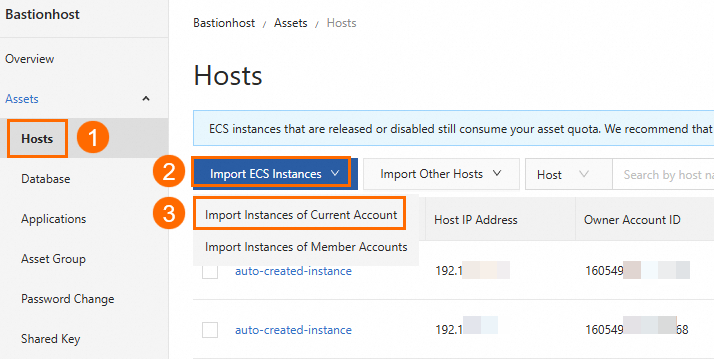
In the Import ECS Instances dialog box, select the ECS instances and click Import.
Find the imported ECS instance and click Create Host Account in the Actions column.

On the Create Host Account page, configure the following parameters and click Create.
Parameter Description Protocol SSH for Linux instances; Remote Desktop Protocol (RDP) for Windows instances Logon Name The username of the account used to log on to the ECS instance Authentication Type Select Password for password-based authentication. Select Private Key if the instance requires key-based authentication. Select Shared Key to associate one key with multiple host accounts at once — see Use the shared key feature Password The password for the logon account. Click Verify to confirm the credentials are valid before saving. If verification fails, see the password verification FAQ Enable Only SFTP Permission Disabled by default. If you enable this parameter, Secure Shell (SSH)-based logon is disabled for the account
Verify: After clicking Create, the host account appears in the account list for that ECS instance. If it does not appear, check that the credentials are valid using the Verify button.
Step 2: Add a user to the bastion host
Create the user who will perform O&M operations. Once added, this user can log on to the bastion host and access the assets you authorize in the next step.
In the left-side navigation pane, choose Users > Users.
Choose Import Other Users > Create User.
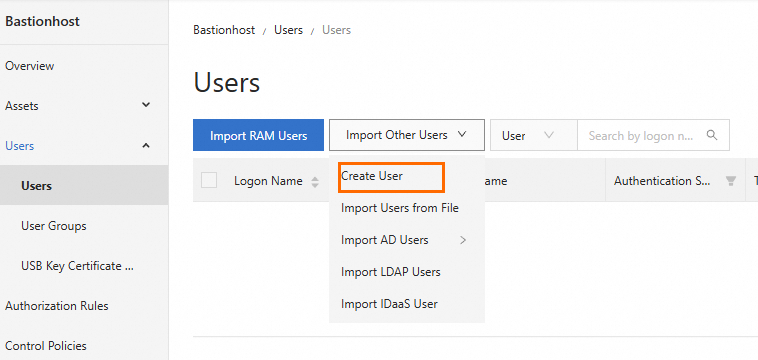
In the Create User panel, fill in the user information and click Create.
Verify: The new user appears in the user list. To add multiple users or sync from RAM, AD, LDAP, or IDaaS, see Manage users.
Step 3: Authorize the user to access hosts and host accounts
Grant the user access to specific hosts and the accounts on those hosts. Users without explicit authorization cannot connect to any assets.
On the Users page, find the user and click Authorize Hosts in the Actions column.

On the Managed Hosts tab, click Authorize Hosts.
In the Authorize Hosts panel, select the hosts and click OK.
In the Authorized Accounts column, click No accounts found. Click here to authorize the user to manage the accounts of the asset group.
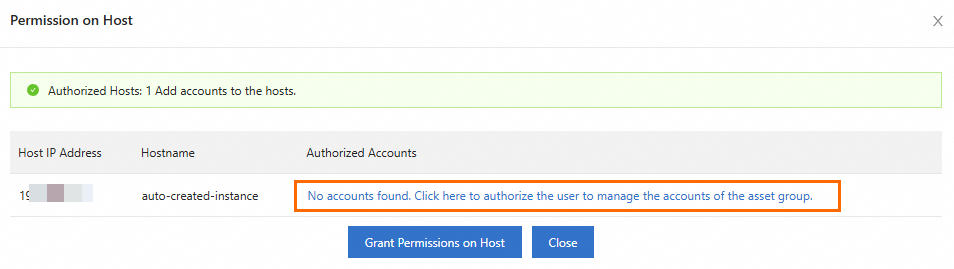
In the Select Account panel, select an account and click Update.
Verify: The Authorized Accounts column for the user now shows the associated accounts. The user can now connect to those hosts through the bastion host.
Step 4: Share the O&M address with the O&M team
Retrieve the O&M address and send it to the people who will use the bastion host. They need this address, along with their username and password, to access the O&M portal or connect through a client.
In the left-side navigation pane, click Overview.
In the Bastion Host Information section, copy the O&M address.
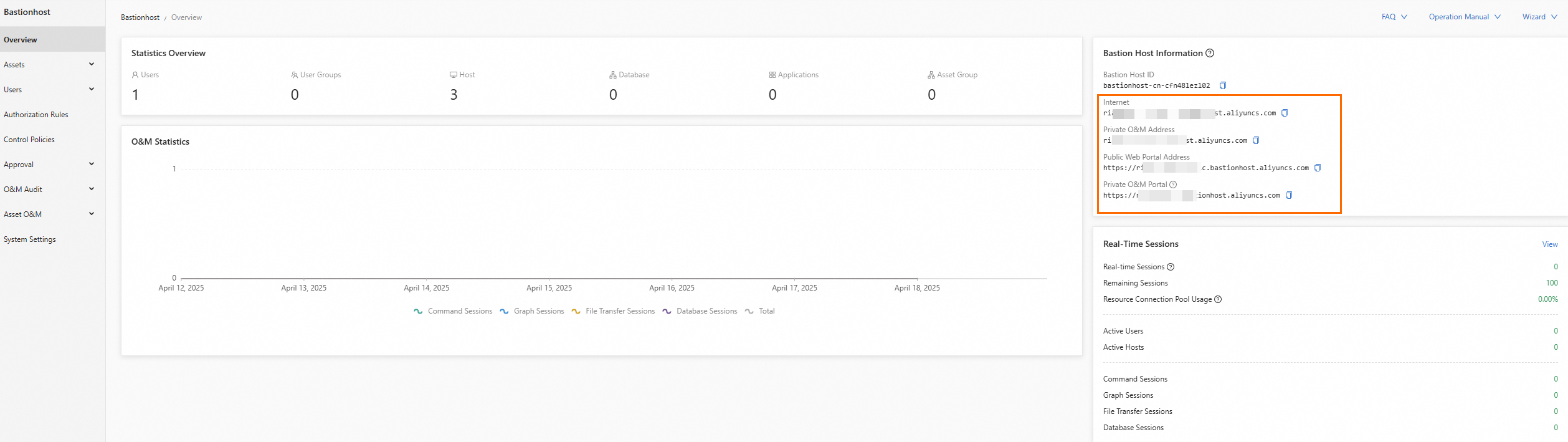
Send the O&M address, the username, and the logon password to the O&M administrator.
Verify: The O&M administrator can open the O&M address in a browser and log on using the credentials you provided.
Step 5: Audit O&M sessions
View O&M audit information such as O&M logs and videos, and block high-risk sessions.
In the left-side navigation pane, click O&M Audit to view sessions.
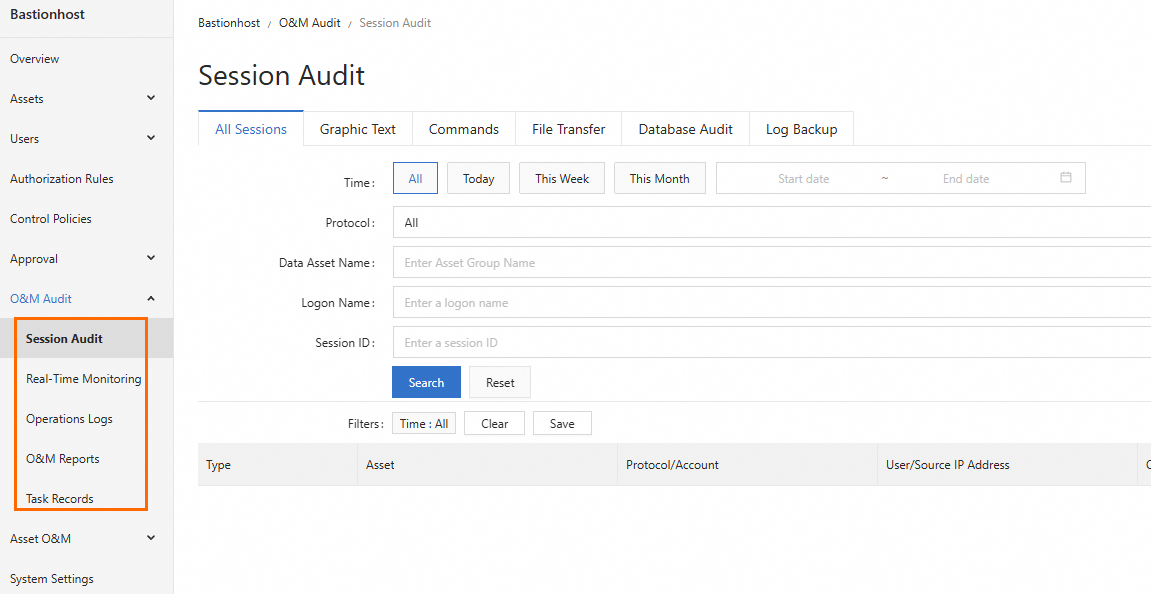
For a full overview of audit capabilities including log export, video playback, and high-risk session blocking, see O&M audit.
What's next
Add databases as assets: Import databases
Add applications as assets: Application management
Organize users into groups for bulk authorization: Manage users
Review the O&M user experience: see the O&M user quick start guide