You can associate a scaling group with load balancer instances to distribute inbound traffic across multiple instances in the scaling group. This enhances the scaling group's service capabilities. You can add and remove load balancer instances in the Auto Scaling console or by calling API operations, such as AttachLoadBalancers and DetachLoadBalancers.
Background information
This topic uses Classic Load Balancer (CLB) as an example. After you associate a scaling group with a load balancer instance, instances are automatically added as backend servers of the load balancer, regardless of whether they are automatically created by Auto Scaling or manually added to the scaling group. The load balancer routes traffic to the instances in the scaling group according to its configured policies, such as traffic distribution and health checks. This improves resource availability and elasticity. For more information, see Load balancing overview.
Load balancing overview
Server Load Balancer (SLB) is a service that distributes incoming traffic across multiple backend servers. This distribution increases your application throughput, eliminates single points of failure (SPOFs), and improves application availability. For more information, see Introduction to the SLB product family.
Alibaba Cloud Server Load Balancer (SLB) provides three types of load balancers: Application Load Balancer (ALB), Network Load Balancer (NLB), and Classic Load Balancer (CLB).
|
Type |
Description |
Related documentation |
|
ALB |
Designed for Layer 7, ALB provides powerful processing capabilities and advanced content-based routing features. |
|
|
NLB |
NLB is a new-generation Layer 4 load balancer designed for the Internet of Everything (IoE) era. It supports ultra-high performance and automatic elasticity. A single instance can handle up to 100 million concurrent connections, allowing you to easily manage high-concurrency services. |
|
|
CLB |
CLB supports TCP, UDP, HTTP, and HTTPS. It provides robust Layer 4 and basic Layer 7 processing capabilities. It uses a virtual service address to group multiple instances within a region into a high-performance, highly available application service pool. |
This section uses Classic Load Balancer (CLB) as an example. This load balancing service provides traffic distribution and control by using a combination of CLB instances, listeners, and backend servers. It consists of the following three components:
Application Load Balancer (ALB) mainly consists of three components: ALB instances, listeners (the minimum service unit of a load balancer), and server groups (a logical group that contains multiple backend servers). For more information, see and ALB server groups.
|
Component |
Description |
Related documentation |
|
Classic Load Balancer (CLB) instances |
A running instance of the CLB service that receives and distributes traffic to backend servers. Note
The default weight of an instance added to a Classic Load Balancer (CLB) is 50. You can change the weight in the corresponding load balancer instance. For more information, see Manage a default server group. |
|
|
Listeners |
Checks client requests, forwards them to backend servers, and performs health checks on backend servers. |
|
|
Backend servers |
A group of instances that receive frontend requests. You can add instances to this pool individually, or in batches by using vServer groups or primary/standby server groups. |
Limits and prerequisites
This topic uses Classic Load Balancer (CLB) as an example. Unless specified otherwise, "load balancer" in this topic refers to a CLB instance.
-
After you associate a scaling group with a load balancer instance or server group, take note of the following items:
-
If an associated load balancer instance or server group is deleted, subsequent scaling activities for the scaling group fail.
-
Auto Scaling periodically scans the scaling group for associated load balancer instances or server groups. If a load balancer instance or server group is deleted, Auto Scaling automatically disassociates the scaling group from the deleted resource.
ImportantAfter the system automatically disassociates a deleted load balancer instance or server group, subsequent scaling activities will no longer fail because of the missing resource.
-
-
When you add or remove load balancer instances for a scaling group, take note of the following items:
Add load balancer instances
When you add load balancer instances to a scaling group, take note of the following items:
-
If the ForceAttach parameter in the AttachLoadBalancers request is false, the system does not add the existing instances in the scaling group as backend servers to the load balancer.
-
If the ForceAttach parameter is set to true in an AttachLoadBalancers request, all existing instances in the scaling group are added as backend servers to the specified load balancer.
-
You can add a maximum of five load balancer instances to a scaling group in a single
AttachLoadBalancersAPI call. -
If a load balancer instance is already added to a scaling group and you need to add all instances in the scaling group as backend servers to the load balancer, you can add the load balancer instance to the scaling group again and set ForceAttach to true.
-
When you add a load balancer instance to a scaling group, the load balancer instance must meet the following requirements:
-
You must have one or more load balancer instances that are in the Running state. For more information, see Create and manage a CLB instance.
-
The load balancer instance and the scaling group must be in the same region.
-
The load balancer instance must have at least one listener configured and the health check feature enabled. For more information, see CLB listeners and Configure and manage CLB health checks.
-
If both the load balancer instance and the scaling group are of the VPC network type, they must be in the same VPC.
-
If a VPC-type scaling group is attached to a classic-network-type load balancer, any VPC-type instances already serving as backend servers for that load balancer must belong to the same VPC as the scaling group.
NoteIn all other scenarios, there are no network type restrictions for associating them.
-
The number of load balancer instances attached to the scaling group cannot exceed the quota for the scaling group.
-
Remove load balancer instances
When you remove a load balancer instance from a scaling group, take note of the following items:
-
If the ForceAttach request parameter in the DetachLoadBalancers API call is false, when a load balancer is detached from a scaling group, the system does not remove the instances associated with the scaling group from the backend servers of the load balancer.
-
If the ForceAttach parameter is set to true in a DetachLoadBalancers API request, the system removes the instances that are associated with the scaling group from the backend servers of the load balancer.
-
You can remove a maximum of five load balancer instances from a scaling group in a single
DetachLoadBalancersAPI call. -
Before you remove a load balancer from a scaling group, ensure it is no longer routing requests to the group's instances to prevent service interruptions.
-
Procedure
You can manage load balancer associations for a scaling group in the Auto Scaling console or by using API operations. The API method offers greater flexibility by decoupling load balancers from the scaling group. This allows you to modify associations without needing to plan for the exact number of load balancers in advance.
Use the API
-
Call the AttachLoadBalancers operation to add one or more load balancer instances. You can also call the AttachVServerGroups operation to add one or more vServer groups.
-
Call the DetachLoadBalancers operation to remove one or more load balancer instances. You can also call the DetachVServerGroups operation to remove one or more vServer groups.
You can also call API operations to add or remove Application Load Balancer (ALB) server groups to or from a scaling group. For more information, see AttachAlbServerGroups and DetachAlbServerGroups.
Use the console
Log on to the Auto Scaling console.
In the navigation pane on the left, click Scaling Groups.
In the top navigation bar, select a region.
-
Associate a load balancer with the scaling group.
-
Associate a load balancer during scaling group creation
This section describes how to associate a Classic Load Balancer (CLB) instance. For information about other parameters, see Create a scaling group.
-
Click Create.
-
Set Network Type to VPC or Classic Network.
-
Configure the Associate CLB Instance setting.
NoteIf you set Network Type to VPC, on the Create page, first select a VPC for the VPC parameter, and then configure the Associate ALB/NLB Server Group setting.
-
Select one or more Classic Load Balancer (CLB) instances.
A scaling group can be associated with a limited number of CLB instances and vServer groups. You can go to Quota Center to view your quotas or request a quota increase. If no CLB instances are available, check whether your CLB instances meet the requirements described in Limits and prerequisites.
-
Select a backend server group of the CLB instance.
You can select a default server group or a vServer group. For more information, see CLB server groups.
Server group
Description
Default server group
Contains instances that receive frontend requests. If a listener is not configured with a vServer group or a primary/standby server group, requests are forwarded to the instances in the default server group.
vServer group
Used to forward different requests to different backend servers, or to route requests based on domain names and URLs.
When you associate a CLB instance with a scaling group, you can specify the weight for new instances. This weight can be set either during scaling group creation or in the Load Balancer Weight parameter of a scaling configuration.
-
Scenario 1: When you create a scaling group, you can specify the weight of an instance when it is added to a backend server group.
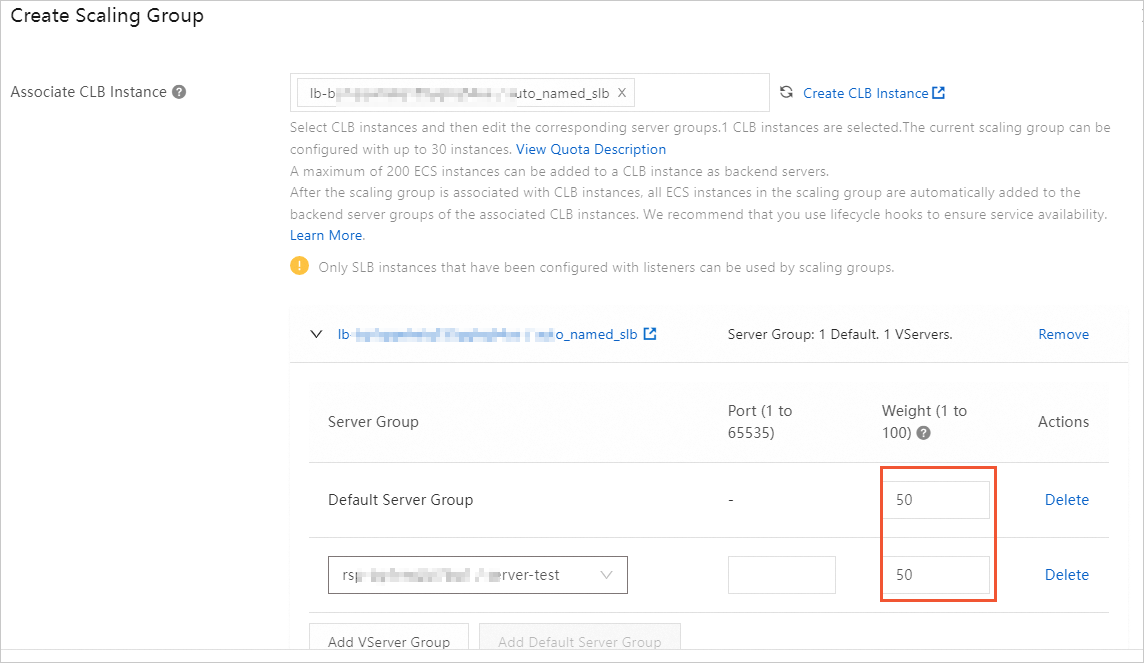 Important
If you set Instance Configuration Source to Launch Template, you do not need to create a scaling configuration. In this case, you can specify the weight of an instance only when you create the scaling group.
-
Scenario 2: When you create a scaling configuration, you can set the Load Balancer Weight parameter to specify the weight of an instance when it is added to a backend server group.
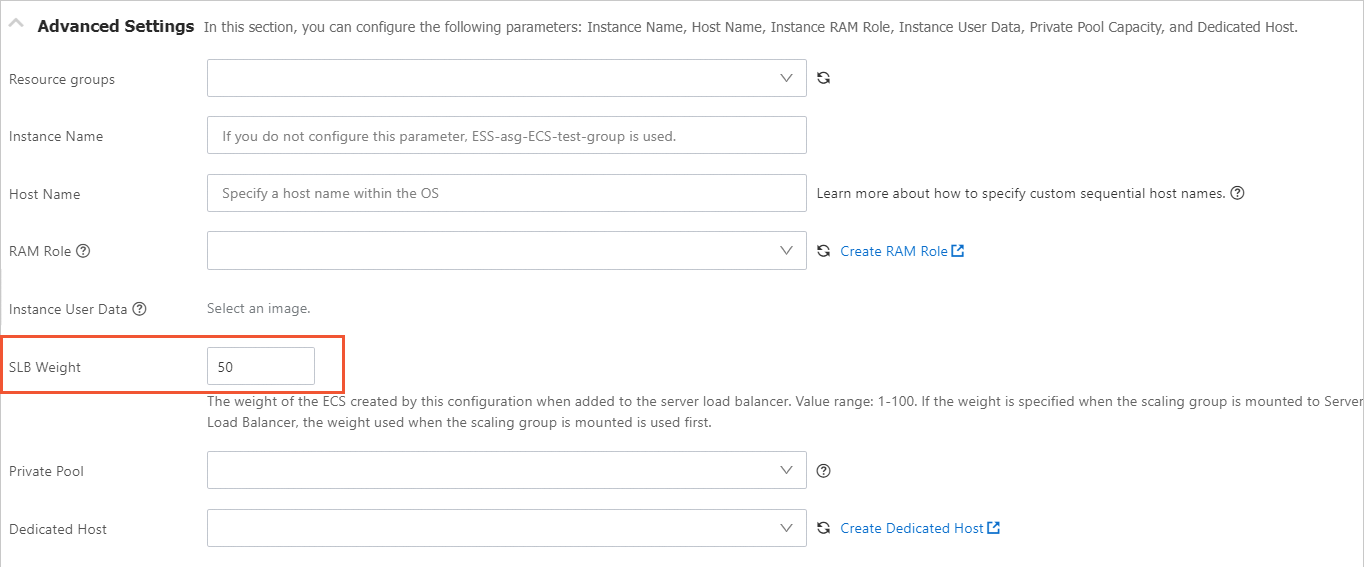
In different scenarios (Scenario 1 and Scenario 2), the weight assigned to an instance when it is added to a load balancer backend server group has the following effects on Auto Scaling:
-
If you specify the weight of an instance that is added to a load balancer backend server group in both Scenario 1 and Scenario 2, Auto Scaling uses the weight from Scenario 1 and ignores the weight from Scenario 2.
-
If you only specify the load balancer weight in Scenario 2, Auto Scaling uses the weight set in Scenario 2.
-
If you do not specify a weight for an instance when it is added to a load balancer backend server group in Scenario 1 and Scenario 2, Auto Scaling uses a default weight of 50.
-
-
-
Configure other parameters as required.
-
After the configurations are complete, click OK.
-
-
Modify the load balancers associated with a scaling group
This section describes how to modify the associated Classic Load Balancer (CLB) instances. For information about how to modify other settings, see Modify a scaling group.
-
Find the scaling group that you want to manage and click Edit in the Actions column.
-
Based on your business requirements, select or clear the When you attach or detach load balancer instances, add existing instances in the scaling group to or remove them from the server groups of the affected load balancer instances. checkbox.
NoteIf you associated an ALB server group when you created the scaling group, you can also select or clear When you attach or detach server groups, add existing instances in the scaling group to or remove them from the affected server groups. on the Edit Scaling Group page based on your requirements. When a server group is attached to a scaling group, existing instances in the scaling group are added to the specified server group. When a server group is detached from a scaling group, existing instances in the scaling group are removed from the specified server group.
-
If you select this checkbox, existing instances in the scaling group are automatically added to the server groups of the load balancer instances that you attach, or removed from the server groups of the load balancer instances that you detach.
-
If you clear this checkbox, the server groups of the load balancer instances that you attach or detach remain unchanged.
-
-
Based on your business requirements, select or clear the Asynchronously Detach or Attach Default Server Group checkbox.
-
If you select this checkbox, a scaling activity is generated each time a default server group is individually attached or detached. This option applies only when you attach or detach default server groups individually, not when you perform both actions in the same operation.
-
If you clear this checkbox, no scaling activity is generated when a default server group is individually attached or detached.
-
-
Optional: Based on your business requirements, modify the weight of an instance when it is added to a backend server group.
If you associated a CLB instance and set a weight when you created the scaling group, you can modify the weight as required.
-
Modify other configuration options as required.
-
After the configurations are complete, click OK.
-
-
Related topics
After associating a scaling group with an ApsaraDB RDS instance, the internal IP addresses of the ECS instances in the scaling group are automatically added to the IP address whitelist of the ApsaraDB RDS instance. This allows the ECS instances to communicate with the ApsaraDB RDS instance over the internal network. For more information, see Add and remove ApsaraDB RDS instances for a scaling group.