Auto Scaling adjusts computing resources based on your policies to handle workload fluctuations, improve resource utilization, and reduce costs. For predictable workload patterns, scheduled tasks automatically add or remove a specific number of ECS instances at designated times.
Use cases
Scenario
Your workload follows predictable cycles with identifiable peak and off-peak hours, and you want to scale ECS instances automatically at specific times.
For example, a gaming company needs additional ECS instances every night from 18:00 to 23:00. Outside peak hours, a smaller fixed number of instances handles daily operations.

Solution
Create scheduled tasks that trigger scaling rules at specified times to automatically scale ECS instances in or out.

Benefits
-
Zero standby costs
Auto Scaling creates and releases ECS instances on demand, so you do not need to maintain standby instances. You only maintain the resources required for your typical workload.
-
Automated scaling
Scheduled tasks scale resources at specified times, meeting demand while saving resources and reducing operational costs.
Prerequisites
If you are using Auto Scaling for the first time, you must complete the required RAM authorization.
-
The service-linked role AliyunServiceRoleForAutoScaling must be created. For more information, see Service-linked Role.
-
If you use a RAM user, you must grant the AliyunESSFullAccess permission to the RAM user. For more information, see Manage RAM user permissions.
Step 1: Create a scaling group
A scaling group is a core component of Auto Scaling. It is a collection of instances that are managed for the same application scenario. Auto Scaling adds or removes instances from this scaling group.
-
Go to the Scaling Groups page.
Log on to the Auto Scaling console.
-
In the navigation pane on the left, click Scaling Groups.
-
In the top navigation bar, select a region.
-
In the upper-left corner of the page, click Create.
-
On the Create by Form tab, configure the scaling group, and then click Create.
The following configurations are used as an example in this topic. Keep the default values for other configuration items. For more information about how to configure a scaling group, see Create a scaling group.
Configuration Item
Example
Description
Scaling Group Name
test
Enter a name for the scaling group. For more information about the format requirements, see the instructions on the interface.
Type
ECS
Select ECS. This indicates that the instances in the scaling group are ECS instances.
Instance Configuration Source
Create from Scratch
Do not specify a template for automatic instance creation yet. After the scaling group is created, you must create a scaling configuration.
Minimum Number of Instances
1
Set the lower limit for the number of instances in the scaling group. If the current number of instances is below this limit, Auto Scaling automatically adds instances to meet the limit.
Maximum Number of Instances
5
Set the upper limit for the number of instances in the scaling group. If the current number of instances exceeds this limit, Auto Scaling automatically removes instances to meet the limit.
VPC
vpc-bp1jmxxau0lur929p****
Select the VPC to which the ECS instances in the scaling group belong.
vSwitch
vsw-2zeknnyw2ewufbs4z****
vsw-2zesy03h8eaf9fe0l****
Select the vSwitches to which the ECS instances in the scaling group belong. We recommend that you select multiple vSwitches to increase the success rate of scale-out events.
Step 2: Create and enable a scaling configuration and enable the scaling group
A scaling configuration is a configuration template for ECS instances that are added during scale-out events. It includes configuration information such as the billing method, specifications, storage, and network. After you create a scaling configuration, you must enable the scaling configuration and then enable the scaling group.
Find the scaling group that you want to manage and open its details page in one of the following ways:
In the Scaling Group Name/ID column, click the ID of the scaling group.
In the Actions column, click Details.
At the top of the page, click the Scaling Configurations tab.
-
On the Scaling Configurations tab, click Create Scaling Configuration.
-
On the Create Scaling Configuration page, configure the parameters and click Create.
The following configurations are used as an example in this topic. Keep the default values for other configuration items. For more information about scaling configurations, see Create a scaling configuration for ECS instances.
Area
Configuration Item
Example
Description
Basic Information
Scaling Configuration Name
test
Enter a name for the scaling configuration. For more information about the format requirements, see the instructions on the interface.
Billing Method
Pay-As-You-Go
The Auto Scaling service is free of charge, but you are charged for the ECS instances that are added during scale-out events. This topic uses the pay-as-you-go billing method as an example. For more information, see Billing overview.
Instance and Image
Instance Configuration Mode
Specify Instance Properties
Select Specify Instance Properties to configure the specifications of the ECS instances.
Instance Attribute Combination
2 vCPUs, 4 GiB memory, Enterprise-level
Set the vCPU and memory requirements for the ECS instances.
Select Image
Public Image Alibaba Cloud Linux 3.2104 LTS 64-bit
Select the image to deploy the ECS instances. This topic uses a public image as an example. In a real-world scenario, use a custom image where your applications are deployed.
Storage
System Disk
Enterprise SSD, 40 GiB, PL0
Select a system disk for the ECS instances.
Network and Security Group
Public IP Address
Select Assign Public IPv4 Address. The default billing method is pay-by-bandwidth, and the default bandwidth value is 1 Mbit/s.
Select whether to assign a public IP address to the ECS instances as needed. You are charged for the actual outbound public bandwidth used. The bandwidth fees are included in the ECS instance bills.
Security Group
sg-bp18kz60mefsicfg****
Select a security group that you created in advance. To create a security group, see Create a security group.
Management Settings
Logon Credentials
Set After Creation
After the ECS instances are created, manually set passwords for them.
-
In the Scaling Configuration Preview dialog box that appears, confirm the configuration information and click Create Order.
-
In the The scaling configuration is created. dialog box that appears, click Enable.
-
In the Apply Scaling Configuration dialog box that appears, click OK.
NoteYou must enable one scaling configuration within a scaling group. After you enable a scaling configuration, its status changes to Active.
-
In the Enable Scaling Group dialog box that appears, click OK.
After you enable the scaling group, Auto Scaling performs scale-out and scale-in activities based on your configuration.
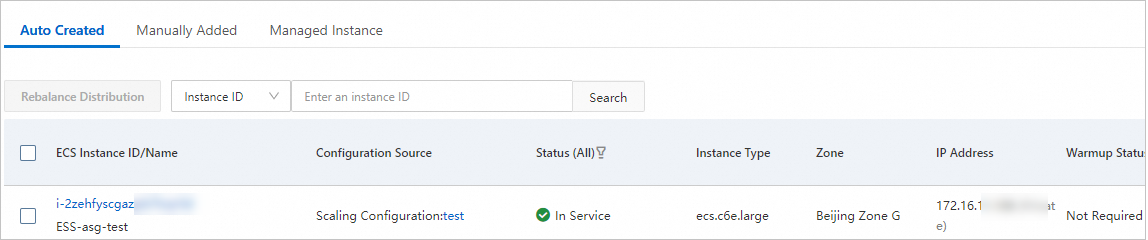
In this example, the minimum number of instances in the scaling group is 1. Therefore, after the scaling group is enabled, an ECS instance is automatically created based on the scaling configuration. On the details page of the scaling group, click the Instances tab and then the Auto Created tab to view the instance information.
Step 3: Create a scaling rule
A scaling rule specifies the details of a scaling activity, such as the number of ECS instances to add or remove.
-
On the scaling group details page, click the Scaling Rules and Event-triggered Tasks tab, and then click the Scaling Rules tab.
-
Click Create Scaling Rule, configure the scaling rule, and then click OK.
This example uses a simple rule. For more information about how to configure scaling rules, see Configure a scaling rule.
Configuration Item
Description
Rule Name
Enter a name for the rule. For more information about the format requirements, see the instructions on the interface.
Rule Type
This example uses a simple rule. For more information about scaling rules, see Overview of scaling rules.
Operation
Set the number of instances to add or remove when the rule is executed. A maximum of 1,000 instances can be scaled in a single scaling activity.
Cooldown Time
Optional. Unit: seconds. If you do not specify this parameter, the cooldown time of the scaling group is used. For more information, see Cooldown time.
Repeat this step to create a scale-out rule and a scale-in rule. The following table provides example configurations.
Scaling Rule
Example Configuration
Scale-out rule
-
Rule Name: add
-
Rule Type: Simple Rule
-
Operation: Add 1 instance
Scale-in rule
-
Rule Name: remove
-
Rule Type: Simple Rule
-
Operation: Remove 1 instance
-
Step 4: Create scheduled tasks
A scheduled task is a predefined task that executes a scaling rule at a specified time.
-
On the scaling group details page, click the Scaling Rules and Event-triggered Tasks tab, and then click the Scheduled Tasks tab.
-
Click Create Scheduled Task, configure the task, and then click OK.
The following table describes key parameters. Keep defaults for other parameters. The Scheduled task overview covers all available parameters.
Parameter
Description
Task Name
Enter a task name per the on-screen format requirements.
Executed At
Set the time when the task runs.
Scaling Method
Select Select an existing rule.
Simple Scaling Rule
Select the scaling rule to execute.
Recurrence
Set the recurrence schedule. For example, select Daily for daily execution.
Repeat this step for both scale-out and scale-in rules. Example configurations:
Scheduled task
Example configuration
Scheduled scale-out
-
Task Name: scheduled-add
-
Executed At: 18:00 on May 16, 2024
-
Scaling Method: Select an existing rule
-
Simple Scaling Rule: add
-
Recurrence: Daily, repeats every 1 day.
Scheduled scale-in
-
Task Name: scheduled-remove
-
Executed At: 23:00 on May 16, 2024
-
Scaling Method: Select an existing rule
-
Simple Scaling Rule: remove
-
Recurrence: Daily, repeats every 1 day.
-
Verify the results
The system triggers scaling activities at the scheduled times.
In this example:
-
Auto Scaling automatically adds one ECS instance at 18:00 every day.
-
Auto Scaling automatically removes one ECS instance at 23:00 every day.
To verify:
-
While a scheduled task runs, go to the scaling group details page. Click the Instances tab, then the Auto Created sub-tab to observe instance count changes.
-
After a scheduled task runs, go to the scaling group details page and click the Scaling Activities tab. Confirm a scaling activity ran at the scheduled time and click its ID to view details.