Purchase and deploy an ApsaraMQ for Kafka instance that is accessible from both the internet and a virtual private cloud (VPC). After deployment, configure the whitelist and verify connectivity.
Prerequisites
Before you begin, make sure that you have:
Authorized ApsaraMQ for Kafka to access other Alibaba Cloud services. See Step 1: Obtain access authorization
Created a VPC. See Create and manage a VPC
Step 1: Purchase an instance
Log on to the ApsaraMQ for Kafka console. In the left-side navigation pane, click Instances.
In the top navigation bar, select a region and click Buy Instance.
In the Select Instance Billing Method panel, set the Billing Method parameter to Serverless, Subscription, or Pay-as-you-go. Then, click OK.
Configure the instance parameters and click Buy Now. Follow the on-screen instructions to complete the payment. The parameters differ based on the billing method. Refer to the appropriate table below.
Non-serverless instance parameters
Parameter | Description |
Instance Edition | Determines performance characteristics and available features. For example, Standard Edition (High Write) is optimized for write-heavy workloads. For a comparison of editions, see Instance types. |
Region | The region where the instance is deployed, such as China (Hangzhou). Select the region closest to your workloads. |
Network Type | Select Internet and VPC to enable access from both the internet and a VPC. |
Traffic Specification | Determines the peak throughput and the number of free partitions. For example, alikafka.hw.2xlarge. For throughput and partition details per specification, see Billing description. |
Partitions | The number of additional partitions to purchase. Total partitions = free partitions included in the traffic specification + partitions purchased here. For free partition counts per specification, see Billing description. |
Disk Type | SSD or Ultra Disk. SSDs deliver higher IOPS. Choose SSD for high-throughput workloads or when large volumes of messages accumulate. |
Disk Capacity | The total disk size in GB, such as 900 GB. |
Resource Group | The resource group for organizing and managing access. Defaults to Default Resource Group. |
Serverless instance parameters
Parameter | Description |
Instance Edition | The instance edition. For example, Standard Edition. For a comparison of editions, see Instance types. |
Region and Zone | The region and zone where the instance is deployed, such as China (Hangzhou). |
Network Type | Select VPC. Serverless instances use VPC connectivity. |
Reserved Capacity for Message Publishing | The reserved throughput for publishing messages, in MB/s. For example, 60 MB/s. |
Reserved Capacity for Message Subscription | The reserved throughput for subscribing to messages, in MB/s. For example, 60 MB/s. |
Resource Group | The resource group for organizing and managing access. Defaults to Default Resource Group. |
ApsaraMQ for Kafka estimates optimal bandwidth based on the selected instance type. Purchase enough internet traffic to meet your workload requirements, as prompted on the buy page, to avoid throttling.
Step 2: Get the VPC and vSwitch IDs
Before deploying the instance, locate your VPC and vSwitch IDs:
Log on to the VPC console.
In the left-side navigation pane, click vSwitch. In the top navigation bar, select the region where the VPC is deployed.
On the vSwitch page, note the vSwitch ID and the VPC ID. Both values are required in the next step.
Step 3: Deploy the instance
On the Instances page of the ApsaraMQ for Kafka console, find the instance and click Deploy in the Actions column.
In the Deploy Instance panel, configure the parameters and click OK. The parameters differ based on instance type. Refer to the appropriate table below.
Non-serverless deployment parameters
Networking
Parameter | Description |
VPC ID | The VPC to connect the instance to. Select the VPC ID noted in Step 2. |
vSwitch ID | The vSwitch within the VPC. Select the vSwitch ID noted in Step 2. |
Cross-zone Deployment | (Professional Edition only) Deploy the instance across two zones for disaster recovery. Cross-zone instances tolerate data center-level faults. |
Candidate Zones of Primary Zone | The primary zone where brokers run. Auto-populated based on the selected vSwitch. To change the zone, select another zone or add a zone. Available only when Cross-zone Deployment is set to Yes. |
Candidate Zones of Secondary Zone | The secondary zone for disaster recovery. Select a different zone from the primary. As a best practice, select zones from bottom to top in alphabetical order. Available only when Cross-zone Deployment is set to Yes. |
Force Deployment in the Selected Zone | Whether to enforce deployment in the specified candidate zones. Defaults to No. Available only when Cross-zone Deployment is set to Yes. |
Messaging
Parameter | Description |
Version | The Kafka protocol version. Match this to the broker version used by your self-managed Apache Kafka cluster. Options: 2.6.2, 2.2.0. |
Message Retention Period | How long messages are retained, in hours. For example, 72 hours (3 days). |
Maximum Message Size | The maximum size of a single message, in MB. For example, 1 MB. |
Consumer Offset Retention Period | How long consumer offsets are retained, in minutes. For example, 10080 minutes (7 days). |
Security
Parameter | Description |
ACL | Enable or disable the access control list (ACL) feature. ACLs grant permissions to Simple Authentication and Security Layer (SASL) users to send and receive messages. Only Professional Edition instances support ACLs. |
VPC Transmission Encryption | Enable or disable encryption for messages transmitted within the VPC. Available only when ACL is set to Enable. |
Custom Username and Password | Whether to set a custom username and password. If set to No, the system assigns credentials automatically. |
Disk Encryption | Enable or disable disk encryption for data at rest. |
Disk Encryption Key ID | The encryption key ID in the region where the instance is deployed. Follow the on-screen instructions to specify a key. Required only when Disk Encryption is set to Enable. |
Serverless deployment parameters
Parameter | Description |
VPC ID | The VPC to connect the instance to. Select the VPC ID that you obtained in Deploy a VPC-only instance. |
vSwitch ID | The vSwitch within the VPC. Select the vSwitch ID that you obtained in Step 2: Obtain the VPC Information. |
Version | The Kafka protocol version. Match this to the broker version used by your self-managed Apache Kafka cluster. For example, 3.3.1. |
Message Retention Period | How long messages are retained, in hours. For example, 72 hours (3 days). |
Maximum Message Size | The maximum size of a single message, in MB. For example, 1 MB. |
Consumer Offset Retention Period | How long consumer offsets are retained, in minutes. For example, 10080 minutes (7 days). |
ACL | Enable or disable the ACL feature. ACLs grant permissions to SASL users to send and receive messages. |
VPC Transmission Encryption | Enable or disable encryption for messages transmitted within the VPC. Available only when ACL is set to Enable. |
Deployment takes approximately 10 to 30 minutes. During this time, the instance status shows as Deploying.
After deployment, the VPC and vSwitch associated with the instance cannot be changed.
Step 4: View instance details
After deployment completes, retrieve the endpoints and credentials needed to connect your applications.
On the Instances page of the ApsaraMQ for Kafka console, click the instance name.
On the Instance Details page:
In the Endpoint Information section, locate the endpoint for your connection type: For guidance on which endpoint to use, see Comparison among endpoints.
VPC access -- use the default endpoint or the SASL endpoint.
Internet access -- use the SSL endpoint.
In the Configuration Information section, note the Username and Password values.
Step 5: Configure the whitelist and verify connectivity
To allow clients to reach the instance, add their IP addresses to the endpoint whitelist and test the connection.
In the Endpoint Information section of the Instance Details page, find the endpoint and click Manage Whitelist in the Actions column.
On the Whitelist Management page, click Create Whitelist. In the panel that appears, configure the Name parameter and enter the IP addresses or CIDR blocks to allow. Click OK.
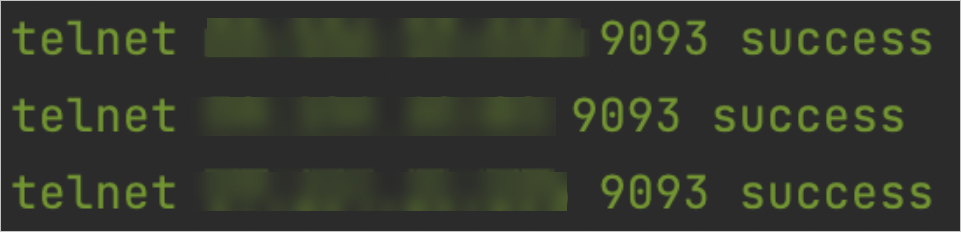
Enable telnet on your on-premises client and run the
telnetcommand to verify connectivity: For example, to test the SSL endpoint: A successful connection confirms that the network path is working. If the instance is running but the client cannot connect, run the self-check tool to diagnose the issue. See Perform a health check on an ApsaraMQ for Kafka instance.telnet <endpoint-domain> <port>telnet alikafka-pre-cn-zv**********-1.alikafka.aliyuncs.com 9093