This topic describes how to use the advanced features of the ApsaraVideo Player SDK for iOS. For a complete guide to all features, see the API reference.
To try out the demo, download it and follow the instructions in Run the demo to compile and run it.
Advanced feature verification
Some player features require a Professional Edition license. For more information, see Features. To get a license, see Obtain a license.
Set the listener at application startup or before making any player API calls:
void premiumVeryfyCallback(AVPPremiumBizType biztype, bool isValid, NSString* errorMsg) {
    NSLog(@"onPremiumLicenseVerifyCallback: %d, isValid: %d, errorMsg: %@", biztype, isValid, errorMsg);
}

[AliPrivateService setOnPremiumLicenseVerifyCallback:premiumVeryfyCallback];
Here, AVPPremiumBizType is an advanced feature enumeration. When you use an advanced feature, the player verifies the license and returns the result through this callback. If isValid is false, errorMsg contains the reason for the failure.
Playback
List playback
The Player SDK for iOS offers a comprehensive list playback feature for short video scenarios. It uses techniques like preloading to significantly reduce the Time-to-First-Frame (TTTF).
For an enhanced list playback experience, consider using our short-form drama solution. For details, see Client-side Development for Short-form Dramas.
Play videos with an alpha channel
Overview
ApsaraVideo Player SDK supports alpha channel rendering to create dynamic effects, such as animated gifts. In a live streaming room, you can play these animated effects over the main content to significantly enhance the user experience.
Limitations
Alpha channel rendering is supported in the all-in-one SDK 6.8.0 or later, or the ApsaraVideo Player SDK 6.9.0 or later.
Benefits
Using MP4 videos with an alpha channel for animated effects offers better animation quality, a smaller file size, higher compatibility, and greater development efficiency.
Better animation quality: MP4 videos preserve original animation details and colors more accurately than other formats, such as APNG or IXD.
Smaller file size: MP4 files can be compressed more effectively than other formats like APNG or IXD, which improves loading speeds and reduces network bandwidth consumption.
Higher compatibility: As a universal video format, MP4 is widely supported across most devices and browsers.
Higher development efficiency: The implementation is simple and does not require developers to build complex parsing or rendering logic. This allows them to focus on other features.
Metal rendering
The Alibaba Cloud Player SDK for iOS supports video rendering using the Metal framework.
Currently, Metal rendering supports only background color, scaling mode, and Picture-in-Picture (PiP).
Parameter
/**
 @brief Specifies the video render type. Valid values: 0 (default renderer) and 1 (mixed renderer). Default: 0.
 */
@property(nonatomic, assign) int videoRenderType;
Example
AVPConfig *config = [self.player getConfig];
// Enable Metal rendering.
config.videoRenderType = 1;
[self.player setConfig:config];
[self.player prepare];
External subtitles
For a detailed code example, see the ExternalSubtitle module in the API-Example. This Objective-C sample project demonstrates how to integrate the core features of the ApsaraVideo Player SDK for iOS.
ApsaraVideo Player SDK for iOS supports adding and switching external subtitles in SRT, SSA, ASS, and VTT formats.
The following example shows how to implement this feature.
Create a view to display subtitles.
Create a view based on the subtitle format.
// Initialize a custom subTitleLabel.
UILabel *subTitleLabel = [[UILabel alloc] initWithFrame:frame];
// Add the subtitle label to a custom superView.
[superView addSubview:subTitleLabel];
Set up subtitle-related listeners.
// Called when an external subtitle track is added.
- (void)onSubtitleExtAdded:(AliPlayer*)player trackIndex:(int)trackIndex URL:(NSString *)URL {}
// Callback for the subtitle header.
- (void)onSubtitleHeader:(AliPlayer *)player trackIndex:(int)trackIndex Header:(NSString *)header{}
// Called when a subtitle is displayed.
- (void)onSubtitleShow:(AliPlayer*)player trackIndex:(int)trackIndex subtitleID:(long)subtitleID subtitle:(NSString *)subtitle {
 subTitleLabel.text =subtitle;
 subTitleLabel.tag =subtitleID;
}
// Called when a subtitle is hidden.
- (void)onSubtitleHide:(AliPlayer*)player trackIndex:(int)trackIndex subtitleID:(long)subtitleID{
  [subTitleLabel removeFromSuperview];
}
Add a subtitle track.
[self.player addExtSubtitle:URL];Switch subtitle tracks.
[self.player selectExtSubtitle:trackIndex enable:YES];
External subtitles (custom rendering)
Using AliVttSubtitleView and AliVttRenderImpl, this feature fully supports WebVTT external subtitles and lets you customize styles such as font, color, and size.
Use cases:
You want to customize the styles of WebVTT subtitles, such as font, color, and size.
Your integration uses Alibaba Cloud Player SDK v7.11.0 or later and AliVttSubtitleView.
Supports multilingual subtitles (such as Arabic, Chinese, Japanese, and Korean) and automatically matches the corresponding fonts.
Prerequisites:
You have added the required font files (.ttf) to your Xcode project.
You have configured a subtitle listener to receive WebVTT content.
The required fonts are loaded by calling the loadFontFromBundle method.
Customize subtitle styles
Create a custom rendering implementation class that inherits from AliVttRenderImpl.
// CustomFontVttRenderImpl.h
@interface CustomFontVttRenderImpl : AliVttRenderImpl
@end

// CustomFontVttRenderImpl.m
@implementation CustomFontVttRenderImpl

// Optional: Override the font generation logic.
- (UIFont *)customizeFont:(UIFont *)originalFont
         contentAttribute:(VttContentAttribute *)contentAttribute
              contentText:(NSString *)text {

    // Example: Automatically select a font based on the content.
    if ([self containsArabicCharacters:text]) {
        return [UIFont fontWithName:@"NotoSansArabic-Regular" size:originalFont.pointSize];
    }
    if ([self containsCJKCharacters:text]) {
        return [UIFont fontWithName:@"NotoSansCJKsc-Regular" size:originalFont.pointSize];
    }

    return originalFont;
}

// Optional: Force a specific color.
- (void)applyColorStyle:(NSMutableDictionary *)attrs
       contentAttribute:(VttContentAttribute *)contentAttribute {
    // Force the color to red.
    attrs[NSForegroundColorAttributeName] = [UIColor redColor];
}

// Optional: Enlarge the font.
- (void)applyFontStyle:(NSMutableDictionary *)attrs
      contentAttribute:(VttContentAttribute *)contentAttribute
               context:(RenderContext *)context {

    CGFloat originalSize = contentAttribute.fontSizePx / context.contentsScale;
    CGFloat newSize = originalSize * 2.0; // Enlarge by 2x.

    UIFont *font = [self generateFontWithName:contentAttribute.fontName
                                    fontSize:newSize
                                      isBold:contentAttribute.mBold
                                    isItalic:contentAttribute.mItalic];

    attrs[NSFontAttributeName] = font;
}

// Helper: Detect Arabic characters.
- (BOOL)containsArabicCharacters:(NSString *)text {
    for (NSUInteger i = 0; i < text.length; i++) {
        unichar c = [text characterAtIndex:i];
        if ((c >= 0x0600 && c <= 0x06FF) || (c >= 0x0750 && c <= 0x077F)) {
            return YES;
        }
    }
    return NO;
}

// Helper: Detect CJK characters.
- (BOOL)containsCJKCharacters:(NSString *)text {
    for (NSUInteger i = 0; i < text.length; i++) {
        unichar c = [text characterAtIndex:i];
        if ((c >= 0x4E00 && c <= 0x9FFF) ||   // Chinese
            (c >= 0x3040 && c <= 0x309F) ||   // Japanese Hiragana
            (c >= 0xAC00 && c <= 0xD7AF)) {   // Korean
            return YES;
        }
    }
    return NO;
}

@end
(Optional) Dynamically load a custom font.
- (void)loadCustomFontFromBundle:(NSString *)fontName {
    NSString *path = [[NSBundle mainBundle] pathForResource:fontName ofType:@"ttf"];
    if (path) {
        NSData *fontData = [NSData dataWithContentsOfFile:path];
        CGDataProviderRef provider = CGDataProviderCreateWithCFData((__bridge CFDataRef)fontData);
        CGFontRef fontRef = CGFontCreateWithDataProvider(provider);

        if (CTFontManagerRegisterGraphicsFont(fontRef, NULL)) {
            NSLog(@"Font registered successfully: %@", fontName);
        } else {
            NSLog(@"Font registration failed: %@", fontName);
        }

        CGFontRelease(fontRef);
        CGDataProviderRelease(provider);
    }
}
Initialize the subtitle view and bind the custom renderer.
// Create the subtitle view.
AliVttSubtitleView *subtitleView = [[AliVttSubtitleView alloc] init];

// Set the custom renderer factory.
[subtitleView setRenderImplFactory:^AliVttRenderImpl*() {
    CustomFontVttRenderImpl *impl = [[CustomFontVttRenderImpl alloc] init];

    // Optional: Preload a font.
    [impl loadCustomFontFromBundle:@"LongCang-Regular"];

    return impl;
}];

// Attach to the player.
[player setExternalSubtitleView:subtitleView];
Handle player subtitle callbacks.
Implement the following methods on your AVPDelegate:
// Subtitle header (contains style and region definitions).
- (void)onSubtitleHeader:(AliPlayer *)player trackIndex:(int)trackIndex Header:(NSString *)header {
    [self.subtitleView setVttHeader:player trackIndex:trackIndex Header:header];
}

// Show the subtitle.
- (void)onSubtitleShow:(AliPlayer *)player trackIndex:(int)trackIndex subtitleID:(long)subtitleID subtitle:(NSString *)subtitle {
    [self.subtitleView show:player trackIndex:trackIndex subtitleID:subtitleID subtitle:subtitle];
}

// Hide the subtitle.
- (void)onSubtitleHide:(AliPlayer *)player trackIndex:(int)trackIndex subtitleID:(long)subtitleID {
    [self.subtitleView hide:player trackIndex:trackIndex subtitleID:subtitleID];
}

// Subtitle track added successfully. Use this callback to enable the track.
- (void)onSubtitleExtAdded:(AliPlayer *)player trackIndex:(int)trackIndex URL:(NSString *)URL {
    [player selectExtSubtitle:trackIndex enable:YES];
}
Audio-only playback
To enable audio-only playback, disable the video track. Configure PlayerConfig before calling prepare.
AVPConfig *config = [self.player getConfig];
config.disableVideo = YES;
[self.player setConfig:config];
Decoder switching
The player SDK for iOS supports hardware decoding for H.264 and H.265. This feature is enabled by default and is controlled by the enableHardwareDecoder property. If hardware decoding fails to initialize, the player automatically switches to software decoding to ensure playback continues.
// Enable hardware decoding (enabled by default).
self.player.enableHardwareDecoder = YES;
When the player automatically switches from hardware to software decoding, it triggers the onPlayerEvent callback, as shown in the following example:
-(void)onPlayerEvent:(AliPlayer*)player eventWithString:(AVPEventWithString)eventWithString description:(NSString *)description {
    if (eventWithString == EVENT_SWITCH_TO_SOFTWARE_DECODER) {
        // Switched to software decoding.
    }
}
H.265 adaptive playback
If the device model is on the cloud-based H.265 blacklist or if H.265 hardware decoding fails, an adaptive fallback is triggered. If an H.264 backup stream is configured, the player automatically plays it. Otherwise, the player falls back to H.265 software decoding.
This feature is available only after activating the cloud-native adaptive decoding service. You will need to submit a Yida form to apply for a license.
The cloud-native adaptive decoding service provides two main capabilities: 1. Dynamic delivery of hardware decoding compatibility data from the cloud. 2. Adaptive fallback from H.265 to H.264 streams.
The SDK can still automatically switch to software decoding if hardware decoding fails, even without this value-added service.
The following example shows how to set a backup stream:
// The application layer should maintain a dictionary to map original URLs to their backup URLs.
NSString* getBackupUrlCallback(AVPBizScene scene, AVPCodecType codecType, NSString* oriurl){
    NSMutableDictionary *globalMap = [AliPlayerViewController getGlobalBackupUrlMap];
    NSString *backupUrl = globalMap[oriurl];
    return backupUrl;
}

[AliPlayerGlobalSettings setAdaptiveDecoderGetBackupURLCallback:getBackupUrlCallback];
Adaptive bitrate streaming
You can generate multi-bitrate adaptive streams using a video packaging and transcoding template group in ApsaraVideo VOD. For more information, see Configure adaptive bitrate streaming for ApsaraVideo VOD.
To play adaptive streams from ApsaraVideo VOD with the VidAuth playback method, set the definition list to
AUTO. Otherwise, the player selects a low-definition stream by default. For more information about the default playback order for definitions, see If a video is transcoded into multiple definitions, which definition does the ApsaraVideo Player SDK play by default? The following example shows how:AVPVidAuthSource *authSource = [[AVPVidAuthSource alloc] init]; authSource.definitions = @"AUTO";
The ApsaraVideo Player SDK for iOS supports multi-bitrate adaptive streams. After the prepare method succeeds, you can call the getMediaInfo method to get the TrackInfo for each stream.
AVPMediaInfo *info = [self.player getMediaInfo];
NSArray<AVPTrackInfo*>* tracks = info.tracks;
During playback, you can switch streams by calling the player's selectTrack method. To enable adaptive bitrate streaming, pass SELECT_AVPTRACK_TYPE_VIDEO_AUTO.
// Switch to a specific stream.
[self.player selectTrack:track.trackIndex];
// Enable adaptive bitrate streaming.
[self.player selectTrack:SELECT_AVPTRACK_TYPE_VIDEO_AUTO];
The onTrackChanged callback confirms the stream switch.
- (void)onTrackChanged:(AliPlayer*)player info:(AVPTrackInfo*)info {
    if (info.trackType == AVPTRACK_TYPE_VIDEO) {
        // The video track has changed.
    }
    // etc
}
Optional: Before calling the selectTrack method to enable adaptive bitrate streaming, you can cap the video definition to prevent the player from switching to an unexpectedly high bitrate. Apply this configuration before calling the prepare method or the moveTo method for list playback.
AVPConfig *config = [self.player getConfig];
config.maxAllowedAbrVideoPixelNumber = 921600; // Set the maximum pixel count for ABR to 921600 (1280 * 720). This ensures that the player only switches to definitions with a pixel count less than or equal to this value.
[self.player setConfig:config];
Snapshot
The Player SDK for iOS provides a feature to take a snapshot of the current video. This feature is implemented by the snapShot API. It captures the raw data and returns it as a bitmap. The callback is onCaptureScreen. The following is an example:
// Snapshot callback
- (void)onCaptureScreen:(AliPlayer *)player image:(UIImage *)image {
    // Process the snapshot.
}
// Take a snapshot of the current frame.
[self.player snapShot];The snapshot excludes the UI.
Preview
The ApsaraVideo Player SDK for iOS supports a preview feature when configured with ApsaraVideo VOD. The SDK supports both VidSts and VidAuth playback. VidAuth is the recommended method. For more information, see Preview videos.
After you configure the preview feature, use the VidPlayerConfigGen interface's setPreviewTime method to set the preview duration for the player. The following is an example of VidSts playback:
AVPVidStsSource *source = [[AVPVidStsSource alloc] init];
....
VidPlayerConfigGenerator* vp = [[VidPlayerConfigGenerator alloc] init];
[vp setPreviewTime:20]; // 20-second preview
source.playConfig = [vp generatePlayerConfig]; // Apply the configuration to the playback source.
...
When you set a preview duration and use the iOS player SDK to play a video, the server returns only the video content for the preview period, not the full video content.
You can use the VidPlayerConfigGenerator class to set server-side request parameters. For more information, see Request parameter descriptions.
Set Referer
The Player SDK for iOS lets you set the Referer to implement access control. This feature works with the Referer blacklist and whitelist you configure in the ApsaraVideo VOD console. You can set the Referer in the AVPConfig object, as shown in the following example:
// Get the configuration.
AVPConfig *config = [self.player getConfig];
// Set the Referer.
config.referer = referer;
....// Other settings.
// Apply the configuration to the player.
[self.player setConfig:config];
User-Agent
The iOS player SDK provides AVPConfig to set a custom User-Agent, which the player then includes in all subsequent network requests. The following example shows how:
// Get the current configuration.
AVPConfig *config = [self.player getConfig];
// Set the User-Agent.
config.userAgent = userAgent;
//... other settings
// Apply the configuration to the player.
[self.player setConfig:config];
Configure network retry count and timeout
To configure the network timeout and number of retries for the iOS player SDK, use the AVPConfig object. For example:
// Get the configuration.
AVPConfig *config = [self.player getConfig];
// Set the network timeout in milliseconds.
config.networkTimeout = 5000;
// Set the maximum number of retries. The retry interval is determined by networkTimeout. A value of 0 disables retries, allowing the application to implement its own retry policy. The default is 2.
config.networkRetryCount = 2;
//... Other settings
// Apply the configuration to the player.
[self.player setConfig:config];If
networkRetryCountis greater than 0, the player retries up tonetworkRetryCounttimes when a network issue occurs during loading. The retry interval is determined bynetworkTimeout.If the player fails to load after all retry attempts, the
onErrorcallback is triggered, and AVPErrorModel.code is ERROR_LOADING_TIMEOUT.If
networkRetryCountis 0, a network timeout triggers theonPlayerEventcallback with theeventWithStringparameter set toEVENT_PLAYER_NETWORK_RETRY. You can then call the player'sreloadmethod to retry the network request or perform other actions.
Cache and latency control
Cache control is crucial for player performance. Proper configuration can improve startup speed and reduce stuttering. The Player SDK for iOS provides interfaces to configure cache and latency settings in the AVPConfig object:
// Retrieve the configuration.
AVPConfig *config = [self.player getConfig];
// The maximum latency in milliseconds. Note: This parameter is for live streaming only. If latency becomes high, the Player SDK synchronizes frames to keep it within this limit.
config.maxDelayTime = 5000;
// The maximum duration (in milliseconds) of data that the player can buffer.
config.maxBufferDuration = 50000;
// The high buffer duration in milliseconds. When network conditions are poor, the player stops loading data once the buffer reaches this duration.
config.highBufferDuration = 3000;
// The startup buffer duration in milliseconds. A smaller value results in a faster startup speed but may cause stuttering shortly after playback starts.
config.startBufferDuration = 500;
// Other settings.
// Apply the configuration to the player.
[self.player setConfig:config];The buffer durations must satisfy this relationship: startBufferDuration ≤ highBufferDuration ≤ maxBufferDuration.
If the maximum buffer duration (maxBufferDuration) exceeds 5 minutes, the system enforces a 5-minute limit to prevent memory exceptions due to an excessively large buffer.
Set HTTP header
Use the AVPConfig object to add HTTP headers to the player's requests:
// Get the configuration.
AVPConfig *config = [self.player getConfig];
// Define the headers.
NSMutableArray *httpHeaders = [[NSMutableArray alloc] init];
// For example, set the Host header when you use HTTPDNS.
[httpHeaders addObject:@"Host:example.com"];
// Set the headers.
config.httpHeaders = httpHeaders;
....// Other settings.
// Apply the configuration to the player.
[self.player setConfig:config];
Picture-in-picture
See the PictureInPicture module in the API-Example project for detailed code examples. This Objective-C sample project demonstrates how to integrate the core features of the Alibaba Cloud Player SDK for iOS.
Picture in picture (PiP) requires iOS 15 or later and ApsaraVideo Player SDK for iOS 5.4.9.0 or later.
Versions of ApsaraVideo Player SDK for iOS earlier than 5.5.2.0 only provide methods to enable or disable PiP and to display the PiP window when the app enters the background. Starting with version 5.5.2.0, you can also set an external PiP delegate to customize the PiP behavior.
To use PiP, ensure it is enabled in your device's settings (Settings > General > Picture in Picture).
Enable PiP
After you enable picture-in-picture, the video continues to play in a small window when the app enters the background. When the app returns to the foreground, the video returns to its original view. To enable picture-in-picture, call setPictureInPictureEnable after the player enters the AVPEventPrepareDone state. The following example shows how:
- (void)onPlayerEvent:(AliPlayer *)player eventType:(AVPEventType)eventType {
    switch (eventType) {
        case AVPEventPrepareDone:
        {
            [self.player setPictureInPictureEnable:YES];
        }
            break;
        default:
            break;
    }
}Calling the player's stop method does not automatically close the picture-in-picture window. Therefore, you must disable picture-in-picture by calling setPictureInPictureEnable before you call stop.
Set the PiP delegate
The following code examples demonstrate common interactions between the Picture-in-Picture (PiP) and player windows. They cover displaying playback controls such as pause, play, fast-forward, and rewind, and implementing the replay logic. For a complete reference to the delegate methods, see the AliPlayerPictureInPictureDelegate.h header file, located in AliyunPlayer.framework within the SDK folder of the player SDK demo.
Set the Picture-in-Picture delegate.
/**
* @brief Sets the delegate for Picture-in-Picture events.
*/
-(void) setPictureinPictureDelegate:(id<AliPlayerPictureInPictureDelegate>)delegate;


// Set the Picture-in-Picture delegate.
[self.player setPictureinPictureDelegate:self];
Add properties and implement the delegate methods.
Add properties to your view controller to manage the state of the player and the Picture-in-Picture window.
#import "YourUIViewController.h" #import <AliyunPlayer/AliyunPlayer.h> @interface YourUIViewController () <AVPDelegate, AliPlayerPictureInPictureDelegate> // The player instance. @property (nonatomic, strong) AliPlayer *player; // The container view for the player. @property (nonatomic, strong) UIView *playerView; // Tracks whether the Picture-in-Picture window is paused. @property (nonatomic, assign) BOOL isPipPaused; // Tracks the current playback status of the player, updated by the onPlayerStatusChanged:oldStatus:newStatus: callback. @property (nonatomic, assign) AVPStatus currentPlayerStatus; // A weak reference to the picture-in-picture controller. This is set in the pictureInPictureControllerWillStartPictureInPicture: callback and should be set to nil before the view controller is deallocated. Using a weak reference is recommended. @property (nonatomic, weak) AVPictureInPictureController *pipController; // Tracks playback progress, updated by the 'position' parameter in the playback progress callback. @property (nonatomic, assign) int64_t currentPosition; @endNoteThe
pipControllerproperty must be declared with aweakorassignattribute to prevent retain cycles. If you useassign, manually set the property tonilat the appropriate time.In your
onPlayerStatusChanged:delegate method, notify the picture-in-picture controller to update its state.- (void)onPlayerStatusChanged:(AliPlayer*)player oldStatus:(AVPStatus)oldStatus newStatus:(AVPStatus)newStatus { self.currentPlayerStatus = newStatus; if (_pipController) { [self.pipController invalidatePlaybackState]; } }In your
onPlayerEvent:delegate method, update the Picture-in-Picture state in response to playback events.- (void)onPlayerEvent:(AliPlayer*)player eventType:(AVPEventType)eventType { if (eventType == AVPEventCompletion) { if (_pipController) { self.isPipPaused = YES; // When playback finishes, set the PiP state to paused. [self.pipController invalidatePlaybackState]; } } else if (eventType == AVPEventSeekEnd) { // The seek operation is complete. if (_pipController) { [self.pipController invalidatePlaybackState]; } } }Implement the delegate methods.
Implement the callback for when Picture-in-Picture is about to start.
/**
 @brief Tells the delegate that Picture-in-Picture is about to start.
 @param pictureInPictureController The picture-in-picture controller.
 */
- (void)pictureInPictureControllerWillStartPictureInPicture:(AVPictureInPictureController *)pictureInPictureController {
    if (!_pipController) {
     self.pipController = pictureInPictureController;
  }
    self.isPipPaused = !(self.currentPlayerStatus == AVPStatusStarted);
  [pictureInPictureController invalidatePlaybackState];
}
Implement the callback for when Picture-in-Picture is about to stop.
/**
 @brief Tells the delegate that Picture-in-Picture is about to stop.
 @param pictureInPictureController The picture-in-picture controller.
 */
- (void)pictureInPictureControllerWillStopPictureInPicture:(AVPictureInPictureController *)pictureInPictureController {
    self.isPipPaused = NO;
  [pictureInPictureController invalidatePlaybackState];
}
Implement the callback to restore the UI before Picture-in-Picture stops.
/**
 @brief Tells the delegate to restore the user interface before Picture-in-Picture stops.
 @param pictureInPictureController The picture-in-picture controller.
 @param completionHandler A completion handler to call with YES to allow the system to complete the restoration.
 */
- (void)pictureInPictureController:(AVPictureInPictureController *)pictureInPictureController restoreUserInterfaceForPictureInPictureStopWithCompletionHandler:(void (^)(BOOL restored))completionHandler {
    if (_pipController) {
      _pipController = nil;
  }
  completionHandler(YES);
}
Implement the callback that provides the playable time range.
/**
 @brief Asks the delegate for the current playable time range.
 @param pictureInPictureController The picture-in-picture controller.
 @return The current playable time range.
 */
 - (CMTimeRange)pictureInPictureControllerTimeRangeForPlayback:(nonnull AVPictureInPictureController *)pictureInPictureController layerTime:(CMTime)layerTime{
    Float64 current64 = CMTimeGetSeconds(layerTime);

    Float64 start;
    Float64 end;

    if (currentPosition <= self.player.duration) {
        double curPostion = self.currentPosition / 1000.0;
        double duration = self.player.duration / 1000.0;
        double interval = duration - curPostion;
        start = current64 - curPostion;
        end = current64 + interval;
        CMTime t1 = CMTimeMakeWithSeconds(start, layerTime.timescale);
        CMTime t2 = CMTimeMakeWithSeconds(end, layerTime.timescale);
        return CMTimeRangeFromTimeToTime(t1, t2);
    } else {
        return CMTimeRangeMake(kCMTimeNegativeInfinity, kCMTimePositiveInfinity);
    }
}
Implement the callback that reports whether playback is paused.
/** @brief Asks the delegate whether playback is currently paused. @param pictureInPictureController The picture-in-picture controller. @return A Boolean value indicating whether playback is paused. */ - (BOOL)pictureInPictureControllerIsPlaybackPaused:(nonnull AVPictureInPictureController *)pictureInPictureController{ return self.isPipPaused; }NoteThis callback is invoked before Picture-in-Picture starts. It must return
falseat this point for the PiP window to launch. Returningtrueprevents Picture-in-Picture from starting.Implement the callback to handle skip forward and skip backward actions from the Picture-in-Picture controls.
/**
 @brief Tells the delegate that the user has requested to skip forward or backward.
 @param pictureInPictureController The picture-in-picture controller.
 @param skipInterval The time interval to skip.
 @param completionHandler A completion handler that you must call after the seek operation is complete.
 */
 - (void)pictureInPictureController:(nonnull AVPictureInPictureController *)pictureInPictureController skipByInterval:(CMTime)skipInterval completionHandler:(nonnull void (^)(void))completionHandler {
    int64_t skipTime = skipInterval.value / skipInterval.timescale;
    int64_t skipPosition = self.currentPosition + skipTime * 1000;
    if (skipPosition < 0) {
        skipPosition = 0;
    } else if (skipPosition > self.player.duration) {
        skipPosition = self.player.duration;
    }
    [self.player seekToTime:skipPosition seekMode:AVP_SEEKMODE_INACCURATE];
    [pictureInPictureController invalidatePlaybackState];
}
Implement the callback to handle play and pause actions from the Picture-in-Picture controls.
/**
 @brief Tells the delegate that the user has toggled the play/pause button.
 @param pictureInPictureController The picture-in-picture controller.
 @param playing A Boolean value indicating whether playback should start.
 */
- (void)pictureInPictureController:(nonnull AVPictureInPictureController *)pictureInPictureController setPlaying:(BOOL)playing {
    if (!playing){
      [self.player pause];
      self.isPipPaused = YES;
    } else {
      // Tip: If you want the play button to restart the video after playback completes, add the following block.
      if (self.currentPlayerStatus == AVPStatusCompletion) {
         [self.player seekToTime:0 seekMode:AVP_SEEKMODE_ACCURATE];
      }

      [self.player start];
      self.isPipPaused = NO;
  }
  [pictureInPictureController invalidatePlaybackState];
}
In-app picture-in-picture
Picture-in-picture is out-of-app by default. To implement in-app picture-in-picture, first call the following interface to check if picture-in-picture is active:
/**
 @brief Tells the delegate whether picture-in-picture is enabled.
 @param pictureInPictureController The picture-in-picture controller reporting its state.
 @param isEnable `YES` if picture-in-picture is enabled; `NO` otherwise.
 */
- (void)pictureInPictureControllerIsPictureInPictureEnable:(nullable AVPictureInPictureController *)pictureInPictureController isEnable:(BOOL)isEnable;
To disable automatic startup and switch to manual activation while picture-in-picture is running, use the following sample code:
- (void) pictureInPictureControllerIsPictureInPictureEnable:(nullable AVPictureInPictureController *) pictureInPictureController isEnable:(BOOL) isEnable
{
    if (isEnable && pictureInPictureController) {
        _pipController = pictureInPictureController;
        // Disable pip auto-start.
        if (@available(iOS 15.0, *)) {
            _pipController.canStartPictureInPictureAutomaticallyFromInline = false;
        }
    } else {
        _pipController = NULL;
    }
}

- (void) switchPip:(bool) enable {
    if (_pipController == nil) {
        return;
    }
    if (enable) {
        // Start pip.
        [_pipController startPictureInPicture];
    } else {
        // Stop pip.
        [_pipController stopPictureInPicture];
    }
}
Live RTS fallback
For detailed code examples, see the RtsLiveStream module in API-Example. This Objective-C sample project shows how to integrate the core features of the Alibaba Cloud Player SDK for iOS.
For more information, see RTS live playback.
Switch audio channels
Use the outputAudioChannel property to set the output audio channel. If the input source is a stereo channel, you can switch the output to the left or right audio channel. This setting has no effect if the input source is a mono channel.
The output audio channel setting affects both audio rendering and the PCM data callback.
// Set the output audio channel using an AVPOutputAudioChannel enumeration value.
// AVP_AUDIO_CHANNEL_NONE: Plays the original audio channels from the input source. This is the default value.
// AVP_AUDIO_CHANNEL_LEFT: Plays only the left audio channel.
// AVP_AUDIO_CHANNEL_RIGHT: Plays only the right audio channel.
self.player.outputAudioChannel = AVP_AUDIO_CHANNEL_NONE;
Set the video background color
The Player SDK for iOS lets you set the background color of the rendering view.
API example
/**
 @brief
 @param color  the color
 */
/****
 @brief Sets the video background color.
 @param color The background color.
 */
-(void) setVideoBackgroundColor:(UIColor *)color;
Usage
// The parameter is an 8-digit hexadecimal value in ARGB format (alpha, red, green, blue).
// For example, 0x0000ff00 represents green.
[self.player setVideoBackgroundColor:0x0000ff00]
Specify a playback domain with VidAuth
Use the VidAuth method to specify fields, such as the playback domain, associated with a video ID (vid). For a list of supported fields, see GetPlayInfo request parameters.
API example
/**
 @brief Play a video by using the video ID and playback credential (PlayAuth). For more information, see: https://www.alibabacloud.com/help/en/vod/user-guide/use-playback-credentials-to-play-videos
 @param source An AVPVidAuthSource object.
 @see AVPVidAuthSource
 */
- (void)setAuthSource:(AVPVidAuthSource*)source;
Usage
Use the addVidPlayerConfigByStringValue method of the VidPlayerConfigGenerator interface to add the playDomain field.
VidPlayerConfigGenerator* gen = [[VidPlayerConfigGenerator alloc]init];
// Add the playDomain field. For a list of supported fields, see:
// https://www.alibabacloud.com/help/en/vod/developer-reference/api-vod-2017-03-21-getplayinfo
[gen addVidPlayerConfigByStringValue:@"playDomain" value: @"com.example.xxx"];
[source setPlayConfig:[gen generatePlayerConfig]];
[self.player setAuthSource:source]:
Background decoding
Since version 6.12.0, the player SDK supports background decoding. Enabling this feature lets the player continue to decode and play video streams, and trigger callbacks while the app runs in the background. The following example shows how to enable this feature:
// Set to 1 to enable background decoding or 0 to disable it. Default: 0.
[self.player setOption:ALLOW_DECODE_BACKGROUND valueInt:1];
H.266 decoding plugin
H.266, also known as Versatile Video Coding (VVC), is a next-generation video encoding standard that delivers the same visual quality at a significantly lower bitrate. To optimize performance and control the main SDK size, the H.266 decoder is provided as a separate plugin that you can integrate on demand.
Prerequisites
Player SDK or all-in-one SDK V7.6.0 or later.
You have a Professional Edition license. For more information, see Obtain a license.
The H.266 decoding plugin for the Player SDK supports only H.266 videos transcoded by Alibaba Cloud Transcoding.
Integrate the plugin
Activate the plugin
Starting with Player SDK for iOS v7.7.0, the plugin is enabled by default and requires no manual activation.
[AliPlayerGlobalSettings enableCodecPlugin:@"vvc" valid:true];Error codes
For H.266 decoding plugin error codes, see Cross-platform player FAQs.
Automatically refresh the source
Enable automatic source refresh to prevent playback interruptions from expired authentication. When a source expires, the player triggers a callback to get a new one, ensuring smooth and continuous playback.
Prerequisites
The player or integrated SDK must be version 7.9.0 or later.
Use a VidAuth source for playback or have URL signing configured.
VidAuth source
API example
/**
 @brief Sets the callback for VidAuth source expiration notifications.

 This callback is triggered when the player detects that the current VidAuth source has expired. A VidAuth source expires if its PlayAuth or playback URL has expired.
 You can refresh the VidAuth source in this callback and pass the new object via the `callback` parameter to ensure smooth playback.

 @param callback The callback block triggered when the VidAuth source expires.
 Use this callback to update the player with a valid `VidAuth` object.
 */
-(void)setOnVidAuthExpiredCallback:(void (^)(id expiredSource, id<AVPSourceRefreshCallback> callback))callback;
Key components
Usage
You can obtain a PlayAuth by calling the GetVideoPlayAuth operation. We recommend integrating the server-side SDK for VOD to obtain credentials, which avoids the need for manual URL signing. For more information, see OpenAPI Portal.
[self.player setOnVidAuthExpiredCallback:^(id expiredSource, id<AVPSourceRefreshCallback> callback) {
    // Get the AVPVidAuthSource object.
    if ([expiredSource isKindOfClass:[AVPVidAuthSource class]]) {
        AVPVidAuthSource *vidAuth = (AVPVidAuthSource *)expiredSource;

        // ------------------- Start of user implementation -------------------
        // Call your custom function to retrieve a new PlayAuth from your app server.
        // clinetGetPlayAuthFunction is a sample function name. Replace it with your actual implementation.
        [self clinetGetPlayAuthFunction:vidAuth.vid success:^(NSString* newPlayAuth){
            // 1. In the success callback, after retrieving the new credential:
            [vidAuth setPlayAuth:newPlayAuth];
            // 2. Pass the updated source object back to the player via the SDK's callback.
            [callback onSuccess:vidAuth];
        } failure:^(NSString* errorMsg) {
            // In the failure callback.
            // errorMsg contains details about the error.
            [callback onError:errorMsg];
        }];
        // ------------------- End of user implementation -------------------
    }
}];
URL source
API example
/**
 @brief Sets the callback for URL source expiration notifications.

 This callback is triggered when the player detects that the current URL source has expired.
 You can refresh the URL source in this callback and return the new URL source via the `callback` parameter to ensure continuous playback.

 @note For more information about how to configure URL signing, see the Alibaba Cloud documentation:
 https://www.alibabacloud.com/help/en/vod/user-guide/configure-url-signing

 @param callback The callback block triggered when the URL source expires.
 You can use this callback to provide a valid `URLSource` object to update the player.
 */
-(void)setOnURLSourceExpiredCallback:(void (^)(id expiredSource, id<AVPSourceRefreshCallback> callback))callback;
Key components
Usage
[self.player setOnURLSourceExpiredCallback:^(id expiredSource, id<AVPSourceRefreshCallback> callback) {
    // Get the AVPUrlSource object.
    if ([expiredSource isKindOfClass:[AVPUrlSource class]]) {
        AVPUrlSource *expiredUrlSource = (AVPUrlSource *)expiredSource;
        NSString *expiredUrl = [expiredUrlSource.playerUrl absoluteString];

        // Check if the URL contains "auth_key".
        if (![expiredUrl containsString:@"auth_key="]) {
            return;
        }

        // 1. Extract the original URL from the expired URL.
        NSRange authKeyQuestionRange = [expiredUrl rangeOfString:@"?auth_key="];
        NSRange authKeyAmpersandRange = [expiredUrl rangeOfString:@"&auth_key="];

        NSInteger authKeyIndex = NSNotFound;
        if (authKeyQuestionRange.location != NSNotFound) {
            authKeyIndex = authKeyQuestionRange.location;
        } else if (authKeyAmpersandRange.location != NSNotFound) {
            authKeyIndex = authKeyAmpersandRange.location;
        }

        NSString *originalUrl = nil;
        if (authKeyIndex != NSNotFound) {
            originalUrl = [expiredUrl substringToIndex:authKeyIndex];
        } else {
            // If "auth_key" is not found, assume the entire URL is the original URL.
            originalUrl = expiredUrl;
        }

        // 2. Prepare new authentication parameters: the authKey and the expiration time.
        // Use the authKey class member if it is valid.
        NSString *key = (self.authKey.length > 0) ? self.authKey : @"";
        if (!NOT_EMPTY(key)) {
            [callback onError:@"REFRESH_ERROR:key fail"];
            return;
        }

        // Use the validTime class member if it is valid; otherwise, use a default value.
        NSTimeInterval validTime = (self.validTime > 0) ? self.validTime : 3600; // Default: 3600 seconds.
        NSTimeInterval newExpireTime = [[NSDate date] timeIntervalSince1970] + validTime;

         // 3. Generate a new signed URL with CdnAuthUtil (Method A).
        NSString *newAuthUrl = [CdnAuthUtil aAuthWithUri:originalUrl key:key exp:newExpireTime];
        AVPUrlSource *resultSource = [[AVPUrlSource alloc] urlWithString:newAuthUrl];

        // 4. Handle the callback.
        if (newAuthUrl) {
            [callback onSuccess:resultSource];
        } else {
            [callback onError:@"REFRESH_ERROR:refresh fail"];
        }
    }
}];
Helper functions
The following example uses authentication method A.
Audio enhancement
The ApsaraVideo Player SDK for iOS provides an audio enhancement plugin to improve the audio playback experience. It includes three main features: volume normalization, dialogue enhancement, and surround sound.
Features
Volume normalization: Automatically adjusts all audio content to a consistent volume level, improving playback for videos with excessively low or high original volume.
Supported channels: mono, stereo, 5.1, and 7.1.
Supported sample rates: 16 kHz, 44.1 kHz, and 48 kHz.
Dialogue enhancement: Intelligently emphasizes dialogue, making voices in noisy scenes clearer without altering the original timbre.
Supported channels: stereo.
Supported sample rates: 44.1 kHz and 48 kHz.
Surround sound: Applies virtual surround rendering to multi-channel and stereo audio, providing an immersive experience on headphones or standard devices. It includes two modes: 3DSurround and MegaBass.
Supported channels: mono, stereo, 5.1, and 7.1.
Supported sample rates: 44.1 kHz and 48 kHz.
Prerequisites
ApsaraVideo Player SDK for iOS or the all-in-one SDK must be v7.13.0 or later.
You must have a Professional Edition License. For more information, see Obtain a license for ApsaraVideo Player SDK.
The audio enhancement feature supports the following audio sources:
VOD stream: Requires media transcoding in ApsaraVideo VOD.
Live stream: Any source is supported.
Integrate plugin
CocoaPods integration
Add the dependency for the plugin to your Podfile:
For the latest version of ApsaraVideo Player SDK for iOS, see Release notes for ApsaraVideo Player SDK for iOS.
// x.x.x must match the version of the player SDK.
pod 'AliPlayerSDK_iOS_AUDIO_ENHANCE_FILTER', 'x.x.x'
Local integration
Download the latest version of ApsaraVideo Player SDK for iOS. Add the audioEnhanceFilter.framework file to Frameworks, Libraries, and Embedded Content, set Embed to Embed & Sign, and configure Framework Search Paths. For more information, see Local integration.
API
setFilterValid
Controls the master switch for the audio enhancement feature. The target name of the audio enhancement filter is audioEnhance. Disabling this feature also disables all its sub-features. By default, this feature is disabled.
[player setFilterValid:@"audioEnhance" valid:YES];  // Enable
[player setFilterValid:@"audioEnhance" valid:NO];   // Disable
setFilterConfig
Set the FilterConfig object before you call the prepare method. The configuration takes effect when playback starts.
AVPFilterConfig *filterConfig = [[AVPFilterConfig alloc] init];
AVPFilter *filterItem = [[AVPFilter alloc] initWithTarget:@"audioEnhance"];
AVPFilterOptions *opts = [[AVPFilterOptions alloc] init];
// Surround sound
[opts setOptions:@"enable_surround" value:@YES];
[opts setOptions:@"surround_effect_type" value:@"3DSurround"]; // The type must be set when you first enable surround sound.
// Dialogue enhancement
[opts setOptions:@"enable_dialoguenhance" value:@YES];
[opts setOptions:@"dialoguenhance_voice" value:@(1.0)]; // Range: 1.0 to 10.0. The voice level must be set when you first enable dialogue enhancement.
// Volume normalization
[opts setOptions:@"enable_normalizer" value:@YES];

[filterItem setOptions:opts];
[filterConfig addFilter:filterItem];
[player setFilterConfig:filterConfig];
Parameter | Type | Description |
| Boolean | Specifies whether to enable the surround sound feature. |
| String | The surround sound mode. Valid values: |
| Boolean | Specifies whether to enable the dialogue enhancement feature. |
| Float | The intensity of dialogue enhancement. Range: 1.0 to 10.0. |
| Boolean | Specifies whether to enable the volume normalization feature. |
updateFilterConfig
Call this method to dynamically adjust parameters after the player is prepared or while it is playing.
Calling updateFilterConfig before the prepare method has no effect. Use the setFilterConfig method for the initial configuration.
AVPFilterOptions *opts = [[AVPFilterOptions alloc] init];
[opts setOptions:@"enable_surround" value:@YES];
[opts setOptions:@"surround_effect_type" value:@"3DSurround"]; // The type can only be set when enabling surround sound for the first time. It is ignored on subsequent calls because the filter is already initialized.
[player updateFilterConfig:@"audioEnhance" options:opts];The surround sound type ("3DSurround" or "MegaBass") and dialogue enhancement strength (dialoguenhance_voice) must be configured with the enable property when first enabled. Otherwise, they are initialized to their default values ("3DSurround" for surround sound and 1.0 for dialogue enhancement strength) and cannot be changed during playback.
Performance
Set a player scene
Setting a player scene automatically applies the optimal parameters for that scenario, such as buffer settings and feature toggles. Custom parameters that you set with the setConfig method override the scene defaults.
After you set a player scene, you can call the
getConfigmethod to view the effective configuration.
API example
/**
 @brief Sets the player scene.
 @param scene The player scene.
 @see AVPScene
 */
-(void) setPlayerScene:(AVPScene)scene;
Player scenes
typedef enum _AVPScene {
    /**
     * No specific scene is set.
     */
    SceneNone,
    /**
     * Long video scene, suitable for videos over 30 minutes.
     */
    SceneLong,
    /**
     * Medium video scene, suitable for videos between 5 and 30 minutes.
     */
    SceneMedium,
    /**
     * Short video scene, suitable for videos up to 5 minutes.
     */
    SceneShort,
    /**
     * Live streaming scene.
     */
    SceneLive,
    /**
     * RTS live scene.
     */
    SceneRTSLive
} AVPScene;
Usage
// Set the short video scene.
[self.player setPlayerScene:SceneShort];

// Set the medium video scene.
[self.player setPlayerScene:SceneMedium];

// Set the long video scene.
[self.player setPlayerScene:SceneLong];

// Set the live streaming scene.
[self.player setPlayerScene:SceneLive];
Pre-rendering
The Alibaba Cloud Player SDK for iOS can render the first frame of a video before playback begins, which can improve the startup speed.
This feature is disabled by default.
You must set the player
Viewbefore you callPrepareto ensure that the frame is rendered to theViewas soon as it is ready.Enabling this feature affects the order in which the preparation success and first frame rendering events are triggered. When this feature is disabled, the preparation success event is triggered before the first frame rendering event. When this feature is enabled, the first frame rendering event may be triggered before the preparation success event, depending on the decoding and rendering speed. This does not affect playback.
The following example shows how to enable this feature:
[self.player setOption:ALLOW_PRE_RENDER valueInt:1];Local cache
For detailed code examples, see the PreloadUrl module in the API-Example project. This sample project, written in Objective-C, demonstrates how to integrate the core features of the Alibaba Cloud Player SDK for iOS.
The Alibaba Cloud Player SDK for iOS provides a local cache feature. This feature improves startup speed and seek speed, reduces stuttering, and saves network traffic during repeated playback.
Enable local cache
The local cache feature is disabled by default. To use this feature, you must enable it with the enableLocalCache method of the AliPlayerGlobalSettings class. The following example shows how.
/**
 * Enables the local cache. When enabled, content is cached to local files.
 * @param enable A boolean value that specifies whether to enable the local cache. true: enabled, false: disabled. Default value: false.
 * @param maxBufferMemoryKB This parameter is deprecated in v5.4.7.1 and later and has no effect.
 * @param localCacheDir The directory for local cache files. You must specify an absolute path.
 */
[AliPlayerGlobalSettings enableLocalCache:true maxBufferMemoryKB:1024 localCacheDir:@""];

/**
 @brief Configures the automatic cleanup of local cache files.
 @param expireMin This parameter is deprecated in v5.4.7.1 and later and has no effect.
 @param maxCapacityMB The maximum cache size in MB. Default value: 20 GB. During cleanup, if the total cache size exceeds this limit, the oldest cache items are deleted one by one until the total size is within the limit.
 @param freeStorageMB The minimum free disk space in MB. Default value: 0. During cleanup, if the available disk space is less than this value, cache files are deleted one by one until the free space is equal to or greater than this value, or until all cached files are deleted.
 */
[AliPlayerGlobalSettings setCacheFileClearConfig:0 maxCapacityMB:0 freeStorageMB:0];

/**
 * A callback to get the hash value of a URL. This value is used as the unique ID for the URL. You must ensure that each URL has a unique hash value.
 */

// You must implement this function and pass its pointer to setCacheUrlHashCallback.
static NSString *CaheUrlHashHandle(NSString *url) {
    return @"xxx";
}

[AliPlayerGlobalSettings setCacheUrlHashCallback:&CaheUrlHashHandle];If the playback URL of a video file contains authentication parameters, the values of the authentication parameters change during the local caching and playback of the video file. You can call the
setCacheUrlHashCallbackoperation to calculate the MD5 hash value after you remove the authentication parameters. For example,http://****.mp4?aaais the playback URL of a video file that contains authentication parameters. In this case, the URLhttp://****.mp4is used to calculate the MD5 hash value when the video file is loaded. However, if you calculate the MD5 hash value after you remove the authentication parameters in the key URL of an encrypted M3U8 video, the playback fails because different videos are hit by the same key URL. Solution: Remove the authentication parameters only from the playback URLhttp(s)://xxxxx.m3u8?aaaabut not the key URLhttp(s)://yyyyy?bbbbin thesetCacheUrlHashCallbackcallback.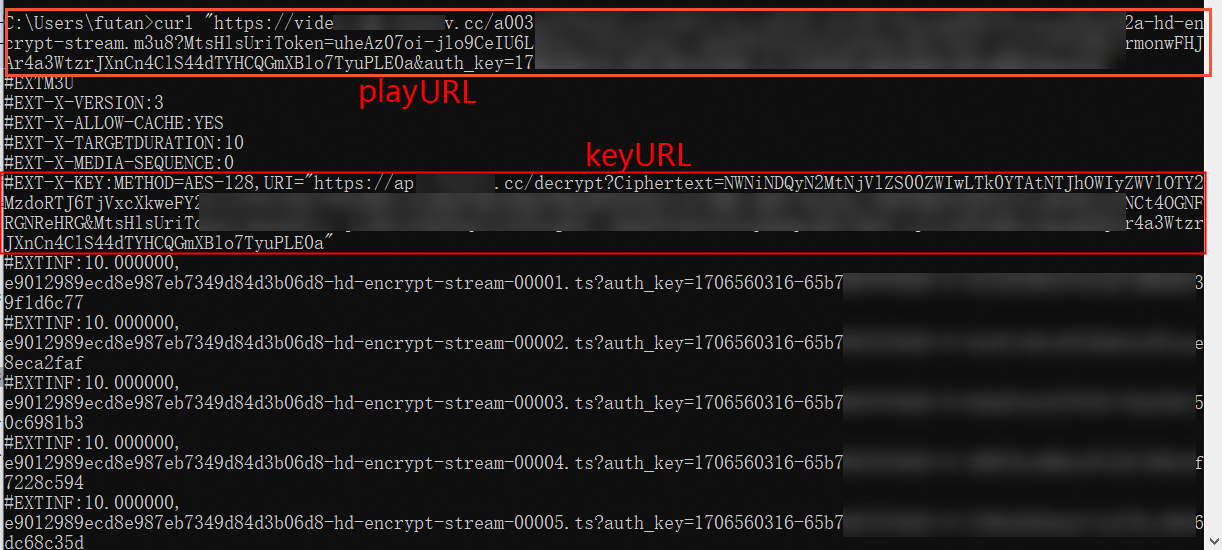
If a server serves the same media file over both HTTP and HTTPS, you can improve the cache hit rate by removing or normalizing the protocol before you calculate the hash value. For example:
If the playback URLs are
https://****.mp4andhttp://****.mp4, use****.mp4to calculate the hash value.If the playback URL is
https://****.mp4, you can consistently usehttp://****.mp4to calculate the hash value.
For Alibaba Cloud Player SDK v5.5.4.0 and later, if you play an HLS stream with a URL that contains authentication parameters, you can set the
AVPConfig.enableStrictAuthModefield to select an authentication mode. The default value isfalsefor older versions andtruefor v7.13.0 and later.Non-strict authentication (
false): The authentication information is cached along with the media content. If only part of the media was cached previously, the player uses the cached authentication information to request the uncached portion. If the URL authentication has a short validity period or if playback is resumed after a long pause, the authentication may expire. To handle this, you need to implement the automatic source refresh feature.Strict authentication (
true): The authentication information is not cached. Authentication occurs at the start of each playback session. This can cause playback to fail if there is no network connection.
Enable or disable cache for a URL
If you want to disable the local cache feature for a single URL, you can configure it in the player config. The following is an example:
// Get the configuration.
AVPConfig *config = [self.player getConfig];
// Specifies whether to enable local caching for the playback URL. Default value: true.
// To enable local caching for this URL, both this setting and the global setting in AliPlayerGlobalSettings must be enabled.
// If this is set to false, local caching is disabled for this URL.
config.enableLocalCache = false;
....// Other settings

// Apply the configuration to the player.
[self.player setConfig:config];
Use the default cache path
To use the default cache path, enable local caching without specifying a directory in AliPlayerGlobalSettings.
[AliPlayerGlobalSettings enableLocalCache:true];Preloading
The Alibaba Cloud Player SDK for iOS provides a preloading feature, which is an enhancement to the local cache. Preloading downloads a portion of a video into the cache before playback begins, improving startup speed.
Preloading has the following limitations:
It supports only single media files, such as MP4, MP3, FLV, and HLS.
By default, the Alibaba Cloud Player SDK for iOS automatically schedules network resources for preloading to minimize interference with the currently playing video. The preload request is sent only after the buffer of the currently playing video reaches a specific threshold. To disable this behavior and manage preload requests in real time, call the following method:
[AliPlayerGlobalSettings enableNetworkBalance:false];Enable the local cache feature as described in Local cache.
Set the data source.
VidAuth (recommended)
AVPVidAuthSource* vidAuthSource = [[AVPVidAuthSource alloc] init];
[vidAuthSource setVid:@"your_video_id"]; // Required. The video ID.
[vidAuthSource setPlayAuth:@"<yourPlayAuth>"]; // Required. The playback credential. You must call the GetVideoPlayAuth operation of ApsaraVideo for VOD to generate the credential.
[vidAuthSource setRegion:@"your_region"]; // This parameter is deprecated in SDK v5.5.5.0 and later. The player automatically parses the region. For earlier versions, this parameter is required and defaults to cn-shanghai.
[vidAuthSource setQuality:@"AUTO"]; // "AUTO" enables adaptive bitrate streaming.
VidSts
AVPVidStsSource* vidStsSource = [[AVPVidStsSource alloc] init];
[vidStsSource setVid: @""]; // Required. The video ID.
[vidStsSource setRegion:@""]; // Required. The region where ApsaraVideo VOD is activated. Default value: cn-shanghai.
[vidStsSource setSecurityToken: @"<yourSecurityToken>"]; // Required. The STS security token. You must call the AssumeRole API operation of STS to obtain the token.
[vidStsSource setAccessKeySecret: @"<yourAccessKeySecret>"]; // Required. The AccessKey secret of the temporary STS AccessKey pair. You must call the AssumeRole API operation of STS to obtain the AccessKey secret.
[vidStsSource setAccessKeyId: @"<yourAccessKeyId>"]; // Required. The AccessKey ID of the temporary STS AccessKey pair. You must call the AssumeRole API operation of STS to obtain the AccessKey ID.
[vidStsSource setQuality:@""]; // "AUTO" specifies adaptive bitrate streaming.
UrlSource
NSString* url = @"your_playback_url"; // Required. The playback URL. It can be a third-party VOD URL or a playback URL from ApsaraVideo for VOD.
AVPUrlSource* urlSource = [[AVPUrlSource alloc]urlWithString:url];
Set task parameters.
NoteThese parameters apply only to multi-bitrate videos. You need to set only one of
setDefaultBandWidth,setDefaultResolution, andsetDefaultQuality.AVPPreloadConfig *config = [[AVPPreloadConfig alloc]init]; // Set the preload bitrate for a multi-bitrate stream. [config setDefaultBandWidth:400000]; // Set the preload resolution for a multi-bitrate stream. [config setDefaultResolution:640 * 480]; // Set the preload quality for a multi-bitrate stream. [config setDefaultQuality:@"FD"]; // Set the preload duration. [config setDuration:1000];Add a task listener.
Build the task, add it to the
MediaLoaderV2instance, and start preloading.VidAuth (recommended)
// Build the preload task.
AVPPreloadTask* mPreloadTask = [[AVPPreloadTask alloc]initWithVidAuthSource:vidAuthSource preloadConfig:config];
// Get the MediaLoaderV2 instance.
AliMediaLoaderV2* vodMedialoader = [AliMediaLoaderV2 shareInstance];
// Add the task and start preloading.
NSString* taskId = [vodMedialoader addTask:mPreloadTask listener:self];
VidSts
// Build the preload task.
AVPPreloadTask* mPreloadTask = [[AVPPreloadTask alloc]initWithVidStsSource:vidStsSource preloadConfig:config];
// Get the MediaLoaderV2 instance.
AliMediaLoaderV2* vodMedialoader = [[AliMediaLoaderV2 alloc]init];
// Add the task and start preloading.
NSString* taskId = [vodMedialoader addTask:mPreloadTask listener:self];
UrlSource
// Build the preload task.
AVPPreloadTask* mPreloadTask = [[AVPPreloadTask alloc]initWithUrlSource:urlSource preloadConfig:config];
// Get the MediaLoaderV2 instance.
AliMediaLoaderV2* vodMedialoader = [[AliMediaLoaderV2 alloc]init];
// Add the task and start preloading.
NSString* taskId = [vodMedialoader addTask:mPreloadTask listener:self];
Optional: Manage tasks.
[vodMedialoader cancelTask:taskId];// Cancel the preload task with the specified ID.
[vodMedialoader pauseTask:taskId];// Pause the preload task with the specified ID.
[vodMedialoader resumeTask:taskId];// Resume the preload task with the specified ID.
Optional: Delete loaded files.
To save space, you can delete cached files. Because the Alibaba Cloud Player SDK for iOS does not provide a deletion interface, you must manually delete files from the cache directory within your app.
Dynamic preloading
The dynamic preloading strategy lets you control caching for the current video and the number of videos to preload. This helps you balance the playback experience with cost.
Preloading multi-bitrate HLS videos
In a listPlayer scenario with multi-bitrate HLS videos, you can preload a stream that matches the current playback quality and choose a preload mode that suits your business needs.
Download speed
You can get the download speed of the currently playing video from the speed parameter in the onCurrentDownloadSpeed callback. The following example shows how.
- (void)onCurrentDownloadSpeed:(AliPlayer *)player speed:(int64_t)speed{
  intspeed_=speed;
}
Network features
HTTPDNS
The HTTPDNS feature uses DNS resolution technology to send domain name resolution requests to a specific HTTPDNS server and obtain resolution results quickly and stably. This prevents DNS hijacking.
ApsaraVideo Player SDK provides HTTPDNS services for domain names accelerated by Alibaba Cloud CDN. You can use the enhanced HTTPDNS feature to implement precise scheduling and ensure that real-time domain resolution results immediately take effect. This improves network performance.
Enhanced HTTPDNS example
You can use the enhanced HTTPDNS feature only for accelerated domain names. Before you use the feature, make sure that an accelerated domain name is added and configured. For more information about how to add and configure a domain name for CDN in ApsaraVideo VOD, see Add an accelerated domain name. For more information about accelerated domain names, see What is Alibaba Cloud CDN?.
// Enable enhanced HTTPDNS.
[AliPlayerGlobalSettings enableEnhancedHttpDns:YES];
// Optional. Add a domain name for HTTPDNS pre-resolution.
[[AliDomainProcessor shareInstance] addPreResolveDomain:@"player.***alicdn.com"];
HTTP/2
Starting from v5.5.0.0, the Alibaba Cloud Player SDK for iOS enables HTTP/2 by default.
The Alibaba Cloud Player SDK for iOS supports HTTP/2, which uses multiplexing to avoid head-of-line blocking and improve playback performance. Example:
[AliPlayerGlobalSettings setUseHttp2:true];TCP pre-connection
For HTTP video playback requests (not HTTPS), pre-establishing a TCP connection significantly improves the user experience by reducing connection time, ensuring immediate and continuous playback, and optimizing network and system resource usage. Example:
// The domain format is host[:port]. The port is optional. Use semicolons (;) to separate multiple domain names.
// Global setting.
// This is an absolute setting. Each time you call this method, the new string replaces the previous one. An empty string disables pre-connection.
[AliPlayerGlobalSettings setOption:SET_PRE_CONNECT_DOMAIN value: @"domain1;domain2"];
Video download
For a detailed code example, see the Video Download and Offline Playback (Download) module in API-Example. This Objective-C sample project demonstrates how to integrate the core features of the ApsaraVideo Player SDK for iOS.
The ApsaraVideo Player SDK for iOS lets you download ApsaraVideo VOD content for offline playback. The SDK offers two download modes: standard download and secure download.
Standard download: The downloaded video data is not encrypted by Alibaba Cloud and can be played using third-party players.
Secure download: The downloaded video data is encrypted by Alibaba Cloud. It cannot be played by third-party players and can only be played using ApsaraVideo Player.
Usage
The video download feature is available only for VidSts and VidAuth sources.
To use the video download feature, you must enable and configure the download mode in the ApsaraVideo VOD console. For more information, see offline download.
The video download feature supports resumable downloads.
Procedure
Optional: Configure the key file for secure download. This step is required only for secure download.
NoteEnsure that the information in the configured key file matches your app's information. Otherwise, the video download will fail.
If you use the secure download mode, you must configure the ApsaraVideo Player SDK with the key file that you generated in the ApsaraVideo VOD console. This file is used for decryption and verification during video download and playback. For instructions on how to generate the key file, see Enable secure download.
Perform this configuration only once in your application, as shown in the following example:
NSString *encrptyFilePath = [[NSBundle mainBundle] pathForResource:@"encryptedApp" ofType:@"dat"];
[AliPrivateService initKey:encrptyFilePath];
Create and configure the downloader.
The following code provides an example:
AliMediaDownloader *downloader = [[AliMediaDownloader alloc] init];
[downloader setSaveDirectory:self.downLoadPath];
[downloader setDelegate:self];
Set event listeners.
The downloader supports multiple event listeners. The following code provides an example:
-(void)onPrepared:(AliMediaDownloader *)downloader mediaInfo:(AVPMediaInfo *)info {
    // A download item is successfully prepared.
}
-(void)onError:(AliMediaDownloader *)downloader errorModel:(AVPErrorModel *)errorModel {
    // An error occurred during download.
}
-(void)onDownloadingProgress:(AliMediaDownloader *)downloader percentage:(int)percent {
    // Download progress percentage.
}
-(void)onProcessingProgress:(AliMediaDownloader *)downloader percentage:(int)percent {
    // Processing progress percentage.
}
-(void)onCompletion:(AliMediaDownloader *)downloader {
    // The download is successful.
}
Prepare the download source.
Call the
preparemethod to prepare the download source. VidSts and VidAuth sources are supported. The following code provides an example:VidSts
// Create a VidSts source.
AVPVidStsSource* stsSource = [[AVPVidStsSource alloc] init];
stsSource.region = @"your_region"; // Your ApsaraVideo VOD service region. Default value: cn-shanghai.
stsSource.vid = @"your_video_id"; // The video ID.
stsSource.securityToken = @"<yourSecurityToken>"; // The STS security token. To get this token, call the STS AssumeRole operation.
stsSource.accessKeySecret = @"<yourAccessKeySecret>"; // The AccessKey secret of the temporary STS credential. To get this secret, call the STS AssumeRole operation.
stsSource.accessKeyId = @"<yourAccessKeyId>"; // The AccessKey ID of the temporary STS credential. To get this ID, call the STS AssumeRole operation.

// If you have enabled parameter pass-through for HLS encryption in the ApsaraVideo VOD console
// and the default parameter name is MtsHlsUriToken, you must set the config and pass it to the VidSts source.
// If this feature is not enabled, you can skip the following code.
VidPlayerConfigGenerator* vp = [[VidPlayerConfigGenerator alloc] init];
[vp setHlsUriToken:yourMtsHlsUriToken];
stsSource.playConfig = [vp generatePlayerConfig];
// Prepare the download source.
[downloader prepareWithVid:stsSource];
VidAuth
// Create a VidAuth source.
AVPVidAuthSource *authSource = [[AVPVidAuthSource alloc] init];
authSource.vid = @"your_video_id"; // The video ID.
authSource.playAuth = @"<yourPlayAuth>"; // The playback credential. To get this credential, call the ApsaraVideo VOD GetVideoPlayAuth operation.
authSource.region = @"your_region"; // Deprecated in ApsaraVideo Player SDK V5.5.5.0 and later because the player automatically parses the region.
// Required for earlier versions.
// Your ApsaraVideo VOD service region. Default value: cn-shanghai.
// If you have enabled parameter pass-through for HLS encryption in the ApsaraVideo VOD console
// and the default parameter name is MtsHlsUriToken, you must set the config and pass it to the VidAuth source.
// If this feature is not enabled, you can skip the following code.
VidPlayerConfigGenerator* vp = [[VidPlayerConfigGenerator alloc] init];
[vp setHlsUriToken:yourMtsHlsUriToken];
authSource.playConfig = [vp generatePlayerConfig];
// Prepare the download source.
[downloader prepareWithVid:authSource];
NoteIf you enable parameter pass-through for HLS encryption in the ApsaraVideo VOD console and the default parameter name is MtsHlsUriToken, you must set the MtsHlsUriToken value in the download source as shown in the code above. For more information, see parameter pass-through for HLS encryption.
Select a video track after the source is prepared.
After the download source is prepared, the
onPreparedmethod is called. ThemediaInfoparameter of the callback contains information about each available video track, such as video quality. Select a track to download. The following code provides an example:-(void)onPrepared:(AliMediaDownloader *)downloader mediaInfo:(AVPMediaInfo *)info { NSArray<AVPTrackInfo*>* tracks = info.tracks; // For example, to download the first track: [downloader selectTrack:[tracks objectAtIndex:0].trackIndex]; }Update the download source and start the download.
To prevent VidSts and VidAuth credentials from expiring, we recommend updating the source information before you start the download. The following code provides an example:
// Update the download source.
[downloader updateWithVid:vidSource]
// Start the download.
[downloader start];
Release the downloader after the download completes or fails.
Call the
destroymethod to release the downloader.[self.downloader destroy]; self.downloader = nil;
Encrypted playback
ApsaraVideo VOD supports HLS standard encryption, Alibaba Cloud proprietary encryption, and DRM encryption. Live video supports only DRM encryption. For more information, see Encrypted playback.
Native RTS playback
The iOS player SDK integrates the Native RTS SDK to enable low-latency live streaming. For more information, see Implement RTS-based stream pulling on iOS.