This topic describes the advanced features of ApsaraVideo Player SDK for Android and provides sample code. For more information about other features, see API operations for ApsaraVideo Player SDK for Android.
To run and test the demo, download it and follow the instructions in Run the demo to compile and run it.
Confirm professional capabilities
Some player features require a Professional Edition license. For details, see ApsaraVideo Player SDK feature overview. To use these features, obtain a license as described in Get a Player SDK license.
Set a listener when your app starts or before you call any player interface:
import com.aliyun.private_service.PrivateService;


PrivateService.setOnPremiumLicenseVerifyCallback(new PrivateService.OnPremiumLicenseVerifyCallback() {
    @Override
    public void onPremiumLicenseVerifyCallback(PrivateService.PremiumBizType type, boolean isValid, String errorMsg) {
        Log.d(TAG, "onPremiumLicenseVerifyCallback: " + type + " isValid: " + isValid + " errorMsg: " + errorMsg);
    }
});
In this code, PremiumBizType is an enumeration that represents professional capabilities. The player verifies these capabilities and returns the result through this callback when you use related features. If isValid is false, errorMsg contains the specific reason.
Playback
List playback
ApsaraVideo Player SDK for Android provides a full-fledged list playback feature for videos. The SDK leverages technologies such as preloading to minimize the loading time of short videos.
If you want a better experience for list playback, we recommend that you use the mini drama solution. For more information, see Mini drama client development.
Play videos that have transparency configurations
Overview
ApsaraVideo Player SDK supports rendering of videos with alpha channels to play dynamic gift videos with a transparent background. This allows viewers to see dynamic gift effects without blocking live video content during streaming, significantly improving viewing and interactive experience.
Limits
You can use ApsaraVideo MediaBox SDK V6.8.0 or later and ApsaraVideo Player SDK V6.9.0 or later to render videos with transparency.
Benefits
You can use MP4 videos with transparency to play dynamic gift videos with a transparent background. This improves performance, video compatibility, reduces video size, and simplifies development, thereby optimizing the viewing experience of gift effects and enhancing user experience. Using MP4 videos with transparency to play dynamic gift videos offers the following benefits:
Higher video quality: MP4 videos display dynamic gift effects in original quality, including image details and colors. Compared with other formats such as APNG or IXD, MP4 preserves the original quality intended by designers.
Smaller video size: Compared with other formats such as APNG or IXD, MP4 achieves more efficient file size reduction, accelerating loading and reducing network bandwidth consumption.
Better compatibility: MP4 is a widely supported general video format across various devices and browsers, enabling playback of MP4-based gift effects on mainstream devices.
Higher development efficiency: Using MP4 videos as dynamic gifts requires simple development. Developers can focus on implementing other features instead of developing complex parsing and rendering logic, improving development efficiency.
Configure external subtitles
For detailed code examples, see the API-Example External subtitle playback and switching (ExternalSubtitle) module. This project is an Android example project for ApsaraVideo Player SDK written in Java. It helps developers quickly master core SDK integration.
ApsaraVideo Player SDK for Android lets you add or switch external subtitles in SRT, SSA, ASS, or VTT format for videos.
The following is an example:
Create a view that displays the subtitles.
You must create different views for subtitles in different formats.
When you integrate Player SDK V7.6.0 or later and use
VttSubtitleViewto display SRT and VTT subtitles, configure the following listener:// Required for Player SDK 7.6.0 or later mAliPlayer.setOnVideoSizeChangedListener(new IPlayer.OnVideoSizeChangedListener() { @Override public void onVideoSizeChanged(int width, int height) { int viewWidth = getWidth(); int viewHeight = getHeight(); IPlayer.ScaleMode mode = mVideoListPlayer.getScaleMode(); SubTitleBase.VideoDimensions videoDimensions = SubTitleBase.getVideoDimensionsWhenRenderChanged(width, height, viewWidth, viewHeight, mode); vttSubtitleView.setVideoRenderSize(videoDimensions.videoDisplayWidth, videoDimensions.videoDisplayHeight); } });Add subtitles.
ImportantYou must configure subtitle files in
onPrepared.mAliPlayer.setOnPreparedListener(new IPlayer.OnPreparedListener() { @Override public void onPrepared() { // Configure subtitles (must be configured in onPrepared) mAliPlayer.addExtSubtitle(EXT_SUBTITLE_URL); } });Configure listeners for subtitles.
External subtitles (custom rendering with rendering components)
Based on VttSubtitleView and WebVttResolver, ApsaraVideo Player SDK fully supports WebVTT external subtitles and allows flexible customization of font size, color, and specific fonts.
Use cases:
You need to customize WebVTT subtitle styles.
You integrate ApsaraVideo Player SDK V7.11.0 or later.
Prerequisites:
The font file (.ttf) is placed in the
assets/fonts/directory of your project.Your project's minSdk is 21 or later (recommended).
You have added subtitle listeners and can obtain WebVTT content.
Create
CustomStyleWebVttResolverand implementWebVttResolver.public class CustomStyleWebVttResolver extends WebVttResolver { // Implement the constructor public CustomStyleWebVttResolver(Context context) { super(context); // Initialize fonts and other resources here } }Override
applyTextSpansto customize styles.This method is called after the parent class parses basic styles, allowing secondary processing of subtitles.
Method 1: Modify
VttContentAttributeand call the parent class method./** * Override text style application logic to achieve custom styling effects. * This method is called after the parent class parses basic styles, allowing secondary processing of properties such as font size and color. * * @param spannableStringBuilder Used to build styled text * @param vttContentAttribute Style attributes of the current text segment (including font, color, size, etc.) * @param start Start position of style application (inclusive) * @param end End position of style application (exclusive) */ @Override protected void applyTextSpans(SpannableStringBuilder spannableStringBuilder, VttContentAttribute vttContentAttribute, int start, int end) { // Save original font size (unit: px) for subsequent adjustment // Default font size is 0.0533f times the video height double originalFontSizePx = vttContentAttribute.fontSizePx; // Double the font size vttContentAttribute.fontSizePx = originalFontSizePx * 2; // Change font color to red vttContentAttribute.mPrimaryColour = Color.argb(255, 255, 0, 0); // Call the parent class method to apply text styles super.applyTextSpans(spannableStringBuilder, vttContentAttribute, start, end); }Directly manipulate
SpannableStringBuilderto modify WebVTT styles directly.ImportantThis method may cause loss of native WebVTT styles.
/**
 * Override text style application logic to achieve custom styling effects.
 * This method is called after the parent class parses basic styles, allowing secondary processing of properties such as font size and color.
 *
 * @param spannableStringBuilder Used to build styled text
 * @param vttContentAttribute Style attributes of the current text segment (including font, color, size, etc.)
 * @param start Start position of style application (inclusive)
 * @param end End position of style application (exclusive)
 */
@Override
protected void applyTextSpans(SpannableStringBuilder spannableStringBuilder, VttContentAttribute vttContentAttribute, int start, int end) {
    // Set font color
    spannableStringBuilder.setSpan(
        new ForegroundColorSpan(Color.RED),
        start, end,
        Spanned.SPAN_EXCLUSIVE_EXCLUSIVE
    );

    // Set absolute font size
    spannableStringBuilder.setSpan(
        new AbsoluteSizeSpan(20), // Unit: px
        start, end,
        Spanned.SPAN_EXCLUSIVE_EXCLUSIVE
    );

    // Set relative font size
    // spannableStringBuilder.setSpan(
    //     new RelativeSizeSpan(2.0f), // Multiple of TextView default font size
    //     start, end,
    //     Spanned.SPAN_EXCLUSIVE_EXCLUSIVE
    // );
}
Configure a custom font (Typeface).
Load the custom font from the
asset/fonts/directory of your project.private Typeface mTypeface; public CustomStyleWebVttResolver(Context context) { super(context); initializeFonts(context); } private void initializeFonts(Context context) { try { // Load font from assets/fonts/ mTypeface = Typeface.createFromAsset(context.getAssets(), "fonts/LongCang.ttf"); } catch (Exception e) { Log.e("Font", "Failed to load font", e); mTypeface = Typeface.DEFAULT; // Safe fallback } }Apply the custom font to subtitles.
@Override
protected void applyTextSpans(SpannableStringBuilder builder, VttContentAttribute attr, int start, int end) {
    // Apply custom font
    // Must be placed after super.applyTextSpans() to override fonts possibly set by the parent class.
    // super.applyTextSpans() is optional.
    if (Build.VERSION.SDK_INT >= Build.VERSION_CODES.P) {
        builder.setSpan(new TypefaceSpan(mTypeface), start, end, Spanned.SPAN_EXCLUSIVE_EXCLUSIVE);
    } else {
        builder.setSpan(new CustomTypefaceSpan(mTypeface), start, end, Spanned.SPAN_EXCLUSIVE_EXCLUSIVE);
    }
}
Support for older Android versions: Because
TypefaceSpanin Android P (API 28) and earlier does not support directTypefaceobjects, you must implement a customMetricAffectingSpan./** * Custom Typeface Span class * Inherits from MetricAffectingSpan to correctly apply Typeface during text drawing and measurement. * Solves the issue where standard TypefaceSpan cannot directly use Typeface objects. */ private static class CustomTypefaceSpan extends MetricAffectingSpan { // Custom font to apply private final Typeface typeface; /** * Constructor * * @param typeface Typeface object to apply (must not be null) */ public CustomTypefaceSpan(Typeface typeface) { this.typeface = typeface; } /** * Update text drawing state * Called during actual text drawing to set the paint font. * * @param tp TextPaint object used to draw text */ @Override public void updateDrawState(TextPaint tp) { tp.setTypeface(typeface); } /** * Update text measurement state * Called during text layout calculation (such as width, line breaks) to ensure measurements match actual drawing. * * @param p TextPaint object used to measure text */ @Override public void updateMeasureState(TextPaint p) { p.setTypeface(typeface); } }
Integrate into the player.
Initialize the subtitle view.
// Initialize subtitleView
private void initSubtitleView() {
    // Get context
    Context context = getContext();

    // Create CustomStyleWebVttResolver
    CustomStyleWebVttResolver mResolver = new CustomStyleWebVttResolver(context);

    // Create VttSubtitleView and pass CustomStyleWebVttResolver
    VttSubtitleView mVttSubtitleView = new VttSubtitleView(context, mResolver);

    // Add to video container
    rootView.addView(mVttSubtitleView);
}
Bind external subtitle callbacks.
// Configure subtitle listener
mAliPlayer.setOnSubtitleDisplayListener(new IPlayer.OnSubtitleDisplayListener() {
    @Override
    public void onSubtitleExtAdded(int trackIndex, String url) {
        mAliPlayer.selectExtSubtitle(trackIndex, true);
    }

    @Override
    public void onSubtitleShow(int trackIndex, long id, String data) {
        if (mVttSubtitleView != null) {
            // Show subtitle
            mVttSubtitleView.show(id, data);
        }
    }

    @Override
    public void onSubtitleHide(int trackIndex, long id) {
        // Hide subtitle
        mVttSubtitleView.dismiss(id);
    }

    @Override
    public void onSubtitleHeader(int i, String header) {
        if (!TextUtils.isEmpty(header)) {
            // Apply WebVTT header styles
            mVttSubtitleView.setVttHeader(header);
        }
    }
});
Enable audio-only playback
You can disable the display capability for video images to enable audio-only playback. Before you call the prepare method, configure the PlayerConfig class.
PlayerConfig config = aliPlayer.getConfig();
config.mDisableVideo = true; // Enable audio-only playback.
aliPlayer.setConfig(config);
Switch between software decoding and hardware decoding
You must change the decoding method before playback starts. Changes made during playback do not take effect.
ApsaraVideo Player SDK for Android supports hardware decoding based on the H.264 and H.265 standards. You can call enableHardwareDecoder to enable or disable hardware decoding. By default, hardware decoding is enabled. If hardware decoding fails to initialize, it switches to software decoding to ensure normal playback. Sample code:
// Enable hardware decoding. Hardware decoding is enabled by default.
aliPlayer.enableHardwareDecoder(true);
If hardware decoding switches to software decoding, the onInfo callback is invoked. Sample code:
mApsaraPlayerActivity.setOnInfoListener(new IPlayer.OnInfoListener() {
    @Override
    public void onInfo(InfoBean infoBean) {
        if (infoBean.getCode() == InfoCode.SwitchToSoftwareVideoDecoder) {
            // Switch to software decoding.
        }
    }
});
H.265 adaptive playback
If the current model is in the H.265 model blacklist in the cloud or H.265 streams fail to decode, adaptive streaming is triggered. If you have configured a secondary H.264 stream, the system automatically plays the secondary H.264 stream. If you do not configure a secondary stream, software decoding is automatically used for H.265 playback.
This feature is available only after you enable adaptive playback. Adaptive playback is a value-added service. To activate value-added services, submit a request on Yida.
The Client-Cloud Integrated Adaptive Decoding value-added service provides the following capabilities: dynamic delivery of compatibility data for cloud-side hardware decoding and adaptive downgrade of H.265 streams to H.264 streams.
If you do not activate the adaptive playback service, the player SDK can still automatically use software decoding when hardware decoding fails.
The following sample code describes how to configure a secondary stream:
// Create a map on the application layer to store the primary stream URLs and secondary stream URLs as key-value pairs. The system queries the corresponding secondary URL based on the primary stream URL during switching.
 AliPlayerGlobalSettings.setAdaptiveDecoderGetBackupURLCallback(new AliPlayerGlobalSettings.OnGetBackupUrlCallback() {
    @Override
    public String getBackupUrlCallback(int oriBizScene, int oriCodecType, String original_url) {
        String kurl = original_url;
        if (!H265toH264Map.get(kurl).isEmpty()) {
            return H265toH264Map.get(kurl);
        } else {
            return "";
        }
    }
});
Adaptive bitrate streaming
You can transcode videos to HTTP Live Streaming (HLS) adaptive bitrate streams using ApsaraVideo VOD transcoding template groups. For more information, see Adaptive bitrate streaming configuration for video on demand.
If you use Vid-based playback for adaptive bitrate streams transcoded by ApsaraVideo VOD, you must specify
DEFINITION_AUTOas the default playback definition. This allows the player to obtain and play adaptive bitrate streams. If you do not specify AUTO as the default playback definition, the player automatically plays video streams in low definition. For more information about the playback order based on video definitions, see Which video definition does the Player SDK play by default when multiple definitions are available?. The following sample code provides an example on how to specify the default playback definition for VidAuth-based playback:VidAuth vidAuth = new VidAuth(); List<Definition> list = new ArrayList<>(); list.add(Definition.DEFINITION_AUTO); vidAuth.setDefinition(list);
ApsaraVideo Player SDK for Android supports adaptive bitrate streaming of HLS or DASH video streams. After the prepare method is called, call getMediaInfo to obtain the bitrate information indicated by TrackInfo. Sample code:
List<TrackInfo> trackInfos = aliPlayer.getMediaInfo().getTrackInfos();During playback, you can call the selectTrack method to switch the bitrate. If you specify AUTO_SELECT_INDEX, adaptive bitrate streaming is enabled. Sample code:
int index = trackInfo.getIndex();
// Switch the bitrate.
aliPlayer.selectTrack(index);
// Enable adaptive bitrate streaming.
aliPlayer.selectTrack(TrackInfo.AUTO_SELECT_INDEX);
The switching result is returned in the OnTrackChangedListener callback. You must configure the OnTrackChangedListener callback before you call selectTrack. Sample code:
aliPlayer.setOnTrackChangedListener(new IPlayer.OnTrackChangedListener() {
    @Override
    public void onChangedSuccess(TrackInfo trackInfo) {
        // The bitrate switching is successful.
    }
    @Override
    public void onChangedFail(TrackInfo trackInfo, ErrorInfo errorInfo) {
        // The bitrate switching fails. You can call the errorInfo.getMsg() method to find the cause of the failure.
    }
});
Optional. Before you call the selectTrack method to switch the playback code stream to an adaptive bitrate, you can specify the config parameter to set the maximum definition of adaptive bitrate to avoid automatic switching to an unexpected bitrate. We recommend that you execute the following code before the player calls the prepare method or the list player calls the moveTo method to make it take effect:
PlayerConfig config = aliPlayer.getConfig();
config.mMaxAllowedAbrVideoPixelNumber = 921600; //Set the number of pixels that corresponds to the upper limit of adaptive bitrate to 921,600 (length × width= 1280 × 720). This way, the number of pixels that corresponds to the definition is equal to or smaller than this value.
aliPlayer.setConfig(config);
Capture snapshots
ApsaraVideo Player SDK for Android provides the snapshot method for capturing video snapshots. When you capture a snapshot, the player saves the source data of the video image and converts it to a bitmap. You can then invoke OnSnapShotListener to obtain the bitmap. Sample code:
// Set the callback for snapshot capture.
aliPlayer.setOnSnapShotListener(new OnSnapShotListener(){
    @Override
    public void onSnapShot(Bitmap bm, int with, int height){
        // Obtain the bitmap and the width and height of the video image.
    }
});
// Capture a snapshot of the current video image.
aliPlayer.snapshot();
Preview
ApsaraVideo Player SDK for Android integrates specific configurations of ApsaraVideo VOD to support video preview. Only VidSts and VidAuth sources can be previewed. We recommend that you preview only VidAuth sources in ApsaraVideo VOD. For more information about how to configure and use the preview feature, see Preview videos.
After you enable the preview feature, you can call the VidPlayerConfigGen.setPreviewTime() method to specify the preview duration. The following sample code provides an example on how to specify the preview duration for VidSts-based playback:
VidSts vidSts = new VidSts;
....
VidPlayerConfigGen configGen = new VidPlayerConfigGen();
configGen.setPreviewTime(20);// Set the preview duration to 20 seconds.
vidSts.setPlayConfig(configGen);// Specify the video source.
...
When you set the trial playback duration and play videos using the Android player SDK, the server returns the trial segment content instead of the complete video content.
You can call VidPlayerConfigGen to configure the request parameters supported by the server. For more information, see Request parameter descriptions.
The preview feature is not supported for Flash Video (FLV) and MP3 files.
Configure a blacklist
ApsaraVideo Player SDK for Android lets you configure a blacklist for hardware decoding. If hardware decoding is not allowed for a device, you can use software decoding to prevent decoding failures. Sample code:
DeviceInfo deviceInfo = new DeviceInfo();
deviceInfo.model="Lenovo K320t";
AliPlayerFactory.addBlackDevice(BlackType.HW_Decode_H264 ,deviceInfo );The blacklist becomes invalid after the application exits.
Set the Referer
ApsaraVideo Player SDK for Android provides the PlayerConfig class for setting the request Referer. You can use the Referer together with a Referer whitelist or blacklist configured in the ApsaraVideo VOD console to implement access control. The following sample code provides an example:
// Obtain the configuration information.
PlayerConfig config = aliPlayer.getConfig();
// Set the Referer. Example: http://example.aliyundoc.com. You must add the protocol header when you set the Referer.
config.mReferrer = referrer;
....// Configure other settings.
  // Configure the settings for the player.
aliPlayer.setConfig(config);
Specify the User-Agent header
ApsaraVideo Player SDK for Android provides the PlayerConfig class for specifying the request user agent. After you specify the User-Agent header, the player includes the user agent information in its requests. Sample code:
// Obtain the configuration information.
PlayerConfig config = aliPlayer.getConfig();
// Set the user agent.
config.mUserAgent = "Required user agent";
....// Configure other settings.
  // Configure the settings for the player.
aliPlayer.setConfig(config);
Set the network timeout period and number of retries
ApsaraVideo Player SDK for Android provides the PlayerConfig class for setting the network timeout period and number of retries. Sample code:
// Obtain the configuration information.
PlayerConfig config = aliPlayer.getConfig();
// Specify the network timeout period. Unit: millisecond.
config.mNetworkTimeout = 5000;
// Specify the maximum number of retries upon a network timeout. The retry interval equals the timeout period specified by the NetworkTimeout parameter. The NetworkRetryCount parameter specifies the number of retries. A value of 0 indicates zero retry. The application determines the number of retries. Default value: 2.
config.mNetworkRetryCount=2;
....// Configure other settings.
  // Configure the settings for the player.
aliPlayer.setConfig(config);If you set the NetworkRetryCount parameter to a value other than 0, the player retries playback when it starts to load data due to a network error. The maximum number of retries equals the value of the NetworkRetryCount parameter. The retry interval equals the value of the NetworkTimeout parameter.
If loading persists after the maximum number of retries is reached, the
onErrormethod invokes a callback. In this case, the ErrorInfo.getCode() method returns ErrorCode.ERROR_LOADING_TIMEOUT.If you set the NetworkRetryCount parameter to 0, the
onInfomethod invokes a callback when a network timeout occurs. In this case, InfoBean.getCode() returns InfoCode.NetworkRetry. To resolve the issue, you can call thereloadmethod of ApsaraVideo Player SDK for Android to reload network packets or perform other required operations.
Control the buffer and latency
ApsaraVideo Player SDK for Android provides the PlayerConfig class for configuring buffer and latency settings. Sample code:
Configure HTTP headers
ApsaraVideo Player SDK for Android provides the PlayerConfig class for adding HTTP headers to requests. Sample code:
// Obtain the configuration information.
PlayerConfig config = aliPlayer.getConfig();
// Define a header.
String[] headers = new String[1];
headers[0]="Host:example.com"; // For example, add the host information to the header.
// Configure the headers.
config.setCustomHeaders(headers);
....// Configure other settings.
  // Configure the settings for the player.
aliPlayer.setConfig(config);
Picture-in-Picture (PiP)
For detailed code examples, see the API-Example PiP playback (PictureInPicture) module. This project is an Android example project for ApsaraVideo Player SDK written in Java. It helps developers quickly master core SDK integration.
Procedure:
In the
AndroidManifest.xmlfile, declare the PiP permission.<activity android:name=".PictureInPictureActivity" android:exported="true" android:supportsPictureInPicture="true" android:configChanges="screenSize|smallestScreenSize|screenLayout|orientation" />Switch the target
Activityto PiP mode.Rational aspectRatio = new Rational(16, 9); // Aspect ratio for PiP. Adjust based on your business needs. PictureInPictureParams.Builder pipBuilder = new PictureInPictureParams.Builder(); pipBuilder.setAspectRatio(aspectRatio); enterPictureInPictureMode(pipBuilder.build());You can trigger PiP mode from an OnClick event, when leaving the app, or when returning to the app. Implementation methods are as follows:
OnClick (click event) trigger
button.setOnClickListener(new View.OnClickListener() {
    @Override
    public void onClick(View v) {
        Rational aspectRatio = new Rational(16, 9); // Aspect ratio for PiP
        PictureInPictureParams.Builder pipBuilder = new PictureInPictureParams.Builder();
        pipBuilder.setAspectRatio(aspectRatio);
        enterPictureInPictureMode(pipBuilder.build());
    }
});
Trigger when leaving the app
@Override
protected void onUserLeaveHint() {
    super.onUserLeaveHint();
    Rational aspectRatio = new Rational(16, 9); // Aspect ratio for PiP
    PictureInPictureParams.Builder pipBuilder = new PictureInPictureParams.Builder();
    pipBuilder.setAspectRatio(aspectRatio);
    enterPictureInPictureMode(pipBuilder.build());

    Log.e(TAG, "PiP onUserLeaveHint");
}
Trigger when returning to the app
@Override
public void onBackPressed() {
    super.onBackPressed();
    // Trigger from back press
    enterPictureInPictureMode();
}
Handle UI for PiP show/hide.
@Override
public void onPictureInPictureModeChanged(boolean isInPictureInPictureMode, Configuration newConfig) {
    super.onPictureInPictureModeChanged(isInPictureInPictureMode, newConfig);
    if (isInPictureInPictureMode) {
        // Handle entering PiP mode
        // Hide UI
        Log.e(TAG, "Entered PiP mode");
    } else {
        // Handle exiting PiP mode
        // Show UI
        Log.e(TAG, "Exited PiP mode");
    }
}
Live Streaming RTS Degradation
For detailed code examples, see the API-Example Ultra-low-latency RTS live streaming (RtsLiveStream) module. This project is an Android example project for ApsaraVideo Player SDK written in Java. It helps developers quickly master core SDK integration.
For more information, see RTS live streaming.
Switch between left and right audio channels
ApsaraVideo Player SDK for Android uses the setOutputAudioChannel method to specify the output audio channel. If the input source contains two audio channels, you can switch between the left and right audio channels. If the input source contains only one audio channel, the outputAudioChannel configuration is invalid.
The following output channel settings affect both audio rendering and PCM data callback.
/*
Specify OutputAudioChannel.OUTPUT_AUDIO_CHANNEL_LEFT to use the left audio channel for playback.
Specify OutputAudioChannel.OUTPUT_AUDIO_CHANNEL_RIGHT to use the right audio channel for playback.
Specify OutputAudioChannel.OUTPUT_AUDIO_CHANNEL_NONE to use the audio channel settings of the input file.
*/
aliPlayer.setOutputAudioChannel();
Parse audio streams
You can configure a listener to obtain information about audio and video streams. Encrypted audio and video streams cannot be parsed.
Set Video Background Color
You can set the background color of the player when you use ApsaraVideo Player SDK for Android. The following sample code provides examples on how to declare and call the method:
API example
/**
 * Set the background color of the video.
 *
 * @param color  ARGB
 *
 */
/****
 * Set video background color
 * @param color  ARGB
 */
abstract public void setVideoBackgroundColor(int color);
Usage Notes
// The parameter value is an eight-digit hexadecimal ARGB color value. The first two digits of an eight-digit ARGB color value represent alpha, the next two represent red, the next two represent green, and the last two represent blue.
// For example, a value of 0x0000ff00 specifies green.
aliPlayer.setVideoBackgroundColor(0x0000ff00);
Specify a domain name for vidAuth-based playback
The vidAuth method lets you specify fields such as the domain name associated with the vid. For details about the supported fields, see GetPlayInfo request parameters. The API and its usage are described below:
API Example
/**
 * Set the playback parameters.
 *
 * @param playConfig The playback parameters.
 */
public void setPlayConfig(VidPlayerConfigGen playConfig);
Usage notes
Specify the playDomain parameter when you call addPlayerConfig in VidPlayerConfigGen.
vidAuth = new VidAuth();
VidPlayerConfigGen configGen = new VidPlayerConfigGen();
// Add the playDomain field. For more information about configurable fields, see:
// https://www.alibabacloud.com/help/zh/vod/developer-reference/api-vod-2017-03-21-getplayinfo
configGen.addPlayerConfig("playDomain", "com.xxx.xxx");
vidAuth.setPlayConfig(configGen);
H.266 decoding plug-in
H.266 (VVC/Versatile Video Coding), as the latest video coding standard, significantly reduces bitrates while maintaining the same visual quality. To optimize performance and control the main SDK size, the H.266 decoding capability is packaged as a separate plug-in for on-demand integration.
Prerequisites
The player or all-in-one SDK version is V7.6.0 or later.
You have obtained a Professional Edition license. For details, see Get a Player SDK license.
ApsaraVideo Player with the H.266 decoding plug-in supports playback of H.266 videos encoded by ApsaraVideo VOD transcoding only.
Integrate the plug-in
Activate the plug-in
Starting from ApsaraVideo Player SDK V7.7.0, the plug-in is enabled by default after integration. No manual activation is required.
AliPlayerGlobalSettings.enableCodecPlugin("vvc", true);Related error codes
For error codes related to the H.266 decoding plug-in, see Common issues across platforms.
Automatically refresh playback sources
Enabling automatic playback source refresh prevents playback interruptions caused by expired authentication. This feature triggers a listener when a source expires and retrieves a new URL to ensure continuous and smooth video playback.
Prerequisites
The player or all-in-one SDK version is V7.9.0 or later.
You use VidAuth sources for playback or have configured URL signing for your business.
VidAuth source
Interface example
/**
 * Set the VidAuth source expiration listener.
 *
 * This feature enables automated VidAuth source refresh to avoid playback interruptions
 * caused by expiration. When the listener is triggered, you can refresh the VidAuth source
 * and return the updated VidAuth using {@link SourceRefreshCallback#onSuccess}.
 *
 * @param listener The interface for listening to VidAuth source expiration events. See {@link OnVidAuthExpiredListener}.
 */
/****
 * Sets the listener for VidAuth source expiration events.
 *
 * This feature enables automated VidAuth source refresh to avoid playback interruptions
 * caused by expiration. When the listener is triggered, you can refresh the VidAuth source
 * and return the updated VidAuth using {@link SourceRefreshCallback#onSuccess}.
 *
 * @param listener The interface for listening to VidAuth source expiration events. See {@link OnVidAuthExpiredListener}.
 *
 */
abstract public void setOnVidAuthExpiredListener(OnVidAuthExpiredListener listener);
Feature composition
UrlSource source
Interface example
/**
 * Set the URL source expiration listener.
 *
 * This feature enables URL refresh to avoid playback interruptions caused by
 * URL expiration due to authentication. When the listener is triggered,
 * you can refresh the URL source and return the updated URL source using {@link SourceRefreshCallback#onSuccess}.
 *
 * @param listener Listener for handling URL source expiration events. See {@link OnURLSourceExpiredListener}.
 *
 * <p>For more information on configuring URL authentication, see
 * <a href="https://www.alibabacloud.com/help/zh/vod/user-guide/configure-url-signing?spm=a2c4g.11186623.0.0.560c4140fGh8MW">URL authentication documentation</a>.</p>
 */
/****
 * Sets the listener for URL source expiration events.
 *
 * This feature enables URL refresh to avoid playback interruptions caused by
 * URL expiration due to authentication. When the listener is triggered,
 * you can refresh the URL source and return the updated URL source using {@link SourceRefreshCallback#onSuccess}.
 *
 * @param listener Listener for handling URL source expiration events. See {@link OnURLSourceExpiredListener}.
 *
 * <p>For more information on configuring URL authentication, see
 * <a href="https://www.alibabacloud.com/help/zh/vod/user-guide/configure-url-signing?spm=a2c4g.11186623.0.0.560c4140fGh8MW">URL authentication documentation</a>.</p>
 */
abstract public void setOnURLSourceExpiredListener(OnURLSourceExpiredListener listener);
Feature composition
Utility function supplement
Take signing method A as an example.
Switch bound network interface controllers (NICs)
ApsaraVideo Player SDK for Android provides the AliPlayerGlobalSettings.enableSwitchNIC method to automatically switch NICs during network anomalies, ensuring stable resource playback. Sample code:
This method takes effect only when the switch is enabled and multiple NICs exist.
AliPlayerGlobalSettings.enableSwitchNIC(true);Performance
Set the playback scene
Setting the playback scene automatically configures optimal parameters (including buffer settings and feature switches) based on the scene. Custom parameters set through the setConfig interface remain effective (custom settings take precedence).
You can view the parameter configuration by calling the
getConfiginterface after setting the playback scene.
Interface example
/**
 * Set the player scene.
 *
 * @param scene.
 */
/****
 * Set the player scene.
 *
 * @param scene.
 */
abstract public void setPlayerScene(PlayerScene scene);
Playback scenes
public enum PlayerScene {
    /**
     * Scene: none
     */
    /****
     * scene none
     */
    NONE,
    /**
     * Long video scene: applies to videos longer than 30 minutes
     */
    /****
     * long scene: apply to more than 30min
     */
    LONG,
    /**
     * Medium video scene: applies to videos 5 to 30 minutes long
     */
    /****
     * middle scene: apply to 5min-30min
     */
    MEDIUM,
    /**
     * Short video scene: applies to videos up to 5 minutes long
     */
    /****
     * short scene: apply to 0s-5min
     */
    SHORT,
    /**
     * Live streaming scene
     */
    /****
     * live scene
     */
    LIVE,
    /**
     * Ultra-low-latency live streaming scene
     */
    /****
     * RTS live scene
     */
    RTS_LIVE
}
Usage notes
// Set the short video scene
aliPlayer.setPlayerScene(PlayerScene.SHORT)

// Set the medium video scene
aliPlayer.setPlayerScene(PlayerScene.MEDIUM)

// Set the long video scene
aliPlayer.setPlayerScene(PlayerScene.LONG)

// Set the live streaming scene
aliPlayer.setPlayerScene(PlayerScene.LIVE)
Pre-rendering
ApsaraVideo Player SDK for Android supports pre-rendering of the first frame before playback starts. This improves the startup loading duration.
This feature is disabled by default.
You must configure the
Viewbefore callingPrepareto ensure that the frame is rendered to theViewpromptly after preparation.After enabling this feature, the order of triggering the preparation success and first-frame rendering events changes: Without enabling this feature, preparation success is triggered first, followed by first-frame rendering. With this feature enabled, first-frame rendering may be triggered before preparation success due to differences in decoding and rendering speed. This does not affect playback.
The following is an example:
aliPlayer.setOption(ALLOW_PRE_RENDER, 1);Local cache
For detailed code examples, see the API-Example Video preload (Preload) module. This project is an Android example project for ApsaraVideo Player SDK written in Java. It helps developers quickly master core SDK integration.
ApsaraVideo Player SDK for Android lets you cache videos during playback. This reduces the startup loading time, accelerates the seeking process, reduces playback latency, and reduces traffic consumption during loop playback.
Enable local caching
The local cache feature is disabled by default. To use it, you must manually enable it. This is controlled by enableLocalCache in AliPlayerGlobalSettings. The following is an example:
If the playback URL of a video file contains authentication parameters, the values of the authentication parameters change during the local caching and playback of the video file. You can call the
setCacheUrlHashCallbackoperation to calculate the MD5 hash value after you remove the authentication parameters. For example,http://****.mp4?aaais the playback URL of a video file that contains authentication parameters. In this case, the URLhttp://****.mp4is used to calculate the MD5 hash value when the video file is loaded. However, if you calculate the MD5 hash value after you remove the authentication parameters in the key URL of an encrypted M3U8 video, the playback fails because different videos are hit by the same key URL. Solution: Remove the authentication parameters only from the playback URLhttp(s)://xxxxx.m3u8?aaaabut not the key URLhttp(s)://yyyyy?bbbbin thesetCacheUrlHashCallbackcallback.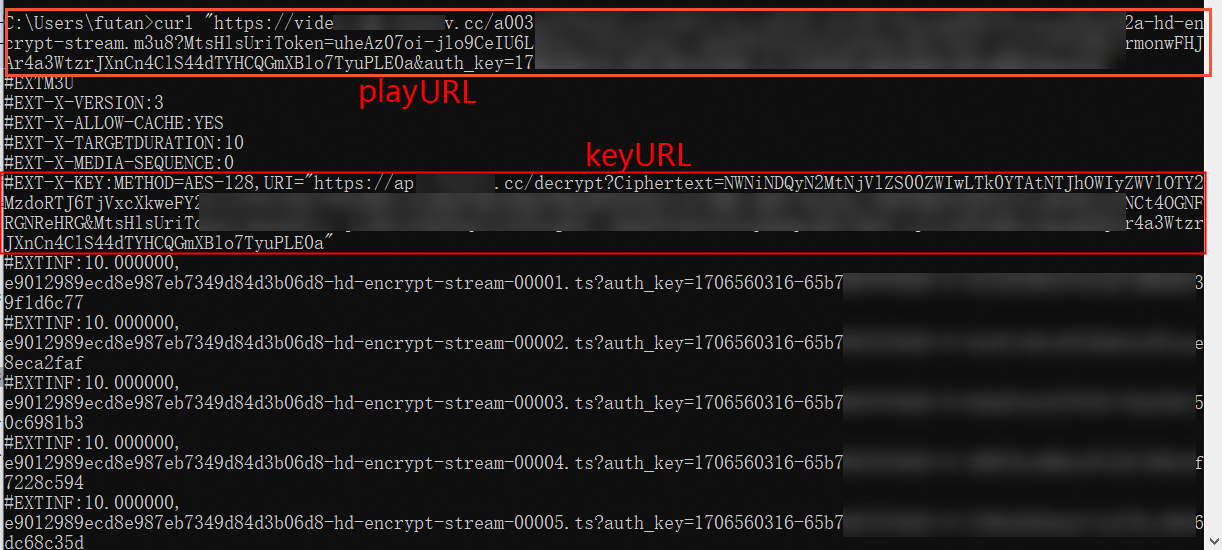
If a server serves the same media files over both HTTP and HTTPS, you can remove the request headers or standardize them before calculating the hash value. For example:
If the playback URLs of a video file are
https://****.mp4andhttp://****.mp4, the MD5 hash value is calculated using****.mp4when the video file is loaded.If the playback URL of the video file is
https://****.mp4, the MD5 hash value is calculated using the URLhttp://****.mp4when the video file is loaded.
For ApsaraVideo Player SDK V5.5.4.0 or later, if you want to play an HLS stream whose playback URL contains authentication parameters, configure
PlayerConfig.mEnableStrictAuthModeto specify the authentication mode. For older versions, the default value is false. For V7.13.0 or later, the default value is true.false: caches the authentication information. If a video is not completely cached, the player sends a URL signing request using the cached authentication information when you play the uncached video content. If the validity period of the signed URL is short, or if you resume playback after a long pause, authentication may expire. In this case, integrate the automatically refresh playback sources feature to handle authentication expiration.
Strict authentication (true): Authentication is not cached and is performed each time playback starts. Without a network connection, playback will fail.
Enable or disable local caching for a single URL
You can enable or disable local caching for a single URL in player config.
// Obtain the configuration information.
PlayerConfig config = aliPlayer.getConfig();
// Configure whether to enable local caching for the playback URL. Default value: true. Local caching for the URL takes effect only when local caching is enabled in AliPlayerGlobalSettings and the value of this parameter is true. If the value of this parameter is false, the local caching for the URL is disabled.
config.mEnableLocalCache = false;
....// Configure other settings.

// Configure the settings for the player.
aliPlayer.setConfig(config);
Preload
ApsaraVideo Player SDK for Android supports video preload, which is an upgrade of the local caching feature. The video preload feature lets you specify the maximum size of memory that can be occupied by cached videos. This helps reduce the startup loading duration.
It has the following limits:
You can preload only one MP4, MP3, FLV, or HLS file at a time.
By default, network resource scheduling is enabled when you use ApsaraVideo Player SDK for Android to preload videos. This ensures the quality of the video that is being played. If network resource scheduling is enabled, the preload request is sent only after the buffered content of the video that is being played reaches a specific limit. You can disable network resource scheduling if you want to manage the real-time preload requests.
AliPlayerGlobalSettings.enableNetworkBalance(false);Enable the local caching feature. For more information, see Configure local caching.
Configure the data source.
VidAuth (recommended)
VidAuth vidAuth = new VidAuth();
vidAuth.setVid("Vid information");// Required. The ID of the video.
vidAuth.setPlayAuth("<yourPlayAuth>");// Required. The playback credential, which is generated by calling GetVideoPlayAuth.
vidAuth.setRegion("Access region");// For Player SDK V5.5.5.0 or later, this parameter is deprecated. The player automatically parses the region information. For Player SDK V5.5.5.0 or earlier, this parameter is required. Specify the ID of the region in which ApsaraVideo VOD is activated for this parameter. Default value: cn-shanghai.
vidAuth.setQuality("Selected definition") //"AUTO" indicates adaptive bitrate
VidSts
VidSts vidSts = new VidSts();
vidSts.setVid("Vid information");// Required. The ID of the video. vidSts.setAccessKeyId("<yourAccessKeyId>");// Required. The AccessKey ID that is generated when the temporary STS token is issued. To generate the AccessKey ID, call the AssumeRole operation in STS.  vidSts.setAccessKeySecret("<yourAccessKeySecret>");// Required. The AccessKey secret that is generated when the temporary STS token is issued. To generate the AccessKey secret, call the AssumeRole operation in STS.  vidSts.setSecurityToken("<yourSecurityToken>");// Required. The STS token. To obtain the STS token, call the AssumeRole operation in STS.  vidSts.setRegion("Access region");// Required. The region in which ApsaraVideo VOD is activated. Default value: cn-shanghai.
vidSts.setQuality("Selected definition") //"AUTO" indicates adaptive bitrate
UrlSource
UrlSource urlSource = new UrlSource();
urlSource.setUri("Playback URL");// Required. The playback URL can be the URL of an audio file or video file in ApsaraVideo VOD or on a third-party video-on-demand (VOD) platform.
Configure task parameters.
NoteThis applies only to multi-bitrate videos. Choose one of
setDefaultBandWidth,setDefaultResolution, andsetDefaultQuality.PreloadConfig preloadConfig = new PreloadConfig(); // Set the bitrate for multi-bitrate streams preloadConfig.setDefaultBandWidth(400000); // Set the resolution for multi-bitrate streams preloadConfig.setDefaultResolution(640 * 480); // Set the quality for multi-bitrate streams preloadConfig.setDefaultQuality("FD"); // Set the preload duration preloadConfig.setDuration(1000);Add a task listener.
Build the task and add it to the
MediaLoaderV2instance to start preloading.VidAuth (recommended)
// Build the preload task
PreloadTask mPreloadTask = new PreloadTask(vidAuth, preloadConfig);
// Get the MediaLoaderV2 instance
MediaLoaderV2 mediaLoaderV2 = MediaLoaderV2.getInstance();
// Add the task and start preloading
String taskId = mediaLoaderV2.addTask(mPreloadTask, PreloadListenerImpl)
VidSts
// Build the preload task
PreloadTask mPreloadTask = new PreloadTask(vidSts, preloadConfig);
// Get the MediaLoaderV2 instance
MediaLoaderV2 mediaLoaderV2 = MediaLoaderV2.getInstance();
// Add the task and start preloading
String taskId = mediaLoaderV2.addTask(mPreloadTask, PreloadListenerImpl);
UrlSource
// Build the preload task
PreloadTask mPreloadTask = new PreloadTask(urlSource, preloadConfig);
// Get the MediaLoaderV2 instance
MediaLoaderV2 mediaLoaderV2 = MediaLoaderV2.getInstance();
// Add the task and start preloading
String taskId = mediaLoaderV2.addTask(mPreloadTask, PreloadListenerImpl)
Optional: Manage tasks.
mediaLoaderV2.cancelTask(taskId);// Cancel the preload task with the specified task ID
mediaLoaderV2.pauseTask(taskId);// Pause the preload task with the specified task ID
mediaLoaderV2.resumeTask(taskId);// Resume the preload task with the specified task ID
Optional: Delete loaded files.
You can delete loaded files to save space. ApsaraVideo Player SDK for Android does not provide a method to delete loaded files. You must delete the files in the corresponding directory in your application.
Dynamic preloading
The dynamic preloading feature lets you manage cache of the video that is being played and videos that are preloaded. You can also control the number of videos that are preloaded. This helps maintain a balance between playback experience and cost.
Preloading of multi-bitrate HLS videos
You can preload videos in the same definition as the current video stream when you call the listPlayer method during the playback of multi-bitrate HLS videos. You can use different preloading modes as needed.
Obtain the download speed
ApsaraVideo Player SDK for Android provides the getExtraValue method for querying the download speed of specified videos. The onInfo callback is invoked to obtain the query result. Sample code:
aliPlayer.setOnInfoListener(new IPlayer.OnInfoListener() {
    @Override
    public void onInfo(InfoBean infoBean) {
        if(infoBean.getCode() == InfoCode.CurrentDownloadSpeed){
            // The download speed.
            long extraValue = infoBean.getExtraValue();
        }
    }
});
Network Attributes
HTTPDNS
The HTTPDNS feature uses DNS resolution technology to send domain name resolution requests to a specific HTTPDNS server and obtain resolution results quickly and stably. This prevents DNS hijacking.
ApsaraVideo Player SDK provides HTTPDNS services for domain names accelerated by Alibaba Cloud CDN. You can use the enhanced HTTPDNS feature to implement precise scheduling and ensure that real-time domain resolution results immediately take effect. This improves network performance.
Sample code for using the enhanced HTTPDNS feature
You can use the enhanced HTTPDNS feature only for accelerated domain names. Before you use the feature, make sure that an accelerated domain name is added and configured. For more information about how to add and configure a domain name for CDN in ApsaraVideo VOD, see Add an accelerated domain name. For more information about accelerated domain names, see What is Alibaba Cloud CDN?.
// Enable the enhanced HTTPDNS feature.
AliPlayerGlobalSettings.enableEnhancedHttpDns(true);
// Optional. Add an HTTPDNS pre-resolved domain name.
DomainProcessor.getInstance().addPreResolveDomain("player.***alicdn.com");
HTTP/2
By default, HTTP/2 is enabled for ApsaraVideo Player SDK for Android V5.5.0.0 or later.
ApsaraVideo Player SDK for Android supports HTTP/2. You can enable HTTP/2 to implement request multiplexing. This prevents head-of-line (HOL) blocking and improves playback performance. Sample code:
AliPlayerGlobalSettings.setUseHttp2(true);Create TCP connections before playback requests are initiated over HTTP
You can create Transmission Control Protocol (TCP) connections before playback requests are initiated over HTTP. This reduces waiting time, ensures the timeliness and consistency of video playback, improves user experience, and optimizes the usage of network and system resources. Sample code:
// Specify the domain parameter in the host[:port] format. Separate multiple domain names with semicolons (;). The port parameter is optional.
// Configure globally.
// Add or delete TCP connections. If you specify an empty string, no TCP connections are created.
AliPlayerGlobalSettings.setOption(AliPlayerGlobalSettings.SET_PRE_CONNECT_DOMAIN, "domain1;domain2");
Video Download
For detailed code examples, see the API-Example Video download and offline playback (Download) module. This project is an Android example project for ApsaraVideo Player SDK written in Java. It helps developers quickly master core SDK integration.
ApsaraVideo Player SDK for Android lets you download videos to local devices for offline playback in ApsaraVideo Player. Normal download mode and secure download mode are supported.
Normal download
Videos downloaded in normal download mode are not encrypted by Alibaba Cloud and can be played using third-party players.
Secure download
Videos downloaded in secure download mode are encrypted by Alibaba Cloud. You cannot use third-party players to play the downloaded videos. You can use only ApsaraVideo Player to play them.
Usage notes
You can download only videos played based on VidSts or VidAuth.
To use the video download feature, you must enable the feature and configure the download mode in the ApsaraVideo VOD console. For more information, see Offline download.
You can resume video downloads.
Procedure
Optional. Configure the security file for encryption verification. You must configure the security file only when you use the secure download mode.
NoteMake sure that the information in the security file for encryption verification matches the application information. Otherwise, the video download fails.
If you use the secure download mode, you must configure the key file generated in the ApsaraVideo VOD console in Player SDK. The key file is used to decrypt and verify the video for download and playback. For more information about how to generate the key file, see the Enable secure download section of the "Configure download settings" topic.
We recommend that you configure this setting only once in the application. The following example shows how to do so:
PrivateService.initService(getApplicationContext(), "The path in which the encryptedApp.dat file is stored"); // We recommend that you store the encryptedApp.dat file on your mobile phone and set this parameter to the path in which the file is stored.Create and configure a video downloader.
Create a downloader using AliDownloaderFactory. Sample code:
AliMediaDownloader mAliDownloader = null;
......
// Create a downloader.
mAliDownloader = AliDownloaderFactory.create(getApplicationContext());
// Set the path for storing downloaded files.
mAliDownloader.setSaveDir("The storage path");
Configure listeners.
The downloader provides multiple listeners. Sample code:
Prepare the download source.
You can call the
preparemethod to prepare a download source. VidSts and VidAuth sources are supported. Sample code:VidSts
// Create a VidSts instance.
VidSts aliyunVidSts = new VidSts();
aliyunVidSts.setVid("Vid information"); // The video ID (VideoId).
aliyunVidSts.setAccessKeyId("<yourAccessKeyId>"); // The AccessKey ID of the temporary STS AccessKey pair. You must generate this by calling the AssumeRole operation of Security Token Service (STS).
aliyunVidSts.setAccessKeySecret("<yourAccessKeySecret>"); // The AccessKey secret of the temporary STS AccessKey pair. You must generate this by calling the AssumeRole operation of Security Token Service (STS).
aliyunVidSts.setSecurityToken("<yourSecurityToken>"); // The Security Token Service (STS) token. You must generate this by calling the AssumeRole operation of Security Token Service (STS).
aliyunVidSts.setRegion("Region where the video-on-demand service is deployed"); // The region where the video-on-demand service is deployed. Default value: cn-shanghai.
// If you have enabled HLS encryption parameter pass-through in the VOD console and the default parameter name is MtsHlsUriToken, you must configure VidPlayerConfigGen and pass it to vid. For more information, see the following example.
// If you have not enabled HLS encryption parameter pass-through in the VOD console, you do not need to integrate the following code.
VidPlayerConfigGen vidConfig = new VidPlayerConfigGen();
vidConfig.setMtsHlsUriToken("<yourMtsHlsUriToken>");
aliyunVidSts.setPlayerConfig(vidConfig);

// Prepare the download source.
mAliDownloader.prepare(aliyunVidSts);
VidAuth
// Create the VidAuth download source.
VidAuth vidAuth = new VidAuth();
vidAuth.setVid("Video ID"); // The video ID.
vidAuth.setPlayAuth("<yourPlayAuth>");// The playback credential, which is generated by calling GetVideoPlayAuth.
vidAuth.setRegion("Access region"); // This parameter is deprecated in ApsaraVideo Player SDK V5.5.5.0 or later. If you use ApsaraVideo Player SDK V5.5.5.0 or later, the player automatically parses the region information. If you use ApsaraVideo Player SDK V5.5.5.0 or earlier, this parameter is required. Specify the ID of the region in which ApsaraVideo VOD is activated for this parameter. Default value: cn-shanghai.
// If you have enabled parameter pass-through for HLS encryption in the ApsaraVideo VOD console and the default parameter name is MtsHlsUriToken, you need to set the config parameter and pass it to the VID. For more information, see the following code.
VidPlayerConfigGen vidConfig = new VidPlayerConfigGen();
vidConfig.setMtsHlsUriToken("<yourMtsHlsUriToken>");
vidAuth.setPlayerConfig(config);
// Prepare the download source.
mAliDownloader.prepare(vidAuth);
NoteThe output file and the input file are in the same format and cannot be changed.
If you enable parameter pass-through for HLS encryption in the ApsaraVideo VOD console, the default parameter is MtsHIsUriToken. For more information, see Parameter pass-through for HLS encryption. Then, set the MtsHIsUriToken value to the ApsaraVideo VOD source by following the preceding code.
After preparation succeeds, select an item to download and start downloading.
After preparation succeeds, the
OnPreparedListenercallback is invoked. The TrackInfo object contains information such as video definitions. Select a track to download. Sample code:public void onPrepared(MediaInfo mediaInfo) { // Preparation succeeded. List<TrackInfo> trackInfos = mediaInfo.getTrackInfos(); // For example, download the first track. mAliDownloader.selectItem(trackInfos.get(0).getIndex()); // Start downloading. mAliDownloader.start(); }(Optional) Update the download source.
VidSts or VidAuth sources may expire before the download. Therefore, we recommend that you update the download source before you start the download. Sample code:
// Update the download source.
mAliDownloader.updateSource(VidSts);
// Start downloading.
mAliDownloader.start();
Release the downloader after the download succeeds or fails.
After the download succeeds, call the
onCompletionoronErrorcallback to callreleaseto release the downloader. Sample code:mAliDownloader.stop(); mAliDownloader.release();Optional. Delete downloaded files.
You can delete downloaded files during the download or after the download is complete. Sample code:
// Delete files through the downloader object.
mAliDownloader.deleteFile();
// Delete files through the static method. Returns 0 if successful.
AliDownloaderFactory.deleteFile("The path of the downloaded folder","Video ID","Video format","Index of the downloaded video");
What to do next
You can play downloaded videos using ApsaraVideo Player. Perform the following steps:
After the download completes, obtain the absolute path of the video file.
String path = mAliDownloader.getFilePath();Set the absolute path of the downloaded video file as the URL source for playback.
 UrlSource urlSource = new UrlSource();
        urlSource.setUri("Playback URL");// Set the absolute path of the downloaded video file.
        aliPlayer.setDataSource(urlSource);
Play encrypted videos
ApsaraVideo Player SDK for Android lets you play on-demand videos encrypted based on HLS encryption, Alibaba Cloud proprietary cryptography, or digital rights management (DRM) encryption. The SDK lets you play live streams encrypted only based on DRM encryption. For more information about how to play encrypted videos, see Play an encrypted video.
Native RTS playback
The Android Player SDK integrates the Native RTS SDK to implement the real-time streaming (RTS) feature natively. For more information, see Implement RTS stream pulling on Android.