Application Real-Time Monitoring Service (ARMS) provides the AliyunServiceRoleForARMSSecurity service-linked role to obtain the permissions to access other cloud services. When Application Security needs to access the resources of Web Application Firewall (WAF), you can use this role to obtain access permissions. For more information about service-linked roles, see Service-linked roles.
If the role is not automatically created for a RAM user, the RAM user does not have the required permissions. To resolve this, see
Permissions
The AliyunServiceRoleForARMSSecurity role grants the following WAF permissions (Resource: "*", Effect: "Allow"):
Protection management
| Action | Description |
|---|---|
yundun-waf:ModifyProtectionConfig | Modify the WAF protection configuration |
yundun-waf:ModifyApplicationsRaspState | Modify the RASP status for applications |
yundun-waf:DescribeProtectionConfig | Query the WAF protection configuration |
yundun-waf:DescribeProtectionStatisticsInfo | Query protection statistics |
Attack detection
| Action | Description |
|---|---|
yundun-waf:DescribeAttacks | Query attack details |
yundun-waf:DescribeAttackCount | Query attack count |
yundun-waf:DescribeAttackStatisticsInfo | Query attack statistics |
yundun-waf:DescribeAttackApplicationCount | Query attack count by application |
Risk assessment
| Action | Description |
|---|---|
yundun-waf:DescribeRiskDependencies | Query risky dependencies |
yundun-waf:DescribeRiskDependencyStatisticsInfo | Query risk dependency statistics |
yundun-waf:DescribeRiskCount | Query risk count |
Application and dependency inventory
| Action | Description |
|---|---|
yundun-waf:DescribeApplications | Query protected applications |
yundun-waf:DescribeDependencies | Query application dependencies |
yundun-waf:DescribeDependencyInstances | Query dependency instances |
yundun-waf:DescribeMiddlewareInstances | Query middleware instances |
Commercial status
| Action | Description |
|---|---|
yundun-waf:GetRaspCommercialStatus | Query RASP commercial status |
Delete the AliyunServiceRoleForARMSSecurity role
After you delete AliyunServiceRoleForARMSSecurity, you cannot view the console pages that are related to Application Security. If you want to use Application Security again, you must grant the permissions again.
If any application under the current account is connected to Application Security, disconnect and restart the application before you delete the role. Otherwise, the deletion fails. For more information, see Connect an application to Application Security.
Log on to the RAM console as a RAM administrator.
In the left-side navigation pane, choose .
On the Roles page, search for
AliyunServiceRoleForARMSSecurity.On the Roles page, find the RAM role that you want to delete and click Delete Role in the Actions column.
In the Delete Role dialog box, enter the name of the RAM role to confirm the deletion and click Delete Role.
NoteWhen you delete a role, any attached policies are automatically detached. If the deletion fails, the role might still be in use by a service. To view details about the failure, choose Role Deletion Tasks in the upper-right corner of the Roles page.
All policies attached to the role are automatically detached when you delete the role. To view details about a failed deletion, click Role Deletion in the upper-right corner of the Roles page.
FAQ
Why is the role not auto-created for a RAM user?
AliyunServiceRoleForARMSSecurity is automatically created only when the RAM user has the required permissions. If the role was not created, attach one of the following policies to the RAM user:
AliyunARMSFullAccesssystem policy: Grants full ARMS permissions, including Application Security.Custom policy: Grants only the permission to create the service-linked role. This option is suitable for users who need read-only access to Application Security. For more information, see Create a custom policy.
Follow the principle of least privilege. If a user only needs to view Application Security data, use a custom policy instead of AliyunARMSFullAccess.
(Optional) Create a custom policy
Log on to the RAM console as a RAM user who has administrative rights.
In the left-side navigation pane, choose .
On the Policies page, click Create Policy.
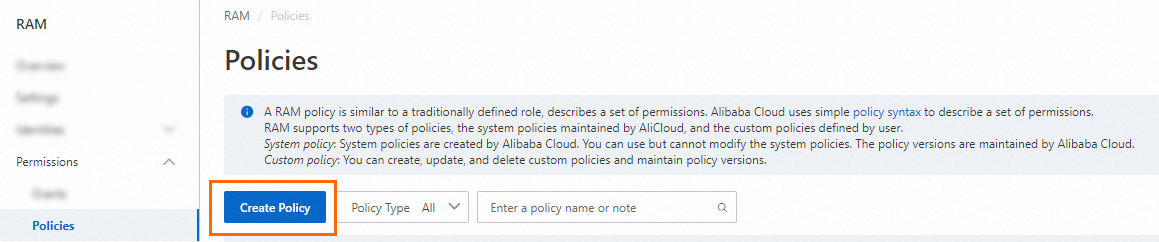
On the Create Policy page, click the JSON tab and enter the following policy document. Replace
<Alibaba Cloud account ID>with your actual account ID.{ "Statement": [{ "Action": [ "ram:CreateServiceLinkedRole" ], "Resource": "acs:ram:*:<Alibaba Cloud account ID>:role/*", "Effect": "Allow", "Condition": { "StringEquals": { "ram:ServiceName": [ "security.arms.aliyuncs.com" ] } } }, { "Action": "arms:CreateSecurityAuth", "Effect": "Allow", "Resource": "*" }], "Version": "1" }Click Optimize in the upper part. In the Optimize message, click Perform to optimize the policy.
The system performs the following operations during the advanced optimization:
Split resources or conditions that are incompatible with actions.
Narrow down resources.
Deduplicate or merge policy statements.
On the Create Policy page, click OK.
In the Create Policy dialog box, configure the Policy Name and Description parameters and click OK.
Attach the policy to a RAM user
Log on to the RAM console as a RAM administrator.
In the left-side navigation pane, choose Identities > Users.
Find the RAM user and click Add Permissions in the Actions column. To grant permissions to multiple users at once, select the users and click Add Permissions at the bottom of the page.

In the Grant Permission panel, configure the following settings:
Resource Scope: Select a scope.
Account: Permissions apply to the entire Alibaba Cloud account.
ResourceGroup: Permissions apply to a specific resource group. For more information, see Use a resource group to grant a RAM user the permissions to manage a specific ECS instance.
ImportantBefore setting Resource Scope to ResourceGroup, make sure the relevant cloud services and resources support resource groups. For more information, see Services that work with Resource Group.
Principal: The system automatically selects the current RAM user.
Policy: Select the custom policy you created, or select the
AliyunARMSFullAccesssystem policy.NoteThe system flags high-risk system policies such as
AdministratorAccessandAliyunRAMFullAccess. Avoid attaching these unless necessary. For more information about system and custom policies, see Services that work with RAM and Create a custom policy.
Click Grant permissions.
Click Close.