API Gateway supports access from the public internet or from within a VPC. This topic explains how to access API Gateway from within a VPC.
Overview
To access API Gateway from within a VPC, you use a second-level domain name, also known as a VPC-internal domain name, that is unique to each API group. This domain name has the following characteristics:
-
It can be used only within a VPC, supports direct access, and is not subject to the 1,000 calls per day limit.
-
It supports direct access over HTTP and HTTPS.
For details, see the configuration procedures for serverless and dedicated instances.
-
In hybrid cloud environments connected by services like Cloud Enterprise Network (CEN) or a VPN, use a dedicated instance of API Gateway. When you use a dedicated instance, the second-level domain name for your API groups resolves to a private IP address within your bound VPC. This simplifies your local routing configuration. In contrast, the second-level domain name for API groups on a serverless instance resolves to a shared IP address in the
100.x.x.xrange and cannot be assigned a specific private IP address. -
For details about hybrid cloud configurations, see Centralized API management on a hybrid cloud.
Configuration for serverless instances
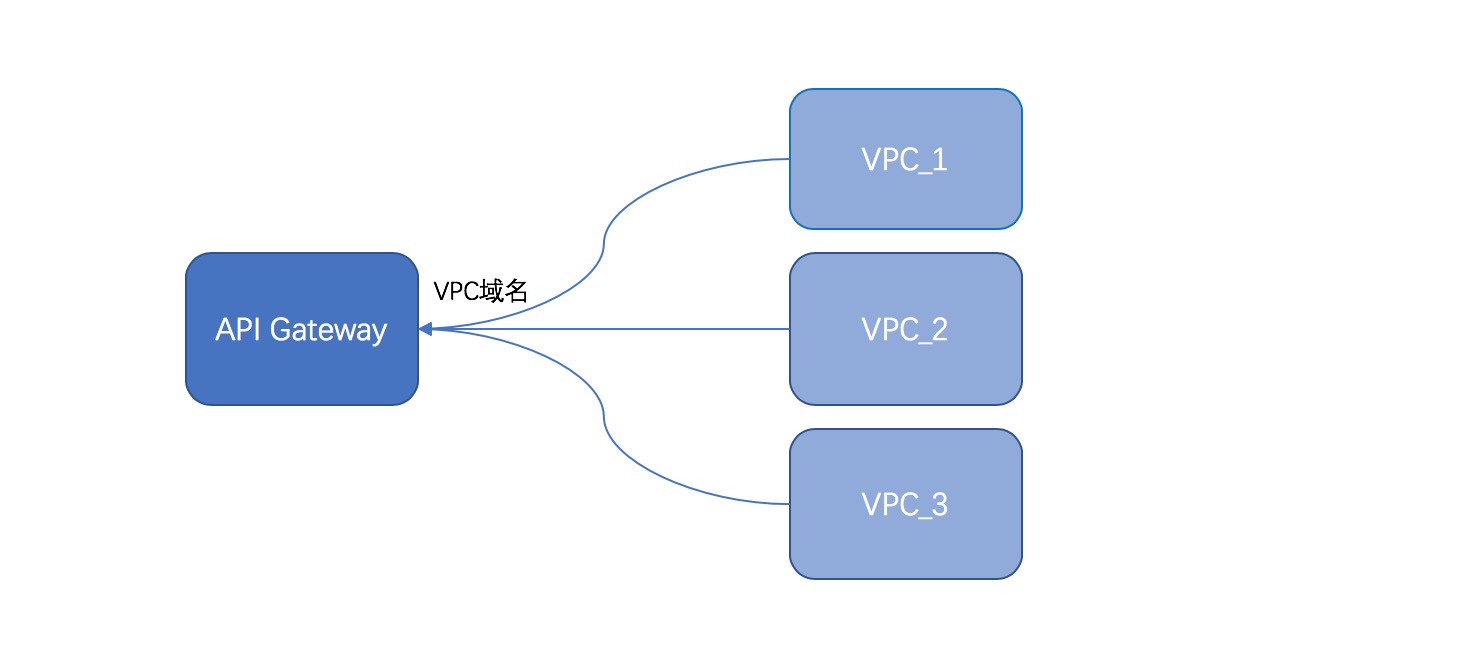
VPC access for a serverless API Gateway instance is available to all user VPCs within the same region.
Procedure
-
Log on to the API Gateway console. In the left-side navigation pane, choose .
-
On the API groups page, click the name of the target API group that runs on a serverless instance. On the Group details page, click Enable VPC second-level domain and then click Confirm.
NoteAPI Gateway automatically creates a VPC-internal second-level domain name for the API group. You can use this domain name to call the APIs directly.
Configuration for dedicated instances
VPC access for a dedicated instance provides enhanced security by restricting access to a single, specific VPC. Other VPCs cannot access the APIs on the instance through the private network. 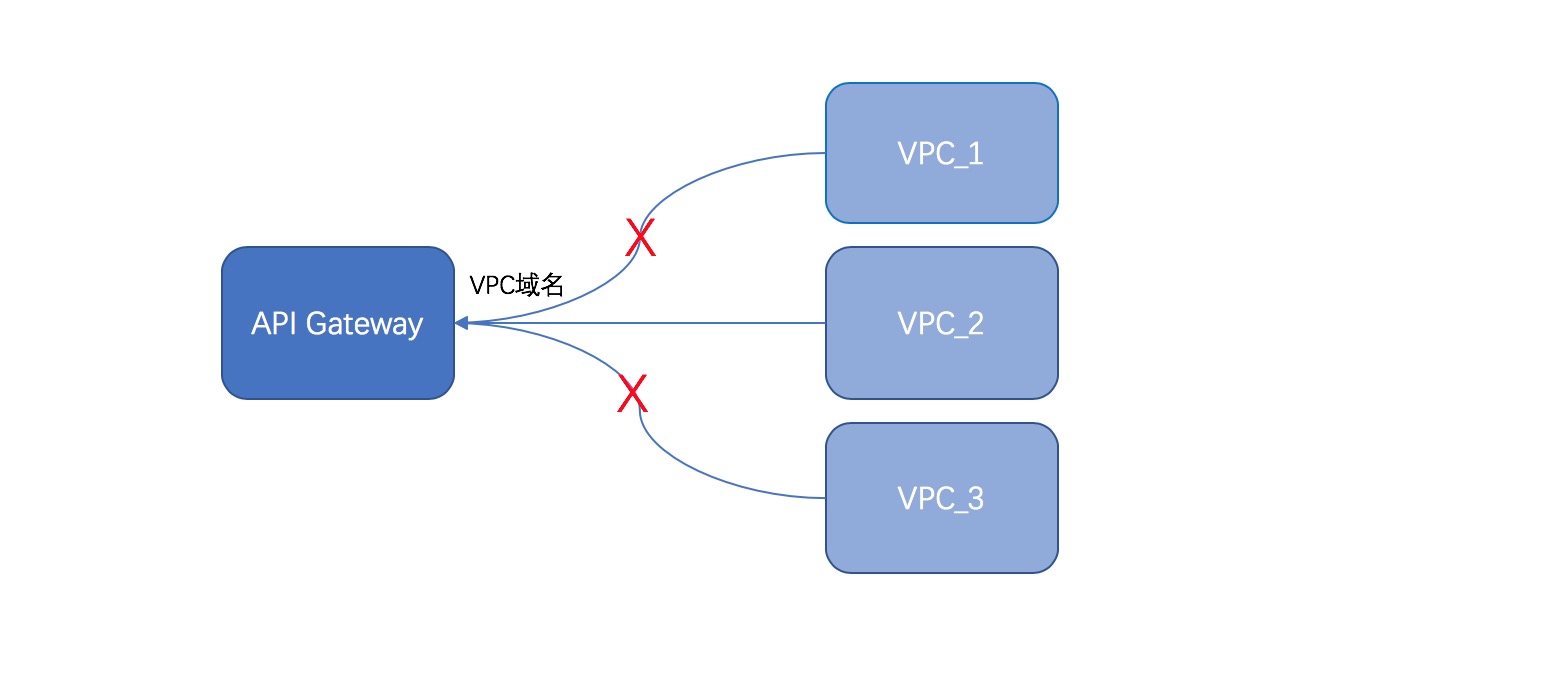
Procedure
-
Log on to the API Gateway console. In the left-side navigation pane, choose .
-
On the Dedicated instances page, find the target dedicated instance and click Bind to VPC.
-
In the Apply for VPC endpoint to access dedicated instance dialog box, configure the VPC ID and vSwitch, and then click Confirm. You can select only one vSwitch within the specified VPC.
In the dialog box, you must also select an Owner (Self or Other) to specify the VPC's owner.
-
In the left-side navigation pane, choose . Click the name of the target API group on the dedicated instance to go to the Group details page. Click Enable VPC second-level domain and then click Confirm. You can access the APIs by using the second-level domain name. Alternatively, create a CNAME record to map a custom domain name to this second-level domain name. You can then use the custom domain name to access the APIs.
-
You must click Bind to VPC for the dedicated instance before you can click Enable VPC second-level domain for any API group on that instance.
-
If you change the VPC bound to the dedicated instance by clicking Bind to VPC, the second-level domain names for all API groups on that instance are reconfigured for the new VPC. The original VPC loses access to the APIs.
-
When you migrate an API group with an enabled VPC-internal domain name from a serverless instance to a dedicated instance, you must first bind a VPC to the dedicated instance to complete the migration. After the migration, the APIs in the group can be accessed only from the newly bound VPC.