JSON Web Token (JWT) securely transmits information between a client and a server as a JSON object. The information is verifiable and trustworthy because JWTs can be signed using HMAC, or RSA/ECDSA public/private key pairs. Cloud-native API Gateway uses JWT authentication to verify identities and control API access.
Prerequisites
-
You have a basic understanding of the JWT standard. For more information, see Introduction to JWT.
-
You understand the supported integration methods: your authorization service issues tokens to ensure security, and you configure the gateway with a public key to verify request signatures.
-
You have prepared a private key and a public key. The authorization service uses the private key to sign JWTs. You configure the public key in Cloud-native API Gateway to verify the signature of incoming requests.
Background
Cloud-native API Gateway provides JWT authentication to authorize access to your APIs based on structured tokens, helping you meet custom security requirements.
Token-based authentication
APIs exposed through Cloud-native API Gateway need to identify requesters and determine whether to return requested resources. Token-based authentication verifies a caller's identity without storing session information on the server, enabling stateless authorization and simplifying application scaling.
Supported integration methods
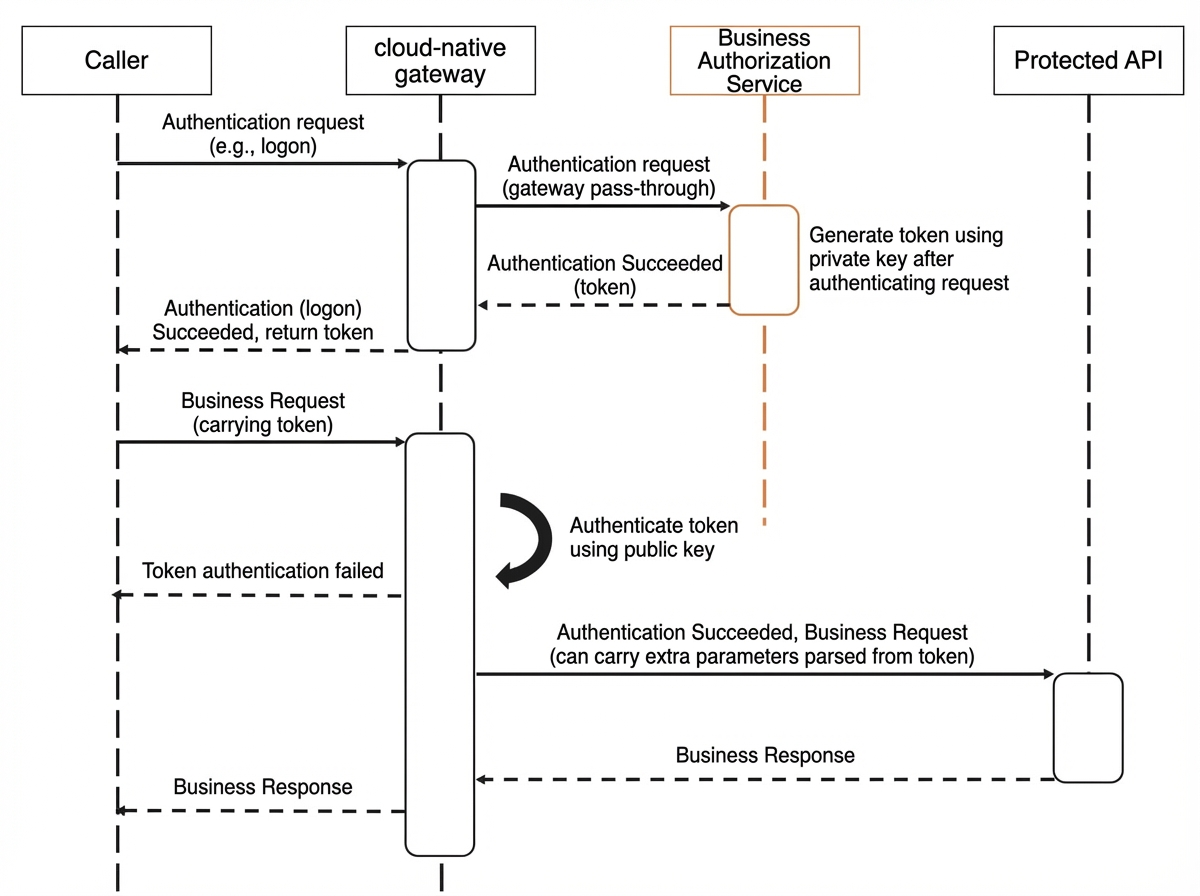
Create an authentication rule
Log on to the API Gateway console.
In the left-side navigation pane, click . In the top navigation bar, select a region.
-
On the Instance page, click the name of the target gateway instance.
-
In the left-side navigation pane, click .
-
In the upper-left corner of the Global Authentication page, click Create Authentication. Configure the parameters, and then click OK.
Parameter
Description
Enable
Whether to enable authentication for the Cloud-native API Gateway.
Authentication Name
A custom name for the authentication rule.
Authentication Type
The authentication type. JWT is supported by default.
Issuer
The
iss(issuer) claim of the JWT. This claim identifies the principal that issued the JWT.Sub
The
sub(subject) claim of the JWT. This claim identifies the principal that is the subject of the JWT.JWKS
The JSON Web Key Set (JWKS) that contains the public key used to verify the JWT. The following format is an example:
{
    "keys":[
         {
        "e":"AQAB",
        "kid":"DHFbpoIUqrY8t2zpA2qXfCmr5VO5ZEr4RzHU_-envvQ",
        "kty":"RSA",
        "n":"xAE7eB6qugXyCAG3yhh7pkDkT65pHymX-
P7KfIupjf59vsdo91bSP9C8H07pSAGQO1MV_xFj9VswgsCg4R6otmg5PV2
He95lZdHtOcU5DXIg_pbhLdKXbi66Gl
VeK6ABZOUW3WYtnNHD-91gVuoeJT_DwtGGcp4ignkgXfkiEm4sw-
4sfb4qdt5oLbyVpmW6x9cfa7vs2WTfURiCrBoUqgBo_-4WTiULmmHSG
ZHOjzwa8WtrtOQGsAFjIbno85jp6MnGGGZ
PYZbDAa_b3y5u-YpW7ypZrvD8BgtKVjgtQgZhLAGezMt0ua3D
RrWnKqTZ0BJ_EyxOGuHJrLsn00fnMQ"
          }
       ]
}
JWT Token
Configures how the JWT is extracted from the incoming request.
-
Type: The location of the token parameter in the request. The default value is Header.
-
Key: The name of the token parameter.
-
Prefix: The prefix of the token parameter value. By default, the token is passed in the Authorization header with the
Bearerprefix, for example:Authorization: Bearer token. -
Enable Passthrough: If this option is selected, the token parameter is passed through to the backend service.
Authorization
The authorization mode. Whitelist Mode and Blacklist Mode are supported.
-
Whitelist: Requests that match the specified hosts and paths can bypass authentication. All other requests require authentication.
-
Blacklist: Requests that match the specified hosts and paths require authentication. All other requests pass through without authentication.
Click Rule Condition to set the request domain name and path.
-
Request Domain Name: The domain name in the request, which corresponds to hosts.
-
Request Path: The API path in the request, which corresponds to paths.
-
View authentication rule details
Log on to the API Gateway console.
In the left-side navigation pane, click . In the top navigation bar, select a region.
-
On the Instance page, click the name of the target gateway instance.
-
In the left-side navigation pane, click .
-
On the Global Authentication page, find the target authentication rule and click Description in the Actions column. You can view the Basic Information and Authentication Configuration of the rule, and manage its Authorization Information.
The Basic Information section includes the name and source (for example, JWT). The Authentication Configuration section includes fields such as Issuer, Type (for example, HEADER), the Enable Passthrough switch, Sub, Prefix (for example, Bearer), Key (for example, Authorization), and JWKS. The Authorization Information section supports the Whitelist mode, and the gateway evaluates multiple rule conditions with OR logic.
In the Authorization Information section, click Create Authorization, and enter a Request Domain Name and Request Path in the dialog box to add a new authorization rule.
Verify the result
Return to the Global Authentication page. If the new authentication rule is listed, the creation was successful.
Related operations
You can also manage gateway authentication rules as follows:
-
Enable an authentication rule: On the Global Authentication page, find the target authentication rule and click Enable in the Actions column.
-
Disable an authentication rule: On the Global Authentication page, find the target authentication rule and click Close in the Actions column.
-
Edit an authentication rule: On the Global Authentication page, find the target authentication rule and click Edit in the Actions column.
-
Delete an authentication rule: On the Global Authentication page, find the target authentication rule and click Delete in the Actions column.
You must disable an authentication rule before you can delete it.
Related documentation
To learn about other authentication mechanisms, see Global Authentication.