Cloud-native API Gateway can function as traffic ingresses, which are extremely sensitive to changes in the traffic volume. With the capabilities of Kubernetes and the queries per second (QPS) metric data collected by Cloud-native API Gateway, you can configure auto scaling based on the QPS values of business pods. This way, your backend applications can automatically scale on demand. This topic describes how to configure auto scaling for backend applications in a Container Service for Kubernetes (ACK) cluster based on gateway access logs.
Prerequisites
A Cloud-native API Gateway instance is created. For more information, see Create a gateway instance.
An ACK cluster is created. For more information, see Create an ACK managed cluster.
Procedure
Deploy the following resource in the ACK cluster.
Log on to the ACK console. In the left-side navigation pane, choose .
Enter ack-alibaba-cloud-metrics-adapter into the search box and click the search icon. Then, click the card and click Deploy in the upper-right corner of the details page. In the Deploy panel, configure the relevant settings and click OK.

In the left-side navigation pane, choose Deployments. On the Deployments page, click Create Resources in YAML. Select Custom from the Sample Template drop-down list, enter the following YAML code into the code editor, and then click Create.
apiVersion: apps/v1
kind: Deployment
metadata:
  name: httpbin-deploy
  labels:
    app: httpbin-deploy
spec:
  replicas: 1
  selector:
    matchLabels:
      app: httpbin
  template:
    metadata:
      labels:
        app: httpbin
    spec:
      containers:
      - image: kennethreitz/httpbin
        imagePullPolicy: IfNotPresent
        name: httpbin
        ports:
        - name: http
          containerPort: 80
---
apiVersion: v1
kind: Service
metadata:
  name: httpbin-svc
  namespace: default
  labels:
    app: httpbin-svc
spec:
  ports:
    - port: 8080
      name: http
      protocol: TCP
      targetPort: 80
  selector:
    app: httpbin
  type: ClusterIP
Add a service source to the Cloud-native API Gateway instance and add a service.
Log on to the Cloud-native API Gateway console.
In the left-side navigation pane, click Instance. In the top navigation bar, select a region.
On the Instance page, click the name of the gateway instance that you want to manage.
In the left-side navigation tree, click Service. Then, click the Source tab.
On the Source tab, click Create Source. In the Create Source panel, set the Source Type parameter to ACK, select the ACK cluster where the application is deployed, and then click OK.
In the left-side navigation tree, click Service. Then, click the Services tab.
On the Services tab, click Create Service. In the Create Service panel, select the service source that you create in the Services section, and then click OK.
Create an HTTP API and create a route for the HTTP API. For more information, see Create an HTTP API and Create a route.
Enable the log shipping service.
In the left-side navigation pane, click Parameters.
In the Observability Parameters section, click the
 icon next to Log Shipping. In the Log Shipping Settings dialog box, turn on Enable Log Shipping (to ship access logs of your instance to Simple Log Service) and Compatible with NGINX Ingress.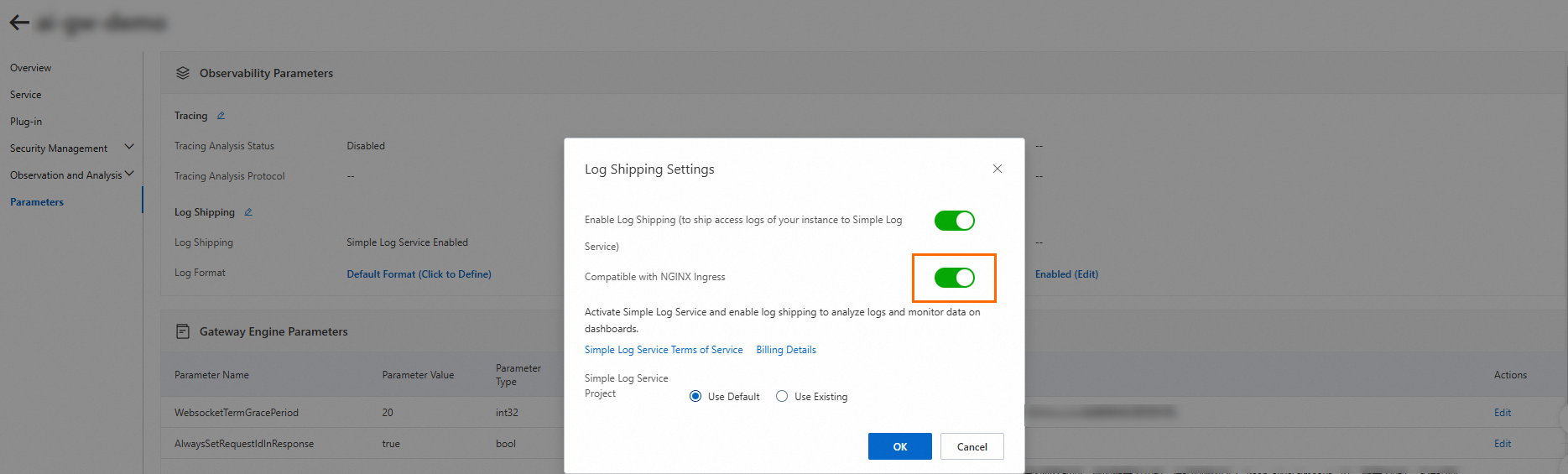
Create a Horizontal Pod Autoscaler (HPA) in the ACK cluster and configure the relevant settings. For more information, see Horizontal Pod Autoscaling.
The settings include the backend applications for which auto scaling is configured, the minimum number of replicas during auto scaling, the maximum number of replicas during auto scaling, and the metrics based on which auto scaling is performed. In the following sample code, the sls.project parameter specifies the name of the project to which logs are delivered on the Overview page of the gateway in the console. The sls.ingress.route parameter must be in the
<Service namespace>-<Service name>-<Service port number>format. In this example, a scale-out activity is triggered when the average QPS value of a business pod exceeds 10.apiVersion: autoscaling/v2 kind: HorizontalPodAutoscaler metadata: name: higress-hpa spec: scaleTargetRef: apiVersion: apps/v1beta2 kind: Deployment name: httpbin-deploy minReplicas: 1 maxReplicas: 10 metrics: - type: External external: metric: name: sls_ingress_qps selector: matchLabels: sls.project: "aliyun-product-data-xxxxxxxxxxxxx-cn-hangzhou" sls.logstore: "nginx-ingress" sls.ingress.route: "default-httpbin-svc-8080" target: type: AverageValue averageValue: 10Control the QPS, perform stress testing on the application by using gateway routes, and then observe HPA events to verify auto scaling.
Run the following command to verify auto scaling:
kubectl describe hpa higress-hpaSample output:
Normal  SuccessfulRescale  9m     horizontal-pod-autoscaler  New size: 3; reason: external metric sls_ingress_qps(&LabelSelector{MatchLabels:map[string]string{sls.ingress.route: default-httpbin-svc-8080,sls.logstore: nginx-ingress,sls.project: aliyun-product-data-xxxxxxxxxxxxxxxx-cn-hangzhou,},MatchExpressions:[]LabelSelectorRequirement{},}) above target
Normal  SuccessfulRescale  8m45s  horizontal-pod-autoscaler  New size: 4; reason: external metric sls_ingress_qps(&LabelSelector{MatchLabels:map[string]string{sls.ingress.route: default-httpbin-svc-8080,sls.logstore: nginx-ingress,sls.project: aliyun-product-data-xxxxxxxxxxxxxxxx-cn-hangzhou,},MatchExpressions:[]LabelSelectorRequirement{},}) above target
Normal  SuccessfulRescale  5m12s  horizontal-pod-autoscaler  New size: 4; reason:
Normal  SuccessfulRescale  3m41s  horizontal-pod-autoscaler  New size: 3; reason: All metrics below target
Normal  SuccessfulRescale  2m55s  horizontal-pod-autoscaler  New size: 1; reason: All metrics below target