Apache Zeppelin is a web-based notebook that supports interactive data analysis through language backends such as Scala, Python, Spark SQL, and Hive. This topic describes how to connect Apache Zeppelin to AnalyticDB for PostgreSQL using the JDBC interpreter and run SQL queries against your data.
Prerequisites
Before you begin, ensure that you have:
-
An AnalyticDB for PostgreSQL instance with a database account (username and password)
-
Apache Zeppelin installed. See Install Apache Zeppelin
Configure the JDBC interpreter
The latest version of Apache Zeppelin no longer includes a standalone PostgreSQL interpreter—its functionality is merged into the Java Database Connectivity (JDBC) interpreter. You can use the JDBC interpreter that provides the same features to connect to AnalyticDB for PostgreSQL.
-
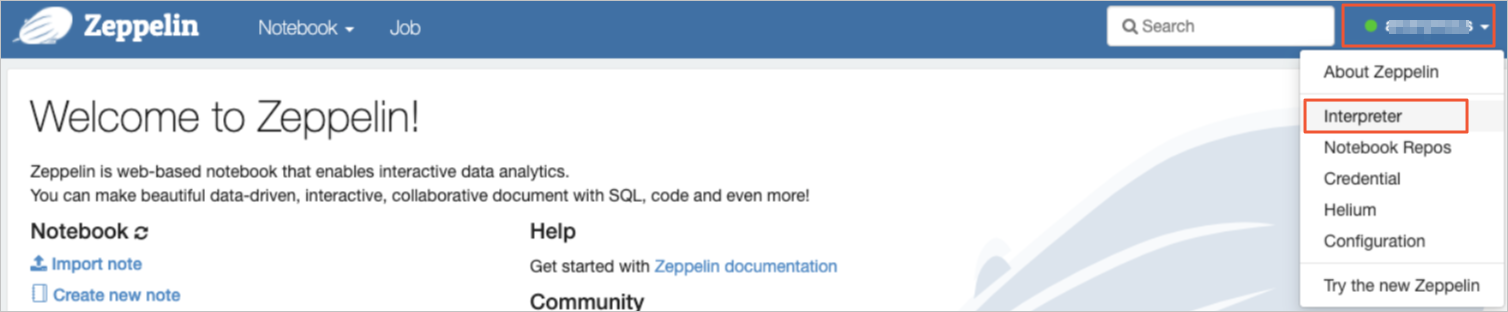
Log on to Apache Zeppelin, click your username in the upper-right corner, and select Interpreter from the drop-down list.
-
In the upper-right corner of the Interpreters page, click Create.
-
Set Interpreter group to JDBC and enter an interpreter name. This example uses jdbc-test.
-
Configure the connection parameters: For additional parameters, see the Apache Zeppelin JDBC interpreter documentation.
Parameter Description default.urlJDBC connection URL. Use the format jdbc:postgresql://<host>:<port>/<database>, replacing<host>and<port>with values from the Database Connection Information section on the Basic Information page of your instance, and<database>with the name of your database.default.userDatabase account username default.passwordDatabase account password -
Click Save at the bottom of the page.
Create a notebook and run queries
-
In the top navigation bar, choose Notebook > Create new note.
-
Enter a note name and set Default Interpreter to the interpreter you created, for example, jdbc-test.

-
Click Create.
-
To verify the connection, enter the following in the first paragraph and run it:
%jdbc-test

SELECT 1
If the paragraph finishes without errors, the connection is working.
-
Write SQL statements to query and analyze your data. You must add the interpreter name, such as
%jdbc-test, before each SQL statement. Apache Zeppelin uses the specified interpreter to generate and send a query request. Results appear at the bottom of each paragraph, with options to control how data is visualized.