When you create an HTTPS listener on an Application Load Balancer (ALB) Ingress, you must attach an SSL/TLS certificate to encrypt traffic between clients and the listener. ALB Ingress supports three certificate configuration methods, each suited to a different certificate storage and management approach. This topic explains the differences between each method and walks you through a complete end-to-end setup.
Certificate configuration methods
| Method | Storage | Discovery | Cross-namespace | Best for |
|---|---|---|---|---|
| Automatic certificate discovery | Certificate Management Service | Domain name bound to the certificate | Supported | Certificates purchased or uploaded through Certificate Management Service |
| Kubernetes Secrets | Kubernetes cluster | The Secret storing the certificate | Not supported (same namespace only) | Certificates managed in-cluster, such as with cert-manager |
| AlbConfig | Certificate Management Service | Certificate ID | — | Pinning a specific certificate to a listener |
How renewal works:
Automatic certificate discovery — Upload a new certificate or renew the existing one in Certificate Management Service, then update the Ingress configurations.
Kubernetes Secrets — Update the Secret that stores the certificate.
AlbConfig — Update the
CertificateIdin the AlbConfig listener configuration.
An ALB instance supports a maximum of 25 certificates. The count includes all certificates associated with all listeners of the instance. For details, see Methods to calculate ALB quotas.
Compatibility when mixing methods
When multiple methods apply to the same listener, ALB Ingress resolves conflicts as follows:
| Combination | Behavior |
|---|---|
| Automatic discovery + Kubernetes Secret, same domain name | The Secret takes precedence. |
| Automatic discovery + Kubernetes Secret, different domain names | Each certificate is used for its respective domain name. |
| Automatic discovery + AlbConfig, same listener | Only the AlbConfig certificate is used. |
| Kubernetes Secret + AlbConfig, same listener | Both certificates are used. |
Prerequisites
Before you begin, ensure that you have:
A trusted certificate. Get one by:
Purchasing a certificate in the Certificate Management Service consoleCertificate Management Service console. See Purchase an official certificate.
Purchasing a certificate from another certificate authority (CA).
(Optional) Creating a self-signed certificate — see Step 2 below.
End-to-end setup flow
The following diagram shows the overall setup process. Steps 1 and 2 are preparation steps; Step 3 creates the required Kubernetes resources; Step 4 attaches the certificate using your chosen method; Step 5 verifies the result.

By default, AlbConfig creates an HTTP listener on port 80. You must add an HTTPS listener and configure a certificate for it. Without a certificate, the HTTPS listener fails to start.
Step 1: Add an HTTPS listener to AlbConfig
ACK console
Log on to the ACK console. In the left-side navigation pane, click Clusters.
On the Clusters page, click the name of your cluster. In the left-side pane, choose Workloads > Custom Resources.
On the Resource Objects tab, search for AlbConfig and click the result.
Find the AlbConfig resource (named
albby default) and click Edit YAML in the Actions column.In the View in YAML panel, add the
spec.listeners.portandspec.listeners.protocolfields, then click OK.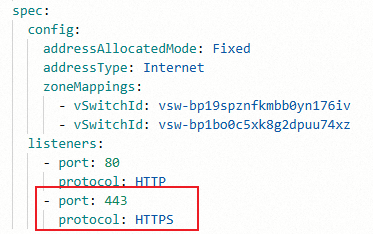
kubectl
Open the AlbConfig for editing:
kubectl edit albconfig <AlbConfig_Name>Add a listener entry for port 443:
apiVersion: alibabacloud.com/v1
kind: AlbConfig
metadata:
  name: alb
spec:
  config:
    addressAllocatedMode: Fixed
    addressType: Internet
    zoneMappings:
    - vSwitchId: vsw-bp19sXXXXXXX176iv
    - vSwitchId: vsw-bp1boXXXXXXXu74xz
  listeners:
  - port: 80
    protocol: HTTP
  - port: 443         # New field.
    protocol: HTTP # New field. Valid values: HTTP, HTTPS, and QUIC.
Step 2: Create a self-signed certificate (optional)
Skip this step if you already have a trusted certificate from Certificate Management Service or a CA.
Self-signed certificates are not trusted by browsers or clients and will trigger security warnings. The certificate generated below is for testing only — do not use it in production.
Run the following commands to generate a self-signed certificate for demo.alb.ingress.top. Replace the domain name with your own.
openssl genrsa -out albtop-key.pem 4096
openssl req -subj "/CN=demo.alb.ingress.top" -sha256 -new -key albtop-key.pem -out albtop.csr
echo subjectAltName = DNS:demo.alb.ingress.top > extfile.cnf
openssl x509 -req -days 3650 -sha256 -in albtop.csr -signkey albtop-key.pem -out albtop-cert.pem -extfile extfile.cnf
View the generated files:
cat albtop-key.pem     # The private key.
cat albtop-cert.pem    # The certificate.
If you plan to store the certificate as a Kubernetes Secret using a YAML manifest, encode both files in Base64:
echo -n `cat albtop-key.pem` | base64     # Encode the private key.
echo -n `cat albtop-cert.pem` | base64    # Encode the certificate.
Tip: Alternatively, run kubectl create secret tls <secret-name> --key albtop-key.pem --cert albtop-cert.pem to create the Secret directly from PEM files without manual Base64 encoding.Step 3: Create sample resources
ALB Ingress requires four Kubernetes resources to route traffic: Deployment, Service, IngressClass, and Ingress.
ACK console
Log on to the ACK console. In the left-side navigation pane, click Clusters.
On the Clusters page, click the name of your cluster. In the left-side pane, choose Workloads > Deployments.
Click Create from YAML.
Set Sample Template to Custom.
Copy the following YAML into the editor. It defines IngressClass, Ingress, Deployment, and Service resources.
name: port1 port: 443 protocol: TCP targetPort: 80
Click Create.
Verify the resources are running:
In the left-side pane, choose Workloads > Deployments — the
https-deployDeployment should be listed.Choose Network > Services — the
https-svcService should be listed.Choose Network > Ingresses — the
https-ingressIngress should be listed.
kubectl
Create a file named
https-quickstart.yamlwith the following content:apiVersion: networking.k8s.io/v1 kind: IngressClass metadata: name: https-ingressclass spec: controller: ingress.k8s.alibabacloud/alb parameters: apiGroup: alibabacloud.com kind: AlbConfig name: alb # Set this to the name of your AlbConfig. --- apiVersion: apps/v1 kind: Deployment metadata: name: https-deploy spec: replicas: 1 selector: matchLabels: app: https-deploy template: metadata: labels: app: https-deploy spec: containers: - image: registry.cn-hangzhou.aliyuncs.com/acs-sample/old-nginx:latest imagePullPolicy: IfNotPresent name: https-deploy ports: - containerPort: 80 protocol: TCP --- apiVersion: v1 kind: Service metadata: name: https-svc spec: ports: - name: port1 port: 443 protocol: TCP targetPort: 80 selector: app: https-deploy sessionAffinity: None type: ClusterIP --- apiVersion: networking.k8s.io/v1 kind: Ingress metadata: name: https-ingress spec: ingressClassName: https-ingressclass rules: - host: demo.alb.ingress.top # Replace with your domain name. http: paths: - backend: service: name: https-svc port: number: 443 path: / pathType: PrefixApply the manifest:
kubectl apply -f https-quickstart.yaml
Step 4: Configure the certificate
Choose the method that matches your certificate storage:
Automatic certificate discovery — certificate stored in Certificate Management Service
Kubernetes Secrets — certificate managed in-cluster
AlbConfig — certificate pinned by ID in AlbConfig
Automatic certificate discovery
After uploading a certificate to Certificate Management Service, specify its domain name in the Ingress tls field. ALB Ingress matches the domain name to the certificate automatically.
LeavesecretNameblank in thetlsfield to use automatic certificate discovery. IfsecretNameis omitted, the ALB Ingress controller looks up the certificate by the domain name intls.hosts, which must match the domain inrules[].host. If you populatesecretName, the controller uses the Secret instead.
ACK console
Log on to the ACK console. In the left-side navigation pane, click Clusters.
On the Clusters page, click the name of your cluster. In the left-side pane, choose Network > Ingresses.
Find
https-ingressand click Update in the Actions column. Configure the following parameters:Parameter Description Example TLS settings > Domain name The domain name bound to the certificate. demo.alb.ingress.topTLS settings > Secret Leave blank to use automatic certificate discovery. To use a Secret instead, click Create next to the Secret field and fill in the name, certificate, and private key. Leave blank (Optional) Annotations Add alb.ingress.kubernetes.io/listen-portsto make the Ingress listen on both HTTP and HTTPS.Name: alb.ingress.kubernetes.io/listen-ports<br>Value:[{"HTTP": 80},{"HTTPS": 443}]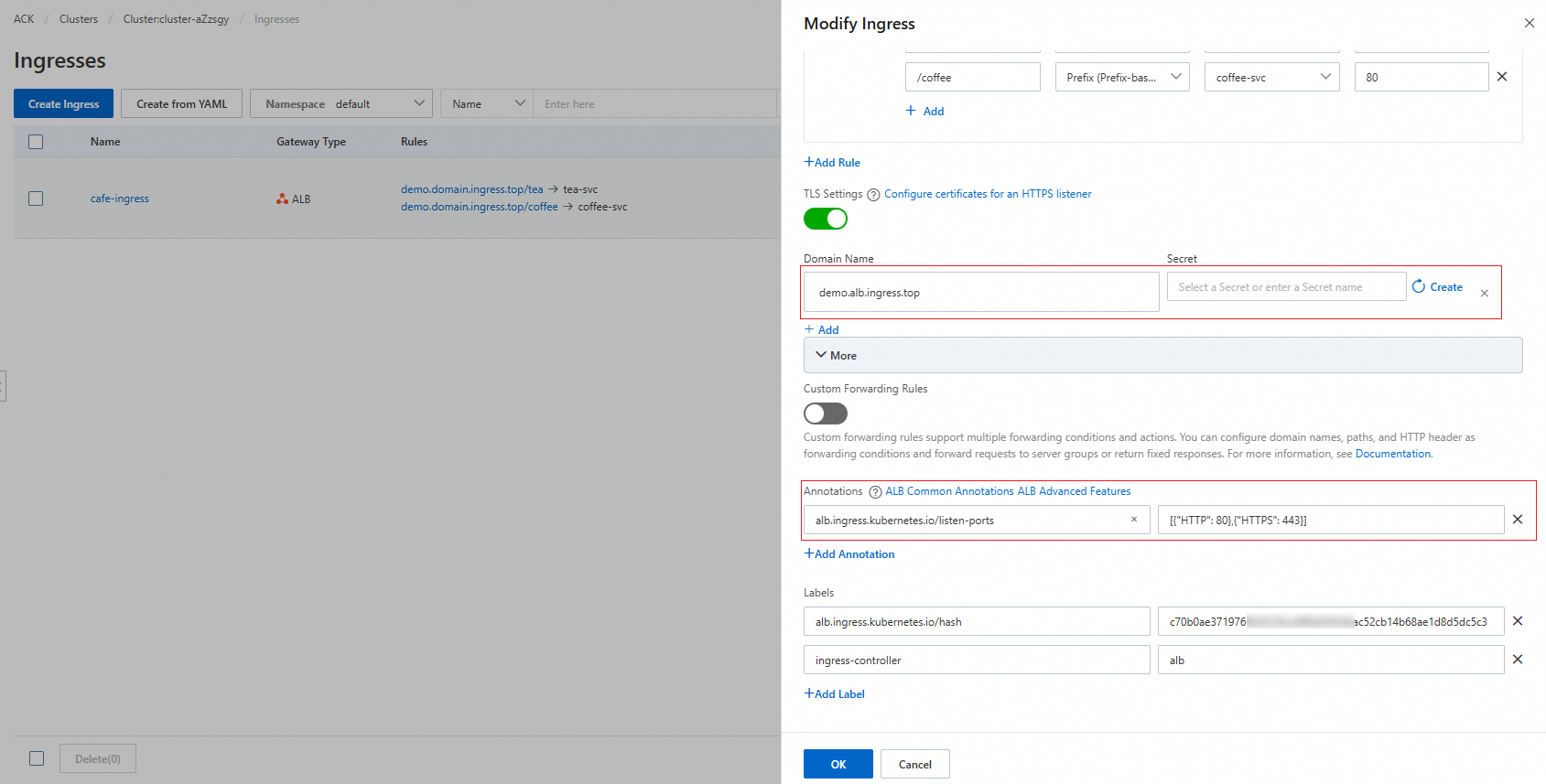
kubectl
Edit the Ingress:
kubectl edit ingress https-ingressAdd the
tlsfield with the domain name bound to the certificate:apiVersion: networking.k8s.io/v1 kind: Ingress metadata: # annotations: # alb.ingress.kubernetes.io/listen-ports: '[{"HTTP": 80},{"HTTPS": 443}]' # Uncomment to listen on both HTTP and HTTPS. name: https-ingress spec: ingressClassName: https-ingressclass rules: - host: demo.alb.ingress.top # Replace with your domain name. http: paths: - backend: service: name: https-svc port: number: 443 path: / pathType: Prefix tls: # New field. - hosts: # New field. - demo.alb.ingress.top # New field. Must match the domain in rules[].host.
Manage certificates as Secrets
Store the certificate in a Kubernetes Secret and reference it in the Ingress tls field. This is the recommended approach when using cert-manager or managing certificates entirely within the cluster.
A Secret can only be referenced by Ingresses in the same namespace.
ACK console
Log on to the ACK console. In the left-side navigation pane, click Clusters.
On the Clusters page, click the name of your cluster. In the left-side pane, choose Network > Ingresses.
Find
https-ingressand click Update in the Actions column. Configure the following parameters:Parameter Description Example TLS settings > Domain name The domain name bound to the certificate. demo.alb.ingress.topTLS settings > Secret The Secret storing the certificate. Click Create next to this field to create a new one — provide the Name, Cert (raw PEM, not Base64-encoded), and Key (raw PEM, not Base64-encoded). Name: https-secret<br>Cert: content ofalbtop-cert.pem<br>Key: content ofalbtop-key.pem(Optional) Annotations Add alb.ingress.kubernetes.io/listen-portsto make the Ingress listen on both HTTP and HTTPS.Name: alb.ingress.kubernetes.io/listen-ports<br>Value:[{"HTTP": 80},{"HTTPS": 443}]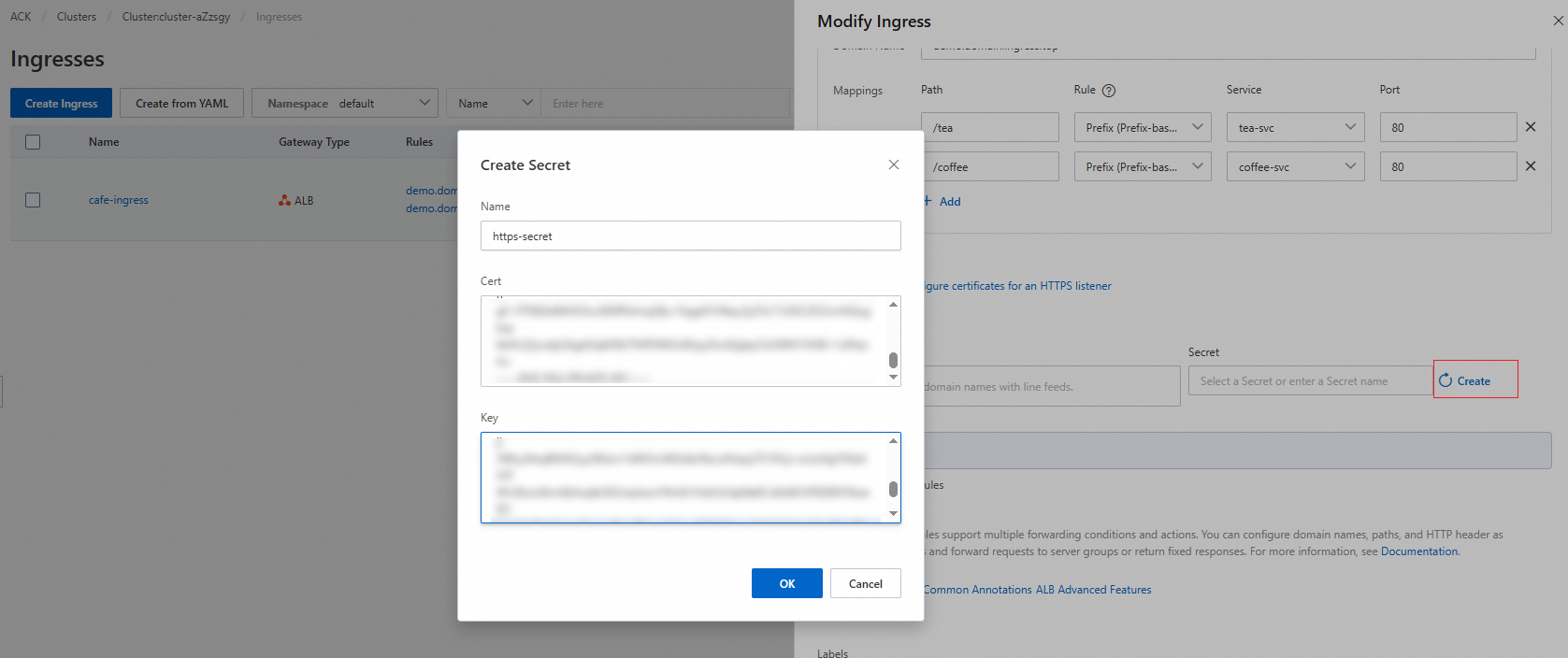
kubectl
Create the Secret.
Create a file named
https-secret.yaml. Paste the Base64-encoded certificate and private key from Step 2:apiVersion: v1 kind: Secret metadata: name: https-secret type: kubernetes.io/tls data: tls.key: | # Base64-encoded content of albtop-key.pem. {base64 albtop-key.pem} tls.crt: | # Base64-encoded content of albtop-cert.pem. {base64 albtop-cert.pem}Apply the manifest: ``
bash kubectl apply -f https-secret.yaml``
Update the Ingress to reference the Secret.
Edit the Ingress: ``
bash kubectl edit ingress https-ingress``Add the
tlsfield with both the domain name and the Secret name:apiVersion: networking.k8s.io/v1 kind: Ingress metadata: # annotations: # alb.ingress.kubernetes.io/listen-ports: '[{"HTTP": 80},{"HTTPS": 443}]' # Uncomment to listen on both HTTP and HTTPS. name: https-ingress namespace: default spec: ingressClassName: alb rules: tls: # New field.hosts: secretName: https-secret # New field. The name of the Secret storing the certificate.
demo.alb.ingress.top # New field. Must match the domain in rules[].host.
Tip: If you use cert-manager to automate certificate issuance and renewal, annotate the Ingress withcert-manager.io/issuerorcert-manager.io/cluster-issuer. cert-manager monitors the Ingress and automatically creates and rotates the Secret. For details, see the cert-manager documentation.
Specify certificates in AlbConfigs
Pin a specific certificate to an HTTPS listener by setting its ID directly in the AlbConfig. This bypasses automatic certificate discovery for that listener.
If a listener has a certificate specified in AlbConfig, automatic certificate discovery is disabled for that listener.
ACK console
Get the CertIdentifier of your certificate.
Log on to the Certificate Management Service consoleCertificate Management Service console. In the left-side navigation pane, choose Certificate Management > SSL Certificate Management.
On the SSL Certificate Management page, click the Manage Uploaded Certificates tab. Find your certificate and click More in the Actions column.
In the Certificate Details panel, note the value in the CertIdentifier field.
Add the certificate to the AlbConfig.
Log on to the ACK console. In the left-side navigation pane, click Clusters.
On the Clusters page, click the name of your cluster. In the left-side pane, choose Workloads > Custom Resources.
On the Resource Objects tab, search for AlbConfig and click the result.
Find the AlbConfig resource and click Edit YAML in the Actions column.
In the View in YAML panel, add the
certificatesfield to the HTTPS listener:Field
Description
Example
certificatesCertificate configuration for the listener.
—
CertificateIdThe CertIdentifier obtained in the previous step.
756****-cn-hangzhouIsDefaultWhether this is the default certificate for the listener.
true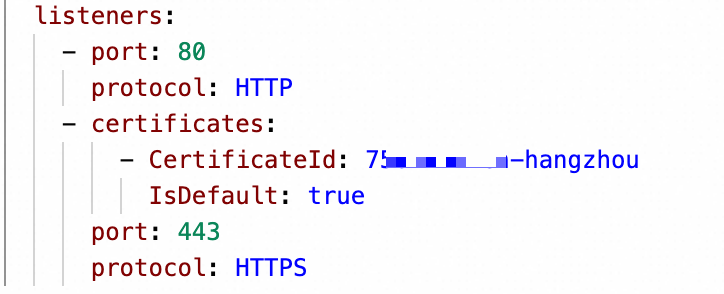
Update the Ingress to listen on HTTPS.
Log on to the ACK console. In the left-side navigation pane, click Clusters.
On the Clusters page, click the name of your cluster. In the left-side pane, choose Network > Ingresses.
Find
https-ingressand click Update in the Actions column. Add the following annotation:Parameter
Description
Example
Annotations > Name
The annotation key.
alb.ingress.kubernetes.io/listen-portsAnnotations > Value
The ports to listen on. To also accept HTTP traffic, use
[{"HTTP": 80},{"HTTPS": 443}].[{"HTTPS": 443}]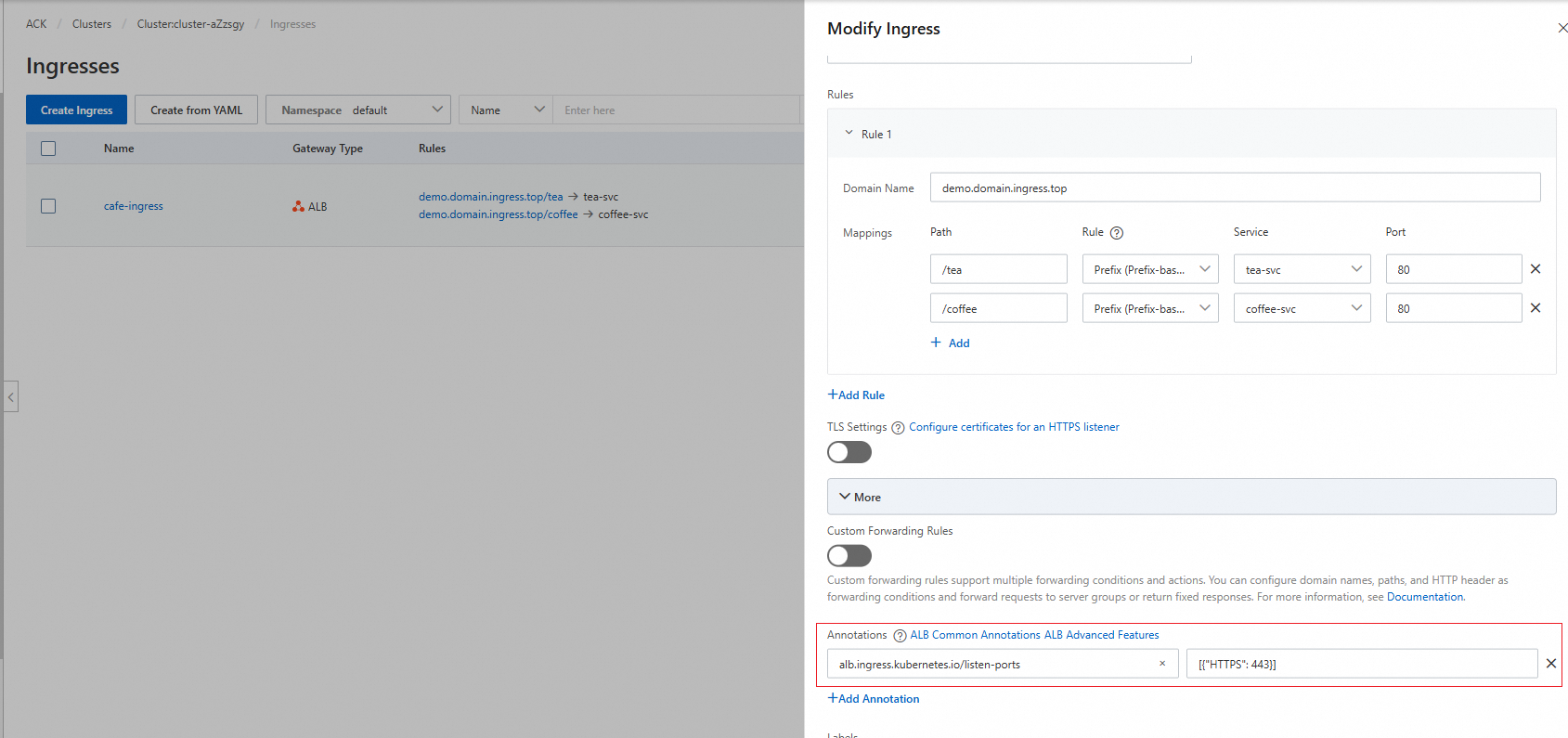
kubectl
Get the certificate ID.
Log on to the Certificate Management Service consoleCertificate Management Service console. In the left-side navigation pane, choose Certificate Management > SSL Certificate Management.
On the SSL Certificate Management page, click the Manage Uploaded Certificates tab. Find your certificate and click More in the Actions column.
In the Certificate Details panel, note the value in the CertIdentifier field.
Add the certificate to the AlbConfig:
kubectl edit albconfig <ALBCONFIG_NAME>Add the
certificatesfield under the HTTPS listener:apiVersion: alibabacloud.com/v1 kind: AlbConfig metadata: name: alb spec: config: addressType: Intranet name: xiaosha-alb-test listeners: - port: 80 protocol: HTTP - certificates: - CertificateId: 756****-cn-hangzhou # The CertIdentifier of the certificate. IsDefault: true # Set to true for the default certificate. port: 443 protocol: HTTPSUpdate the Ingress to use the HTTPS listener:
kubectl edit ingress https-ingressAdd the
alb.ingress.kubernetes.io/listen-portsannotation:apiVersion: networking.k8s.io/v1 kind: Ingress metadata: annotations: alb.ingress.kubernetes.io/listen-ports: '[{"HTTPS": 443}]' # New field. To also accept HTTP traffic, use '[{"HTTP": 80},{"HTTPS": 443}]'. name: https-ingress spec: ingressClassName: https-ingressclass rules: - host: demo.alb.ingress.top # Replace with your domain name. http: paths: - backend: service: name: https-svc port: number: 443 path: / pathType: Prefix
Step 5: Verify the result
Get the Ingress address:
kubectl get ingressExpected output:
NAME            CLASS                HOSTS                  ADDRESS                         PORTS     AGE
https-ingress   https-ingressclass   demo.alb.ingress.top   alb-********.alb.aliyuncs.com   80, 443   83m
Note the values in the
HOSTSandADDRESScolumns.Send a test request over HTTPS. Replace
demo.alb.ingress.topandalb-********.alb.aliyuncs.comwith the values from the previous step:curl -H HOST:demo.alb.ingress.top -k https://alb-********.alb.aliyuncs.comIf the certificate is configured correctly, the response is:
old
What's next
To accept HTTP/3 requests, see Use a QUIC listener to support HTTP/3.
To require client certificates for mutual TLS authentication, see Use HTTPS mutual authentication to enhance service security.