ACK One GitOps provides continuous delivery for multi-cluster GitOps applications, and Container Registry (ACR) enables continuous integration by connecting to your business code repositories. This tutorial shows how to build a CI/CD pipeline for your Dev, Staging, and Production clusters. After you commit code changes to a code repository, the pipeline automatically updates your application with the latest image and deploys it to each environment.
Prerequisites
This tutorial applies only to applications created with the ACK One GitOps system.
This tutorial applies only to Kustomize or Helm applications hosted in a Git repository.
You have enabled the fleet management feature.
Obtain the KubeConfig for the Fleet instance from the ACK One console, and connect to the Fleet instance using kubectl.
The GitOps feature is enabled for your ACK One Fleet instance. For more information, see Log on to the GitOps system.
You have deployed the Kruise Rollout component in the Staging and Production clusters and installed the kubectl-kruise component.
How it works
This tutorial uses ACK One GitOps and ACR to build a CI/CD pipeline for Dev, Staging, and Production clusters. After you commit code changes to a Git repository, the pipeline automatically updates your application with the latest image and deploys it to each environment in the following ways:
Dev cluster: The application automatically syncs and deploys the latest image.
Staging and Production clusters: The application is synced manually, and the latest image is deployed through a canary release by using a Rollout controller.

Prepare a business code repository and an application deployment repository.
After enabling and logging in to ACK One GitOps, the operations team configures the CI build process and rules, and associates an ACR Enterprise Edition instance.
The development team pushes code to the code repository. This triggers the ACR Enterprise Edition instance to build an image and push the new version to the ACR image repository.
ArgoCD Image Updater detects the changes in the image repository and writes the new image tag back to the application deployment code repository.
ACK One GitOps detects the change in the image tag in the application deployment repository and triggers the application to deploy the latest image to the continuous integration development (Dev) cluster.
For an application configured with automated sync, ACK One GitOps automatically changes the application's image version.
ArgoCD Image Updater monitors the image repository for updates to images that match the configured rules.
ArgoCD monitors the application deployment repository for changes to YAML files.
After the continuous deployment is complete, the development team verifies that the application in the Dev environment works as expected.
After successful verification in the Dev environment, the operations team manually triggers application synchronization for the Staging and Production environments. They then use Argo Rollouts or Kruise Rollout to perform a canary release to update the application images in the Staging and Production environments. For more information, see Use Argo Rollouts with ACK One Gitops for canary releases and Use Kruise Rollout with ACK One Gitops for canary releases.
ImportantStaging and Production clusters typically require an additional release process for rolling updates across multiple clusters and regions. Code changes should not directly affect the Staging and Production environments.
Example
This tutorial uses the echo-server sample application. The business code involves two repositories, forked from the echo-server project and the echo-web-server project. The application deployment code repository is a fork of the gitops-demo project. Because application changes need to be written back to the deployment repository, you must first fork this repository to your own account. You can then modify the configuration as needed, such as the image.repository and image.tag in the environment-specific values.yaml file. For the final changes made in this tutorial, see the echo-server example.
image:
  repository: registry.cn-hangzhou.aliyuncs.com/haoshuwei24/echo-server
  pullPolicy: IfNotPresent
  # Overrides the image tag whose default is the chart appVersion.
  tag: "v1.0"
Step 1: Build a CI pipeline with ACR
Create an ACR image repository, bind it to your forked echo-server project, and set up build rules. For more information, see Build an image by using an Enterprise Edition instance. To pull images without credentials, either enable Pull from Anonymous Users on the overview page of the Enterprise Edition instance or see Use a credential helper to pull container images without a password.
If your code is sourced from GitHub and you encounter a timeout error when pulling code, you can enable Build with Servers Deployed Outside Chinese Mainland to resolve the issue.
In this tutorial, the ACR build rule is configured as follows: When a new tag starting with release- is detected, ACR automatically builds a Docker image and pushes it to the corresponding image repository. You can customize the regular expression in the rule as needed.

Step 2: Configure credentials for ACR and Git repositories
ACK One GitOps automatically monitors the ACR image repository for changes, detects the latest image tag, and writes the latest tag information back to the Git repository to update the application. Configuring access credentials for GitOps enables it to interact with ACR and your Git repositories.
Install the latest version of the ArgoCD CLI.
Connect to the GitOps system. For more information, see Log on to the GitOps system.
Add a Git source repository. For more information, see Add a repository.
Create a GitOps application. For more information, see Application management.
Configure access credentials for the ACR image repository to allow GitOps to monitor image changes.
ACR Enterprise Edition
Save the following example as
acr.yamland then runkubectl apply -f acr.yamlto create a Secret that contains the access credentials.apiVersion: v1 kind: Secret metadata: name: acr namespace: argocd type: Opaque stringData: acr: USERNAME:PASSWORD # Replace USERNAME:PASSWORD with the credentials for your image repository.Log on to the Container Registry console to view and record the domain name of your ACR instance.
Run
kubectl edit ConfigMap -n argocd argocd-image-updater-configand add the ACR instance domain name to thedatafield. Do not include the image repository path.apiVersion: v1 data: registries.conf: | registries: - name: AlibabaCloud Container Registry api_url: https://registry.****.cr.aliyuncs.com # ACR instance domain name prefix: registry.****.cr.aliyuncs.com # ACR instance domain name insecure: no credentials: secret:argocd/acr#acr kind: ConfigMap metadata: ...
ACR Personal Edition
Save the following example as
acr.yamland then runkubectl apply -f acr.yamlto create a Secret that contains the access credentials.apiVersion: v1 kind: Secret metadata: name: acr namespace: argocd type: Opaque stringData: acr: USERNAME:PASSWORD # Replace USERNAME:PASSWORD with the credentials for your image repository.Configure access credentials for the Git repository to allow GitOps to write back application image changes.
By default, applications can write back container image changes if you provided credentials (a username and password or a private key) when adding the Git repository.
Repository added with credentials
If you provided a username and password or a private key (including for repositories added with an SSH private key), you can configure access by adding the following annotation:
apiVersion: argoproj.io/v1alpha1
kind: Application
metadata:
  annotations:
    argocd-image-updater.argoproj.io/write-back-method: git
Repository added without credentials
If you did not provide credentials when adding the repository, you must specify them by adding the following annotation:
apiVersion: argoproj.io/v1alpha1
kind: Application
metadata:
  annotations:
    argocd-image-updater.argoproj.io/write-back-method: git:secret:argocd/git-creds
In this annotation, git:secret:argocd/git-creds refers to a Secret named git-creds in the argocd namespace. The following example shows how to create this Secret:
kubectl -n argocd create secret generic git-creds \
--from-literal=username=USERNAME \
--from-literal=password=PASSWORD
Step 3: Configure automatic updates and deployment
You can configure automatic application updates by adding the following annotations to the application resource. For more configuration details, see Next steps.
metadata:
  annotations:
    argocd-image-updater.argoproj.io/image-list: echoserver=demo-test-registry.cn-hangzhou.cr.aliyuncs.com/cidemo/echo-server,webserver=demo-test-registry.cn-hangzhou.cr.aliyuncs.com/cidemo/echo-web-server
    argocd-image-updater.argoproj.io/echoserver.helm.image-name: image.echoServer.repository
    argocd-image-updater.argoproj.io/echoserver.helm.image-tag: image.echoServer.tag
    argocd-image-updater.argoproj.io/echoserver.update-strategy: latest
    argocd-image-updater.argoproj.io/webserver.helm.image-name: image.echoWebServer.repository
    argocd-image-updater.argoproj.io/webserver.helm.image-tag: image.echoWebServer.tag
    argocd-image-updater.argoproj.io/webserver.update-strategy: latest
    argocd-image-updater.argoproj.io/write-back-method: git:secret:argocd/git-creds
In the value of the
argocd-image-updater.argoproj.io/image-listannotation,echoserveris an alias for the image repository address. You can configure multiple addresses by separating them with a comma (,). Modify this value to match your actual setup.This configuration is for an application orchestrated with Helm. For Kustomize applications, see Parameter settings for applications orchestrated by using Kustomize.
Dev cluster: Automatic deployment
Create an
app-helm-dev.yamlfile on your Dev cluster with the following YAML content.${url}: Replace this with the server URL of your Dev cluster. To get the cluster's server URL, see Manage clusters with GitOps.repoURL: Replace this with the address of your application deployment repository.
Because
syncPolicyis set toautomated, the application automatically syncs and deploys when a new branch or tag that matches the rule is committed.apiVersion: argoproj.io/v1alpha1 kind: Application metadata: name: app-helm-dev annotations: argocd-image-updater.argoproj.io/image-list: echoserver=demo-test-registry.cn-hangzhou.cr.aliyuncs.com/cidemo/echo-server,webserver=demo-test-registry.cn-hangzhou.cr.aliyuncs.com/cidemo/echo-web-server argocd-image-updater.argoproj.io/echoserver.helm.image-name: image.echoServer.repository argocd-image-updater.argoproj.io/echoserver.helm.image-tag: image.echoServer.tag argocd-image-updater.argoproj.io/echoserver.update-strategy: latest argocd-image-updater.argoproj.io/webserver.helm.image-name: image.echoWebServer.repository argocd-image-updater.argoproj.io/webserver.helm.image-tag: image.echoWebServer.tag argocd-image-updater.argoproj.io/webserver.update-strategy: latest argocd-image-updater.argoproj.io/write-back-method: git spec: destination: namespace: app-helm-dev # https://XX.XX.XX.XX:6443 server: ${url} source: path: manifests/helm/echo-server repoURL: 'git@github.com:***.git' targetRevision: stable-example helm: valueFiles: - values-dev.yaml project: default syncPolicy: automated: {} syncOptions: - CreateNamespace=trueDeploy the application to the Dev environment.
Connect to the ACK One Fleet instance and run the following command to create the application for the Dev environment.
argocd app create -f app-helm-dev.yaml
Staging and production: Manual canary release
Create
app-helm-staging.yamlandapp-helm-production.yamlfiles for the Staging and Production clusters using the following YAML content.${url}: Replace this with the server URLs of your Staging and Production clusters, respectively. To get a cluster's server URL, see Manage clusters with GitOps.repoURL: Replace this with the address of your application deployment repository.
Because
syncPolicyis not set toautomated, after a new branch or tag that matches the rule is committed, you must manually trigger the sync to deploy the latest image.Review image changes and manually sync.
When an image change occurs, you can check if the application deployment repository has been updated. Alternatively, in the ArgoCD UI, navigate to the application page, click REFRESH to check for updates, and then click SYNC to apply them. You can also view the APP DIFF on the application details page.
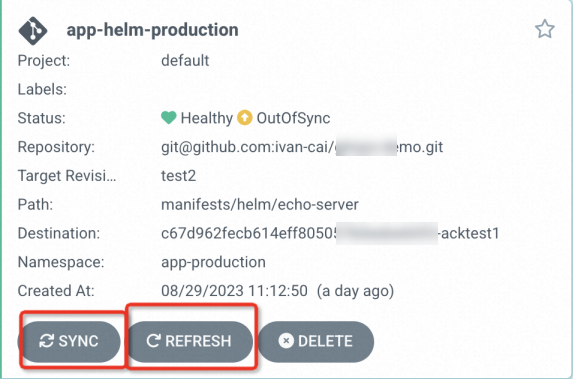
Connect to the ACK One Fleet instance and run the following commands to sync the applications for the Staging and Production environments.
argocd app sync argocd/app-helm-staging
argocd app sync argocd/app-helm-production
Trigger a canary release. For more information, see Use Kruise Rollout with ACK One Gitops for canary releases.
Run the following command to approve the canary release.
kubectl-kruise rollout approve rollout/rollouts-demo --kubeconfig <path_to_member_cluster_kubeconfig>You can also use Argo Rollouts for canary releases.
Step 4: Roll back the application
If an application deployment fails, you must roll it back. You can roll back an application in one of two ways.
Quick rollback
In the ArgoCD UI, on the application page, click HISTORY AND ROLLBACK. Select the desired version and click ROLLBACK. For more information, see Roll back an application version.
Roll back the application by using the ArgoCD CLI. For more information, see Roll back an application by using the Argo CLI.
End-to-end rollback
You can use the following Git command to revert the committed code, which automatically triggers the CI/CD pipeline.
# Revert the last commit.
git revert HEAD
# 'git revert HEAD~3..HEAD' reverts the last three commits from the current HEAD.
# 'git revert <commit-id-1> <commit-id-2> ... <commit-id-n>' can be used to revert multiple non-consecutive commits.

# After reverting, push to the original branch to trigger the CI/CD pipeline.
git push origin HEAD:${branch}
After ArgoCD Image Updater writes the reverted changes to the application deployment repository, the application syncs to apply the rollback.
Step 5: Test the CI/CD pipeline
Based on the build rules you configured for the ACR CI pipeline, push a branch or tag that matches the rules to your source code repository. This triggers ACR to automatically build and push an image. You can run the following commands to push a new tag. Set the tag name as needed.
git clone https://github.com/{xxx}/echo-web-server.git
cd echo-web-server
git tag release-v3
git push origin release-v3
Verify that the new image has been built.
Log on to the Container Registry console.
In the top navigation bar, select a region.
In the left-side navigation pane, select Instances.
On the Instances page, click the Enterprise Edition instance that you want to manage.
-
In the left-side navigation pane of the instance details page, choose .
On the image repositories page, click the target image repository. In the left-side navigation pane, select Build. In the Build Logs area, verify that the new image has been successfully built.
After the new image is built, run the following command to view the logs of argocd-image-updater.
kubectl -nargocd logs argocd-server-<xxxxx> -c argocd-image-updater -fExpected output:
time="2023-07-19T07:35:41Z" level=info msg="Successfully updated image 'demo-test-registry.cn-hangzhou.cr.aliyuncs.com/cidemo/echo-web-server:v1.0' to 'demo-test-registry.cn-hangzhou.cr.aliyuncs.com/cidemo/echo-web-server:v3-5a7147', but pending spec update (dry run=false)" alias=echowebserver application=echo-web-server
time="2023-07-19T07:35:41Z" level=info msg="Committing 1 parameter update(s) for application echo-web-server" application=echo-web-server
On GitHub, check the application deployment code repository to see if a
manifests/helm/echo-server/.argocd-source-${appname}.yamlfile has been automatically generated. If the file is present, the write-back was successful. In this tutorial, three such files are generated, one for each application in the Dev, Staging, and Production environments. The following figure shows an example of the file content for the Dev environment.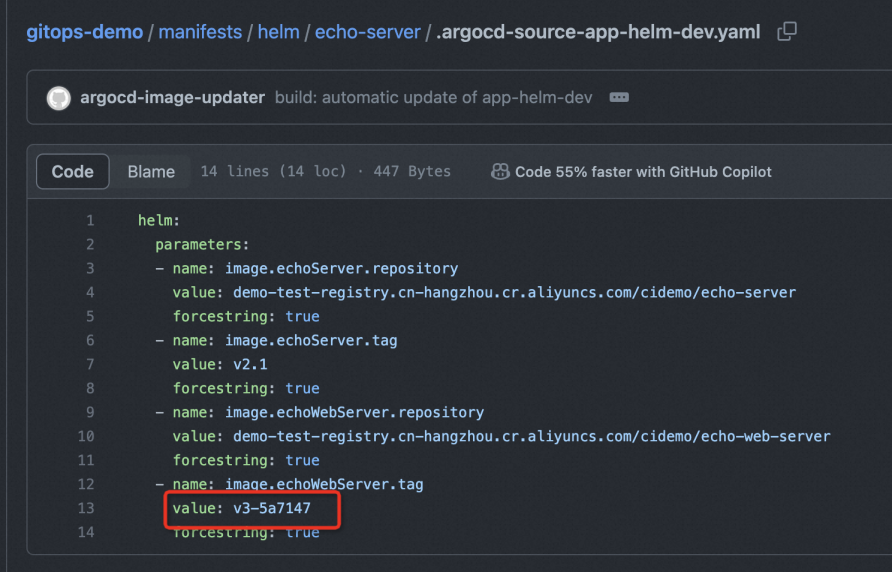
Verify that the image of the Deployment in the Dev environment has been updated to version
v3-5a7147. For the Staging and Production environments, you must manually trigger a sync and a canary release before the images in the corresponding deployments are updated to versionv3-5a7147.
Next steps
Specify images to update
You can use an annotation to mark one or more container images for automatic updates in a GitOps application. The format is as follows:
argocd-image-updater.argoproj.io/image-list: <image_spec_list>The image_spec_list can contain one or more container images, separated by commas (,). Each container image description must follow this format:
<alias_name>=<image_path>:<version_constraint>The alias_name is an alias for the container image and can be referenced in other configurations. The alias must be an alphabetic string and can only be used in the image-list annotation. In this tutorial's example, the image to be automatically updated is specified as echoserver=demo-test-registry.cn-hangzhou.cr.aliyuncs.com/cidemo/echo-server:v1.0, with the alias set to echoserver.
argocd-image-updater.argoproj.io/image-list: echoserver=demo-test-registry.cn-hangzhou.cr.aliyuncs.com/cidemo/echo-server:v1.0Filter image tags
Using the echoserver=demo-test-registry.cn-hangzhou.cr.aliyuncs.com/cidemo/echo-server:v1.0 image as an example, you can set a filter condition. The application's automatic update is triggered only when a new tag for the echo-server image is pushed to the ACR image repository and the tag matches the filter.
Use a regular expression to filter allowed tags with the following format:
argocd-image-updater.argoproj.io/<image_name>.allow-tags: <match_func>The match_func is a standard regular expression. An example is shown below:
argocd-image-updater.argoproj.io/echoserver.allow-tags: regexp:^v[1-9].*Set image update strategy
Several update strategies are available for container images. The default strategy is semver.
Update strategy | Description |
semver | Sorts tags by semantic version and updates to the latest tag. |
latest | Sorts tags by creation time and updates to the latest tag. This refers to the image creation timestamp, not the time when the image was pushed to the repository. |
name | Sorts tags alphabetically and updates to the latest tag. |
digest | Updates to the most recently pushed version of a mutable tag. |
The annotation format is as follows:
argocd-image-updater.argoproj.io/<image_name>.update-strategy: <strategy>In this tutorial, the image update strategy is set to latest, as shown below:
argocd-image-updater.argoproj.io/echoserver.update-strategy: latestHelm and Kustomize parameters
Helm parameters
An application may specify multiple container images. For example, the values.yaml file for the gitops-demo sample application has configurations for image.echoServer.repository and image.echoServer.tag. The related annotations are configured as follows:
annotations:
  argocd-image-updater.argoproj.io/image-list: echoserver=demo-test-registry.cn-hangzhou.cr.aliyuncs.com/cidemo/echo-server:v1.0
  argocd-image-updater.argoproj.io/echoserver.helm.image-name: image.echoServer.repository
  argocd-image-updater.argoproj.io/echoserver.helm.image-tag: image.echoServer.tag
  argocd-image-updater.argoproj.io/echoserver.update-strategy: latest
  argocd-image-updater.argoproj.io/write-back-method: git
Kustomize parameters
To configure automatic image updates for Kustomize applications, you must first set an alias for the container image to be updated (which can include a tag), and then specify the original container image path (without a tag). The annotation format is as follows:
annotations:
  argocd-image-updater.argoproj.io/image-list: <image_alias>=<image_name>:<image_tag>
  argocd-image-updater.argoproj.io/<image_alias>.kustomize.image-name: <original_image_name>