To ensure a model meets go-live standards before deployment, use the model analysis tool to benchmark, profile, and optimize it. This topic uses the PyTorch ResNet18 model on V100 GPUs as an example.
Prerequisites
Ensure that you have:
-
An ACK Pro cluster (Kubernetes 1.20+) with at least one GPU-accelerated node. See Update an ACK cluster.
-
An OSS bucket with a PV and PVC configured. See Mount a statically provisioned ossfs 1.0 volume.
-
The latest Arena client installed. See Configure the Arena client.
How it works
Data scientists optimize for accuracy; engineers optimize for inference performance. Benchmark and profile before deployment to ensure the model meets latency and throughput targets.
Arena provides commands for each phase of the model lifecycle:
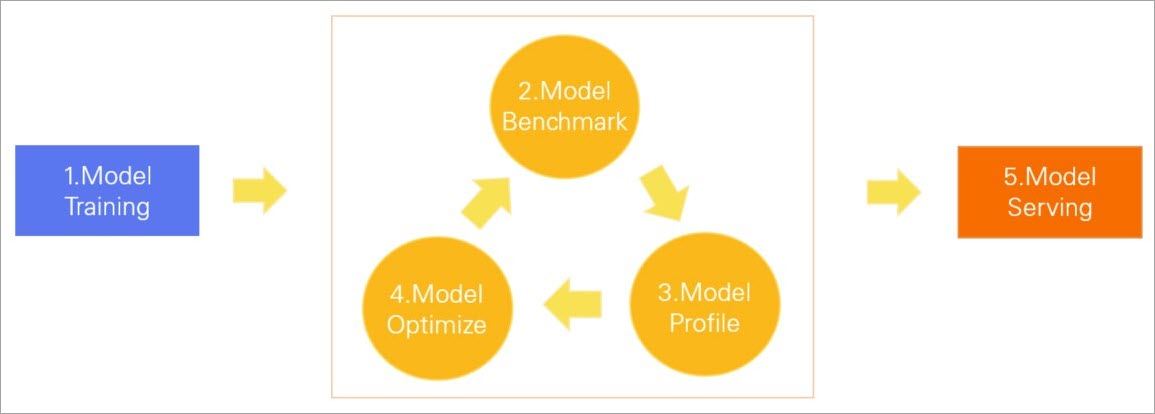
| Phase | Purpose |
|---|---|
| Model training | Train the model on a dataset |
| Model benchmark | Check whether latency, throughput, and GPU utilization meet requirements |
| Model profile | Identify performance bottlenecks |
| Model optimize | Improve GPU inference performance with tools such as TensorRT |
| Model serving | Deploy the model as an online service |
If the model still doesn't meet requirements after optimization, repeat the benchmark → profile → optimize cycle.
All analysis commands run under arena model analyze. View subcommands:
arena model analyze --helpOutput:
submit a model analyze job.

Available Commands:
  benchmark   Submit a model benchmark job
  delete      Delete a model job
  evaluate    Submit a model evaluate job
  get         Get a model job
  list        List all the model jobs
  optimize    Submit a model optimize job, this is a experimental feature
  profile     Submit a model profile job
Step 1: Prepare a model
Convert the ResNet18 model to TorchScript format and upload it to OSS.
-
Convert and save the model:
Parameter Description model_nameThe model name model_platformThe platform or framework, such as TorchScriptorONNXmodel_pathThe model storage path. inputsInput parameters outputsOutput parameters import torch import torchvision model = torchvision.models.resnet18(pretrained=True) # Switch the model to eval mode model.eval() # An example input you would normally provide to your model's forward() method dummy_input = torch.rand(1, 3, 224, 224) # Use torch.jit.trace to generate a torch.jit.ScriptModule via tracing traced_script_module = torch.jit.trace(model, dummy_input) # Save the TorchScript model traced_script_module.save("resnet18.pt") -
Upload
resnet18.pttooss://bucketname/models/resnet18/resnet18.pt. See Upload objects.
Step 2: Benchmark the model
Benchmark the model against latency, throughput, and GPU utilization targets. This example uses a PVC named oss-pvc in the default namespace.
-
Create a model configuration file
config.json:{ "model_name": "resnet18", "model_platform": "torchscript", "model_path": "/data/models/resnet18/resnet18.pt", "inputs": [ { "name": "input", "data_type": "float32", "shape": [1, 3, 224, 224] } ], "outputs": [ { "name": "output", "data_type": "float32", "shape": [1000] } ] } -
Upload
config.jsontooss://bucketname/models/resnet18/config.json. -
Submit the benchmark job:
Important--requestsand--durationare mutually exclusive;--durationtakes precedence if both are set. Use--requestsfor a fixed request count instead of a time limit.Parameter Description --gpusNumber of GPUs to use --dataPVC name and mount path --model-config-filePath to the model configuration file --report-pathOutput path for the benchmark report. --concurrencyNumber of concurrent requests --durationBenchmark duration, in seconds. arena model analyze benchmark \ --name=resnet18-benchmark \ --namespace=default \ --image=registry.cn-beijing.aliyuncs.com/kube-ai/easy-inference:1.0.2 \ --gpus=1 \ --data=oss-pvc:/data \ --model-config-file=/data/models/resnet18/config.json \ --report-path=/data/models/resnet18 \ --concurrency=5 \ --duration=60 -
Check the job status:
arena model analyze list -AExpected output:
NAMESPACE NAME STATUS TYPE DURATION AGE GPU(Requested) default resnet18-benchmark COMPLETE Benchmark 0s 2d 1 -
When the status is
COMPLETE, retrievebenchmark_result.txtfrom the--report-pathdirectory:Metric Description Unit p90_latency90th percentile response time Milliseconds p95_latency95th percentile response time Milliseconds p99_latency99th percentile response time Milliseconds min_latencyFastest response time Milliseconds max_latencySlowest response time Milliseconds mean_latencyAverage response time Milliseconds median_latencyMedian response time Milliseconds throughputThroughput Times gpu_mem_usedGPU memory usage GB gpu_utilizationGPU utilization Percentage { "p90_latency": 7.511, "p95_latency": 7.86, "p99_latency": 9.34, "min_latency": 7.019, "max_latency": 12.269, "mean_latency": 7.312, "median_latency": 7.206, "throughput": 136, "gpu_mem_used": 1.47, "gpu_utilization": 21.280 }
Step 3: Profile the model
Run arena model analyze profile to identify where the model spends time during inference. The profiler generates a TensorBoard report broken down by operator.
-
Submit the profile job:
Parameter Description --gpusNumber of GPUs to use --dataPVC name and mount path --model-config-filePath to the model configuration file --report-pathOutput path for the profiling report. --tensorboardEnables TensorBoard to view the profiling report. --tensorboard-imageThe TensorBoard container image. arena model analyze profile \ --name=resnet18-profile \ --namespace=default \ --image=registry.cn-beijing.aliyuncs.com/kube-ai/easy-inference:1.0.2 \ --gpus=1 \ --data=oss-pvc:/data \ --model-config-file=/data/models/resnet18/config.json \ --report-path=/data/models/resnet18/log/ \ --tensorboard \ --tensorboard-image=registry.cn-beijing.aliyuncs.com/kube-ai/easy-inference:1.0.2 -
Check the job status:
arena model analyze list -AExpected output:
NAMESPACE NAME STATUS TYPE DURATION AGE GPU(Requested) default resnet18-profile COMPLETE Profile 13s 2d 1 -
Verify the TensorBoard service is running:
kubectl get service -n defaultExpected output:
NAME TYPE CLUSTER-IP EXTERNAL-IP PORT(S) AGE resnet18-profile-tensorboard NodePort 172.16.158.170 <none> 6006:30582/TCP 2d20h -
Forward the port for local TensorBoard access:
kubectl port-forward svc/resnet18-profile-tensorboard -n default 6006:6006Expected output:
Forwarding from 127.0.X.X:6006 -> 6006 Forwarding from [::1]:6006 -> 6006 -
Open
http://localhost:6006in a browser. In the left-side navigation pane, click Views to explore performance data and identify bottleneck operators.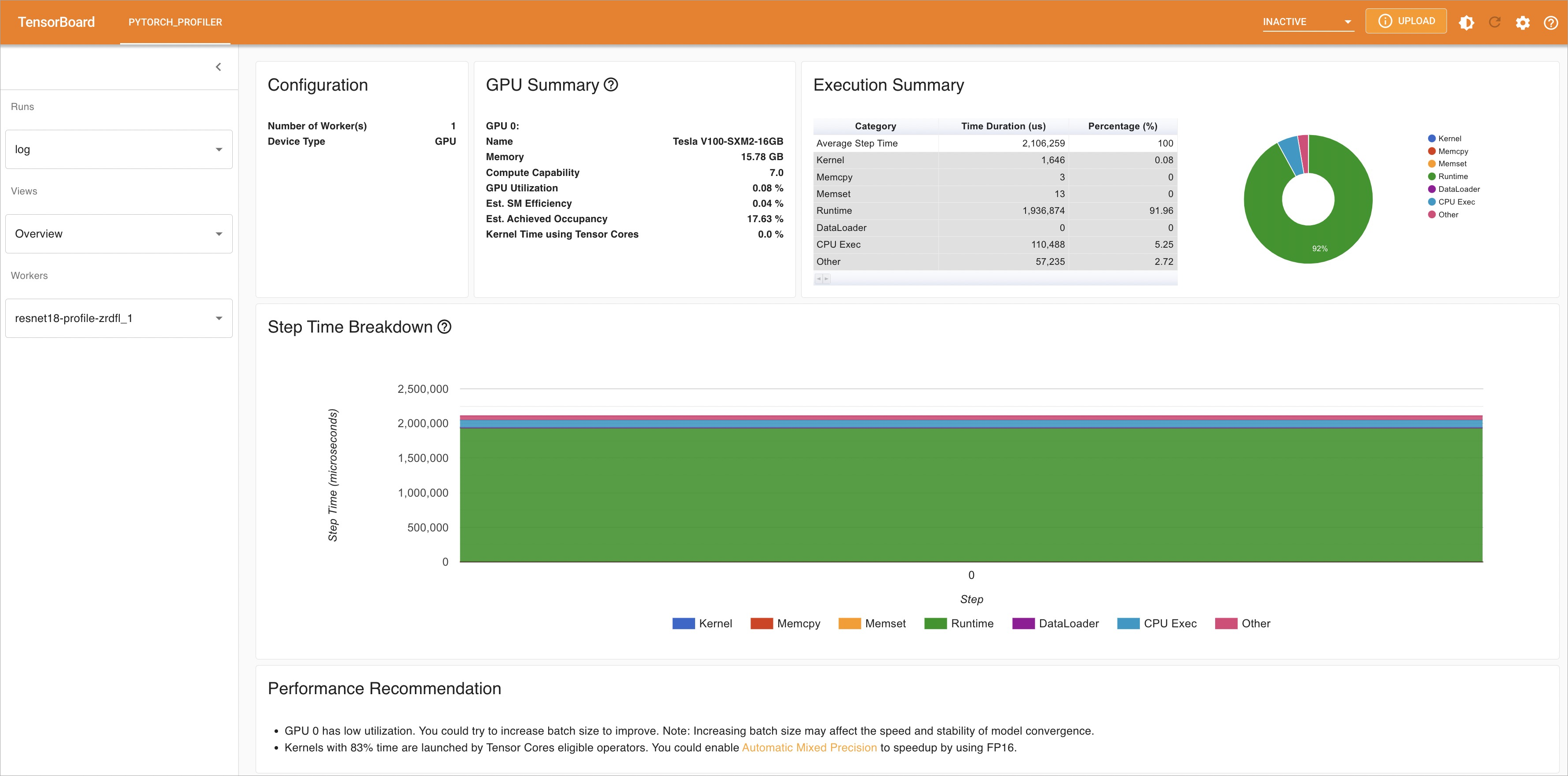
Step 4: Optimize the model
After identifying bottlenecks, submit an optimization job. By default, Arena uses TensorRT to optimize the model for GPU inference.
-
Submit the optimization job:
Parameter Description --gpusNumber of GPUs to use --dataPVC name and mount path --optimizerOptimization engine. Valid values: tensorrt(default),aiacc-torch--model-config-filePath to the model configuration file --export-pathOutput path for the optimized model. arena model analyze optimize \ --name=resnet18-optimize \ --namespace=default \ --image=registry.cn-beijing.aliyuncs.com/kube-ai/easy-inference:1.0.2 \ --gpus=1 \ --data=oss-pvc:/data \ --optimizer=tensorrt \ --model-config-file=/data/models/resnet18/config.json \ --export-path=/data/models/resnet18 -
Check the job status:
arena model analyze list -AExpected output:
NAMESPACE NAME STATUS TYPE DURATION AGE GPU(Requested) default resnet18-optimize COMPLETE Optimize 16s 2d 1 -
When the status is
COMPLETE, the optimized modelopt_resnet18.ptis saved in the--export-pathdirectory. -
Re-run the benchmark with the optimized model. Update
model_pathinconfig.jsontoopt_resnet18.pt, then repeat Step 2. The following table compares results before and after TensorRT optimization. If the model still doesn't meet your requirements, repeat Steps 3 and 4.Metric Before optimization After optimization p90_latency7.511 ms 5.162 ms p95_latency7.86 ms 5.428 ms p99_latency9.34 ms 6.64 ms min_latency7.019 ms 4.827 ms max_latency12.269 ms 8.426 ms mean_latency7.312 ms 5.046 ms median_latency7.206 ms 4.972 ms throughput136 times 198 times gpu_mem_used1.47 GB 1.6 GB gpu_utilization21.280% 10.912%
Step 5: Deploy the model
Once the model meets performance requirements, deploy it with NVIDIA Triton Inference Server.
-
Create the Triton configuration file
config.pbtxt:ImportantDo not change the filename.
See Model Repository for configuration details.
name: "resnet18" platform: "pytorch_libtorch" max_batch_size: 1 default_model_filename: "opt_resnet18.pt" input [ { name: "input__0" format: FORMAT_NCHW data_type: TYPE_FP32 dims: [ 3, 224, 224 ] } ] output [ { name: "output__0", data_type: TYPE_FP32, dims: [ 1000 ] } ] -
Create this directory structure in OSS:
The
1/directory represents the model version (Triton convention). A repository can store multiple versions. See Model Repository.oss://bucketname/triton/model-repository/ resnet18/ config.pbtxt 1/ opt_resnet18.pt -
Deploy the model with Arena. Choose the GPU mode based on your workload:
-
GPU exclusive mode — One model per GPU. Use for high-stability inference where models must not share GPU resources.
arena serve triton \ --name=resnet18-serving \ --gpus=1 \ --replicas=1 \ --image=nvcr.io/nvidia/tritonserver:21.05-py3 \ --data=oss-pvc:/data \ --model-repository=/data/triton/model-repository \ --allow-metrics=true -
GPU sharing mode — Multiple models share one GPU with per-model memory limits. Use for cost-efficient or long-tail inference. Set
--gpumemoryto GPU memory (GB) per pod based ongpu_mem_usedfrom the benchmark — ifgpu_mem_usedis 1.6 GB, set--gpumemory=2. Must be a positive integer.arena serve triton \ --name=resnet18 \ --gpumemory=2 \ --replicas=1 \ --image=nvcr.io/nvidia/tritonserver:21.12-py3 \ --data=oss-pvc:/data \ --model-repository=/data/triton/model-repository \ --allow-metrics=true
-
-
Verify the deployment:
arena serve list -AExpected output:
NAMESPACE  NAME              TYPE    VERSION       DESIRED  AVAILABLE  ADDRESS         PORTS                   GPU
default    resnet18-serving  Triton  202202141817  1        1          172.16.147.248  RESTFUL:8000,GRPC:8001  1
The model is ready when
AVAILABLEequalsDESIRED.