Create an ACK managed cluster with Auto Mode enabled to get a best-practice Kubernetes cluster with minimal configuration. After creation, ACK automatically provisions an Auto Mode node pool and manages node lifecycle—including OS upgrades, software updates, and CVE vulnerability fixes—so you can focus on your applications.
Important Auto Mode is available only for ACK Pro clusters and incurs fees for cluster management and related cloud products. View the total cost estimate at the bottom of the creation page. For billing details, see Billing overview and Cloud product resource fees.
Before you begin, review Introduction to Auto Mode to understand its features and supported scenarios.
Prerequisites
Before you begin, ensure that you have:
Activated ACK. If this is your first time using ACK, go to the ACK activation page and follow the on-screen instructions.
Completed RAM (Resource Access Management) authorization. Go to the RAM quick authorization page to grant your Alibaba Cloud account the permissions ACK requires to create default roles and access related cloud resources.
Activated cloud products that ACK depends on, such as virtual private cloud (VPC) and SLB. See Activate related cloud products for the full list.
A sufficient account balance. Cluster creation purchases pay-as-you-go resources, including Classic Load Balancer (CLB) instances.
Only Alibaba Cloud accounts can activate cloud products. To authorize a RAM user to manage activated cloud products, see Grant access permissions on clusters and cloud resources to RAM users.
Plan your cluster
Before creating the cluster, decide on the following:
Region: Choose a region geographically close to your users to reduce network latency.
Zones: Configure multiple zones to ensure high availability.
Network: Plan your VPC CIDR block, vSwitch CIDR block, container CIDR block, and Service CIDR block based on your expected cluster size. See Plan the network of an ACK cluster for guidance.
Internet access: Determine whether cluster nodes need outbound internet access. Internet access is required to pull public container images.
Create the cluster
Log on to the ACK console. In the left navigation pane, click Clusters.
In the top navigation bar, select the resource group and region for your cluster.
On the Clusters page, click Create Kubernetes Cluster. On the ACK Managed Cluster page, enable Auto Mode.
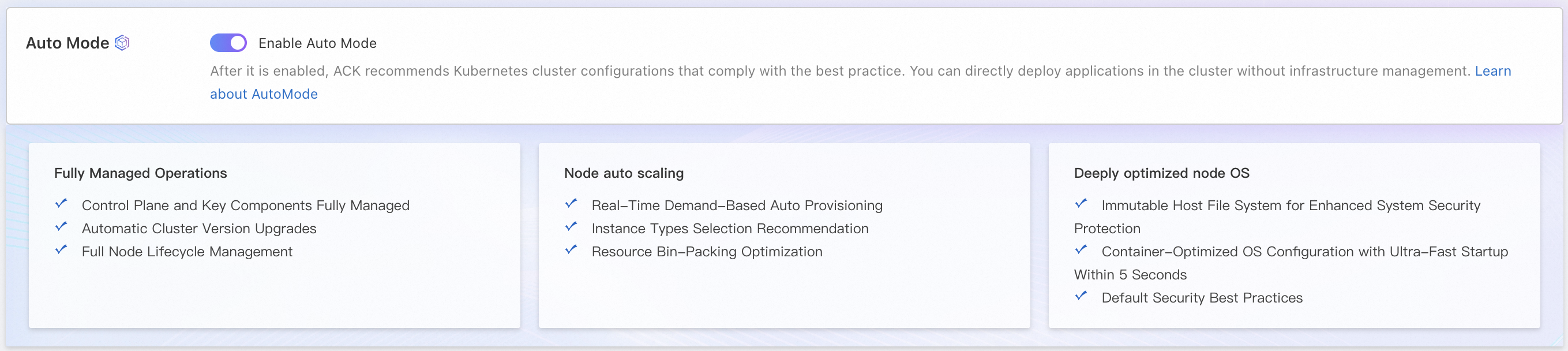
Configure the cluster settings. For descriptions of each configuration item, see Cluster configuration reference below.
Review the cluster configuration, accept the terms of service, and click Create Cluster.
In the upper-right corner of the page, click Console-to-Code to generate equivalent Terraform or SDK code for your current cluster configuration.
After the cluster is created:
An Auto Mode node pool is automatically created. This node pool scales in and out based on your workload. ACK manages the full node lifecycle, including OS version upgrades, software version upgrades, and security vulnerability (CVE) fixes.
ACK installs components based on your configuration. These components consume cluster resources, and the Auto Mode node pool scales out automatically to accommodate them.
Appendix
Shared responsibility model
Auto Mode reduces your operations and maintenance (O&M) workload, but some responsibilities remain with you.
| Alibaba Cloud responsibilities | Customer responsibilities | Shared responsibilities |
|---|
Deploy, maintain, and upgrade the cluster control plane. Install, configure, and upgrade core cluster components. Automatically scale, upgrade the OS, and upgrade the software (including fixing CVE vulnerabilities) for node pools.
| Configure basic cluster information, such as network planning and VPC configurations. Set and manage cluster RAM permissions and RBAC. Deploy, operate, and properly configure application workloads. Proper configuration includes the number of replicas, graceful shutdown policies such as PreStop, and PodDisruptionBudget policies. This ensures that nodes can be drained for O&M without interrupting your business. Promptly receive monitoring alerts for the cluster and applications, and respond to the alert information.
| Ensure overall cluster security. The security responsibilities for the cluster follow the shared responsibility model. For more information, see Shared responsibility model for security. Troubleshoot and resolve issues.
|
Quotas and limits
For large clusters or accounts with many resources, check the quotas and limits for ACK clusters. See Quotas and limits for details on:
Limits: ACK configuration limits, such as account balance requirements and cluster capacity limits (maximum number of different Kubernetes resources per cluster).
Quota limits and increases: Quota limits for ACK clusters and for cloud services ACK depends on, such as ECS or VPC.
Cluster configuration reference
Default configurations follow Kubernetes best practices. In the Modifiable column, ✗ means a setting cannot be changed after cluster creation, and ✓ means it can be changed. Pay close attention to settings that cannot be modified.
Basic configurations
| Configuration item | Description | Modifiable |
|---|
| Cluster Name | The custom name of the cluster. | ✓ |
| Region | The region where the cluster runs. Choosing a region close to your users and resources reduces network latency. | ✗ |
| Maintenance Window | ACK automatically updates the cluster and performs automated O&M operations on managed node pools within the maintenance window. Operations include runtime updates and automatic CVE vulnerability fixes. Click Set to configure detailed maintenance policies. | ✓ |
Network configurations
| Configuration item | Description | Modifiable |
|---|
| IPv6 Dual-stack | Enables an IPv4/IPv6 dual-stack cluster.
Important - Requires Kubernetes 1.22 or later.
- IPv4 addresses are used for communication between worker nodes and the control plane.
- Requires Terway as the network plug-in.
- In Terway shared elastic network interface (ENI) mode, the ECS instance type must support IPv6 and the number of supported IPv4 and IPv6 addresses must match. See Overview of instance families.
- The VPC must support IPv4/IPv6 dual-stack.
- Disable IPv4/IPv6 dual-stack if you want to use Elastic Remote Direct Memory Access (eRDMA).
| ✗ |
| VPC | The virtual private cloud (VPC) for the cluster. Specify a zone to auto-create a VPC, or select an existing VPC. | ✗ |
| Configure SNAT for VPC |
Note Do not select this option if you use a shared VPC. When selected, ACK configures the VPC for internet access: - If the VPC has no NAT gateway, ACK creates one and configures switch-level SNAT rules for all vSwitches used by the cluster.
- If the VPC already has a NAT gateway: ACK configures switch-level SNAT rules if no VPC-level SNAT rules exist. If VPC-level SNAT rules already exist, no changes are made.
If not selected, configure a NAT gateway and SNAT rules manually after cluster creation. See Internet NAT gateway. | ✓ |
| Access to API Server | The API server manages resource objects (pods, Services, and more) through HTTP REST interfaces, supporting create, read, update, delete, and watch operations.- By default, ACK creates a pay-as-you-go internal-facing Classic Load Balancer (CLB) instance as the API server's internal endpoint. Starting December 1, 2024, an instance fee applies to newly created CLB instances. See CLB billing adjustments.
- To use an existing CLB instance, submit a ticket to request whitelist access first.
Expose API server with EIP: - Selected: Associates an elastic IP address (EIP) with the internal CLB instance, enabling internet access to the API server.
- Cleared: No EIP is created. Connect to the cluster using a kubeconfig file only from within the VPC.
Important - Deleting the default CLB instance makes the API server inaccessible.
- Binding an EIP to the CLB allows inbound requests from the internet, but does not enable outbound internet access for resources inside the cluster. To pull public images, also select Configure SNAT for VPC.
| ✗ |
| Network plug-in | Flannel and Terway are supported. See Comparison between Terway and Flannel.- Flannel: An open source community network plug-in. Uses Alibaba Cloud VPC and forwards packets based on VPC route tables. Suitable for smaller nodes and simpler network configurations without custom container network control.
- Terway: Alibaba Cloud's network plug-in, built on ENIs. Supports extended Berkeley Packet Filter (eBPF) for traffic acceleration, Kubernetes NetworkPolicies, and pod-level vSwitches and security groups. Suitable for high-performance computing, gaming, and microservices requiring large nodes and high network performance.
Note - Each pod receives a secondary IP address from an ENI. The number of pods per node depends on the number of attached ENIs and the maximum secondary IP addresses each ENI supports.
- If you use a shared VPC, select Terway as the network plug-in.
- With Flannel, ALB Ingress only forwards requests to NodePort and LoadBalancer Services—not to ClusterIP Services.
When Terway is selected, the following options are available:- DataPathV2: Enables the DataPath V2 acceleration mode for Terway in inclusive ENI mode, which uses a different traffic forwarding path to accelerate network communication. Can only be enabled at cluster creation.
Note Each worker node running DataPath V2 consumes an additional 0.5 cores and 512 MB of resources (CPU limit default: 1 core; no memory restriction). Resource usage increases with cluster size. In DataPath V2 mode, conntrack data is stored in eBPF maps using LRU eviction—configure parameters based on your workload scale to prevent exceeding connection limits. See Optimize conntrack configurations in Terway. - Support for NetworkPolicy: Enables Kubernetes-native NetworkPolicies. Console-based NetworkPolicy management is in public preview—submit an application in the Quota Center console to use it.
- Support for ENI Trunking: The Trunk ENI feature lets you assign a static IP address, a separate vSwitch, and a separate security group to each pod for fine-grained traffic isolation and IP address management. See Configure static IP addresses, separate vSwitches, and separate security groups for a pod.
Important - ACK managed clusters do not require an application to enable Trunk ENI. ACK dedicated clusters must submit an application in the Quota Center console.
- Trunk ENI is enabled by default for newly created ACK managed clusters running Kubernetes 1.31 or later.
| ✗ |
| Pod vSwitch | Applies to Terway only. The vSwitch used to assign IP addresses to pods. Each pod vSwitch corresponds to a worker node vSwitch and must be in the same zone.
Important We recommend that you set the pod vSwitch CIDR block subnet mask to no longer than /19 bits. Subnet masks longer than /25 bits result in too few available IP addresses and may cause the cluster to malfunction. | ✓ |
| Container CIDR block | Applies to Flannel only. Must not overlap with the VPC CIDR block, other ACK cluster CIDR blocks in the same VPC, or the Service CIDR block. Cannot be changed after creation. See Network planning of an ACK managed cluster. | ✗ |
| Number of pods per node | Applies to Flannel only. The maximum number of pods on a single node. | ✗ |
| Service CIDR | The CIDR block for Services in the cluster. Must not overlap with the VPC CIDR block, other ACK cluster CIDR blocks in the same VPC, or the container CIDR block. Cannot be changed after creation. See Network planning of an ACK managed cluster. | ✗ |
| Forwarding mode | Supported modes: iptables and IP Virtual Server (IPVS).- iptables: A mature kube-proxy mode that configures service discovery and load balancing using iptables rules. Performance depends on cluster size. Suitable for clusters with a small number of Services.
- IPVS: A high-performance kube-proxy mode that uses the Linux IPVS module. Suitable for clusters managing a large number of Services where high-performance load balancing is required.
| ✗ |
Advanced options
The following settings default to Kubernetes best practices. Adjust them as needed based on the page descriptions.
| Configuration item | Description | Modifiable |
|---|
| Kubernetes version | The Kubernetes version for the cluster. Use the latest version when possible. See Kubernetes versions supported by ACK. Supports both manual upgrades and automatic upgrades. | ✓ |
| Automatic update | Enables periodic automatic updates for control plane components and node pools within the maintenance window. See Automatically update a cluster for the update policy and usage. | ✓ |
| Security group |
Note The Select Existing Security Group option is only available when VPC is set to Select Existing VPC. Options: Create Basic Security Group, Create Advanced Security Group, or Select Existing Security Group. - Auto-created security groups allow all outbound traffic by default. If you modify the security group, make sure traffic to
100.64.0.0/10 is allowed—this CIDR block is used to access Alibaba Cloud services for pulling images and querying ECS instance information. - If you select an existing security group, ACK does not configure security group rules automatically. Configure the rules manually to avoid access errors. See Configure security groups for clusters.
| ✓ |
| Deletion protection | Prevents the cluster from being accidentally released. Enable this in the console or through the API. | ✓ |
| Resource group | The resource group the cluster belongs to. Each resource can belong to only one resource group. Use resource groups to organize resources by project, application, or team. | ✓ |
| Labels | Key-value pairs used to identify the cluster. | ✓ |
| Time zone | The time zone of the cluster. Defaults to the browser's time zone. | ✓ |
| Log Service | Select an existing Simple Log Service (SLS) project or create one to collect cluster logs. See Collect log data from containers by using Simple Log Service. | ✓ |
| Alerts | Enables alert management. Specify contacts and contact groups. Defaults to Default Contact Group. | ✓ |