View the context of a specific log entry in its original file directly from the SLS console, without logging on to the server.
Prerequisites
-
Logs are collected by Logtail. Use Logtail to collect logs.
-
Indexes are created. Create indexes.
How it works
Specify a log source (server and file) and a target log entry. The feature returns surrounding entries from the same file, helping you trace errors in context.
Scenarios
For example, an O2O food delivery app logs each transaction on a server. A successful transaction spans logon, browsing, cart addition, order placement, payment, and order generation.
When an order fails, O&M engineers must quickly identify the cause. Traditionally, this requires an administrator to grant server access so they can search application logs by order ID.
With SLS, the engineers can:
-
Install Logtail on each server, create a machine group and a Logtail configuration in the SLS console, and enable Logtail to upload incremental logs.
-
On the query and analysis page, specify a time range and locate the failure log by order ID.
-
Scroll up from the failure log to find related entries, such as a failed credit card deduction.

Benefits
-
Identify failure causes without modifying applications or log formats.
-
Query log context directly from the SLS console without server access.
-
Narrow results by time range before running a contextual query to speed up troubleshooting.
-
Access historical logs anytime from the SLS console, regardless of server storage limits or log rotation.
Procedure
SLS uses a PackId to associate a log with its context. Logtail generates a PackId automatically during collection, and Producer SDKs generate one when writing logs. You can also generate and upload a PackId manually by calling the PutLogs operation. Associate a log with its context using a PackId.
Log on to the Simple Log Service console.
In the Projects section, click the one you want.

On the tab, click the logstore you want.
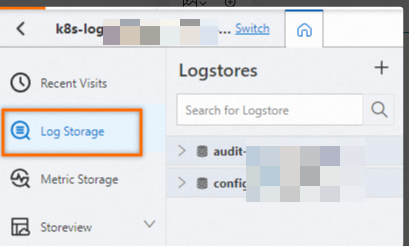
-
Optional: Enter a search statement and select a time range.
-
On the tab, find the target log and click the
 icon.
icon.The magnifying glass icon appears to the right of the log entry timestamp.
-
Scroll up or down on the page to view the context of the specified log.
-
Click Old to load earlier logs.
-
Click Update to load later logs.
-
Click All Fields to manage displayed fields. All fields are visible by default. Click a field name to toggle visibility.
-
In the Filter text box, enter a keyword to filter log entries.
-
In the Highlight text box, enter a string to highlight all occurrences.
-