Machine Learning Designer seamlessly integrates with Elastic Algorithm Service (EAS) to transform your trained models into scalable online services. This comprehensive guide walks you through both one-click deployment for supported algorithms and manual deployment for advanced scenarios, enabling you to serve real-time predictions with minimal configuration.
Prerequisites
Ensure you have successfully completed model training and validation in Designer. Refer to Build and debug a model for detailed training guidance.
One-click deployment of a single model
Supported model components
The following model components support streamlined one-click deployment to EAS. Models not listed here require manual deployment procedures. For detailed information about manual deployment options, see Manual deployment of a single model.
|
Component name |
Deployable model format |
Matching EAS processor |
Notes |
|
Logistic Regression for Binary Classification |
PMML |
PMML |
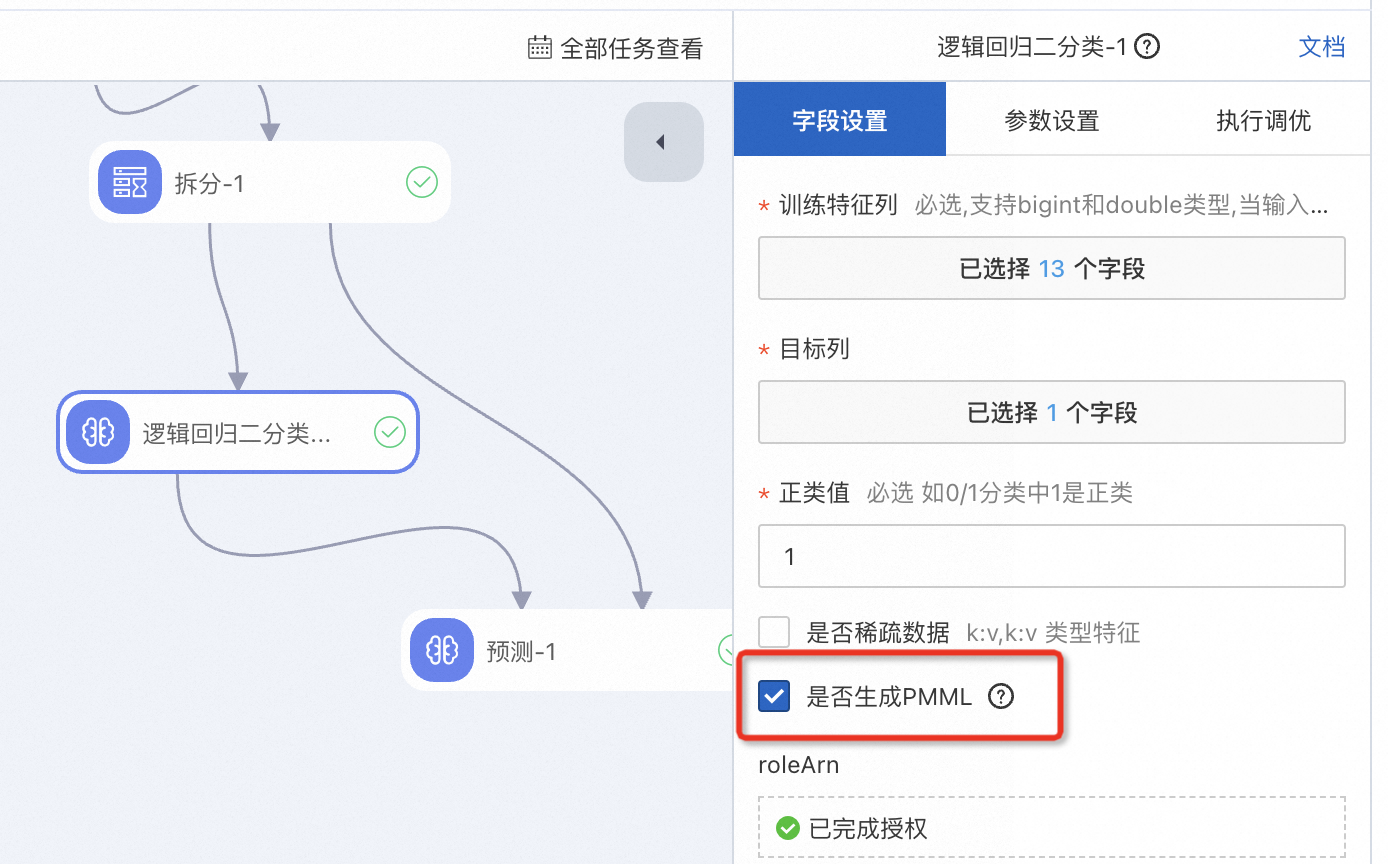
Before initiating training, access the model component settings. Navigate to the Fields Setting tab and enable the Whether to Generate PMML option. The configuration interface is illustrated below.
|
|
Gradient Boosting Decision Trees (GBDT) Binary Classification |
PMML |
PMML |
|
|
Linear SVM |
PMML |
PMML |
|
|
Logistic Regression for Multiclass Classification |
PMML |
PMML |
|
|
Random Forest |
PMML |
PMML |
|
|
Naive Bayes |
PMML |
PMML |
|
|
K-means Clustering |
PMML |
PMML |
|
|
GBDT Regression |
PMML |
PMML |
|
|
Linear Regression |
PMML |
PMML |
|
|
Scorecard Training |
PMML |
PMML |
|
|
Text Summarization Training |
tgz package |
EasyNLP |
EasyNLP, which is provided by PAI in a public OSS bucket, is automatically configured. No custom configuration is required. |
|
Image Classification Training (torch) |
tgz package |
EasyCV |
EasyCV, which is provided by PAI in a public OSS bucket, is automatically configured. No custom configuration is required. |
|
PyAlink Script |
AlinkModel |
Alink |
For more information, see PyAlink Script. |
|
XGBoost Training |
XGBoost |
XGBoost |
For more information, see XGBoost Training. |
Deployment procedure
-
Access Visualized Modeling (Designer), select your target workspace, and open the workflow containing your trained model.
-
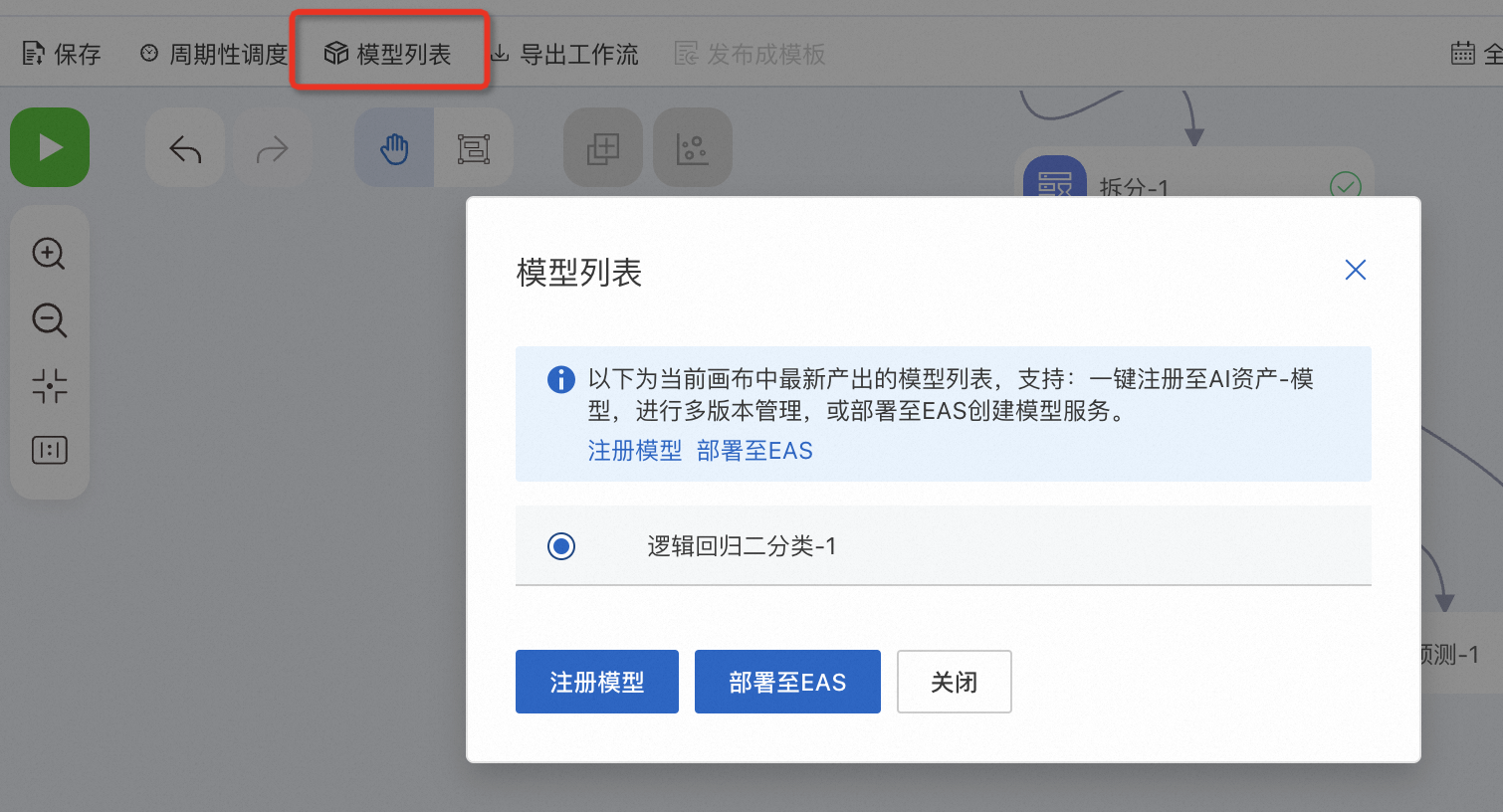
Locate the Model List button above the workflow canvas. The system will automatically detect and display all deployable models.

-
Select your target model from the list and click Deploy to EAS to launch the Create Service page in EAS console.
-
Configure the deployment parameters according to your requirements.
The Model File and Processor Type fields are automatically populated based on your model type. For guidance on additional configuration options, refer to Custom deployment.
-
Initiate the deployment by clicking Deploy. Monitor the deployment progress until the Service Status indicator shows Running.
Manual deployment of a single model
The following model components require manual deployment procedures. After completing model training, you must use the Export General-purpose Model component to package your model, export it to an OSS directory, and then manually configure the EAS deployment.
|
Component name |
Deployable model format |
Matching EAS processor |
Manual deployment process |
|
PS-SMART Binary Classification |
PS format |
PS algorithm |
Connect the Export General-purpose Model component downstream of this component. |
|
PS-SMART Multiclass Classification |
|||
|
PS-SMART Regression |
Once your model is exported to an OSS bucket, proceed with manual EAS deployment configuration. For detailed deployment instructions, refer to Custom deployment.
FAQ
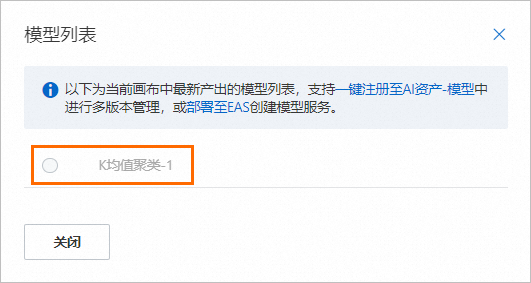
What should you do if a node that supports one-click deployment appears dimmed and cannot be selected?
Access the component node settings. In the right panel, navigate to the Fields Setting tab and enable the Whether to Generate PMML option. After making this change, re-run the component to enable deployment functionality.
References
-
Access the PAI-EAS online model service management page to monitor deployed services or perform administrative tasks. For comprehensive guidance, see Manage EAS online model services.
-
Utilize the online debugging feature to verify that your deployed service functions correctly. For step-by-step testing instructions, refer to Debug a service online.
-
For automated service updates, leverage the Update EAS Service (beta) component within Designer to periodically refresh your deployed services. For implementation details, see Periodically update online model services.