All Products
Search
Document Center

DataV:Tab lists

Last Updated:Apr 09, 2025

This topic provides a guide for using tab lists.

Component overview

A tab list is composed of multiple tabs and can be configured with interactive settings to work in conjunction with other widgets. This enables the grouping of related information into tabs for easy switching between different views or functions.

Scenarios

Tab lists are ideal for organizing information, classifying content, and presenting data, allowing for quick access to needed information. Examples include the following:

  • Information organization: Group related content under tabs, such as "Personal Information" and "Account Settings".

  • Content classification: Use tabs to differentiate content categories, such as "Electronics" and "Home Goods" on an e-commerce platform.

  • Data presentation: Use tabs to display different data views, such as "Elementary Schools in a Region" and "High Schools in a Region".

Effect display

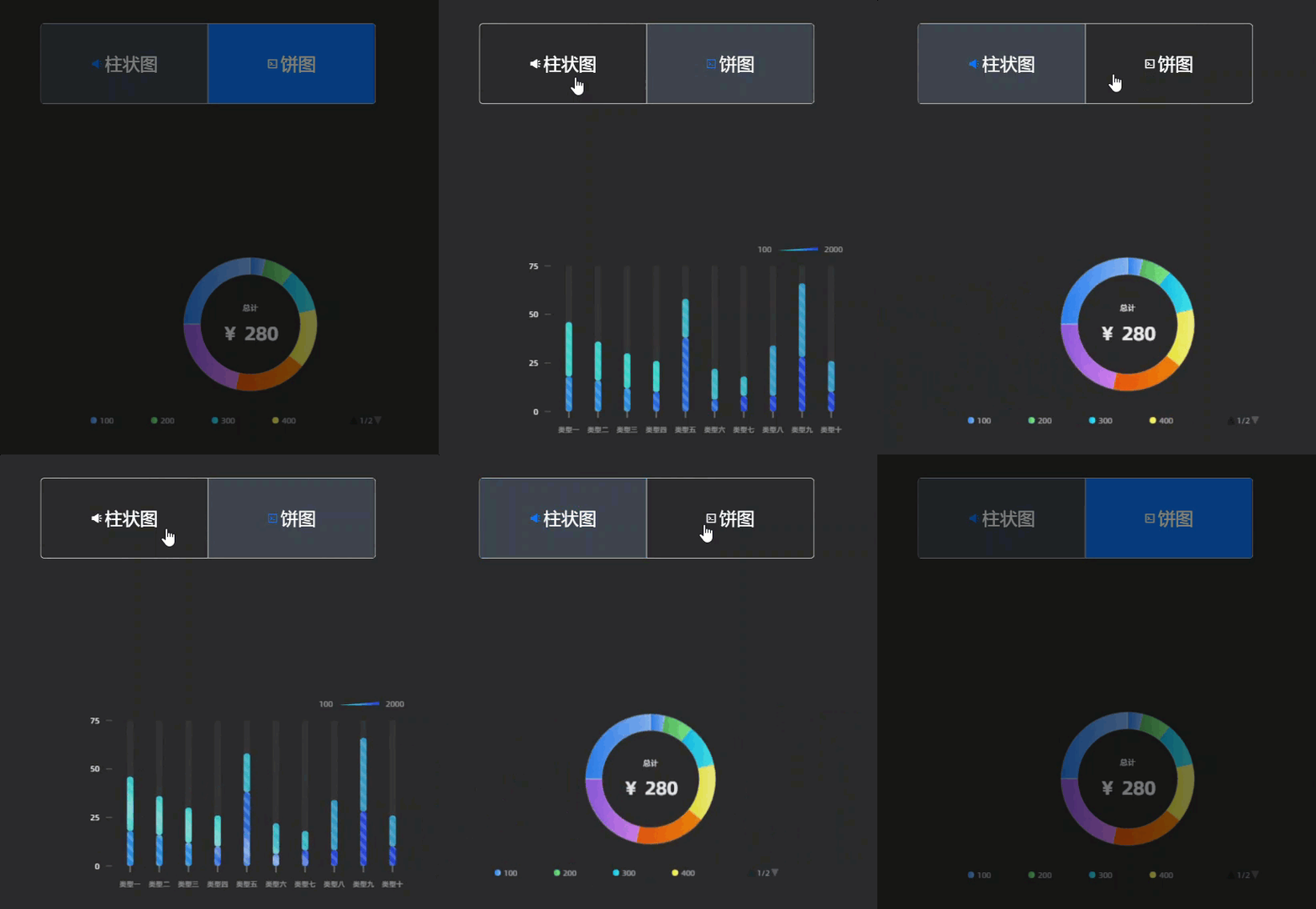
Examples include different charts displayed under various tabs within a tab list.p885813

Prerequisites

  • A data dashboard is available that supports creation using a template, a blank canvas.

  • Business data is ready for use. For more information, see Datasource.

Add tab lists

  1. Access the DataV console.

  2. Navigate to the Workbench > All Applications > Data Dashboard, select the desired dashboard, and enter its canvas editing page.

  3. In the left-side navigation pane, under the Widget Library > Controls > All list, select Tab List to add the widget to the canvas.

    Note

    The platform offers multiple built-in tab list styles (quick styles) for immediate use. Hover over the image icon on the widget to select as needed. If these styles do not meet your requirements, you can customize the widget's style after adding it. For more information, see Style Configuration.

You can also use the global search to add related widgets.

Integrate business data

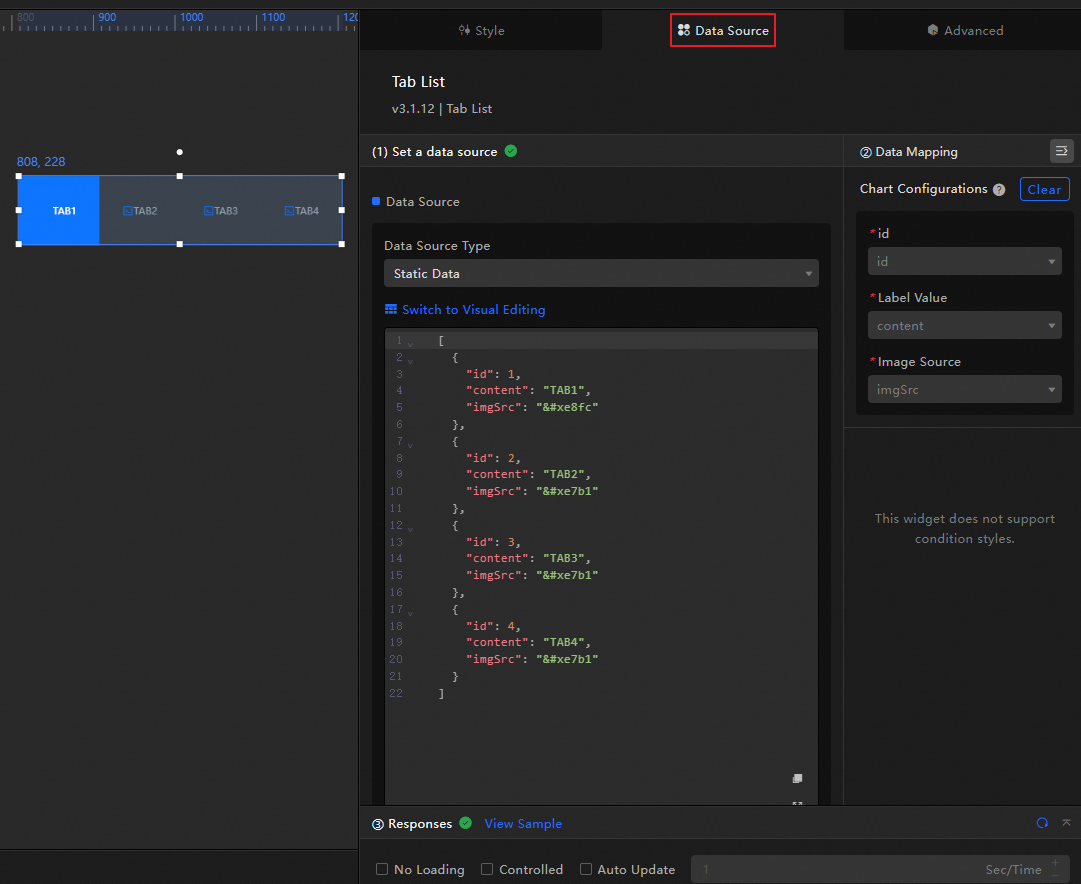
Once the widget is added, you can integrate your prepared business data for display. Click the tab list and, on the Data Source tab on the right, select the data for the widget to display. image

  • The data fields accepted by the tab list are outlined below.

    Field

    Description

    id

    The ID of the tab in the tab list. The General > Initial Selection configuration item in the style panel requires this variable value to define which tab is selected when the widget is initialized.

    content

    The name of the tab in the tab list.

    imgSrc

    The URL address of the icon for the tab in the tab list. After configuring the icon here, you can modify the size, position, and other information of the image in the General > Icon section of the style panel.

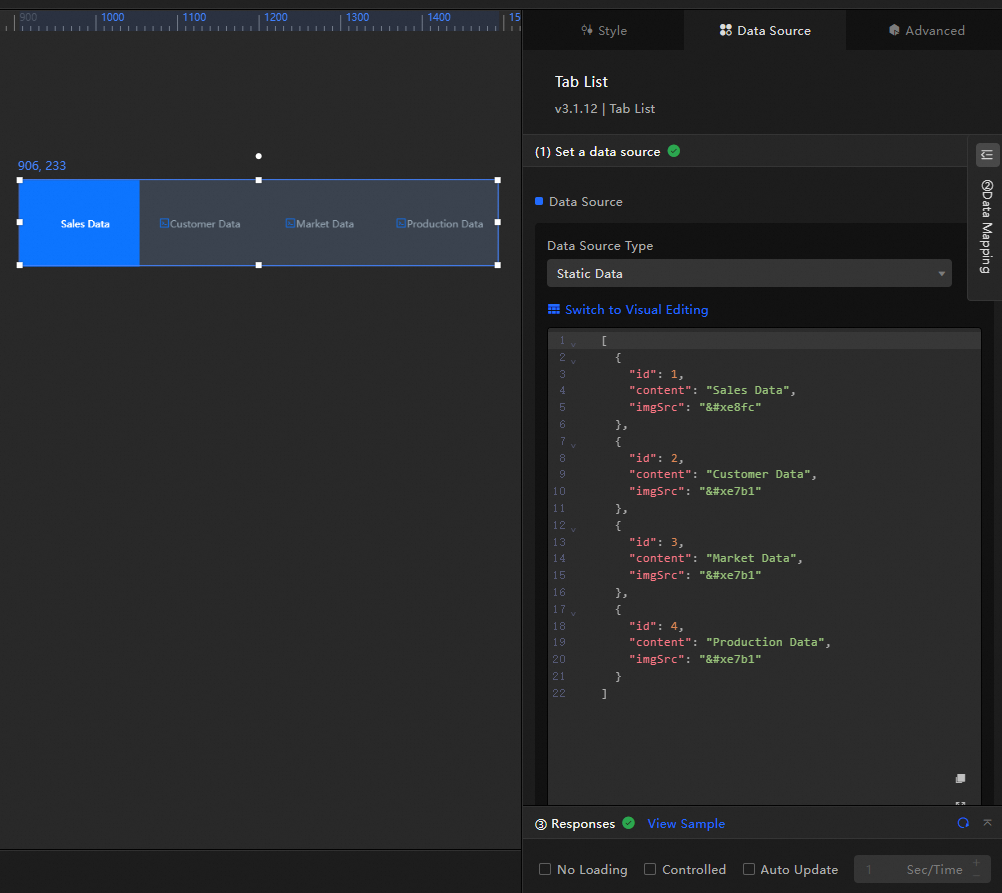
    Below is the data structure and a sample display of a tab list.

    [
      {
        "id": 1,
        "content": "Sales Data",
        "imgSrc": "&#xe8fc"
      },
      {
        "id": 2,
        "content": "Customer Data",
        "imgSrc": "&#xe7b1"
      },
      {
        "id": 3,
        "content": "Market Data",
        "imgSrc": "&#xe7b1"
      },
      {
        "id": 4,
        "content": "Production Data",
        "imgSrc": "&#xe7b1"
      }
    ]

    image

  • Key configuration items for the data source are detailed below.

    Configuration item

    Description

    Configure data source

    The tab list supports integrating various types of data such as CSV files, APIs, and databases. For more information, see Datasource. You can edit data fields using a visual table or code.

    Configure filters (optional)

    Used to customize filter code for data structure transformation, filtering, display, and simple calculations. For more information, see Manage data filters.

    Configure data mapping

    Used to map fields from the selected data source to the corresponding fields of the widget, achieving real-time data matching. Click the image icon to configure field styles.

    View response results

    Used to display the data integrated into the widget in real time. When the widget's data source changes, the latest data is displayed here.

    • Click the data response result to view the code for the data fields.

    • Click View Example to see the array type and code example received by the data source. You can refer to the example to write related fields.

    Other data request configurations:

    • Disable loading state: When selected, the loading content during widget initialization will not be displayed when the widget is updated or the data dashboard is previewed.

    • Controlled mode: When selected, the widget will not request data in the initialized state. At this time, data requests can only be initiated through the blueprint editor or global variable events.

    • Automatic update requests: When selected, the platform dynamically polls and updates data based on the polling time you set. If not selected, you need to manually refresh the page or trigger request updates through the blueprint editor and global variable events.

Configure tab lists

To configure the tab list widget, click it and use the right-side panel to set basic styles, global variables, interaction occurrences, and advanced settings, along with blueprint interaction settings.

Style configuration

In the Style panel, you can adjust text size, background, animation effects, and other styles for the tab list. The configuration items are as follows.

Note

Use the image icon to quickly find configuration items by keyword search, which supports fuzzy matching. For more information, see Search Configuration Items.

Configuration item

Description

Illustration

Global configuration

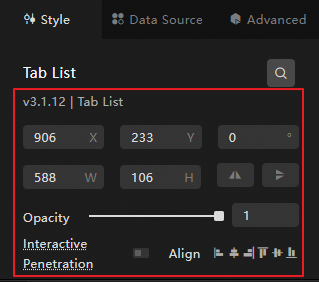
Defines the position distribution, transparency, and interaction penetration of the widget in the data dashboard.

  • Opacity: The smaller the value, the more transparent the widget. The value range is within 0~1.

  • Interaction penetration: When enabled, the mouse can penetrate the widget, avoiding the widget blocking interactions between the mouse and underlying widgets when there are many widgets on the dashboard.

image

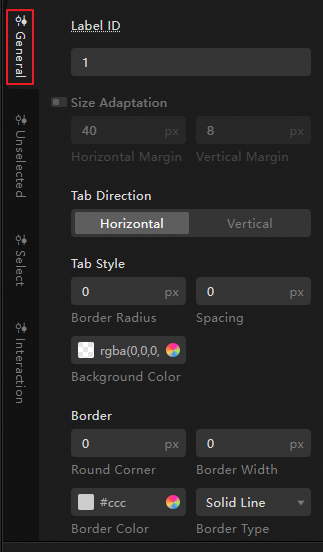
General configuration

Defines the overall display style of the tab list, including the background and border of the tab container, the size of the tabs, and their arrangement positions.

  • Initial selection: Configures which tab is selected when the widget is initialized. You need to enter the tab ID here, which can be viewed on the data source panel.

  • Custom size: When enabled, you can customize the size of each tab in the tab list. When disabled, the system's adaptive size is used.

  • Global style: You can set the background, border style, and spacing between tabs for the tab list. Local images can be uploaded as backgrounds.

  • Icon: You can first create icons on iconfont and then input the Unicode font file (.woff) of the icon project here to add icons to the tab list.

image

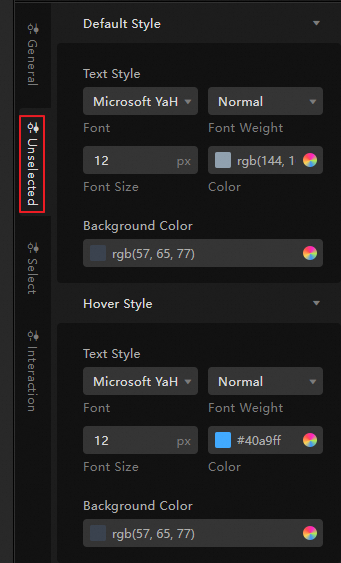
Unselected configuration

When previewing the tab list, selecting a tab displays the content related to that tab, while other tabs are considered unselected. This section is used to define the display style of unselected tabs.

  • Default style: The font size, background color, and other styles displayed by default for unselected tabs.

  • Hover style: The style displayed when the mouse hovers over unselected tabs.

Note

Local images can be uploaded as backgrounds.

image

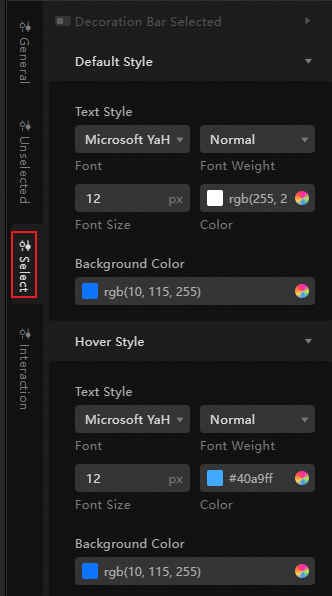
Selected configuration

When previewing the tab list, selecting a tab displays the content related to that tab, while other tabs are considered unselected. This section is used to define the display style of selected tabs.

  • Selected decoration bar: Configures whether to add a decoration line when a tab is selected.

  • Default style: The font size, background color, and other styles displayed by default for selected tabs.

  • Hover style: The style displayed when the mouse hovers over selected tabs.

Note

Local images can be uploaded as backgrounds.

image

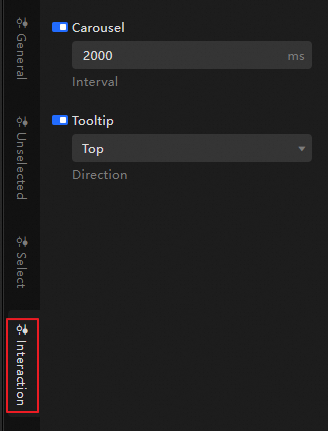
Interaction configuration

Sets the carousel interval duration for the tab list and the relative position of the tooltip for each tab.

image

Advanced configuration

Define the interaction and data transmission relationships between the tab list and other widgets. The configuration items are as follows.

Configuration item

Description

Illustration

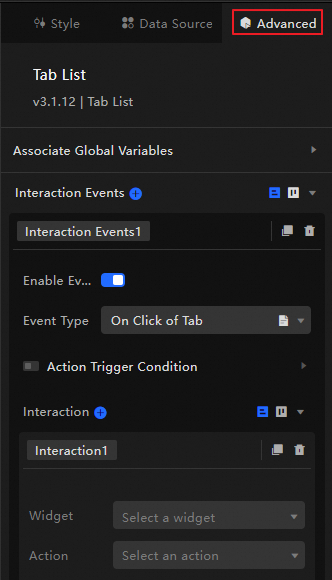
Interaction occurrences

Defines interaction behaviors with other widgets to achieve widget linkage. For example, you can use the tab list and line chart to display the operational status of a company. By clicking different tabs, you can display fluctuations in sales data, customer data, market data, and production data.

Click the image icon to define related interaction occurrences and interaction actions.

image

Associate global variables

You can associate global parameters in the widget to achieve parameter transmission and widget interaction. For more information about global variables, see Global variables.

Click the image icon to enable the corresponding instruction. When you click a tab, a data request is triggered, and temporary variables are thrown to dynamically load the tab content. By default, the id and content values in the data are thrown. For more information, see Widget interaction configuration.

Blueprint interaction

Use the Blueprint Editor to visually define interaction relationships and behavior logic between widgets.

Procedure

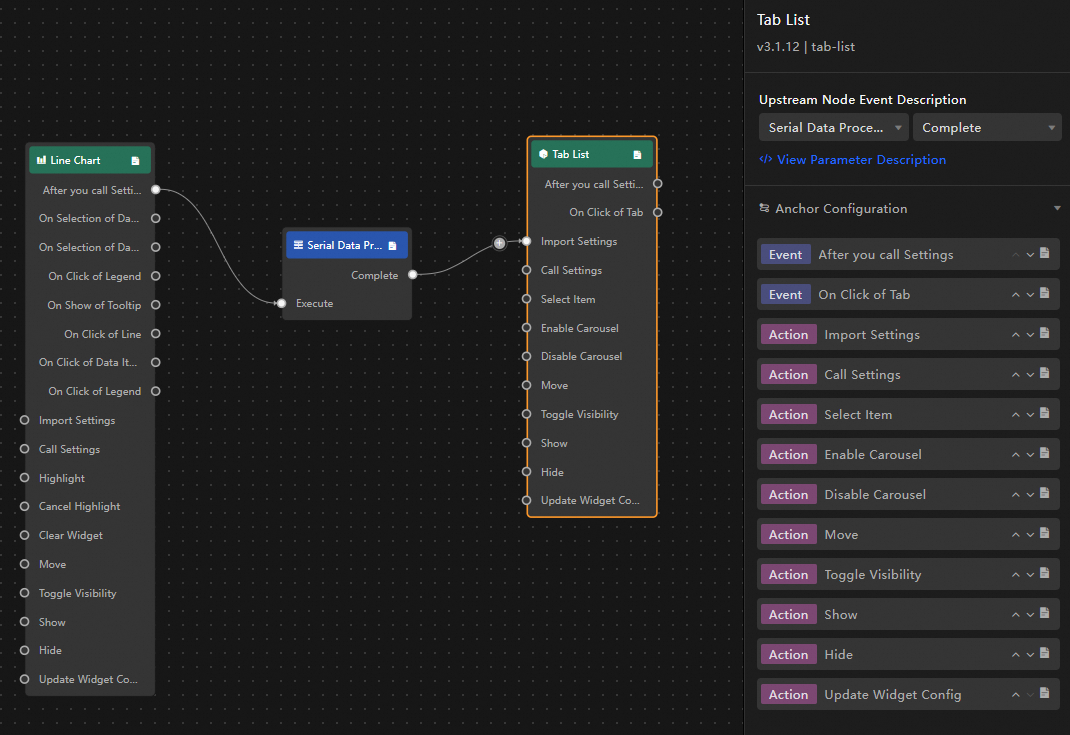
  1. Enter the Blueprint Editor by clicking the image icon on the top menu bar's left side on the canvas editing page.

  2. In the layer node list, hover over the tab list widget and click the image icon to add it to the main canvas.

  3. Connect widgets as needed to configure blueprint interaction effects.

    An example is shown below. image

Configuration item descriptions

The interaction occurrences and actions are described below.

Note

Click the image icon next to the event or action in the blueprint configuration interface for detailed parameter descriptions.

Category

Subcategory

Description

Event

When Data Is Updated

Triggered when the widget data is updated.

When Data Request Status Changes

Triggered when the data request status changes. Status values include Loading, Success, and Error.

When Clicking A Tab

Triggered when a tab is clicked, and the data item corresponding to the tab is thrown. The data example is as follows.

{
  "id": "1",
  "content": "Tab 1"
}

Action

Import Data

Processes data according to the widget's rendering format and imports it into the widget for re-rendering. No need to re-request server data. The data example is as follows.

[
  {
    "id": "1",
    "content": "Tab 1",
    "imgSrc": "https://img.alicdn.com/imgextra/i3/O1CN016hZVyj29jgY7SqaJn_!!6000000008104-55-tps-200-200.svg"
  }
]

Request Data

Re-requests server data. The data thrown by upstream converters or layer nodes will be used as parameters. For example, if the tab list is configured with an API data source https://api.test, and the data passed to the Request Data action is { id: '1'}, the final request interface will be https://api.test?id=1.

Set Selection

Select one or more tab options. This can be an array or a single object. The data example is as follows.

{
  "id": "1"
}

Enable Carousel

Enables automatic carousel for the tab list. The data example is as follows.

{
  "duration": 2000  // Carousel duration in ms
}

Disable Carousel

Disables the carousel style of the tab list. No parameters are required.

Move

Moves the widget to a specified position. The data example is as follows.

    {
      // Movement type. Absolute positioning: to, relative positioning: by. Default value: to.
        "positionType": "to",
      // Specified position. x-coordinate, y-coordinate.
      "attr": {
        "x": 0,
        "y": 0
      },
      // Animation settings.
      "animation": {
        "enable": false,
        // Animation delay.
        "animationDuration": 1000,
        // Animation curve. Optional values: linear|easeInOutQuad|easeInOutExpo.
        "animationEasing": "linear"
      }
    }

Toggle Visibility

Toggles the widget to be shown or hidden. The data example is as follows.

{
  "animationType": "fade",
  "animationDuration": 1000,
  "animationEasing": "linear"
}
  • animationType: Animation type. Configurable as appear (show/hide), fade (fade in/out), slideToUp (fly in/out). If not configured, no animation is applied.

  • animationDuration: Animation delay. Default is 1000 ms.

  • animationEasing: Animation curve. Configurable as linear (uniform), easeInOutQuad (smooth), easeInOutExpo (slow-fast-slow).

Show

Hide

Update Widget Configuration

Dynamically updates the style configuration of the widget.

  1. First, on the Style panel of the widget, click Copy Configuration To Clipboard to obtain the configuration data of the widget.

  2. Modify the corresponding style field values as needed on the data processing node of the blueprint editor configuration page.

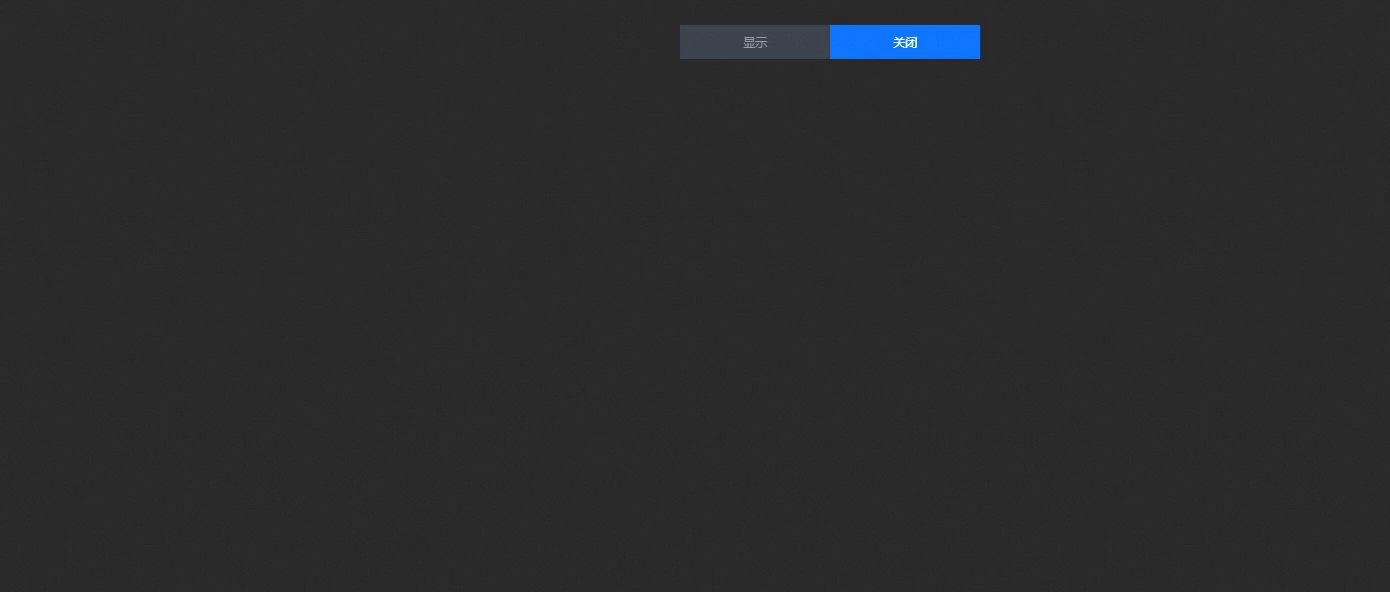
Case demonstration

This case demonstrates the dynamic effects of widgets by controlling the carousel and visibility of groups within a tab list.

  1. Access the DataV console.

  2. Select a data dashboard, click Edit, and enter the canvas editor page.

  3. Add Column Chart, Line Chart, Progress Doughnut Chart, and two Tab List widgets to the canvas.

  4. Group the column chart, line chart, and doughnut chart, and set the carousel container's trigger mode to Event Trigger.

  5. Select any tab list widget, access the data source panel, modify the static data, and synchronize the name to Show/Hide.

    [
      {
        "id": 1,
        "content": "Show"
      },
      {
        "id": 2,
        "content": "Hide"
      }
    ]
  6. Modify the name of the other tab list to Carousel Control.

  7. Enter the Blueprint page by clicking the image icon in the upper-left corner.

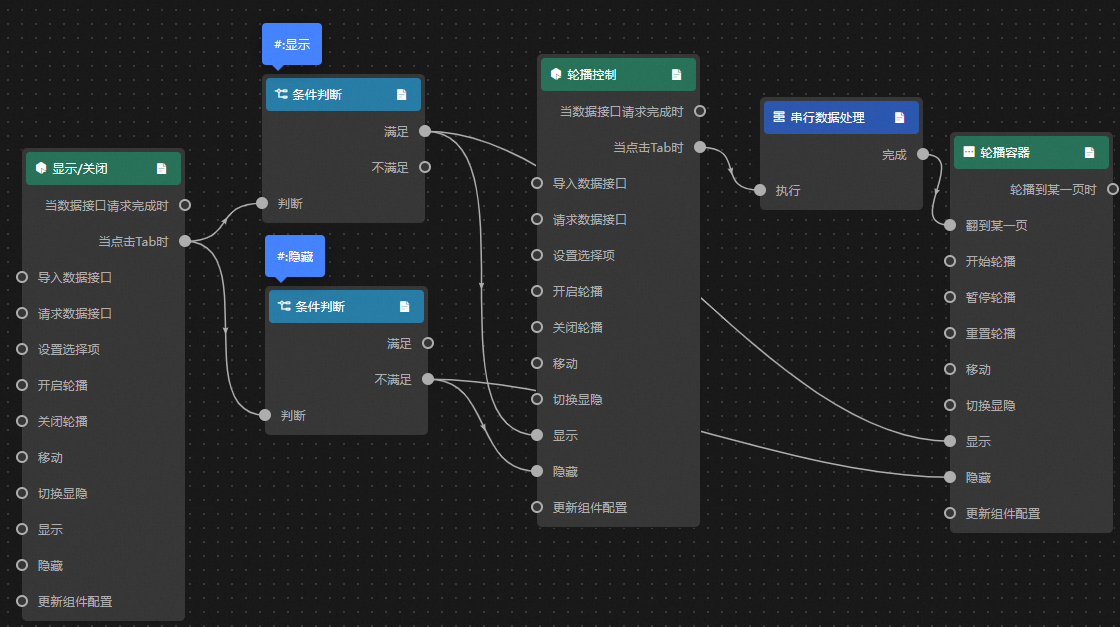
  8. On the Layer Node tab, add the carousel container, Show/Hide, and Carousel Control to the main canvas.

  9. On the Logic Node tab, add a serial data processing node and two condition judgment nodes to themain canvas.

  10. Connect the widgets as illustrated. image.png

  11. Set up the processing methods.

    • Show

      return data.id == 1;
    • Hide

      return data.id == 2;
    • Serial Data Processing

      return {
        index: data.id - 1
      };
  12. Preview the display result by clicking Preview in the upper-right corner of the page. tab(2).gif