Once your website is connected to ESA through NS or CNAME setups, you must add DNS records for your domain to be accessible. This topic guides you through the process of adding DNS records.
Before you begin
When adding or modifying a DNS record, ensure the hostname and record values are unique:
The hostname value can't be the same as any hostname or origin in existing DNS records, nor can it be an origin in an origin pool.
The record value can’t be the same as any existing DNS record value.
Bulk import DNS records
This approach is particularly useful in scenarios where DNS records from other service providers need to be transferred to ESA. To add multiple records in bulk, you can edit a template.
In the ESA console, choose Websites. In the Website column, click the target website.
Select , and click Import.
Click Import From Template, click Download Template, update the DNS record information in the template and save it. Then, click Select File and choose the updated file.
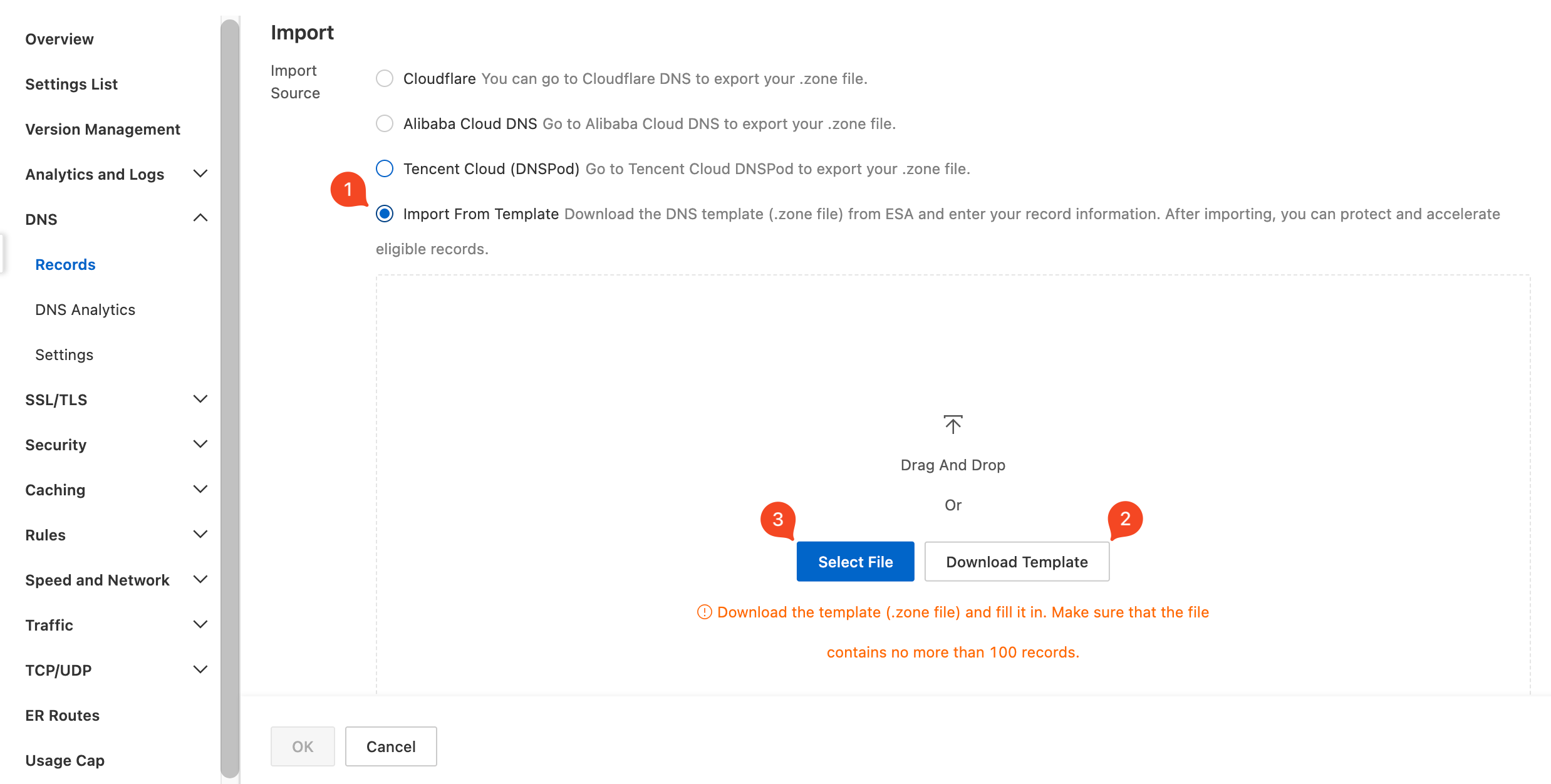
The following shows a sample of an updated template:
On the Import page, check and modify the configuration of the records if necessary. Select a Business Scenario that suit your website the most.

By default, ESA provides DNS resolution services. However, your website is accelerated and protected only when the Proxy Status is Proxied.
For websites added via CNAME, proxy is enabled by default and cannot be modified.
For websites added via NS, only A/AAAA and CNAME records can be proxied.
Click OK to import your DNS records.
Optional. If you added the website using CNAME setup, follow the on-screen instructions to configure the CNAME records with your DNS provider after adding the record.
Manually add DNS records
This method is best for cases where records haven't been set up with other DNS providers or when only a few records are required. To add an individual DNS record, follow the steps in the example:
The domain name for your origin server is example.com, and you want to accelerate the webpage for the subdomain www.example.com. In this case, select CNAME as the DNS record type.
In the ESA console, choose Websites. In the Website column, click the target website.
Select , and click Add Record.
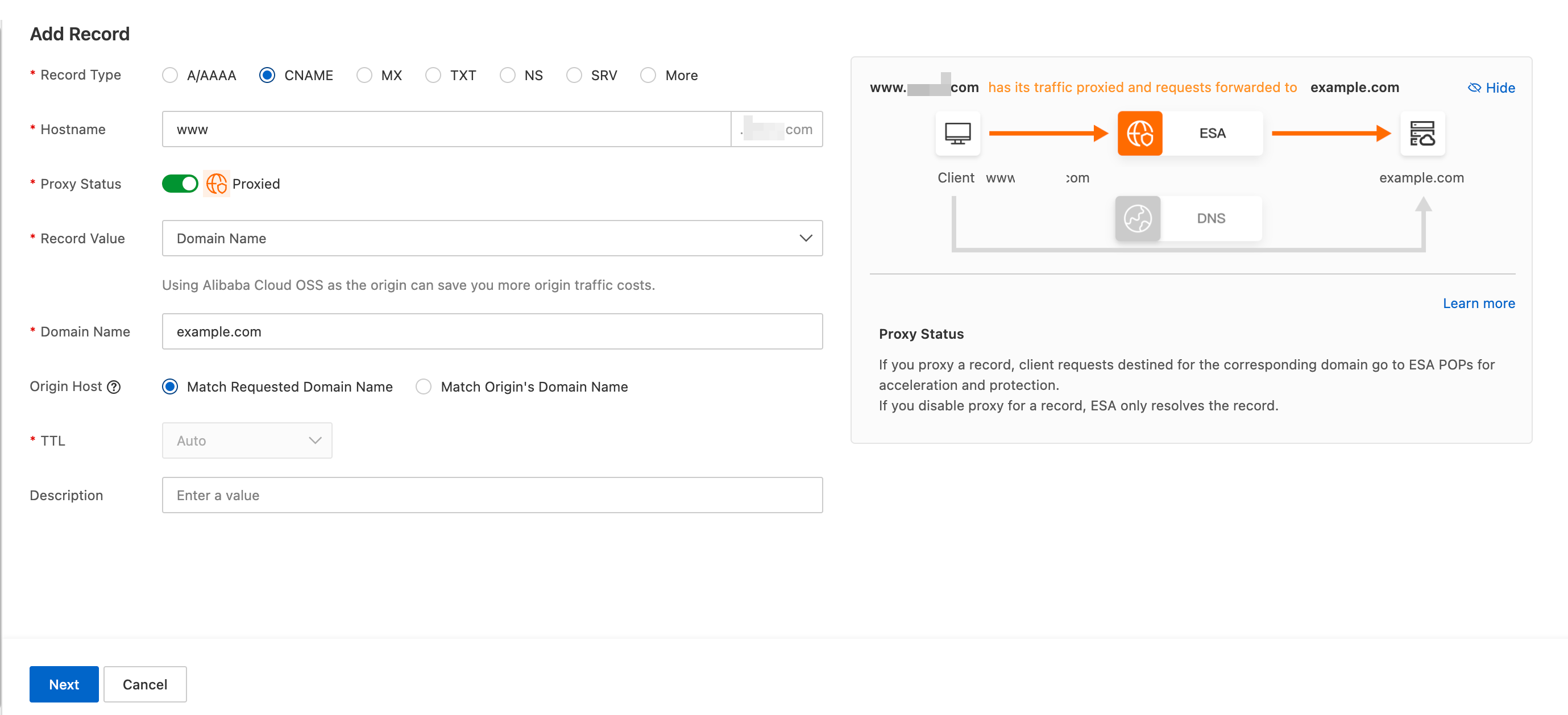
Enter the following required parameters and click Next. For more information on record types and parameters, see Parameters for adding records.
Record Type: Select CNAME.
Hostname: Enter
www.Proxy Status: The proxy is enabled by default.
Record Value: Choose the Domain Name option and enter
example.com.Origin HOST: The default setting is Match Requested Domain Name.
NoteIf no origin rule is configured, the default rule applies:
Origin HOST: Based on the HOST policy set in the DNS record.
Origin SNI: Equal to the origin SNI.
Origin protocol and port: Follows the protocol and port of the client request by default.
TTL: The default setting is Auto.
Select a business scenario that suits your website the most, and click OK.
Optional. If you added the website using CNAME setup, follow the on-screen instructions to configure the CNAME records with your DNS provider after adding the record.
Hostnames support the following characters: lowercase letters, numbers, wildcard * (only for wildcard domain records), hyphens - (cannot begin or end with a hyphen), at sign @ (only for root domain records), and underscores _ (only for TXT, CAA, CNAME, NS, and SRV records). The maximum length of a hostname is 63 characters.
How to choose a business scenario
ESA provides three business scenarios: Web, API, and Image/Video:

Web: Suitable for accelerating websites with both static and dynamic content, such as a mix of small files and API requests. Examples: personal blog websites, small user-generated content platforms, and small independent e-commerce websites.
API: Suitable for accelerating purely dynamic APIs, which generally do not require caching. Examples: account and password verification, order payment, log upload, and real-time data synchronization.
Image/Video: Suitable for accelerating purely static file businesses. Examples: large numbers of image downloads, video on demand, and delivery of game installation packages.
If you select a scenario that does not completely match your business, it will not affect the basic usability. You can also adjust business types in the console at any time.
However, it is recommended to select the corresponding scenario type based on your actual business characteristics, so that ESA can dynamically allocate more suitable security acceleration policies for your records.