Common Language Runtime (CLR) integration lets you write stored procedures, triggers, user-defined functions (UDFs), and other database objects in .NET Framework languages such as C#. This tutorial walks you through deploying a CLR-based sentiment analysis function on an ApsaraDB RDS for SQL Server instance to score user comments.
When to use CLR
CLR handles tasks that T-SQL cannot solve efficiently or at all:
-
Complex string processing — Use the .NET regular expression library for medical record text parsing, data cleansing, and similar tasks.
-
High-performance computing — Run complex mathematical operations such as option pricing in financial applications.
-
File and network operations — Exchange data across systems, such as automated document processing in logistics.
-
Custom encryption and decryption — Protect sensitive data with end-to-end encryption solutions.
-
Image processing — Analyze product images and validate quality in retail pipelines.
-
Machine learning (ML) integration — Build real-time recommendation features directly inside the database.
-
Complex business logic — Support multi-dimensional decisions such as credit limit evaluation.
Use CLR as a complement to T-SQL and the application layer, not a replacement. T-SQL is the right tool for data queries and foundational business logic. The application layer handles complex interactions and workflows. Reach for CLR when T-SQL cannot implement the logic, or when moving the logic to the application layer creates performance, deployment, or security constraints.
Running logic in the database through CLR provides three concrete advantages:
| Benefit | Description |
|---|---|
| Performance | Direct database operations eliminate data round-trips and reduce transmission overhead. |
| Security | Sensitive data stays inside the database, reducing exposure risk. |
| Maintenance | Centralizing business logic makes version control easier and lets multiple applications share the same rules. |
Limitations
CLR integration is not supported on shared or Serverless RDS SQL Server instances.
Prerequisites
Before you begin, ensure that you have:
-
An ApsaraDB RDS for SQL Server instance (not shared or Serverless)
-
A self-managed SQL Server instance (version 2016 or later) to compile and export the assembly
-
SQL Server Management Studio (SSMS) installed on your local machine
-
Visual Studio 2022 installed for writing and compiling C# code
-
dbo permissions on the target database of your RDS instance
Step 1: Enable CLR on your RDS instance
-
Go to the Parameters page in the ApsaraDB RDS console.
-
Set the instance parameter
clr enabledto1(the default is0).
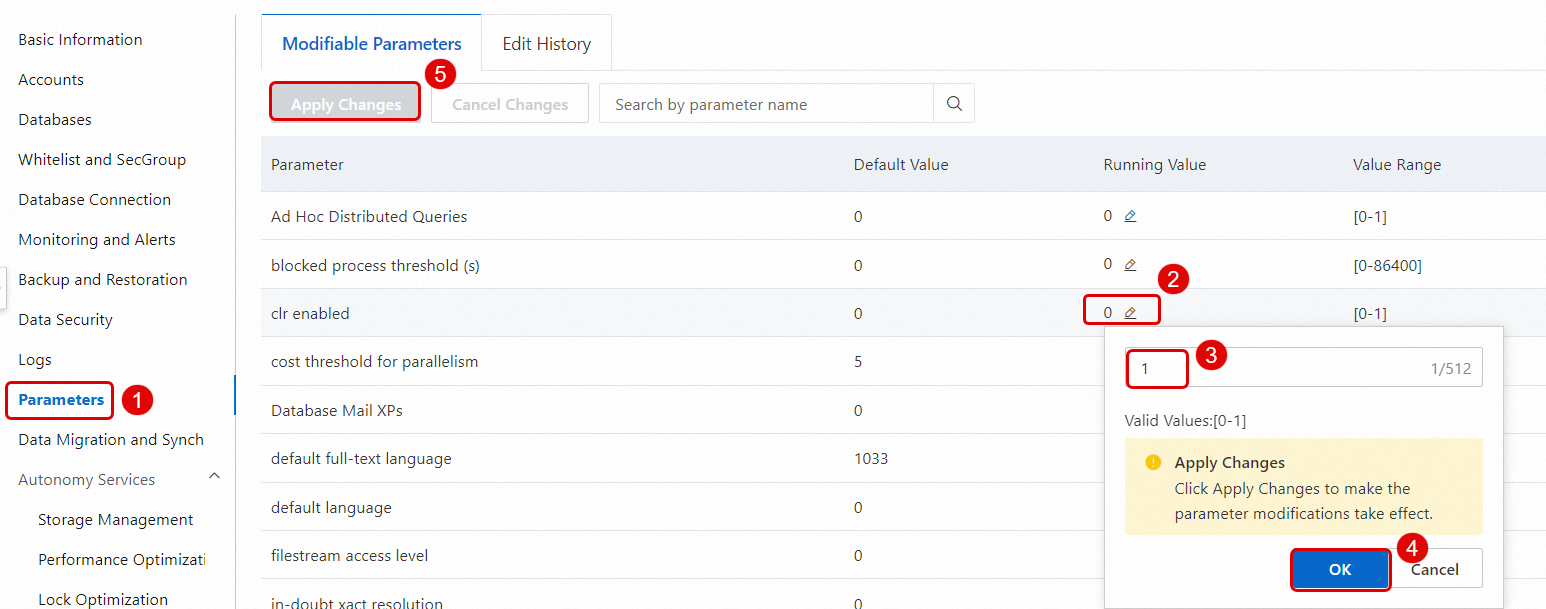
Step 2: Write and compile the CLR program
Create a class library project in Visual Studio 2022, paste the C# code below, set the target framework to .NET Framework 4.7.2 or later, and build the project to produce a DLL file (for example, CLRFuncDemo.dll).
The demo function, AnalyzeSentiment, scores a comment by matching words against a built-in sentiment dictionary. Words with positive connotations return scores between 0 and 1; negative words return scores between -1 and 0.
public class SentimentAnalysis
{
    [SqlFunction(IsDeterministic = true, IsPrecise = true)]
    public static SqlDouble AnalyzeSentiment(SqlString text)
    {
        if (text.IsNull)
            return SqlDouble.Null;

        var sentimentDictionary = InitializeSentimentDictionary();

        string input = text.Value.ToLower();
        double sentimentScore = 0;
        int wordCount = 0;
        int i = 0;

        while (i < input.Length)
        {
            bool matched = false;
            // Match the longest dictionary word starting from the current position.
            foreach (var entry in sentimentDictionary.Keys.OrderByDescending(k => k.Length))
            {
                if (i + entry.Length <= input.Length && input.Substring(i, entry.Length) == entry)
                {
                    sentimentScore += sentimentDictionary[entry];
                    wordCount++;
                    i += entry.Length;  // Advance past the matched word.
                    matched = true;
                    break;
                }
            }

            // Skip unrecognized characters.
            if (!matched)
            {
                i++;
            }
        }

        return new SqlDouble(wordCount > 0 ? sentimentScore / wordCount : 0);
    }

    private static Dictionary<string, double> InitializeSentimentDictionary()
    {
        return new Dictionary<string, double>
        {
            {"good", 1.0}, {"like", 1.0}, {"excellent", 1.0}, {"great", 1.0}, {"satisfied", 0.8},
            {"nice", 0.6}, {"okay", 0.2}, {"average", 0},
            {"poor", -0.6}, {"terrible", -0.8}, {"disappointed", -0.8}, {"awful", -1.0}, {"hate", -1.0}
        };
    }
}
After building, confirm the output DLL path (for example, E:\Backup\CLRFuncDemo.dll).
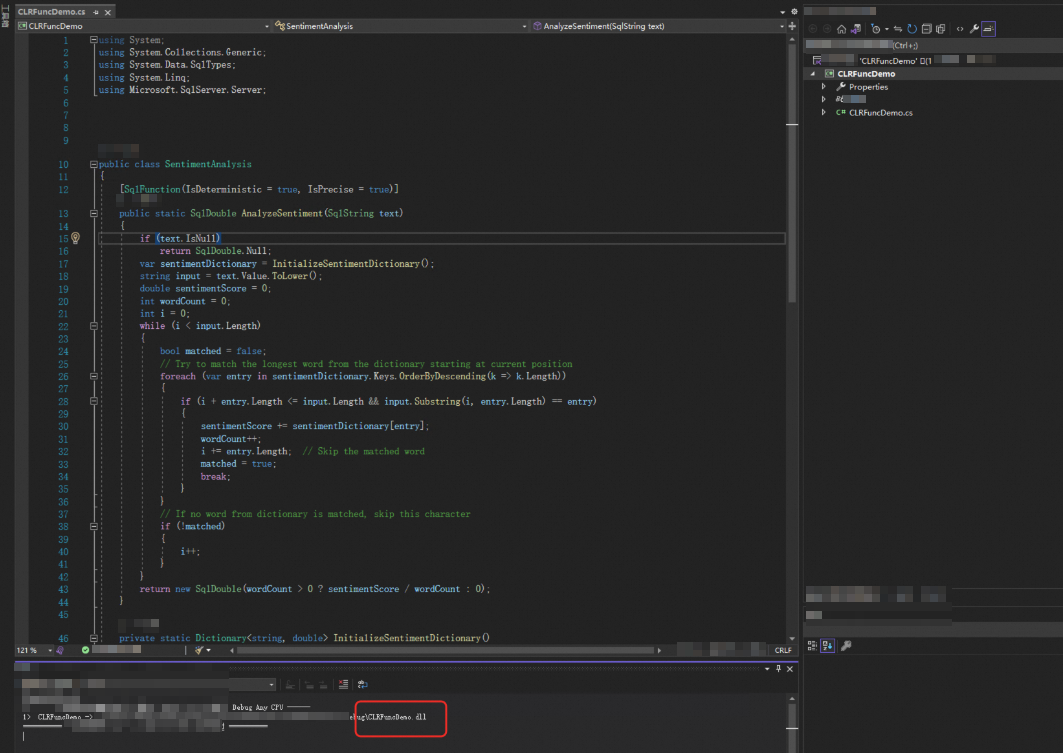
Step 3: Export the assembly as a binary string
Because RDS SQL Server does not support direct DLL uploads, register the DLL as an assembly on a self-managed SQL Server instance (version 2016 or later) first, then export it as a binary string to import into RDS.
-
On the self-managed SQL Server instance, run:
CREATE ASSEMBLY [CLRFuncDemo]
FROM 'E:\Backup\CLRFuncDemo.dll'
WITH PERMISSION_SET = SAFE
The
PERMISSION_SEToption controls what resources the assembly can access.SAFEis the most restrictive option and grants access only to local database resources with no external system access. UseEXTERNAL_ACCESSif the assembly needs to read files or call web services, andUNSAFEonly if it requires unmanaged code — both carry higher security risk and require stronger justification. -
Use SSMS to export the assembly as a binary string and copy the result for use in the next step.
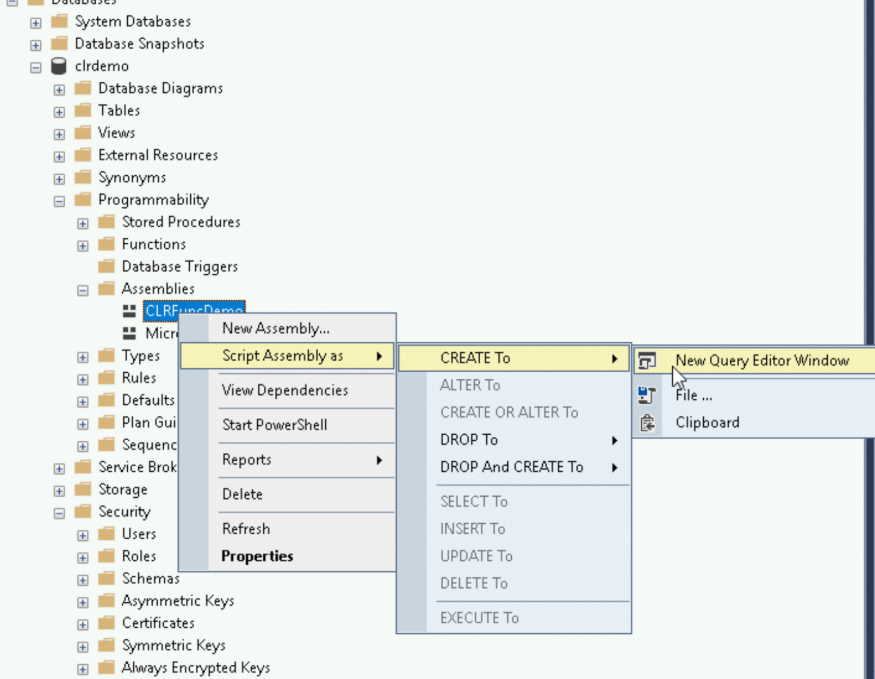
Step 4: Import the CLR assembly to your RDS instance
Connect to the RDS SQL Server instance using SSMS with an account that has dbo permissions on the target database, then run:
-- Create the assembly from the binary string
CREATE ASSEMBLY [CLRFuncDemo]
FROM 0x4D5A9000... -- Replace with the actual binary string
WITH PERMISSION_SET = SAFE;

-- Create the CLR function backed by the assembly
CREATE FUNCTION dbo.AnalyzeSentiment(@text NVARCHAR(MAX))
RETURNS FLOAT
AS EXTERNAL NAME CLRFuncDemo.[SentimentAnalysis].AnalyzeSentiment;
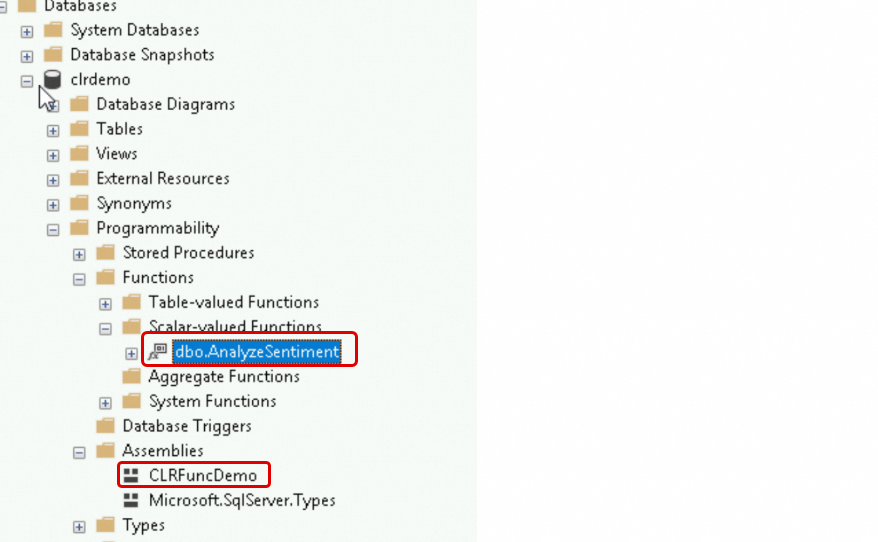
The assembly and function appear in the database after the statements succeed.
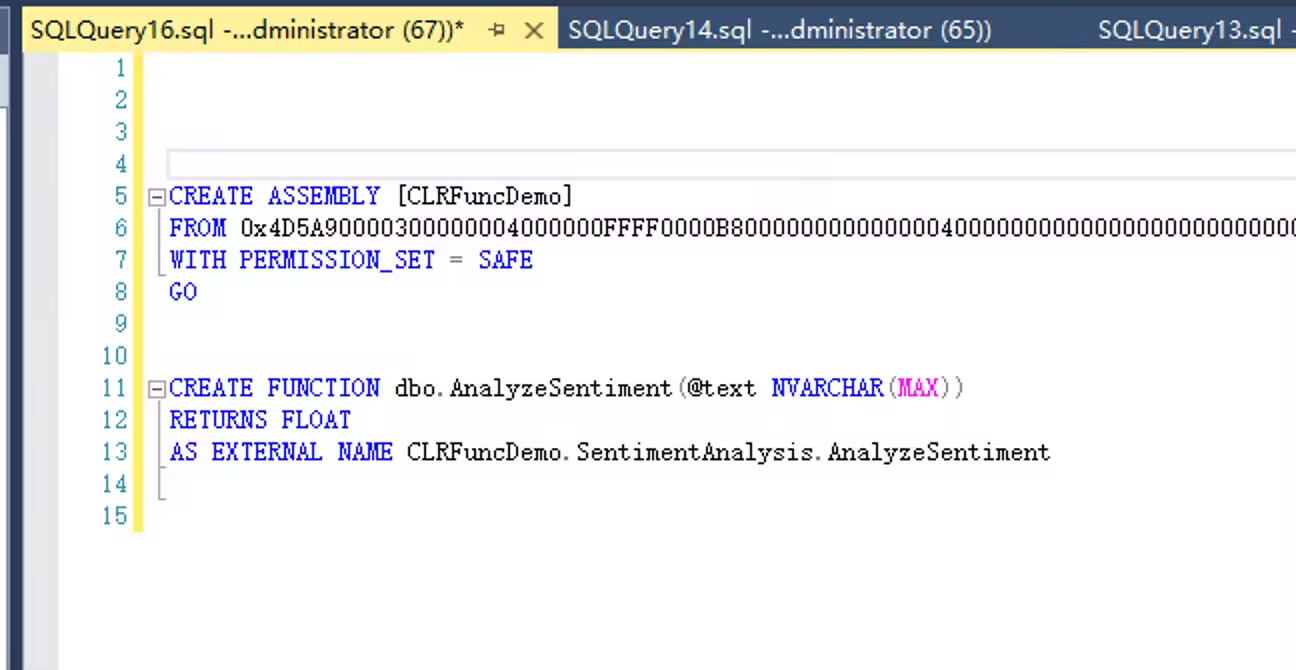
Step 5: Test the CLR function
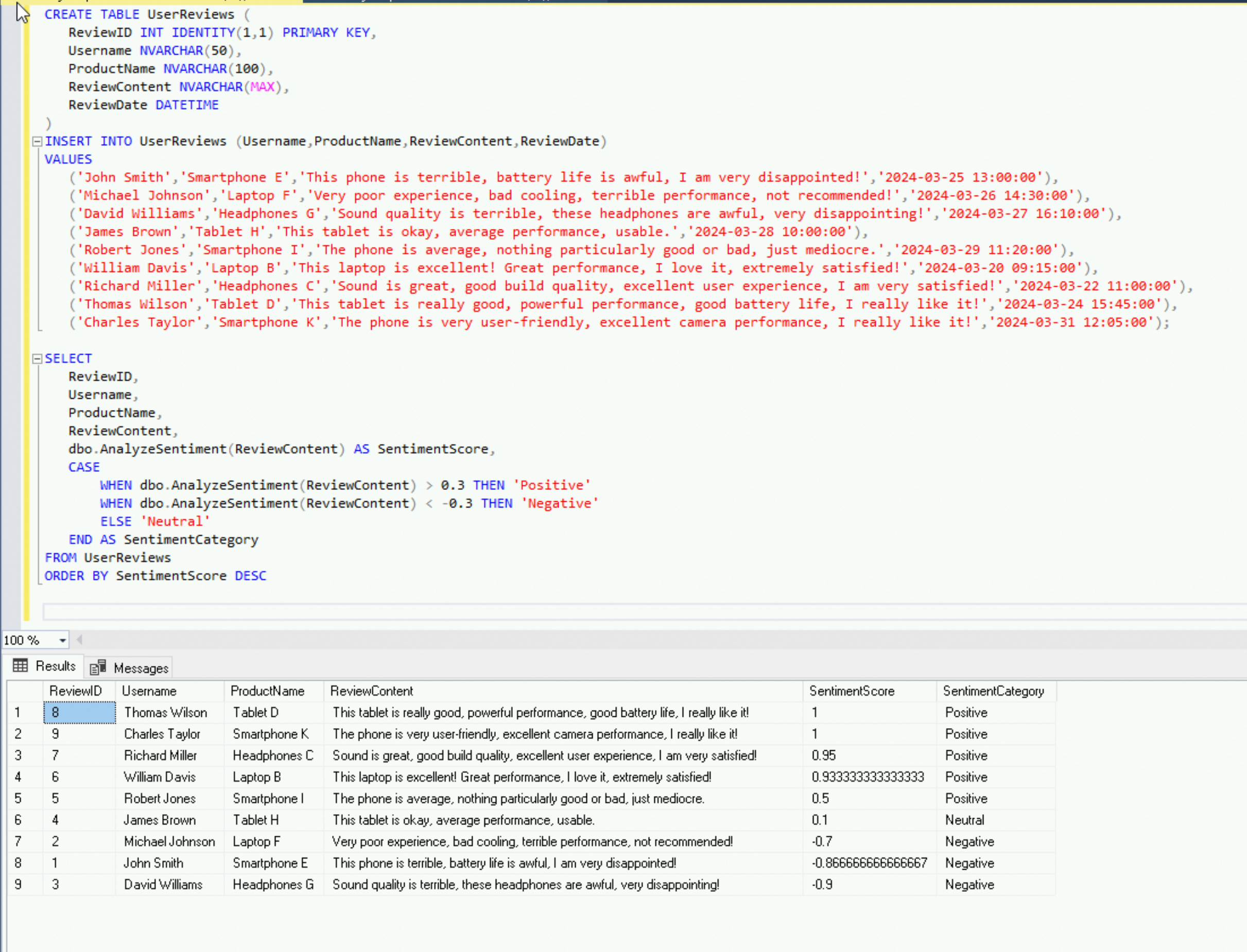
Create a test table, insert sample reviews, and query the sentiment scores:
CREATE TABLE UserReviews (
    ReviewID INT IDENTITY(1,1) PRIMARY KEY,
    Username NVARCHAR(50),
    ProductName NVARCHAR(100),
    ReviewContent NVARCHAR(MAX),
    ReviewDate DATETIME
);

INSERT INTO UserReviews (Username, ProductName, ReviewContent, ReviewDate)
VALUES
    ('Chen Qi', 'Smartphone E', N'This phone is terrible, battery life is awful, I am very disappointed!', '2024-03-25 13:00:00'),
    ('Zhou Ba', 'Laptop F', N'Very poor experience, bad cooling, terrible performance, not recommended!', '2024-03-26 14:30:00'),
    ('Sun Jiu', 'Headphones G', N'Sound quality is terrible, these headphones are awful, very disappointing!', '2024-03-27 16:10:00'),
    ('Wu Shi', 'Tablet H', N'This tablet is okay, average performance, usable.', '2024-03-28 10:00:00'),
    ('Zhang Yi', 'Smartphone I', N'The phone is average, nothing particularly good or bad, just mediocre.', '2024-03-29 11:20:00'),
    ('Li Si', 'Laptop B', N'This laptop is excellent! Great performance, I love it, extremely satisfied!', '2024-03-20 09:15:00'),
    ('Wang Wu', 'Headphones C', N'Sound is great, good build quality, excellent user experience, I am very satisfied!', '2024-03-22 11:00:00'),
    ('Zhao Liu', 'Tablet D', N'This tablet is really good, powerful performance, good battery life, I really like it!', '2024-03-24 15:45:00'),
    ('Wang Kang', 'Smartphone K', N'The phone is very user-friendly, excellent camera performance, I really like it!', '2024-03-31 12:05:00');

SELECT
    ReviewID,
    Username,
    ProductName,
    ReviewContent,
    dbo.AnalyzeSentiment(ReviewContent) AS SentimentScore,
    CASE
        WHEN dbo.AnalyzeSentiment(ReviewContent) > 0.3  THEN 'Positive'
        WHEN dbo.AnalyzeSentiment(ReviewContent) < -0.3 THEN 'Negative'
        ELSE 'Neutral'
    END AS SentimentCategory
FROM UserReviews
ORDER BY SentimentScore DESC;
The query classifies each review as Positive (score > 0.3), Negative (score < -0.3), or Neutral, ordered from most positive to most negative.
Troubleshooting
Error msg 10343: assembly creation fails with clr strict security
Msg 10343, Level 14, State 1, Line 12
CREATE or ALTER ASSEMBLY for assembly 'CLRFuncDemo' with the SAFE or EXTERNAL_ACCESS option failed
because the 'clr strict security' option of sp_configure is set to 1. Microsoft recommends that you
sign the assembly with a certificate or asymmetric key that has a corresponding login with UNSAFE
ASSEMBLY permission. Alternatively, you can trust the assembly using sp_add_trusted_assembly.
Starting from SQL Server 2017, the clr strict security option defaults to 1, which means only assemblies signed with a certificate or asymmetric key can be loaded — even with PERMISSION_SET = SAFE. Three methods resolve this.
Method 1: Sign the assembly (recommended)
Sign the assembly with a certificate or asymmetric key, then grant a corresponding login the UNSAFE ASSEMBLY permission. This approach follows the principle of least privilege (PoLP) and lets SQL Server verify the publisher's identity. The process is complex; see SQL Quantum Leap for the full walkthrough.
Method 2: Add the assembly to the trusted list
sp_add_trusted_assembly adds the assembly to the trusted assemblies list without modifying the assembly itself. This requires a system admin (SA) account. Use this method only if signing (Method 1) is not feasible.
Method 3: Disable clr strict security
Disabling clr strict security allows all CLR assemblies to run with elevated permissions and introduces security risks. Use this method only as a last resort.
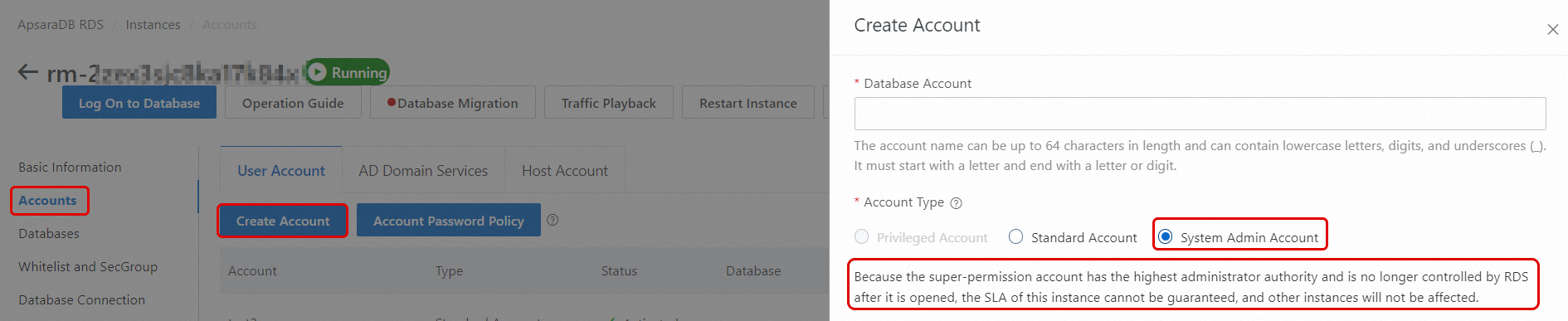
RDS SQL Server is a Platform as a Service (PaaS) offering and does not expose instance-level access by default. To disable clr strict security, use the SA account.
Enabling the SA account grants permissions equivalent to the built-in sysadmin group in SQL Server. After enabling SA permissions, the instance is no longer covered by the SLA. This is an irreversible, one-way operation.
-
Create a system admin account in the RDS console.
-
Log in with the SA account and run:
EXEC sp_configure 'show advanced options', 1;
RECONFIGURE;

EXEC sp_configure 'clr strict security', 0;
RECONFIGURE;
After the option is disabled, the CREATE ASSEMBLY statement succeeds.