All Products
Search
Document Center

CDN:Customize and subscribe to operations reports

Last Updated:Jan 04, 2026

You can use the operations report feature to query offline analytical data for your accelerated domain names over different time periods. This data helps you understand the operational status of your domain names and analyze your business performance.

Prerequisites

A domain name is added to Alibaba Cloud CDN.

Features

By default, operation reports provide user access data, such as PV/UV, Regions and ISPs, Domain Names, Popular Referer Headers, Popular URLs, and Top Client IPs. You can customize and subscribe to reports as needed. After a successful subscription, the system sends the reports to your specified email address. You can analyze the reports to understand the operational status of your accelerated domain names.

Report content

Description

PV/UV

Query PV and UV for domain names by time.

Regions and ISPs

View the distribution of user access regions and carriers for a specified time range. This includes the Chinese mainland, Hong Kong (China), Macao (China), Taiwan (China), and regions outside China.

Domain Names

Displays the access ranking of each accelerated domain name. The ranking includes percentage, traffic or peak bandwidth, peak time, and number of visits.

Note

The minimum granularity for querying domain name rankings is one day. For example, after you select a date to query, the system displays the top 200 results for that date.

Popular Referer Headers

Displays the traffic, traffic percentage, access count, and access percentage for popular Referers used in hotlink protection.

Note

When the operations report feature analyzes user logs, it collects statistics on the http_referer field in user request logs. The statistical results fall into two cases:

  • If the Referer in a user request is a standard URL, the operations report collects statistics and records the domain name. For example, the following cases are all counted as example.com.

    • http://example.com/aliyundoc/

    • https://example.com/aliyundoc/image

  • If the Referer in a user request is not a standard URL, the operations report counts it as a hyphen (-).

Popular URLs

Query popular URLs for a specified domain name, status code, and date. The query results include traffic, traffic percentage, access count, and access percentage.

Note

The minimum granularity for querying popular URLs is one day. For example, after you select a date to query, the system displays the top 3,000 results for that date.

Popular Origin Fetch URLs

Query popular origin fetch URLs for a specified domain name, status code, and date. The query results include traffic, traffic percentage, access count, and access percentage.

Note

The minimum granularity for querying popular origin fetch URLs is one day. For example, after you select a date to query, the system displays the top 100 results for that date.

Top Client IPs

Query the top client IPs for a specified domain name, region, and date. You can rank the results by traffic or number of requests.

Note

The minimum granularity for top client IPs is one day. After you select a date to query, the system displays the top 200 results for that date if you query all regions. If you query a single region, the system displays the top 20 results for that date.

Note

After you subscribe to operations reports, Alibaba Cloud CDN periodically sends reports to your mailbox. The traffic data in these reports is measured in bytes.

Create a custom operations report

Before you use the operations report feature, you must customize a report to start data collection. Data generation can be slow because of delays from log integrity checks. Customized reports are usually generated at 6 pm of the next day.

Note
  • After you customize the following reports, you can query the data directly in the console by the next day. You can also subscribe to the reports to have them sent to a specified email address, and items take different time to generate:

    • Popular URLs (sort by number of requests or traffic): 6 hours

    • Popular Referers (sort by number of requests or traffic): 1 hour

    • Popular Origin Fetch URLs (sort by number of requests or traffic): 1 hour

    • Top Client IPs (sort by number of requests or traffic): 6 hours

    • Domain Name Ranking (sort by traffic only): 1 hour

    • PV/UV: 1 hour

    • Access Region Distribution: 1 hour

    • Carrier Distribution: 1 hour

  • Data for other reports is not displayed in the console by default. You can subscribe to these reports to have them sent to a specified email address.

  1. Log on to the CDN console.

  2. In the left navigation pane, choose Analytics > Operations Reports.

  3. On the Operations Reports tab, turn on Customize Operations Report.

  4. You can view specific information about PV/UV, Region and ISPs, Domain Name Ranking, Popular Referer Headers, Popular URLs, Popular Origin URLs, and Top Client IP for your account.

Subscribe to operations reports

Before you subscribe to an operations report, you must customize it. Otherwise, the subscription fails. After you subscribe to an operations report, the system sends the report to your specified email address.

Note
  • This subscription feature is in a trial phase. An Alibaba Cloud account, including its Resource Access Management (RAM) users, can create a maximum of five subscription tasks.

  • Because of delays from log integrity checks, data generation takes a long time. The system sends the report only after all data is collected.

  1. Log on to the CDN console.

  2. In the left navigation pane, choose Analytics > Operations Reports.

  3. On the Operations Reports page, click the Tracking Tasks tab.

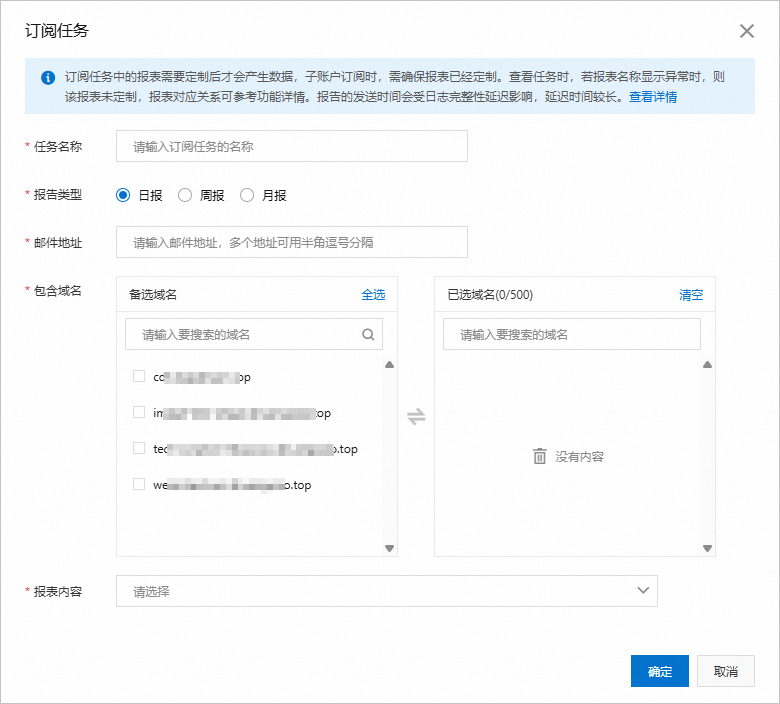
  4. Configure the subscription information.

    订阅任务

    Parameter

    Description

    Task Name

    Enter a name for the tracking task.

    Report Type

    Daily, weekly, and monthly reports are supported. However, you can select only one type at a time.

    • Daily Report: After the log data of the previous day is collected, the system sends the operations report to the email address that you specified.

    • Weekly Report: After the log data of the previous calendar week is collected, the system sends the operations report to the email address that you specified. Typically, when you create a weekly report, the report is sent on Monday morning of the following week.

    • Monthly Report: After the log data of the previous calendar month is collected, the system sends the operations report to the email address that you specified.

    Email Address

    Enter one or more email addresses to receive the operations report. Separate multiple email addresses with commas (,).

    Domain Names

    Select one or more accelerated domain names whose operations reports to which you want to subscribe.

    Report Metrics

    Select the report metrics to which you want to subscribe.

  5. Click OK to finish the creation of the tracking task.

    Note
    • If you delete a metric from the report content of the custom operations report after you create a tracking task, only the ID of the deleted metric is displayed when you click Modify to view the tracking task. In this case, the operations report is not created and cannot be tracked. For information about the mapping between IDs and metrics of an operations report, see Mapping between IDs and metrics of an operations report.

    • The unit of traffic in an operations report is byte.

  6. Optional.Modify the Tracking Task.

    Find the tracking task that you want to modify and click Modify. In the dialog box that appears, configure the parameters that are described in Step 4 and click OK.

Mapping between IDs and metrics of an operations report

The following table describes the mapping between IDs and metrics of an operations report.

Report ID

English Name

Name

Calculation method

1

TopUrlByAcc

Popular URLs by Request

Sorted by the number of URLs.

3

TopUrlByTraf

Popular URLs by Traffic

Sorted by network traffic. An increase in traffic increases the coefficient of the Transmission Control Protocol (TCP) packet header. For more information, see Why is the traffic amount found by using the monitoring and usage analytics feature or the usage statistics feature different from the traffic amount that is logged?

5

TopReferByAcc

Popular Referers by Request

Sorted by the number of visits.

7

TopReferByTraf

Popular Referers by Traffic

Sorted by network traffic. An increase in traffic increases the coefficient of the Transmission Control Protocol (TCP) packet header. For more information, see Why is the traffic amount found by using the monitoring and usage analytics feature or the usage statistics feature different from the traffic amount that is logged?

9

OriginTopUrlByAcc

Popular Origin URLs by Request

Sorted by the number of URLs.

11

OriginTopUrlByTraf

Popular Origin URLs by Traffic

Sorted by network traffic. An increase in traffic increases the coefficient of the Transmission Control Protocol (TCP) packet header. For more information, see Why is the traffic amount found by using the monitoring and usage analytics feature or the usage statistics feature different from the traffic amount that is logged?

13

TopIpByAcc

Top Client IPs by Request

Sorted by the number of visits initiated from client IP addresses.

15

TopIpByTraf

Top Client IPs by Traffic

Sorted by network traffic. An increase in traffic increases the coefficient of the Transmission Control Protocol (TCP) packet header. For more information, see Why is the traffic amount found by using the monitoring and usage analytics feature or the usage statistics feature different from the traffic amount that is logged?

17

DomainByTraf

Popular Domain Names by Traffic

Sorted by network traffic of domain names.

19

DomainPvUv

PV/UV

  • PV: calculated based on the number of daily terminal visits.

  • UV: calculated based on the number of unique IP address visits. Each IP address is counted only once.

21

AreaTrafStat

Visitor Distribution by Region

Collects statistics about the distribution of requests to a specific domain name within a region.

23

IspTrafStat

Distribution of ISPs

Collects statistics about ISPs that the clients use.

Disable operations report

If you disable the Operations Report feature, all tracking tasks stop generating data, but the Tracking Tasks exist. If you no longer need a tracking task, you can delete the tracking task on the Tracking Tasks tab. For more information, see Delete a tracking task.

  1. Log on to the CDN console.

  2. In the left navigation pane, choose Analytics > Operations Reports.

  3. On the Operations Reports page, turn off Customize Operations Report.

  4. Click OK.

Delete a tracking task

  1. Log on to the CDN console.

  2. In the left navigation pane, choose Analytics > Operations Reports.

  3. On the Tracking Tasks tab, select the tracking task that you want to delete and click Delete.

    删除

  4. Click OK.

FAQ

Why am I unable to view the custom operations report that I created?

The log data may not be up-to-date. Typically, a custom operations report that is created on the current day is generated on the next day. For example, if you create a custom operations report on August 1, 2021, the operations report is generated at 6:00 a.m. on August 2, 2021.

If you still cannot view the operations report in the console on the next day, it may be caused by the following reasons:

  • The domain name added for the operations report has no inbound traffic. Click Customize Operations Report and check Selected Domain Names. Confirm the domain is correct and has traffic. If you have updated the domain names, re-customize the report and wait for the data to generate.

  • The target item has not been selected. For example, if you want to view Popular URLs but haven't selected Popular URLs option, update the selections and wait for the data to generate.

How many report jobs can I subscribe to?

An Alibaba Cloud account and the RAM users in this account can create a maximum of five tracking tasks. Before you create a tracking task, make sure that you have created a custom operations report. Otherwise, you cannot create a tracking task.

Reference

For information about related API operations, see Operations reports.