Terraform是一种开源工具,用于安全高效地预览、配置和管理云基础架构和资源。本文将为您介绍如何通过Terraform管理事件总线,包括创建事件总线、事件源、连接配置、API 端点与事件规则等操作。
本教程所含示例代码支持一键运行,您可以直接运行代码。一键运行
前提条件
完成此教程,您需要开通以下服务:
事件总线:开通请参见开通事件总线EventBridge并授权。
轻量消息队列(原 MNS):开通请参见开通轻量消息队列(原 MNS)并授权。
为了降低信息安全风险,建议使用最小权限的RAM用户完成此教程的操作。请参见创建RAM用户与为RAM用户授权,完成此教程所需权限的权限策略如下:
{
  "Version": "1",
  "Statement": [
    {
      "Effect": "Allow",
      "Action": "mns:*",
      "Resource": "*"
    },
    {
      "Effect": "Allow",
      "Action": [
        "eventbridge:GetEventBus",
        "eventbridge:ListEventBuses",
        "eventbridge:CreateEventBus",
        "eventbridge:DeleteEventBus",
        "eventbridge:UpdateEventBus",
        "eventbridge:ListApiDestinations",
        "eventbridge:ListUserDefinedEventSources",
        "eventbridge:CreateEventSource",
        "eventbridge:DeleteEventSource",
        "eventbridge:UpdateEventSource",
        "eventbridge:ListPartnerEventSources",
        "eventbridge:GetRule",
        "eventbridge:ListRules",
        "eventbridge:CreateRule",
        "eventbridge:DeleteRule",
        "eventbridge:EnableRule",
        "eventbridge:UpdateRule",
        "eventbridge:ListConnections",
        "eventbridge:CreateConnection",
        "eventbridge:DeleteConnection",
        "eventbridge:UpdateConnection",
        "eventbridge:GetConnection",
        "eventbridge:GetApiDestination",
        "eventbridge:CreateApiDestination",
        "eventbridge:DeleteApiDestination",
        "eventbridge:UpdateApiDestination"
      ],
      "Resource": "*"
    }
  ]
}
准备Terraform运行环境,您可以选择以下任一方式来使用Terraform。
在Terraform Explorer中使用Terraform:阿里云提供了Terraform的在线运行环境,您无需安装Terraform,登录后即可在线使用和体验Terraform。适用于零成本、快速、便捷地体验和调试Terraform的场景。
Cloud Shell:阿里云Cloud Shell中预装了Terraform的组件,并已配置好身份凭证,您可直接在Cloud Shell中运行Terraform的命令。适用于低成本、快速、便捷地访问和使用Terraform的场景。
在本地安装和配置Terraform:适用于网络连接较差或需要自定义开发环境的场景。
使用的资源
本教程示例包含的部分资源会产生一定费用,请在不需要时及时进行释放或退订。
步骤一:创建事件总线与事件源
创建一个工作目录,并在该工作目录中创建名为main.tf的配置文件。以下代码将创建事件总线、消息队列以及将消息队列设置为事件源,请将以下代码复制到main.tf中。
variable "region" {
  default = "cn-shanghai"
}

provider "alicloud" {
  region = var.region
}

variable "api_key_name"{
  default = "<使用API_KEY_AUTH鉴权方式的用户名>"
}


variable "api_key_value"{
  default = "<使用API_KEY_AUTH鉴权方式的Value>"
}

# API端点的URL
variable "endpoint"{
  default = "http://xxxx:8080/putEventsByAPiKey"
}

data "alicloud_account" "default" {
}

resource "random_integer" "default" {
  min = 10000
  max = 99999
}

# 自定义事件总线
resource "alicloud_event_bridge_event_bus" "example" {
  event_bus_name = "event_bus_name_${random_integer.default.result}"
}

# 消息队列,用于作为事件源
resource "alicloud_mns_queue" "source" {
  name = "queue-name-source-${random_integer.default.result}"
}

# 自定义事件源
resource "alicloud_event_bridge_event_source" "default" {
  event_bus_name         = alicloud_event_bridge_event_bus.example.event_bus_name
  event_source_name      = "event_source_name_${random_integer.default.result}"
  description            = "description_${random_integer.default.result}"
  linked_external_source = true
  external_source_type   = "MNS"
  external_source_config = {
    QueueName = alicloud_mns_queue.source.name
  }
}
执行如下命令,初始化Terraform运行环境。
terraform init返回信息如下,则Terraform初始化成功。
Terraform has been successfully initialized!

You may now begin working with Terraform. Try running "terraform plan" to see
any changes that are required for your infrastructure. All Terraform commands
should now work.

If you ever set or change modules or backend configuration for Terraform,
rerun this command to reinitialize your working directory. If you forget, other
commands will detect it and remind you to do so if necessary.
执行如下命令,开始执行代码。
terraform apply在执行过程中,根据提示输入
yes并按下Enter键,等待命令执行完成,若出现以下信息,则表示代码执行成功。You can apply this plan to save these new output values to the Terraform state, without changing any real infrastructure. Do you want to perform these actions? Terraform will perform the actions described above. Only 'yes' will be accepted to approve. Enter a value: yes Apply complete! Resources: 4 added, 0 changed, 0 destroyed.验证结果。
执行terraform show命令
您可以在工作目录中,使用以下命令查询Terraform已创建资源的详细信息:
terraform show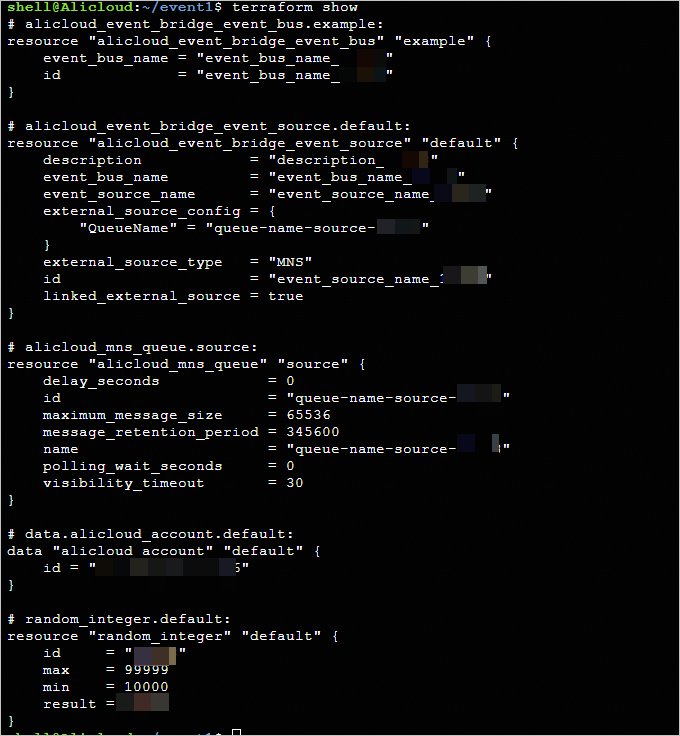
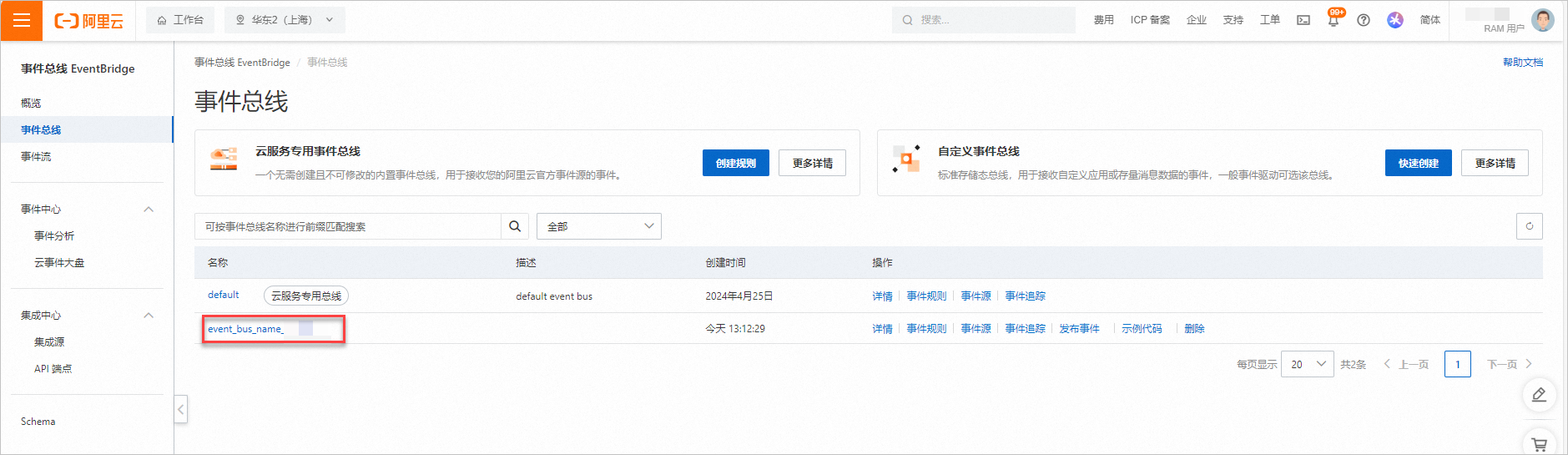
登录控制台查看
登录事件总线 EventBridge控制台,进入页签,左上角选择地区,此例中选择华东2 (上海),查看已创建的事件总线。
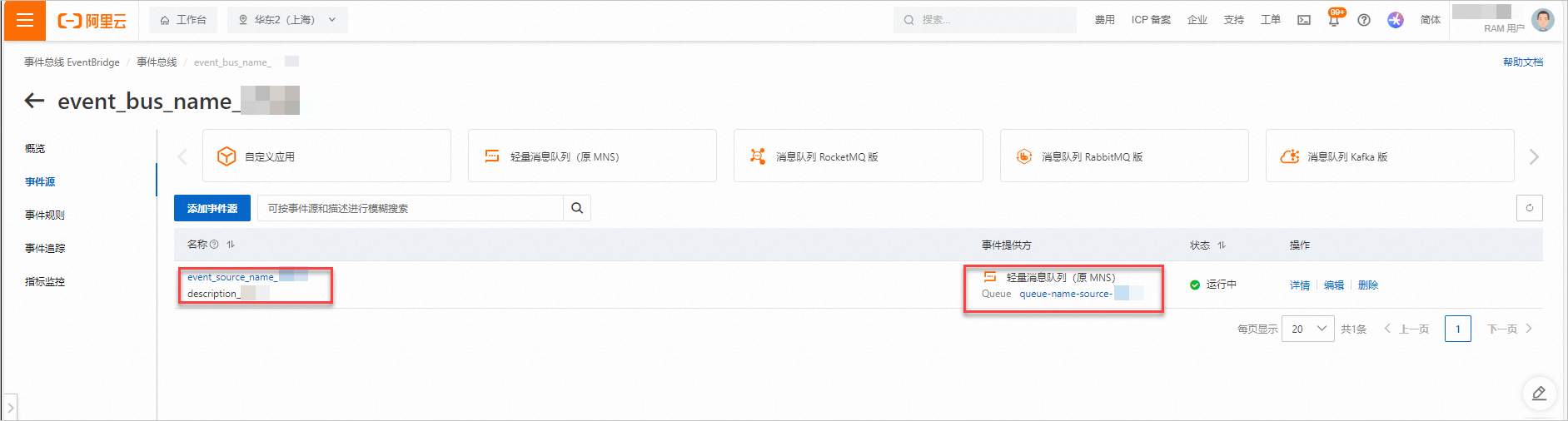
单击事件总线名称,进入事件总线详情界面,单击,查看已创建的事件源。
步骤二:创建连接配置与API 端点
在
main.tf文件中增加如下代码。# 连接配置 resource "alicloud_event_bridge_connection" "defaultConnection" { connection_name = "connection_name_${random_integer.default.result}" description = "description_alicloud_event_bridge_connection_${random_integer.default.result}" network_parameters { network_type = "PublicNetwork" } auth_parameters { authorization_type = "API_KEY_AUTH" api_key_auth_parameters { api_key_name = var.api_key_name api_key_value = var.api_key_value } } } # API端点 resource "alicloud_event_bridge_api_destination" "default" { description = "description_alicloud_event_bridge_api_destinationn_${random_integer.default.result}" http_api_parameters { endpoint = var.endpoint method = "POST" } api_destination_name = "api_destination_name_${random_integer.default.result}" connection_name = alicloud_event_bridge_connection.defaultConnection.connection_name }创建执行计划,并预览变更。
terraform plan执行如下命令,开始执行代码。
terraform apply在执行过程中,根据提示输入
yes并按下Enter键,等待命令执行完成,若出现以下信息,则表示代码执行成功。Apply complete! Resources: 2 added, 0 changed, 0 destroyed.验证结果。
执行terraform show命令
您可以在工作目录中,使用以下命令查询Terraform已创建资源的详细信息:
terraform show
登录控制台查看
登录事件总线 EventBridge控制台,进入页面,左上角选择地区,此例中选择华东2 (上海),进入连接配置页签,查看已创建的连接配置。
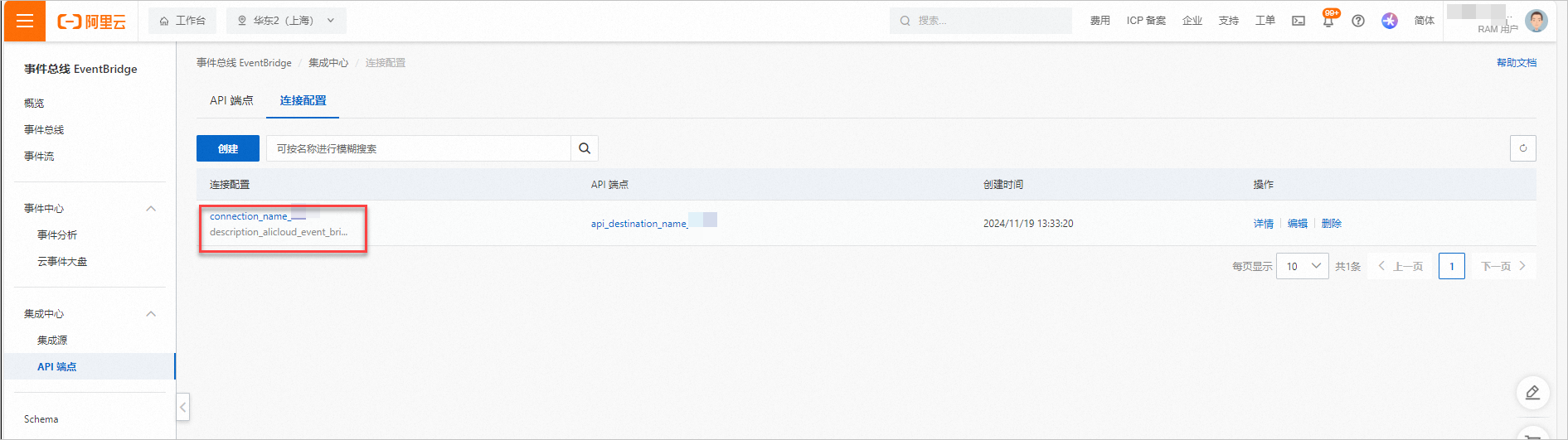
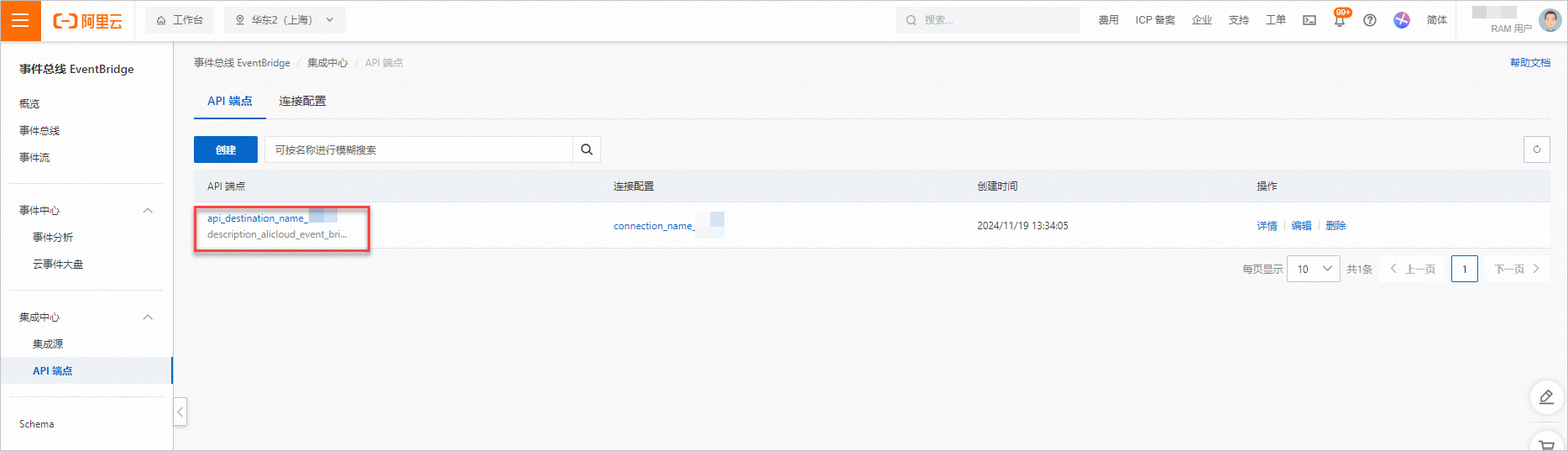
进入API 端点页签,查看已创建的API 端点。
步骤三:创建事件规则
在
main.tf文件中增加如下代码。# 事件规则 resource "alicloud_event_bridge_rule" "default" { event_bus_name = alicloud_event_bridge_event_bus.example.event_bus_name rule_name = "rule_name_${random_integer.default.result}" description = "description_${random_integer.default.result}" filter_pattern = "{\n \"source\": [\n \"tf-test-api-key\"\n ]\n}" targets { target_id = "tf_example_${random_integer.default.result}" endpoint = "acs:api-destination:${var.region}:${data.alicloud_account.default.id}:name/${alicloud_event_bridge_api_destination.default.api_destination_name}" type = "acs.api.destination" param_list { resource_key = "Name" form = "CONSTANT" value = "terraform-api_destination-name-api-key" } param_list { resource_key = "QueryStringParameters" form = "TEMPLATE" value = "{\"queryKey1\":\"id\",\"queryValue1\":\"$.data.name\"}" # ${}用于声明EventBridge中的变量,$${}用于在Terraform文件中声明变量。 template = "{\"$${queryKey1}\":\"$${queryValue1}\"}" } } }创建执行计划,并预览变更。
terraform plan执行如下命令,开始执行代码。
terraform apply在执行过程中,根据提示输入
yes并按下Enter键,等待命令执行完成,若出现以下信息,则表示代码执行成功。Apply complete! Resources: 1 added, 0 changed, 0 destroyed.验证结果。
执行terraform show命令
您可以在工作目录中,使用以下命令查询Terraform已创建资源的详细信息:
terraform show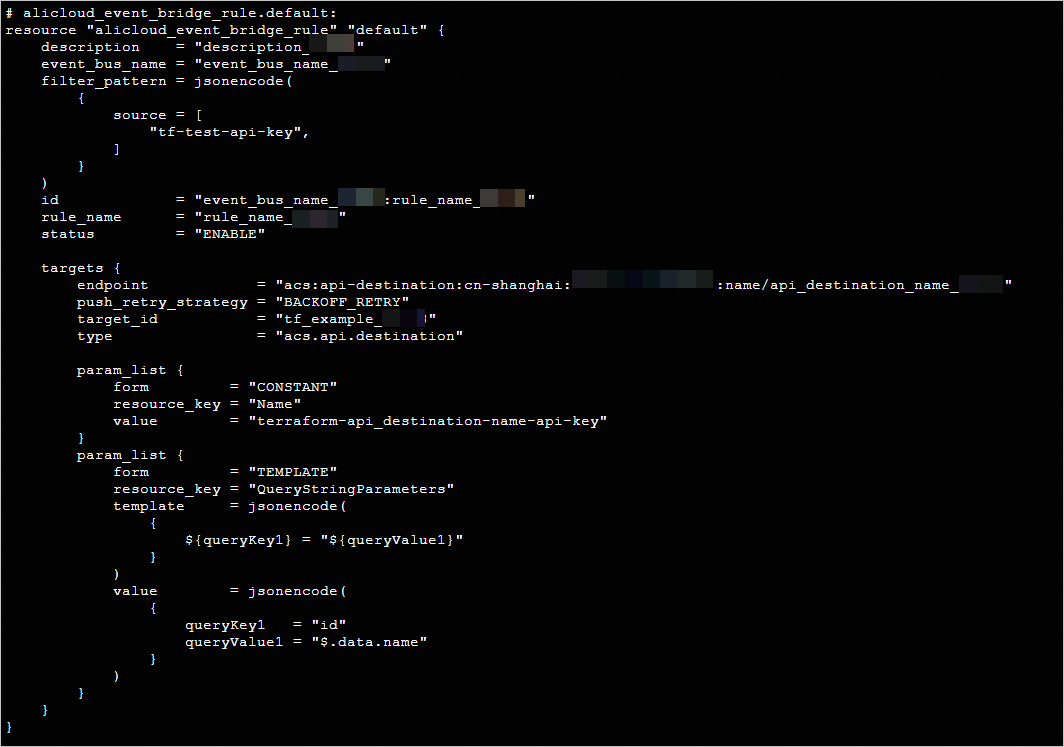
登录控制台查看
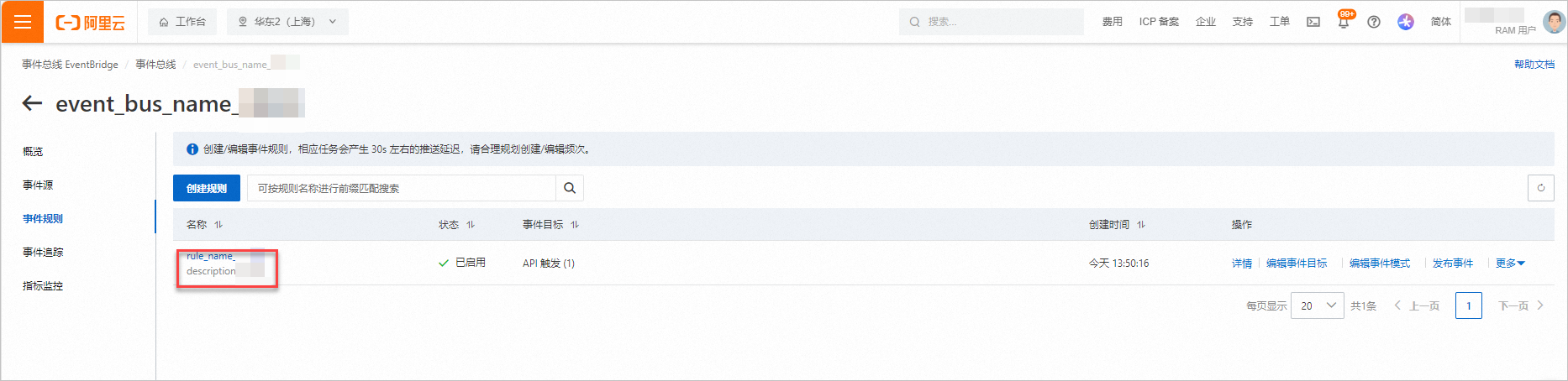
登录事件总线 EventBridge控制台,进入页签,左上角选择地区,此例中选择华东2 (上海),单击已创建事件总线操作列的事件规则,查看已创建的事件规则。
清理资源
当您不再需要上述通过Terraform创建或管理的资源时,请运行以下命令以释放资源。关于terraform destroy的更多信息,请参见Terraform常用命令。
terraform destroy完整示例
本教程所含示例代码支持一键运行,您可以直接运行代码。一键运行
示例代码
如果您想体验更多完整示例,请前往更多完整示例中对应产品的文件夹查看。