Use cases for Strategy Lab : Strategy Lab propose des fonctionnalités telles que la simulation de stratégie et la recommandation de variables. Utilisez-les pour améliorer les performances de vos politiques.
1) Strategy simulation : la simulation de stratégie rejoue les événements historiques avec vos dernières politiques. Évaluez ainsi comment vos politiques mises à jour auraient géré des incidents passés, tels que des risques non détectés ou des faux positifs.
Pour créer une tâche de simulation, sélectionnez une fenêtre temporelle d’événements et les politiques à simuler. Le système met la tâche en file d’attente et lance le calcul. La durée d’exécution dépend du volume d’événements : plus l’ensemble de données est volumineux, plus le traitement est long. En général, une tâche portant sur un maximum de 10 000 enregistrements d’événements s’achève en moins d’une heure. Si les politiques simulées utilisent des variables payantes, des frais peuvent être facturés selon l’utilisation. Le système fournit une estimation maximale de l’utilisation basée sur le nombre d’événements. L’utilisation réelle est souvent inférieure à cette estimation en raison de la logique des arbres de décision.
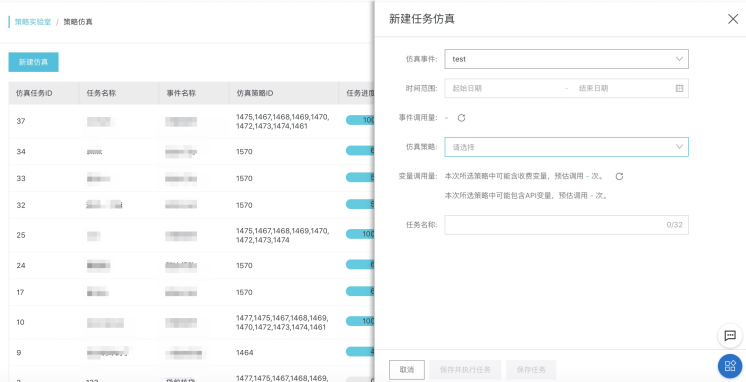
Une fois la simulation terminée, le système écrit les journaux de résultats dans votre projet Log Service (SLS). Outre les rapports de comparaison intégrés, utilisez SLS pour analyser les journaux selon vos besoins.
2) Variable recommendation : la recommandation de variables effectue automatiquement l’apprentissage par échantillonnage, l’entraînement du modèle, la sélection des variables et la génération intelligente de politiques à partir de n’importe quel échantillon de risque et du scénario de risque sélectionné. Elle propose des recommandations de politiques de contrôle des risques comparables aux modèles personnalisés, explicables et faciles à maintenir, sans nécessiter d’investissement dans le développement de modèles.
My Samples : téléchargez des jeux de données d’échantillons sur cette page. Les fichiers d’échantillons sont stockés dans les ressources Object Storage Service (OSS) de votre compte, ce qui peut engendrer des frais OSS. Pour plus d’informations, consultez la tarification OSS. La qualité de vos échantillons influence directement les performances de l’entraînement du modèle et des recommandations. Utilisez une taille d’échantillon supérieure à 2 000 enregistrements. Un bon point de départ pour le ratio entre échantillons risqués et non risqués est de 1:2, mais vous pouvez également ajuster la composition de l’échantillon en fonction du taux de risque réel de votre activité.
Dans la boîte de dialogue Create Sample, configurez les paramètres suivants : Risk scenario (par exemple, prévention des faux comptes), Encrypted sample (indiquez si l’échantillon doit être chiffré ; cliquez sur Click to view encrypted file instructions pour plus de détails), Sample upload (cliquez sur Upload File pour importer un fichier, ou téléchargez un modèle d’échantillon correspondant au scénario de risque), Risk tag value, Name (jusqu’à 32 caractères) et Notes (jusqu’à 64 caractères).
Après avoir créé l’échantillon, créez une tâche de recommandation. Sélectionnez les variables de risque pertinentes, choisissez les métriques de performance à suivre et définissez un nom pour la tâche. Le système lance alors le calcul de la tâche de recommandation. Ce processus peut prendre de quelques minutes à plusieurs heures, selon le nombre d’échantillons et de variables.
Dans la fenêtre contextuelle New Recommendation Task, les options disponibles pour Performance metric incluent accuracy, recall, risk differentiation, pass rate et risk rate. La fenêtre comprend également le champ Estimated variable consumption, qui affiche le nombre estimé d’appels pour les variables payantes sélectionnées.
Pendant l’exécution de la tâche, consultez ses détails pour vérifier les résultats intermédiaires. Examinez la valeur informative (IV) des variables ainsi que les détails et les métriques de performance des politiques recommandées par le système. Si une politique répond à vos attentes, sélectionnez Add to candidate policies. Vous pouvez ajouter plusieurs politiques.
La page de détails de la tâche de recommandation contient une section Task summary et deux étapes principales. L’étape 1, Calculation completed, indique que le système a terminé les calculs par lots sur votre échantillon et les variables sélectionnées afin de trouver les combinaisons optimales de variables et les seuils appropriés. L’étape 2, Policy performance filtering, présente un tableau des politiques recommandées. Ce tableau comprend les colonnes No., Policy condition, Hits, Misses, Accuracy, Recall, Risk differentiation et Operations. Depuis la colonne Operations, ajoutez une politique à vos politiques candidates.
Déployez une politique candidate sélectionnée vers un événement spécifique. Si certains paramètres d’entrée requis par les variables de la politique sont absents de l’événement d’origine, le système les ajoute automatiquement. Lorsque vous transmettez des paramètres via l’API, assurez-vous de fournir des valeurs pour ces paramètres ajoutés. Par mesure de sécurité opérationnelle, les politiques créées par le système sont par défaut à l’état draft, avec une sortie de tag par défaut définie sur test. Modifiez ces paramètres sur la page de détails de la politique pour les adapter à vos besoins métier.
Dans la liste des politiques candidates, sélectionnez la politique cible et cliquez sur Create to event. Dans la boîte de dialogue qui s’affiche, sélectionnez le Event name cible, confirmez les paramètres d’entrée ajoutés automatiquement, puis cliquez sur OK pour finaliser le déploiement.
3) Risk tagging : pour les scénarios de risque impliquant de grands groupes d’entités regroupées en clusters, la fonctionnalité Risk Tagging utilise le calcul graphique et des algorithmes pour cartographier les relations communautaires. Utilisez les tags de risque issus des retours clients pour analyser ces communautés et déterminer la concentration des risques au sein d’un groupe. Intégrez ensuite ces informations aux modèles de politique pour améliorer la précision de la détection des risques. Sur la page Risk Tagging, consultez la liste des échantillons tagués. La liste comprend les colonnes Sample type, Sample et Tag, et prend en charge les opérations Batch edit tags et Batch delete. Cliquez sur le bouton Risk Tagging. Dans la boîte de dialogue qui s’affiche, sélectionnez un Sample type, choisissez un tag (les options incluent fraude marketing, inscription indésirable, commandes malveillantes, vol de compte, messages indésirables, violations, jeu et fraude, collecte de fonds illégale, etc.) et définissez la Import method (prend en charge la saisie de texte ou l’importation de fichier ; vous pouvez télécharger des exemples de fichiers TXT ou Excel). Après avoir saisi les informations de l’échantillon, cliquez sur OK pour appliquer les tags. Le système utilise ensuite ces tags pour analyser le risque communautaire. Ce processus fournit une variable de concentration du risque communautaire que vous pouvez utiliser pour configurer des politiques de contrôle des risques.