Meta Agent for Data Management Service (DMS) is an enterprise-grade data management agent powered by a large language model. Through automated asset inventory and natural language interaction, Meta Agent transforms complex data assets into easy-to-understand business knowledge. It allows users to securely and efficiently find, understand, and use data as if they were talking to an expert. Meta Agent has two core capabilities:
-
asset inventory: The agent automatically scans and parses metadata to generate key knowledge, such as business descriptions for tables and fields, SQL comments, usage guides, and a business catalog. This knowledge provides the foundation for precise AI services.
-
In Asset Q&A, users can use natural language in Data Copilot for interactive data services, including asset search, data analysis, and usage recommendations.
Use cases
Meta Agent offers a Database Edition and a Data Lakehouse Edition to address the challenges of different roles:
|
User role |
Challenge |
Meta Agent solution |
|
database administrator |
Spends significant time answering repetitive questions about database schemas and usage standards. |
Automates the inventory and management of database knowledge, freeing DBAs from repetitive Q&A to focus on higher-value management tasks. |
|
Database/Application developer |
Frequently needs to look up table information, write complex SQL queries, and understand business logic. |
Enables direct interaction with databases in Data Copilot to quickly get table descriptions, generate SQL, analyze errors, and interpret standards, significantly improving development efficiency. |
|
Data platform/Data lakehouse manager |
Finds it difficult to uniformly inventory, describe, and govern large-scale, multi-model data assets. |
Automatically inventories all data assets and generates a business catalog, business descriptions, and metric definitions to significantly reduce data governance costs. |
|
data analyst/data consumer |
Struggles with finding, understanding, and using data, leading to low data utilization efficiency. |
Enables secure interaction with data using natural language to easily find, query, and use it, lowering the barrier to data consumption. |
Choose an edition
Meta Agent offers two editions for different use cases. Use the following table to select the edition that best suits your needs.
|
Dimension |
Meta Agent Database Edition |
Meta Agent Data Lakehouse Edition |
|
Core purpose |
An intelligent agent for database development and management. |
An intelligent agent for enterprise-wide data asset management and consumption. |
|
Use cases |
Reduces database management costs and improves development efficiency and stability. |
Reduces data asset governance costs and improves the efficiency of finding, querying, and using data. |
|
Target users |
DBAs, database developers, and application developers. |
Data lakehouse managers, data engineers, data analysts, and data consumers. |
|
Key feature differences |
Focuses on generating descriptions and usage guides for databases, tables, and fields, along with development-oriented Q&A. |
Focuses on a deep inventory of all assets and adds support for generating advanced knowledge such as business terms, and metric definitions. |
The following table provides a detailed feature comparison.
|
Module |
Feature |
Database Edition |
Data Lakehouse Edition |
|
Data source |
Cross-cloud, multi-model data sources |
|
Supported data lakehouses include: AnalyticDB for MySQL, AnalyticDB for PostgreSQL, SelectDB, StarRocks, ClickHouse, MaxCompute, and DWS |
|
Asset Map |
asset search |
✅ |
✅ |
|
business catalog |
✅ |
✅ |
|
|
asset details |
Does not support usage guides, or data quality |
✅ |
|
|
Asset inventory |
Documentation import |
✅ |
✅ |
|
Data sampling |
✅ |
✅ |
|
|
Code parsing |
✅ |
✅ |
|
|
business term generation |
❌ |
✅ |
|
|
metric definition generation |
❌ |
✅ |
|
|
Usage guide generation |
❌ |
✅ |
|
|
Catalog generation |
✅ |
✅ |
|
|
Asset Q&A |
Data Copilot Q&A |
✅ |
✅ |
To ensure the quality and timeliness of the asset inventory, Meta Agent runs a background task that regularly scans and analyzes your metadata and sample data. This task uses a state-of-the-art (SOTA) model to generate knowledge. The cost of all token consumption is included in your Meta Agent service package. The approximate token usage for these background tasks is as follows:
-
Database Edition: Each managed instance uses a minimum of 8 million SOTA model tokens per day for asset inventory and summarization. If you have a large number of data assets, the daily token limit is capped at 16 million.
-
Data Lakehouse Edition: For every 1,000 managed tables, the service consumes a minimum of 200 million SOTA model tokens per day for asset inventory and summarization. If you have a large amount of metadata, the daily token consumption is capped at 400 million.
Key benefits
-
Comprehensive service
Meta Agent provides an end-to-end service, from asset inventory and knowledge generation to natural language interaction. It covers the core data journey: management, discovery, querying, and usage. -
Intelligent and accurate answers
The agent deeply understands the business knowledge generated during the inventory process, allowing it to provide accurate answers that align with enterprise business logic. The knowledge base also continuously improves based on user feedback. -
Scalable ecosystem
You can expose the agent's capabilities (via API/MCP) and its generated knowledge to other platforms or AI applications for integration, enabling you to create a scalable, intelligent ecosystem. -
Secure access
All Q&A interactions strictly adhere to the data permission system configured in DMS. This ensures data security and compliance while providing a convenient user experience.
Limitations
-
Supported regions: China (Hangzhou), China (Shanghai), China (Shenzhen), China (Chengdu), China (Beijing), China (Zhangjiakou), Singapore, and Malaysia (Kuala Lumpur).
-
Supported data sources:
-
MySQL: RDS MySQL, PolarDB MySQL Edition, and other MySQL sources.
-
PostgreSQL: RDS PostgreSQL, PolarDB PostgreSQL Edition, and other PostgreSQL sources.
-
SQL Server: RDS SQL Server and other SQL Server sources.
-
Data lakehouses: AnalyticDB for MySQL, AnalyticDB for PostgreSQL, SelectDB, StarRocks, ClickHouse, MaxCompute, and DWS.
-
-
You must enter the information for the instances you want to inventory into DMS. For more information, see cloud database instance entry and third-party cloud/self-managed database entry.
-
When you add a database instance, you must enable security hosting for the instance.
-
The database account you use must have query permissions on the target database. For more information about how to view permissions, see View my permissions.
Asset inventory
Log in to DMS 5.0.
From the top menu bar, select Data Assets > Asset Map, or in Simplified Mode, click the
 icon in the upper-left corner and select All Features > Data Assets > Asset Map.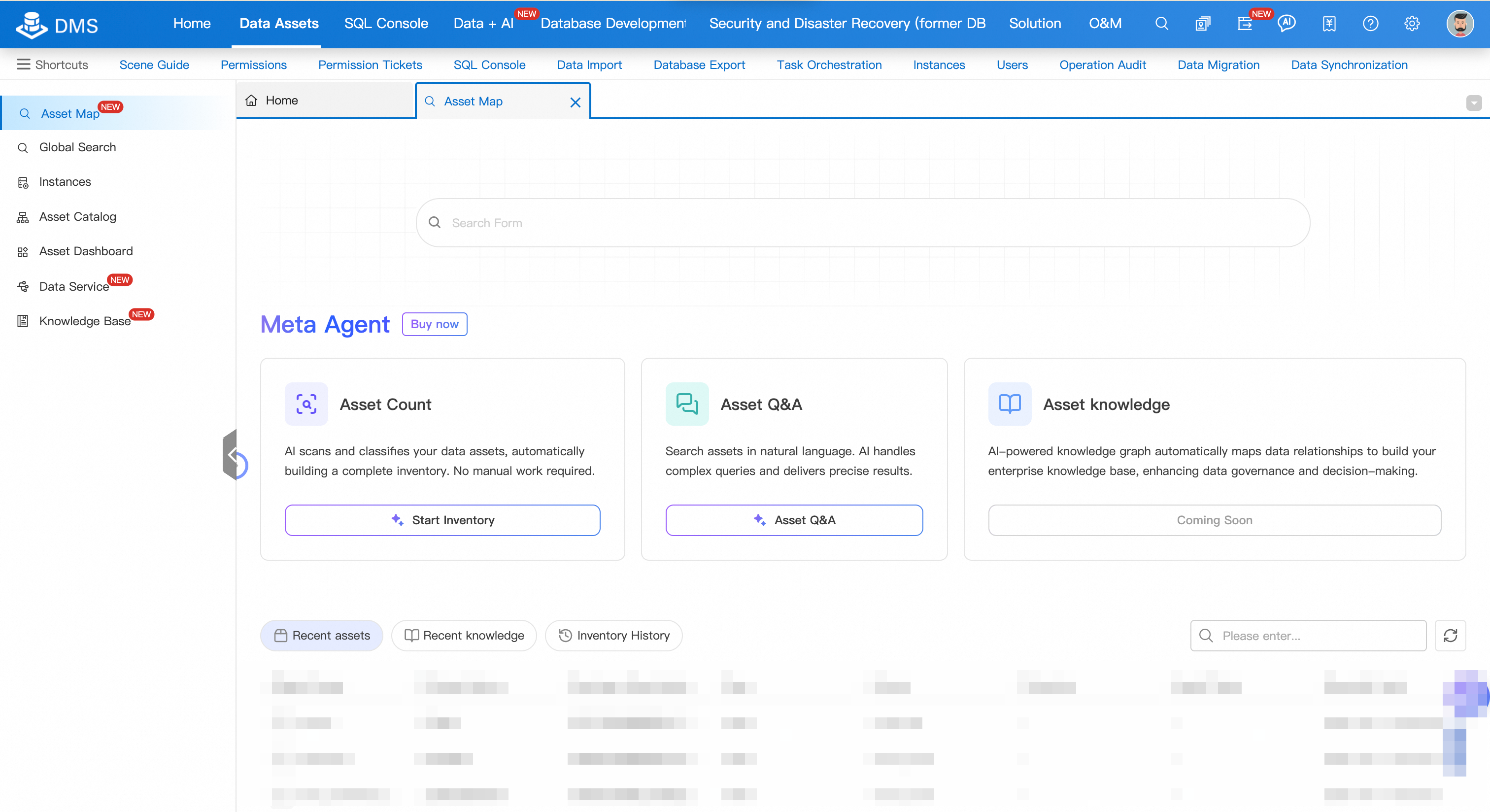
-
(Optional) If you have not purchased Meta Agent, click the Buy Now button. Select the Meta Agent edition and any expansion packs you need.
For Meta Agent edition, choose Database Edition or Data Lakehouse Edition. For Meta Agent expansion, enter the desired quantity.
-
On the page, find the Asset Inventory card and click the Start Inventory button.
-
On the Instance, Database, or Table tab, select the level of granularity for the inventory and then select the target assets.
NoteWe recommend choosing the database or table level for inventory to avoid the process taking too long due to a large number of objects.
-
Click Next Step to configure the inventory.
-
Follow the wizard to complete the inventory configuration.
-
After you confirm the configuration, click the Start Inventory button at the bottom of the page. The system proceeds to the knowledge generation and confirmation stage.
-
After the inventory is complete, you need to review, edit, and adopt the generated Pending Adoption knowledge for it to take effect.
The page displays statistics about the knowledge generated from the inventory, including the quantity and completion progress (100%) of table knowledge, SQL snippets, field knowledge, lineage knowledge, and SQL templates. Each record in the knowledge list includes the knowledge type (such as Table or Field), knowledge title, confidence percentage, and the name of the associated asset.
-
View and edit knowledge
-
Select the target knowledge row and click the Details button.
NoteIf you only need to view the knowledge details without performing any action, you can click Cancel when you are finished.
-
In the dialog box that appears, click the edit icon
 in the Description Comparison or Content Comparison section to make changes.
 -
After you finish editing, click the save icon
 to apply your changes.Note
After the changes are saved, the adoption status automatically changes to Adopted.
-
-
Adopt knowledge
-
Single adoption: Click the Adopt button in the target knowledge row.
-
One-click adoption: Click the One-click Adoption button at the top of the list to adopt all pending knowledge.
-
-
-
View table details.
-
Return to the Asset Map page. In the search box, enter the name of the target table and search.
-
In the search results, click Details to the right of the target table. You can view the table's Basic Information, Properties, Usage Guide, and Knowledge Management. Manage knowledge from the Knowledge Management tab.
The Basic Information tab displays a list of the table's fields, with columns for attributes such as ID, Field Name, Type, Description, Business Description, Auto-increment, Nullable, Heat, and Security Level. At the top of the page, there are buttons for Request Permission, Asset Q&A, Asset Inventory, and Data Query.
-
Asset Q&A
-
Open DMS Data Copilot.
Method 1
-
Go to the Asset Map page. In the Asset Q&A card, click the Asset Q&A button.
-
In the dialog box that appears, select the target database, and then log on to the instance.
-
After you log on, the DMS Data Copilot dialog box appears.
Method 2
-
Go to the DMS homepage.
-
In the left-side navigation pane, double-click the database name of the target database instance.
-
Above the SQL Console tab, click Copilot.
-
-
In the Copilot dialog box, ask questions in natural language. For example:
-
"Find tables related to user information."
-
"What fields are in the orders table?"
-
"What were the total sales last month?"
Copilot provides accurate answers based on the knowledge you have adopted. For more advanced usage, see Data Copilot (New).
-