You can import data into Alibaba Cloud ClickHouse from a MaxCompute external table by using the MaxCompute table engine.
Usage notes
-
Your Alibaba Cloud ClickHouse Community-Compatible Edition cluster must run kernel version 20.3 or later.
-
MaxCompute is a paid service. For billing details, see MaxCompute billing methods.
-
Alibaba Cloud ClickHouse and MaxCompute must be connected through a VPC and deployed in the same region.
Prerequisites
-
MaxCompute is activated. For more information, see Activate MaxCompute.
-
You have created a MaxCompute project in the same region as your Alibaba Cloud ClickHouse cluster. For more information, see Create a MaxCompute project.
-
If a RAM user needs to access MaxCompute, grant the required permissions to the RAM user. For more information, see Prepare a RAM user.
Procedure
-
Create a MaxCompute external table.
-
Log on to the MaxCompute console.
-
In the left-side navigation pane, click .
-
On the Data Development page, hover over the
 icon and choose .
 -
In the Create Table dialog box, enter a value for Table Name. This topic uses
maxcomputeas an example. -
Click New.
-
In the Basic Properties section, configure the parameters.
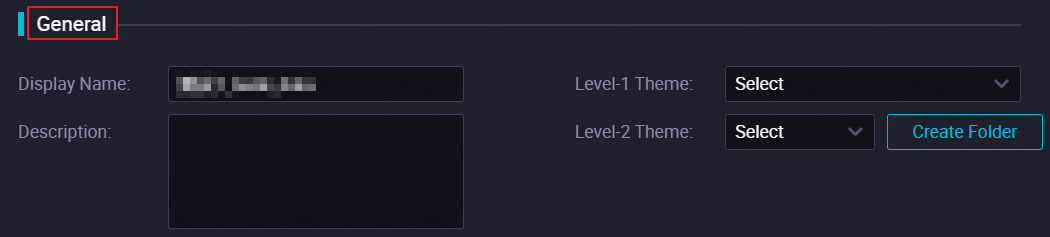
Parameters:
Parameter
Description
Display name
The display name of the table.
Theme
In DataWorks, themes function like folders, allowing you to categorize tables by business purpose. You can define level-1 and level-2 themes to organize tables.
NoteThese themes help you organize and find tables on the Table Management page. If no suitable themes are available, you can create one. For more information, see Define table themes.
-
In the toolbar, click DDL.
-
In the DDL dialog box, enter the following statement and click Generate Table Schema.
CREATE TABLE IF NOT EXISTS maxcompute ( v1 INT, v2 INT ) PARTITIONED BY ( v3 STRING ); -
Click Commit to Development Environment and then Commit to Production Environment.
-
-
Write data to the MaxCompute external table.
-
On the Data Development page, click Ad Hoc Query in the left-side navigation pane.
-
Hover over the
icon and choose . -
In the Create Node dialog box, select a Path and enter a Name.
-
Click Confirm.
-
On the node's editor page, enter the following statement.
insert into maxcompute PARTITION (v3='2021') values (1,2),(2,3); -
Click the
 Run icon in the toolbar.
 -
In the Parameter dialog box, select Shared Resource Groups for Scheduling, and click OK.
-
In the MaxCompute calculation cost estimate dialog box, confirm the Estimated cost and click Run.
-
-
Create an Alibaba Cloud ClickHouse table.
-
Log on to the Alibaba Cloud ClickHouse console.
-
On the Clusters page, click the ID of the target cluster.
-
In the upper-right corner, click Log On to Database.
-
Enter the table creation statement and click Execute(F8).
Syntax:
CREATE TABLE <table_name> [on cluster default] ( 'col_name1' col_type1, 'col_name2' col_type2, ... ) ENGINE = MaxCompute('<tunnel-endpoint>', '<project-name>', '<table-name>', '<partition-spec>', '<access-key-id>', '<access-key-secret>', <read-thread-num>, '<quota>');NoteIf you use the MaxComputeRaw table engine, replace
tunnel-endpointwithodps-endpointin the syntax. The odps-endpoint parameter specifies the endpoint of the VPC. To view the VPC endpoint, see Endpoints.Parameters:
Parameter
Description
table_nameThe name of the table.
col_name1,col_name2The names of the columns.
col_type1,col_type2The data types of the columns.
NoteThe data types of the columns in the Alibaba Cloud ClickHouse table must map to the data types in the MaxCompute table. For more information, see Data type mappings.
tunnel-endpointThe endpoint of the Tunnel service.
Alibaba Cloud ClickHouse and MaxCompute must communicate through a VPC in the same region.
NoteTo view the
tunnel-endpointfor a VPC, see Endpoints.project-nameThe name of the MaxCompute project.
table-nameThe name of the MaxCompute external table.
partition-specThe partition of the MaxCompute table.
access-key-idThe AccessKey ID used to access the MaxCompute project.
access-key-secretThe AccessKey Secret used to access the MaxCompute project.
read-thread-num(Optional)The number of concurrent threads for reading a single shard of the MaxCompute table. Default value: 1.
quota(Optional)The computing resource unit in MaxCompute. By default, a shared quota is used.
Example statement:
CREATE TABLE default.maxcomputetest ON CLUSTER default (
v1 Int32,
v2 Int32
) ENGINE = MaxCompute('http://dt.cn-hangzh******.aliyun-inc.com', 'ckfwt', 'maxcompute', 'v3=2021', 'LTAI****************', 'yourAccessKeySecret');
-
-
Query the Alibaba Cloud ClickHouse table.
-
Log on to the Alibaba Cloud ClickHouse console.
-
On the Clusters page, click the ID of the target cluster.
-
In the upper-right corner, click Log On to Database.
-
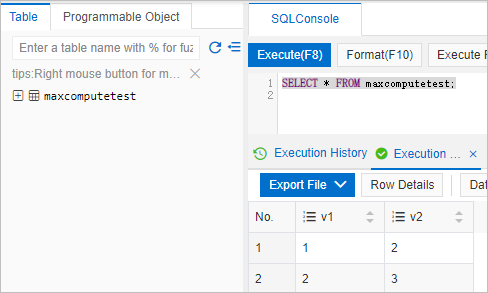
Enter a query statement and click Execute(F8).
SELECT * FROM maxcomputetest;Sample query result:
-
Data type mappings
|
MaxCompute type |
ClickHouse type |
|
Boolean |
UInt8 |
|
Tinyint |
UInt8, Int8 |
|
Smallint |
UInt16, Int16 |
|
Int |
UInt32, Int32 |
|
Bigint |
UInt64, Int64 |
|
Float |
Float32 |
|
Double |
Float64 |
|
Char |
String |
|
Varchar |
String |
|
Binary |
String |
|
String |
String |
|
Date |
Date |
|
Datetime |
Datetime |
|
UUID |
Not supported |
|
INTERVAL |
Not supported |
|
Decimal |
String |
|
Timestamp |
Not supported |
|
Map |
For example, Note
The types within the |
|
Array |
For example, Note
The type within the |
|
Struct |
For example, Note
The types within the |