Build Your Own Local Qwen 3 AI with Ollama + Open WebUI (Docker)
In this guide, you'll learn how to install and run the powerful Qwen 3 language model locally using Ollama, and interact with it through a sleek browser-based GUI powered by Open WebUI running in Docker. This setup is ideal for developers, researchers, and AI enthusiasts who want full control over their LLM environment — without relying on the cloud.
🧰 Components Overview
| Tools | Description |
|---|---|
| Qwen 3 | A powerful open-source large language model by Alibaba |
| Ollama | Lightweight runtime to run LLMs locally with GPU/CPU support |
| Docker | Container platform to isolate and run Open WebUI |
| Open WebUI | A modern, chat-style web interface to interact with local LLMs |
🛠️ Step 1: Install Docker (on RHEL 9)
Docker is used to run Open WebUI in an isolated container.
🔧 1.1 Add Docker Repository
sudo dnf config-manager --add-repo https://download.docker.com/linux/rhel/docker-ce.repo🔧 1.2 Install Docker Engine
sudo dnf install -y docker-ce docker-ce-cli containerd.io docker-buildx-plugin docker-compose-plugin🔧 1.3 Start and Enable Docker
sudo systemctl start docker
sudo systemctl enable docker
🔧 1.4 (Optional) Run Docker Without sudo
sudo usermod -aG docker $USER
newgrp docker
✅ 1.5 Test Docker
docker run hello-world🤖 Step 2: Install Ollama and Run Qwen 3
Ollama is a local LLM runtime that simplifies downloading, running, and managing models like Qwen 3.
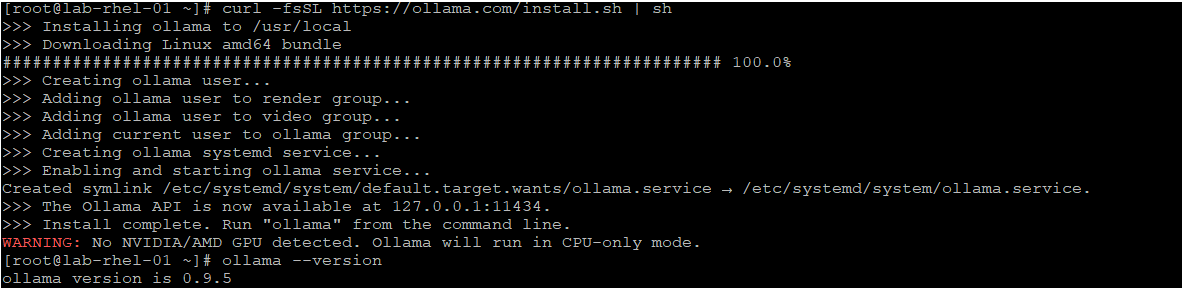
🔧 2.1 Install Ollama
curl -fsSL https://ollama.com/install.sh | sh🔧 2.2 Start the Ollama Service
ollama serveThis runs a local API server on port 11434.
🔧 2.3 Pull and Run Qwen 3
ollama run qwen3This downloads the model and starts a REPL-style chat session.

🌐 Step 3: Configure Ollama to Be Accessible from Docker
By default, Ollama listens only on localhost. We need to make it accessible to Docker containers.
🔧 3.1 Edit Ollama’s systemd Service
sudo systemctl edit ollama
Add this under [Service]:

ini
[Service]
Environment="OLLAMA_HOST=0.0.0.0"
🔧 3.2 Reload and Restart Ollama
sudo systemctl daemon-reexec
sudo systemctl restart ollama
🔧 3.3 Verify It's Listening
ss -tuln | grep 11434You should see it bound to 0.0.0.0:11434.
💬 Step 4: Run Open WebUI in Docker
Open WebUI provides a clean, chat-style interface to interact with Qwen 3.
🔧 4.1 Stop Any Existing Container (if needed)
docker stop open-webui
docker rm open-webui
🔧 4.2 Run Open WebUI with Ollama Connection
Replace with your actual IP address:
docker run -d -p 3000:8080 \
 -e OLLAMA_BASE_URL=http://<your-server-ip>:11434 \
 --name open-webui \
 --restart always \
 -v open-webui:/app/backend/data \
 ghcr.io/open-webui/open-webui:main
🔧 4.3 Access the GUI
Open your browser and go to:
🧩 Step 5: Add Qwen 3 in the GUI
- Go to the Admin Panel (bottom-left corner)
- Click Connections
- Add a new connection:
Name: Local Ollama
Base URL: http://:11434
API Key: (leave blank or use ollama)
- Save and go back to the chat window
- Select qwen3 from the model dropdown
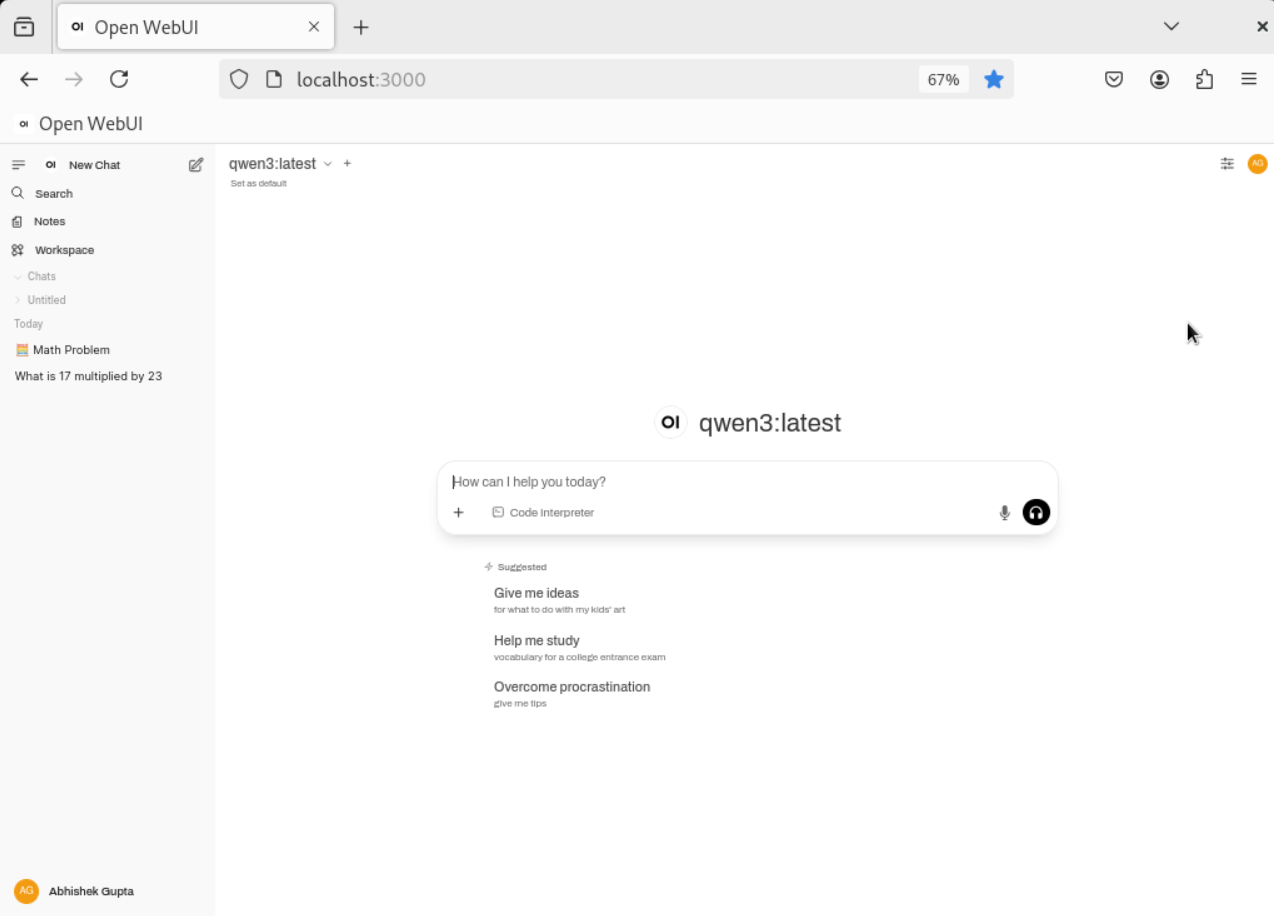
🧪 Step 6: Test Qwen 3
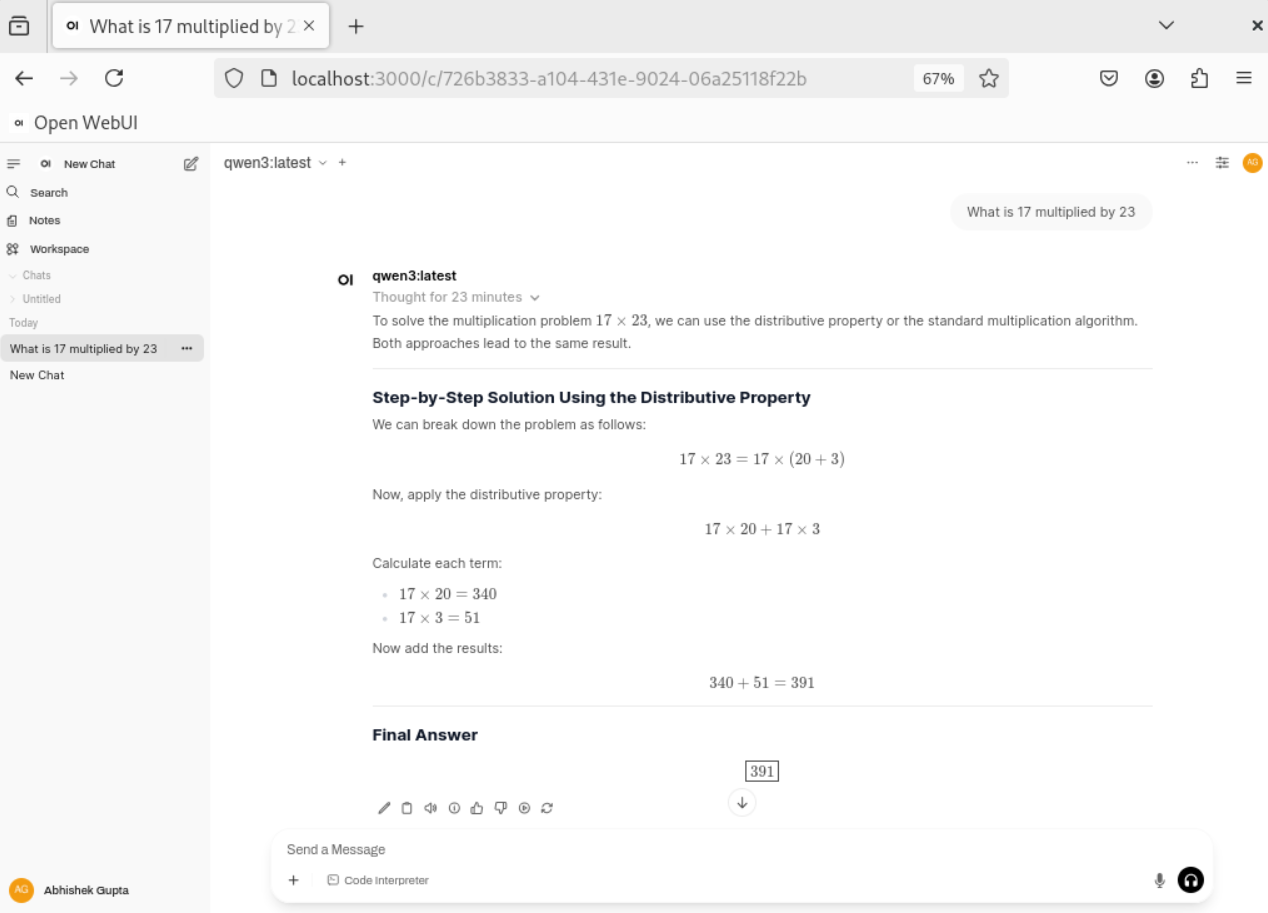
Try a few prompts in the chat:
✅ Basic math:
What is 17 multiplied by 23?
🧠 Technical Background
🔹 Qwen 3
Qwen 3 is a family of open-source LLMs developed by Alibaba. It supports advanced reasoning, multilingual understanding, and code generation. It comes in multiple sizes (0.5B to 72B).
🔹 Ollama
Ollama is a local LLM runtime that simplifies model management. It supports GPU acceleration, streaming responses, and a REST API for integration.
🔹 Docker + Open WebUI
Docker isolates the GUI environment, making it easy to deploy and update. Open WebUI connects to Ollama via HTTP and provides a modern interface for chatting with models.
With this setup, you now have a fully local, private, and powerful AI lab running Qwen 3. You can interact with it via API or GUI, test its capabilities, and even build your own AI-powered tools on top of it.
-

-
Abhishek Gupta
1 posts | 0 followers
Follow
Comments
-
-
Abhishek Gupta
1 posts | 0 followers
Follow
Related Products
-
 Intelligent Robot
A dialogue platform that enables smart dialog (based on natural language processing) through a range of dialogue-enabling clients
Learn More -
 ApsaraVideo Media Processing
Transcode multimedia data into media files in various resolutions, bitrates, and formats that are suitable for playback on PCs, TVs, and mobile devices.
Learn More -
 Realtime Compute for Apache Flink
 offers a highly integrated platform for real-time data processing, which optimizes the computing of Apache Flink.
Learn More -
 MaxCompute
Conduct large-scale data warehousing with MaxCompute
Learn More