In this guide, you'll learn how to install and run the powerful Qwen 3 language model locally using Ollama, and interact with it through a sleek browser-based GUI powered by Open WebUI running in Docker. This setup is ideal for developers, researchers, and AI enthusiasts who want full control over their LLM environment — without relying on the cloud.
🧰 Components Overview
| Tools | Description |
|---|---|
| Qwen 3 | A powerful open-source large language model by Alibaba |
| Ollama | Lightweight runtime to run LLMs locally with GPU/CPU support |
| Docker | Container platform to isolate and run Open WebUI |
| Open WebUI | A modern, chat-style web interface to interact with local LLMs |
🛠️ Step 1: Install Docker (on RHEL 9)
Docker is used to run Open WebUI in an isolated container.
🔧 1.1 Add Docker Repository
sudo dnf config-manager --add-repo https://download.docker.com/linux/rhel/docker-ce.repo🔧 1.2 Install Docker Engine
sudo dnf install -y docker-ce docker-ce-cli containerd.io docker-buildx-plugin docker-compose-plugin🔧 1.3 Start and Enable Docker
sudo systemctl start docker
sudo systemctl enable docker
🔧 1.4 (Optional) Run Docker Without sudo
sudo usermod -aG docker $USER
newgrp docker
✅ 1.5 Test Docker
docker run hello-world🤖 Step 2: Install Ollama and Run Qwen 3
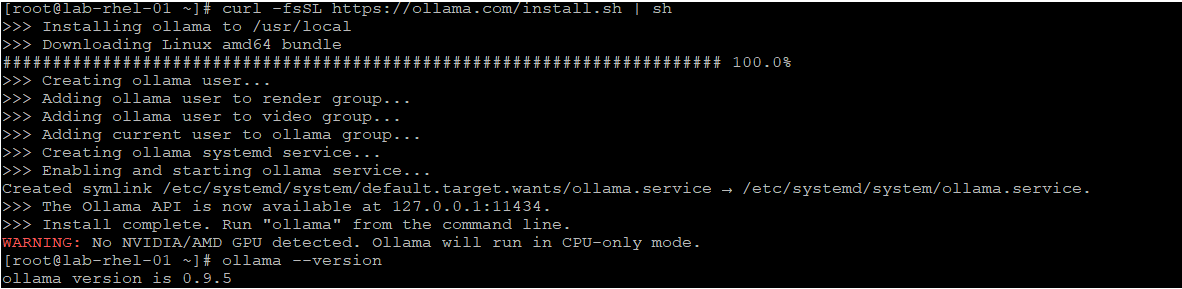
Ollama is a local LLM runtime that simplifies downloading, running, and managing models like Qwen 3.
🔧 2.1 Install Ollama
curl -fsSL https://ollama.com/install.sh | sh🔧 2.2 Start the Ollama Service
ollama serveThis runs a local API server on port 11434.
🔧 2.3 Pull and Run Qwen 3
ollama run qwen3This downloads the model and starts a REPL-style chat session.

🌐 Step 3: Configure Ollama to Be Accessible from Docker
By default, Ollama listens only on localhost. We need to make it accessible to Docker containers.
🔧 3.1 Edit Ollama’s systemd Service
sudo systemctl edit ollama
Add this under [Service]:

ini
[Service]
Environment="OLLAMA_HOST=0.0.0.0"
🔧 3.2 Reload and Restart Ollama
sudo systemctl daemon-reexec
sudo systemctl restart ollama
🔧 3.3 Verify It's Listening
ss -tuln | grep 11434You should see it bound to 0.0.0.0:11434.
💬 Step 4: Run Open WebUI in Docker
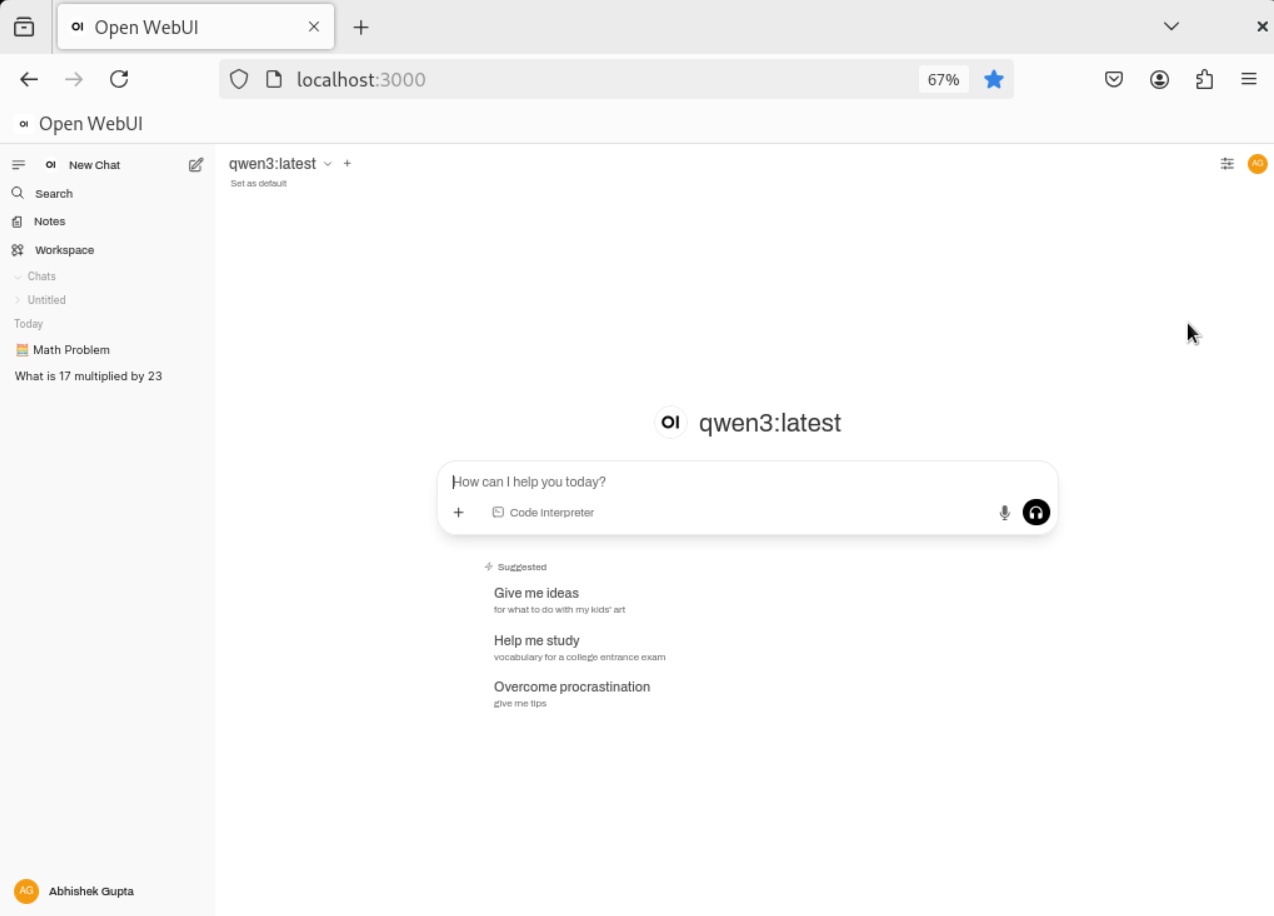
Open WebUI provides a clean, chat-style interface to interact with Qwen 3.
🔧 4.1 Stop Any Existing Container (if needed)
docker stop open-webui
docker rm open-webui
🔧 4.2 Run Open WebUI with Ollama Connection
Replace with your actual IP address:
docker run -d -p 3000:8080 \
 -e OLLAMA_BASE_URL=http://<your-server-ip>:11434 \
 --name open-webui \
 --restart always \
 -v open-webui:/app/backend/data \
 ghcr.io/open-webui/open-webui:main
🔧 4.3 Access the GUI
Open your browser and go to:
🧩 Step 5: Add Qwen 3 in the GUI
Name: Local Ollama
Base URL: http://:11434
API Key: (leave blank or use ollama)
🧪 Step 6: Test Qwen 3
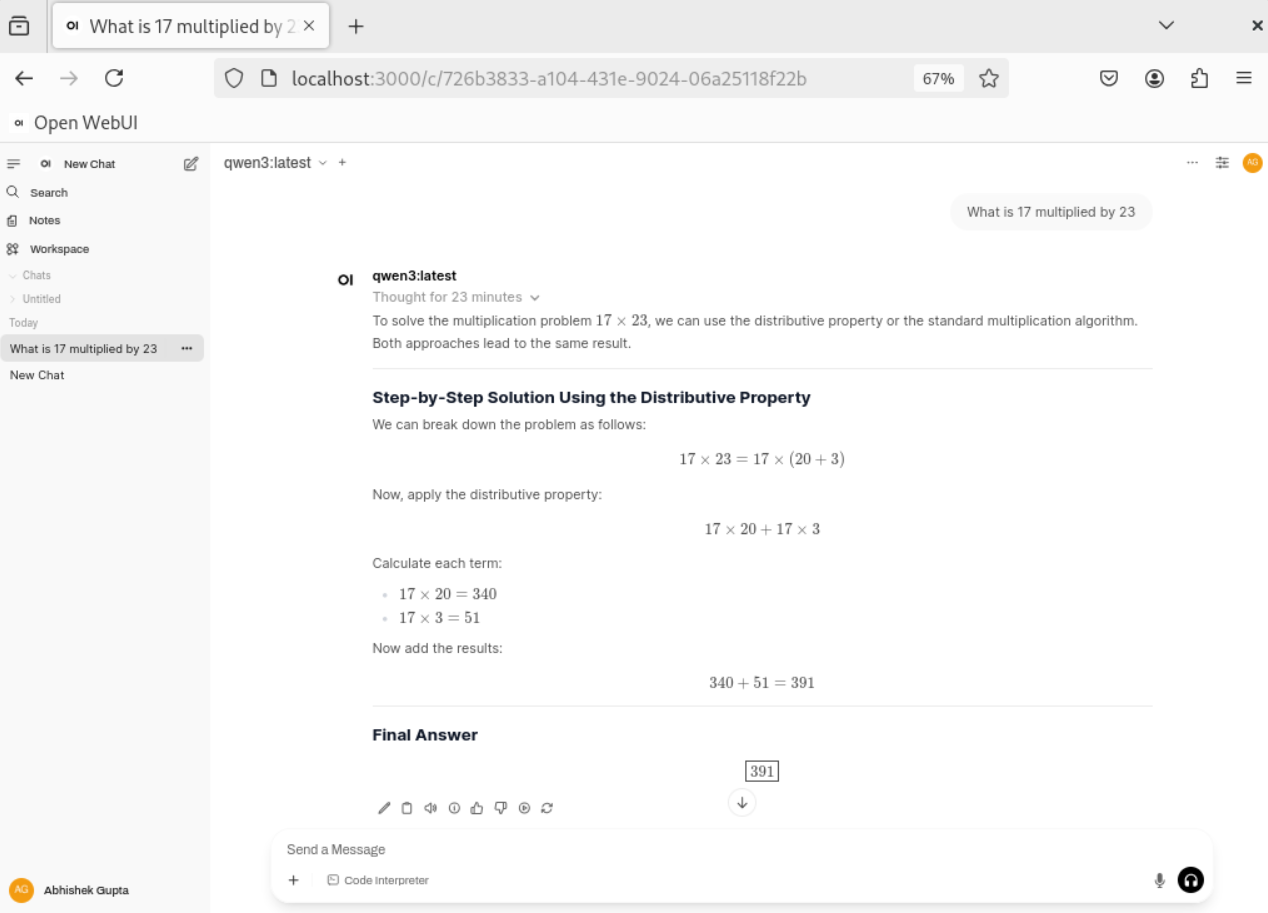
Try a few prompts in the chat:
✅ Basic math:
What is 17 multiplied by 23?
🧠 Technical Background
🔹 Qwen 3
Qwen 3 is a family of open-source LLMs developed by Alibaba. It supports advanced reasoning, multilingual understanding, and code generation. It comes in multiple sizes (0.5B to 72B).
🔹 Ollama
Ollama is a local LLM runtime that simplifies model management. It supports GPU acceleration, streaming responses, and a REST API for integration.
🔹 Docker + Open WebUI
Docker isolates the GUI environment, making it easy to deploy and update. Open WebUI connects to Ollama via HTTP and provides a modern interface for chatting with models.
With this setup, you now have a fully local, private, and powerful AI lab running Qwen 3. You can interact with it via API or GUI, test its capabilities, and even build your own AI-powered tools on top of it.

1 posts | 0 followers
FollowJwdShah - October 15, 2024
Regional Content Hub - October 28, 2024
Regional Content Hub - November 11, 2024
Regional Content Hub - November 4, 2024
Regional Content Hub - November 4, 2024
Regional Content Hub - October 28, 2024
1 posts | 0 followers
Follow Intelligent Robot
A dialogue platform that enables smart dialog (based on natural language processing) through a range of dialogue-enabling clients
Learn More ApsaraVideo Media Processing
Transcode multimedia data into media files in various resolutions, bitrates, and formats that are suitable for playback on PCs, TVs, and mobile devices.
Learn More Realtime Compute for Apache Flink
Realtime Compute for Apache Flink offers a highly integrated platform for real-time data processing, which optimizes the computing of Apache Flink.
Learn More MaxCompute
Conduct large-scale data warehousing with MaxCompute
Learn More
